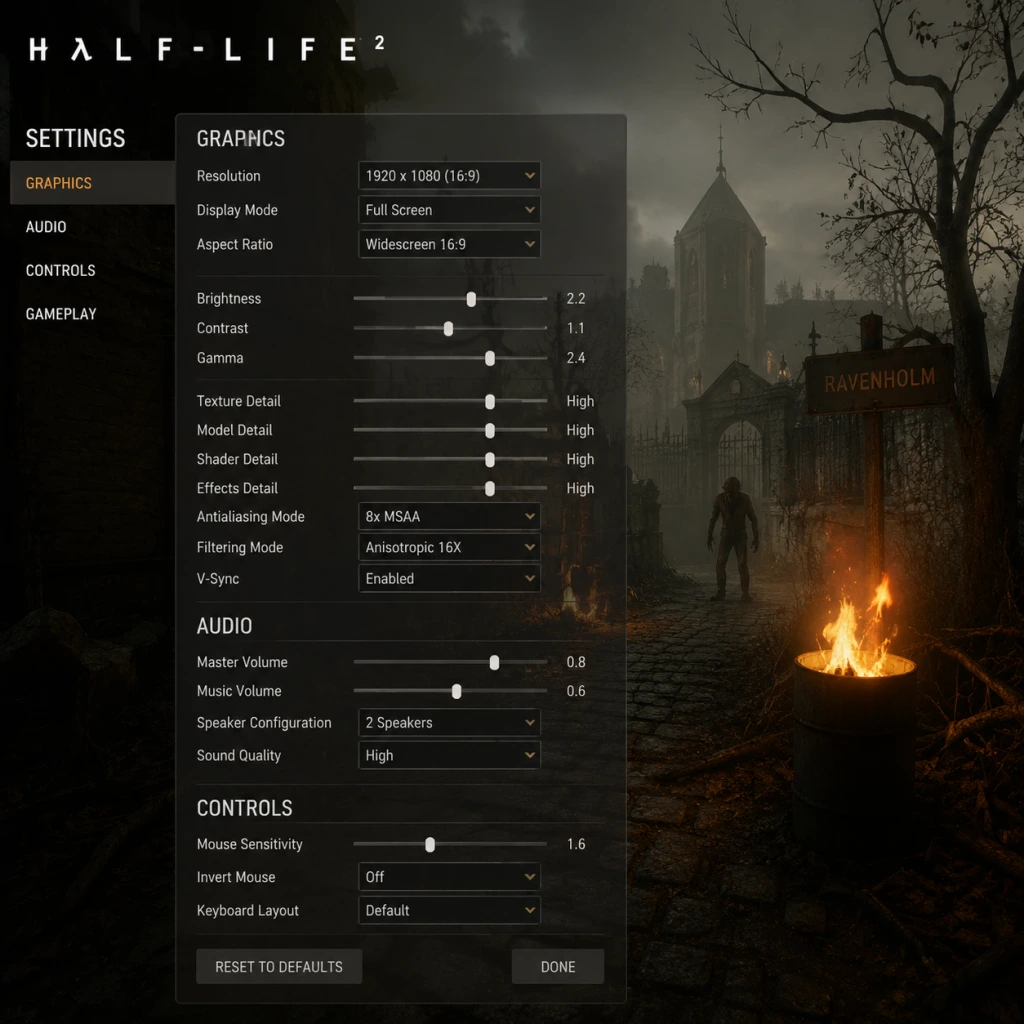
Game Settings
Game Settings Guide for Half-Life 2
This guide covers all settings categories in Half-Life 2: Graphics, Audio, Controls, Accessibility, Language, Network, and Gameplay. It includes optimal configurations for low-end, mid-range, and high-end hardware, plus warnings about settings that are easy to misconfigure.
Graphics Settings
Half-Life 2 uses the Source engine (2004 era), which scales well across hardware. Adjust these in Options > Video.
#### Key Graphics Options
- Resolution: Set to your monitor's native resolution. Lower resolutions (e.g., 1024x768) improve performance but reduce clarity.
- Display Mode: Fullscreen recommended for best performance; Windowed or Borderless for easier alt-tabbing.
- Model Detail: High adds more polygons to characters and objects. Low reduces them, boosting FPS significantly on older GPUs.
- Texture Detail: High uses more VRAM. Low reduces quality but helps on cards with <512 MB VRAM.
- Shader Detail: High enables per-pixel lighting and realistic water reflections. Low makes surfaces flat but greatly improves performance on integrated graphics.
- Shadow Detail: High gives soft, dynamic shadows. Low uses simple blob shadows – big performance gain.
- Antialiasing (AA): 2x, 4x, or off. Off gives most FPS; 2x is a good middle ground. Avoid 8x on low-end hardware.
- Anisotropic Filtering (AF): 2x–16x. Improves texture clarity at angles. 4x is a good balance for mid-range.
- Wait for Vertical Sync (VSync): On prevents screen tearing but caps FPS to monitor refresh rate. Off allows higher FPS but may cause tearing – recommend On if you notice tearing.
- Motion Blur: On/Off. Off improves performance and reduces motion sickness.
- Color Correction: On adjusts color based on map environment. Off gives neutral colors and slight FPS bump.
- Field of View (FOV): Default 75. PC players often increase to 90–110. Not in in-game menu; must be set via console (`fov_desired 90`) or in launch options (`+fov_desired 90`). Be careful – values above 110 can cause fisheye distortion.
#### Optimal Presets by Hardware
| Hardware Level | Example GPU | Resolution | Model Detail | Texture Detail | Shader Detail | Shadow Detail | AA | AF | VSync | Notes |
|---|---|---|---|---|---|---|---|---|---|---|
| Low (integrated) | Intel HD 3000 | 1024x768 | Low | Low | Low | Low | Off | 0x | Off | Expect 30–45 FPS. Turn off motion blur. Reduce resolution further if needed. |
| Mid-range | GTX 1050 / RX 560 | 1920x1080 | High | High | High | Medium | 2x | 4x | Off | Stable 60 FPS. Can enable VSync if no frame drops. |
| High-end | RTX 3060 / RX 6600 | 1920x1080 or higher | High | High | High | High | 4x | 16x | On | Solid 144+ FPS. Enable all eye candy. |
- HDR: Half-Life 2 has an HDR option in some versions (Lost Coast, EP2). If available, set to "Full" or "Bloom" based on preference. Full HDR can dim the image on older monitors – if too dark, switch to Bloom or Off.
- Fast Path: An old option that disables some effects – leave Off.
- Multicore Rendering: Enable for modern CPUs (dual-core+). Disabled by default on old installs; enable it in Advanced Video Options for better CPU utilization.
- Master Volume: 70–80% recommended; avoid 100% to prevent clipping.
- Sound Effect Volume: Keep at 100% to hear combat cues and physics interactions.
- Voice Volume: 100% for character dialogue.
- Music Volume: 50–70% to balance with sound effects – music is good but can mask enemy sounds.
- EAX/Hardware Sound: Off unless you have a dedicated sound card (e.g., Creative X-Fi). Enabling on integrated audio may cause stutter.
- 3D Audio: Off if you experience crackling. On for positional audio with headphones.
- Speaker Configuration: Headphones for best directional audio with stereo headphones. Disable if using surround speakers.
- Key Bindings: Default layout is intuitive: WASD movement, mouse1 shoot, mouse2 zoom/alt-fire, space jump, Ctrl crouch, Shift run. Customize as desired.
- Bind Uncommon Actions: Consider binding "Quick Save" (F6), "Quick Load" (F7), "Flashlight" (F only by default, but rebind to a mouse button for ease).
- Suit Zoom Tier: Bind a key to switch suit zoom levels (num0 default) – useful for long-range aiming.
- Mouse Sensitivity: Start at 3–4 (default is 3). Adjust for your DPI. Lower sensitivity (1–2) gives precision for headshots; higher (5+) for faster turns.
- Invert Mouse: Off for standard up/look up. If you prefer flight sim style, enable.
- Mouse Smoothing: Off – adds input lag. Set to Low or Off for best response.
- Mouse Acceleration: Off – can cause inconsistency. Turn Off in Windows too.
- Joystick/Gamepad: If using controller, enable in Advanced Keyboard options. The game defaults to Xbox 360 layout.
- Subtitles: Enable in Audio > Subtitles. Shows dialogue and sound effects as text. Essential for hearing-impaired players.
- Color Blindness: No native modes. Third-party tools (e.g., reshade) or Windows color filters can help.
- Closed Captions: Not available natively – subtitles are the closest.
- Controller Support: Full remapping possible.
- Text Size: Not adjustable in-game. Use system DPI scaling if needed.
- Quick Save/Load: Frequent saving helps players with short play sessions.
- `cl_showpos 1` – shows position and angle, useful for orientation.
- `hud_fastswitch 1` – allows instant weapon switch without confirming.
- `sv_cheats 1` then `bot_mimic 0` – not needed, but some accessibility mods require cheats.
- Language: Choose from English, French, German, Spanish, etc. Changes dialogue and text.
- Subtitles: Follow language setting; can be set to original audio with translated subtitles.
- Keyboard Layout: Not in-game – change via OS.
- Rate: 30000 (default) for 1 Mbps upload; increase to 100000 if fiber.
- Cl_cmdrate: 66 (default; set to 128 if you have stable connection).
- Cl_updaterate: 66 (default; set to 128).
- Interp: 0.1 (default; lower to 0.01 for less lag compensation, but may cause jitter – recommended 0.025).
- cl_smooth: 1 (smooths interpolation – keep).
- cl_lagcompensation: 1 (keep).
- Net_graph: 1 to display network stats; useful for troubleshooting.
- Low latency (<30ms): cl_cmdrate/updaterate 128, interp 0.01–0.025.
- High latency (>100ms): cl_cmdrate/updaterate 66, interp 0.1 to reduce packet loss.
- Autosave: On – you can disable but not recommended (you lose progress).
- Weapon Auto Switch: When picking up new weapon, auto-equip. On for convenience, Off to keep current weapon.
- Crosshair: Default is default; can change color/size via console (`crosshaircolor`, `crosshairsize`).
- Flashlight: Always on when necessary? No – toggle manually.
- Suit Zoom Level: Controls zoom intensity when using alt-fire of certain weapons. Default 3 levels – adjust to preference.
- Difficulty: Easy, Normal, Hard. Affects enemy health, damage, supplies. Normal recommended for first play.
- Helpful Hints: On – shows tutorial prompts. Off for immersion.
- Launch Options: In Steam > Properties > General, add `-dxlevel 90` for DirectX 9 (default), `-dxlevel 81` for older GPUs (DX8.1 mode), `-high` to give high CPU priority, `-threads X` (X = CPU logical cores) to optimize.
- Config File: Advanced settings can be edited in `.../steamapps/common/Half-Life 2/hl2/cfg/config.cfg`. Backup before editing.
- Can't see options?: If a dropdown shows nothing, verify game files (Steam > Properties > Local Files > Verify Integrity of Game Files).
Audio Settings
Options > Audio.
#### Special Attention: EAX
Enabling Hardware Acceleration or EAX can cause crashes or no sound on modern systems. Always set to Software mode unless troubleshooting.
Controls Settings
Options > Keyboard/Mouse.
#### Keyboard
#### Mouse
#### Special Attention: Mouse Smoothing & Acceleration
These options are off by default but some players accidentally enable them. They break muscle memory – always disable.
Accessibility Settings
Half-Life 2 has limited built-in accessibility options. Options are in the menu under Accessibility or via console.
#### Console Commands for Accessibility
Open console (~) and type:
Language Settings
Set in Steam properties or in-game Options > Audio > Language.
#### Special Attention: Missing Languages
Some languages (e.g., Polish, Russian) may require separate audio packs or a different game version. Verify via Steam before starting.
Network Settings (Multiplayer)
Half-Life 2's multiplayer (HL2: DM, Synergy) uses Source engine net settings.
#### Optimal for Low vs High Latency
Gameplay Settings
Options > Gameplay.
#### Special Attention: Weapon Auto Switch
Some players dislike auto-switching (e.g., when you pick up a weaker weapon). Turn Off if you want to manually choose.