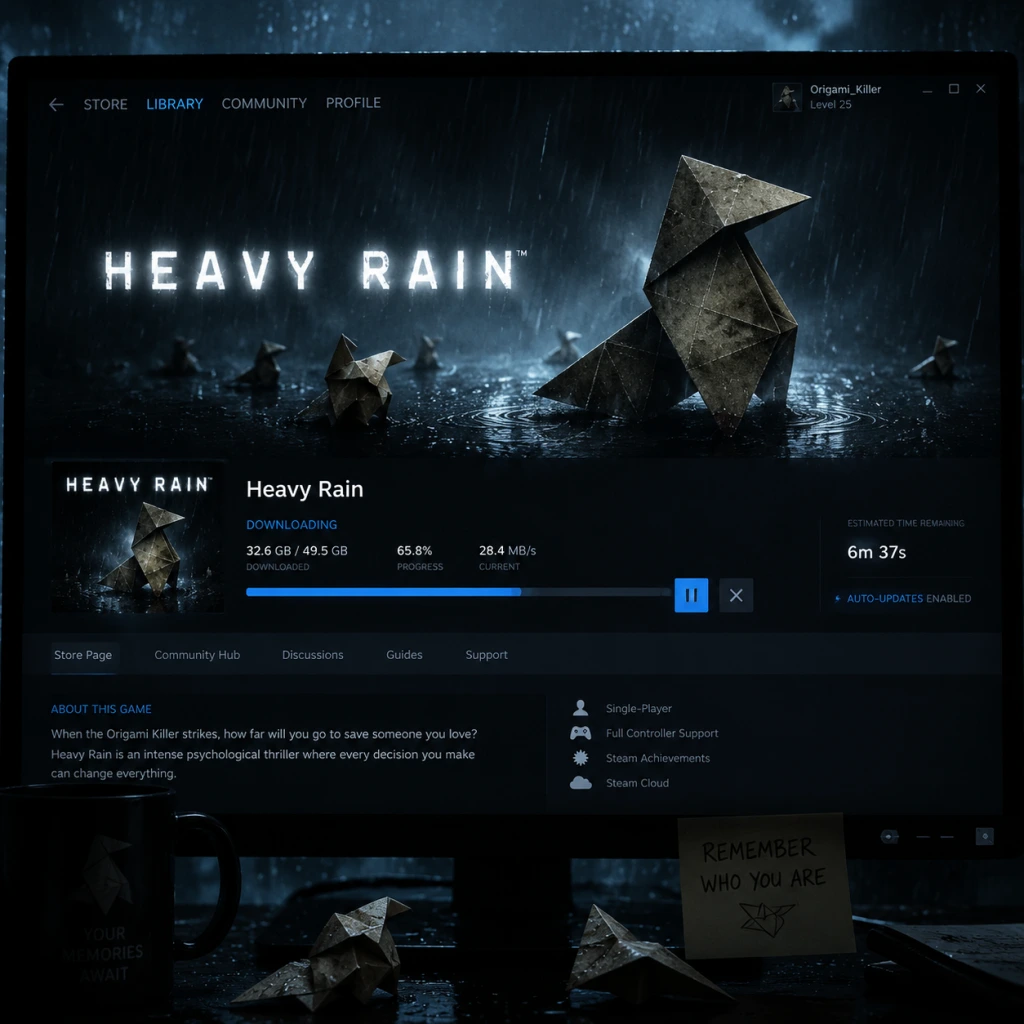
Download & Installation
Download & Installation Guide for Heavy Rain
This guide covers all official platforms where Heavy Rain is available. The game is not released on Xbox, Nintendo Switch, or mobile devices.
Platform Availability
- PC: Steam (https://store.steampowered.com/app/96000/Heavy_Rain/), Epic Games Store (https://store.epicgames.com/en-US/p/heavy-rain)
- PlayStation 4 & PlayStation 5 (backward compatible): PlayStation Store (https://store.playstation.com/en-us/product/UP9000-CUSA06324_00-HEAVYRAIN0000000)
- PlayStation 3: Digital via PlayStation Store (legacy, may require PS3 console; disc version also available)
> Note: Heavy Rain cannot be installed on Xbox One, Xbox Series X|S, or Nintendo Switch. There is no official mobile version.
---
System Requirements (PC)
Minimum (720p, 30fps, Low settings)
| Component | Requirement |
|---|---|
| OS | Windows 7 (64-bit) |
| CPU | Intel Core i5-2400 @ 3.1 GHz / AMD FX-6100 @ 3.3 GHz |
| RAM | 4 GB |
| GPU | NVIDIA GeForce GTX 660 (2 GB) / AMD Radeon HD 7870 (2 GB) |
| DirectX | Version 11 |
| Storage | 35 GB available space |
| Sound | DirectX compatible |
Recommended (1080p, 60fps, High settings)
| Component | Requirement |
|---|---|
| OS | Windows 10 (64-bit) |
| CPU | Intel Core i7-2700K @ 3.5 GHz / AMD Ryzen 5 1400 |
| RAM | 8 GB |
| GPU | NVIDIA GeForce GTX 1060 (6 GB) / AMD Radeon RX 480 (4 GB) |
| DirectX | Version 11 |
| Storage | 35 GB available space (SSD recommended) |
| Sound | DirectX compatible |
---
Account Requirements
- Steam: A Steam account is required. The game is purchased and tied to your library.
- Epic Games Store: An Epic Games account is required. Same as Steam.
- PlayStation: A PlayStation Network (PSN) account is required to download from the store. The game is tied to your account.
---
Installation Steps
PC (Steam)
1. Install the Steam client (if not already installed) from https://store.steampowered.com/about/
2. Log into your Steam account.
3. Go to your Library and find Heavy Rain. If not purchased, visit the store page and purchase the game.
4. Click Install on the game page in your library.
5. Choose the installation directory (ensure at least 35 GB free space).
6. Steam will download and install the game automatically. This may take a while depending on your internet speed.
7. After installation, the Play button appears. Click to launch.
PC (Epic Games Store)
1. Install the Epic Games Launcher from https://store.epicgames.com/en-US/.
2. Log into your Epic Games account.
3. Go to your Library and find Heavy Rain. If not purchased, purchase from the store.
4. Click the Install button.
5. Choose installation location and click Install.
6. Once download and installation complete, click Launch.
PlayStation 4 & PlayStation 5
1. Ensure your console is connected to the internet and signed in to PSN.
2. Go to the PlayStation Store (on console or via web browser).
3. Search for Heavy Rain and purchase if needed.
4. Select Download or Add to Library > Download.
5. The game will begin downloading. You can monitor progress in the notifications menu.
6. Once downloaded, the game appears on your home screen. Insert disc version (if physical) and installation will start automatically.
7. For PS5, simply download the PS4 version; it runs via backward compatibility.
PlayStation 3 (Legacy)
1. Access PS Store from the XMB.
2. Search for Heavy Rain and purchase/download.
3. Installation will proceed; ensure at least 8 GB free (PS3 version is smaller).
---
First Launch Setup
When you first run Heavy Rain, you may encounter the following screens:
1. Language Selection: Choose your preferred language for subtitles and audio (if available). This can be changed later in settings.
2. Controller Setup: The game is designed for a gamepad. On PC, you may need to connect a controller (Xbox 360/One/Series, PS4/5 DualShock/DualSense, or other compatible controller). Keyboard and mouse are supported but not recommended.
3. Graphics Settings (PC only): The game will auto-detect your hardware. You can adjust resolution, texture quality, anti-aliasing, etc. For best experience on mid-range hardware, stick to the recommended preset.
4. Subtitles & Audio: Enable subtitles if desired (recommended for clarity). Adjust volume levels.
5. Save File: The game will create a save data folder in your user directory (Documents/Heavy Rain on PC). Ensure sufficient disk space.
6. Main Menu: After configuration, you reach the main menu. You can start a new game, load, or access extras.
> Note: On PS4/PS5, the game will launch directly to the title screen after installation. No additional setup is required.
---
Storage Space Details
| Platform | Required Space | Notes |
|---|---|---|
| PC (Steam/Epic) | 35 GB | Additional space for saves (~100 MB). SSDs reduce loading times dramatically. |
| PlayStation 4 | 35 GB | Digital download size. Physical disc requires partial install (~30 GB). |
| PlayStation 5 | 35 GB | Same as PS4; PS5 backward compatibility duplicates the PS4 version. |
| PlayStation 3 | ~8 GB | Legacy version is smaller due to lower-resolution assets. |
Common Installation Errors & Fixes
PC Errors
| Error | Cause | Fix |
|---|---|---|
| "DirectX 11 is required" | Missing or outdated DirectX runtime. | Install the latest DirectX End-User Runtime from Microsoft: https://www.microsoft.com/en-us/download/details.aspx?id=35 |
| Crash immediately after launch | Outdated GPU drivers or incompatible hardware. | Update your graphics card drivers (NVIDIA GeForce Experience / AMD Adrenalin). Ensure GPU meets minimum requirements. |
| "0x887a0006" error | GPU driver or DirectX issue. | Run the game in compatibility mode (Windows 8), disable overlays (Steam/Epic), or verify game files. |
| Black screen on startup | Resolution or fullscreen issue. | Edit `%USERPROFILE%\Documents\Heavy Rain\config.ini` and set `FullScreen=false`, or press Alt+Enter to toggle. |
| No sound | Audio device or DirectX issue. | Set your default audio device to 16-bit 48000Hz (Sound control panel > Properties > Advanced). |
| Game stutters or texture pop-in | Slow HDD or insufficient VRAM. | Install on an SSD. Lower texture quality in settings. |
- Steam: Right-click Heavy Rain > Properties > Local Files > Verify Integrity of Game Files.
- Epic: Library > Click three dots on Heavy Rain > Verify.
PlayStation Errors
| Error | Cause | Fix |
|---|---|---|
| CE-30022-7 or download fails | Corrupted data or network issue. | Reboot console, clear cache: Settings > Storage > System Storage > Saved Data > Delete Heavy Rain data (not saves) then retry. |
| Insufficient storage | Not enough free space. | Delete other games or use extended storage. Ensure at least 45 GB free for installation process. |
| No license found | Account mismatch or expired PS Plus (if claimed). | Restore licenses: Settings >Account Management > Restore Licenses. |
| Game freezes on loading screen | Corrupted save or game data. | Delete and reinstall the application (saves can be backed up via USB or cloud). |
Post-Installation Verification
After installation, perform these checks to ensure the game works correctly:
1. Launch the game from your platform's library.
2. Check version number (usually visible in lower-left corner of main menu or settings). Latest version should be 2.0 (PC) or 1.08 (PS4).
3. Run a short playthrough of the first chapter (the prologue with Ethan Mars). Ensure controls respond, audio plays, cutscenes load smoothly.
4. Test save functionality: Create a manual save from the pause menu and reload it.
5. Update the game if prompted (PC: Steam/Epic automatically updates; PS4/PS5: check for updates via Options button on the game icon).
6. Check for DLC: If you own the "Heavy Rain – The Taxidermist" DLC or any add-ons, verify they are installed and accessible from the main menu.
If everything works, you are ready to enjoy Heavy Rain.