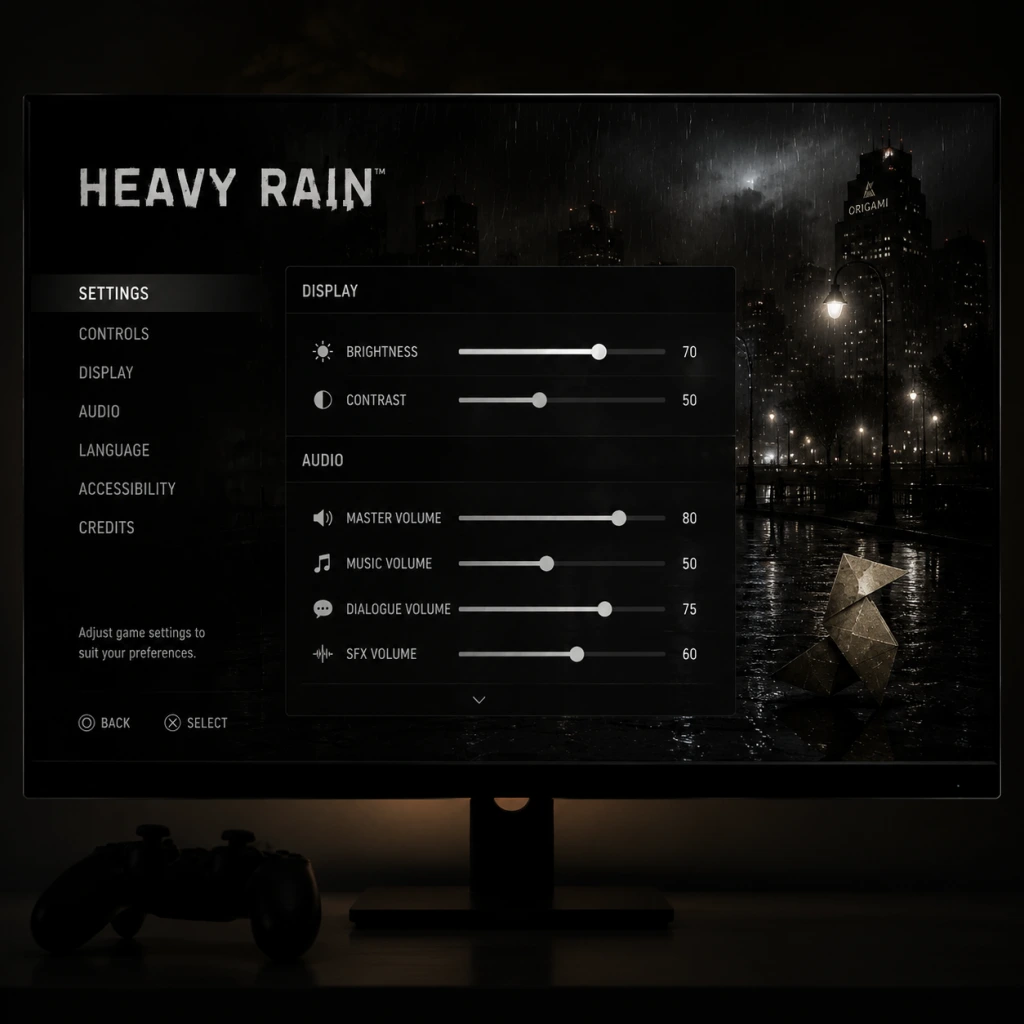
Game Settings
Game Settings Guide for Heavy Rain
This guide covers all settings menus in Heavy Rain across PC (Steam, Epic Games Store) and PlayStation 4/5 (via backward compatibility). Settings are divided into Graphics, Audio, Controls, Accessibility, Language, Network, and Gameplay categories. Optimal recommendations are provided for low-end, mid-range, and high-end hardware. Special attention is given to settings that are easy to misconfigure, which can negatively impact performance or gameplay experience.
Important Pre-Setup Notes
- Platform differences: The PC version includes a dedicated settings launcher before launching the game. The PS4 version has settings accessible only from the main menu. PS5 runs the PS4 version via backward compatibility with no exclusive enhancements.
- Save frequently in settings: Some changes (e.g., resolution, fullscreen) require restarting the game. The PC launcher will prompt; on PS4, changes apply immediately but may cause a brief black screen.
- Controller detection: On PC, the game may default to keyboard prompts even if a controller is plugged in. Verify in Controls settings.
---
Graphics Settings
Available Settings
| Setting | Options | Platform |
|---|---|---|
| Display Mode | Fullscreen, Windowed, Borderless Windowed | PC only |
| Resolution | Multiple (native monitor resolution recommended) | PC only |
| VSync | On, Off | PC only |
| Texture Quality | Low, Medium, High | PC only |
| Shadow Quality | Low, Medium, High | PC only |
| Anti-aliasing | Off, FXAA, SMAA | PC only |
| Ambient Occlusion | Off, SSAO, HBAO+ | PC only |
| Motion Blur | On, Off | PC only |
| Depth of Field | On, Off | PC only |
| Post-Processing | Low, Medium, High | PC only |
| FOV (Field of View) | Slider (50–90) | PC only |
Recommended Settings by Hardware
#### Low-End PC (e.g., integrated graphics, GTX 750 Ti, 8GB RAM)
- Display Mode: Fullscreen
- Resolution: 1280×720 or 1366×768
- VSync: Off (to avoid input lag)
- Texture Quality: Low
- Shadow Quality: Low
- Anti-aliasing: Off
- Ambient Occlusion: Off
- Motion Blur: Off
- Depth of Field: Off
- Post-Processing: Low
- FOV: 60 (default)
- Display Mode: Fullscreen or Borderless Windowed (for quick alt-tab)
- Resolution: 1920×1080 (native)
- VSync: On (to prevent screen tearing)
- Texture Quality: High
- Shadow Quality: High
- Anti-aliasing: SMAA (better quality than FXAA)
- Ambient Occlusion: SSAO (less performance hit than HBAO+)
- Motion Blur: Off (personal preference, but can cause motion sickness)
- Depth of Field: On (enhances cinematic feel)
- Post-Processing: High
- FOV: 65–70 (wider view helpful in exploration scenes)
- Display Mode: Fullscreen or Borderless Windowed
- Resolution: 2560×1440 or 3840×2160 if capable
- VSync: On (or use G-Sync/FreeSync)
- Texture Quality: High
- Shadow Quality: High
- Anti-aliasing: SMAA (or force via GPU driver for MSAA)
- Ambient Occlusion: HBAO+ (best depth effect)
- Motion Blur: Off (or On if you like the effect)
- Depth of Field: On
- Post-Processing: High
- FOV: 70–75 (personal preference; above 80 may cause distortion)
- VSync: Turning OFF VSync can cause screen tearing and input inconsistencies during QTEs. Keep ON for best experience. If you have a high-refresh monitor (120Hz+), turning OFF may still give smooth motion but risk tearing.
- Motion Blur: Default is ON. Many players disable it because it blurs character movement and can hide on-screen prompts during QTEs. Disabling improves clarity.
- FOV: The default FOV (60) is narrow. Increasing it helps peripheral vision but may cause characters to appear small in cutscenes. Adjust gradually; extreme values (above 80) can cause visual distortion.
- Anti-aliasing: FXAA is significantly lighter than SMAA but blurs textures. SMAA offers better edge smoothing without softness. On low-end PCs, turn off.
- Ambient Occlusion: HBAO+ is very expensive. Only enable on high-end systems. SSAO provides a good balance.
- Resolution: Do not set a resolution higher than your monitor’s native – it forces downscaling (GPU stress) with minimal visual gain. Use native resolution or nearest standard lower resolution.
Expected performance: 30-45 fps, stable enough for QTE input.
#### Mid-Range PC (e.g., GTX 1060, RX 580, 16GB RAM)
Expected performance: 55-60 fps with occasional dips during heavy scenes.
#### High-End PC (e.g., RTX 2070, Radeon 6700 XT, 16GB+ RAM)
Expected performance: 60 fps at 1440p; 30-45 fps at 4K (game engine not well optimized for 4K).
Settings That Are Easy to Misconfigure
---
Audio Settings
Available Settings
| Setting | Options | Platform |
|---|---|---|
| Master Volume | Slider (0–100) | Both |
| Music Volume | Slider (0–100) | Both |
| SFX Volume | Slider (0–100) | Both |
| Voice Volume | Slider (0–100) | Both |
| Audio Output | Speakers, Headphones (preset) | PC only |
| Audio Language | English, French, German, Spanish, Italian, etc. | Both (see Language section) |
| Subtitles | On, Off | Both |
- Voice Volume: Always keep at least 80% to follow dialogue – many clues are delivered via conversations. The default is often 70%.
- Audio Output (PC): Choose the preset that matches your device. The “Headphones” preset applies HRTF for binaural effects (better for immersive sound in QTEs). "Speakers" may cause distortion with headphones.
- Subtitles: Turn ON for accessibility or if playing in a loud environment. Subtitles also help with characters mumbling or speaking quietly.
---
Controls Settings
Available Settings
| Setting | Options | Platform |
|---|---|---|
| Controller Type | Keyboard & Mouse, PlayStation, Xbox, Generic | PC only |
| Invert Y Axis | On, Off | Both |
| Vibration | On, Off | Both (if controller supported) |
| Stick Sensitivity | Slider (0–100) | PC only |
| Button Prompts | PlayStation (Cross/Circle), Xbox (A/B), or Gamepad Agnostic | PC only |
| Mouse Sensitivity | Slider (0–100) | PC only (when using KB+M) |
| QTE Auto-Complete | On, Off | Both |
- Button Prompts (PC): If you are using a PlayStation controller, set to “PlayStation” prompts so on-screen icons match the physical buttons. Otherwise, you may see “A” but press “X” and fail QTEs.
- QTE Auto-Complete: Default is OFF. Turning ON will automatically succeed all QTEs (button presses, motion sequences, etc.), which removes challenge but can be useful for accessibility. The game warns that it disables PlayStation Trophies / Steam Achievements. If you want achievements, keep OFF.
- Controller Type (PC): If you use a DualShock 4 or DualSense, select “PlayStation”. Xbox controllers select “Xbox”. If you use a generic controller, select “Generic” – but ensure button layout is correct (some games map incorrectly).
- Vibration: Keep ON for immersion (rain, heartbeat, tension). Turn OFF if playing on a weak PC that stutters, as haptics can add latency.
- Invert Y Axis: Classic for flight controls; in Heavy Rain camera control is limited, but for certain moments (e.g., driving or swinging) inversion applies. Test in the first chapter and adjust.
---
Accessibility Settings
Available Settings
| Setting | Options | Platform |
|---|---|---|
| QTE Auto-Complete | On, Off | Both |
| Speed of QTEs | Normal, Slow | PC only (experimental? not present in all versions) |
| Subtitle Size | Small, Medium, Large | PC only (launcher) |
| Audio Description | On, Off (via narrator toggle) | Both (if available) |
| Text Language | (Same as interface language) | Both |
| Colorblind Mode | Deuteranopia, Protanopia, Tritanopia, Off | PC only (via .ini edit? Not in launcher) |
- QTE Auto-Complete: As noted, it disables achievements. But for players with mobility impairments, it allows full story enjoyment. Toggle it ON in the pause menu during gameplay if needed – no restart required.
- Speed of QTEs: Some PC versions have a hidden registry edit to slow QTEs; not officially exposed. No such option on PS4.
- Subtitle Size: Only adjustable via the PC launcher before game start. Set to Large if playing on a TV or from a distance.
- Colorblind Mode: Not natively in the menu. Can be activated manually by editing config file. See Community Tips section.
---
Language Settings
Available Settings
| Setting | Options | Platform |
|---|---|---|
| Interface Language | Multiple (based on game license) | PC (Steam Language setting) |
| Audio Language | Multiple (English, French, German, etc.) | Both (some regions locked) |
| Subtitle Language | Multiple (matches interface or separate) | Both |
- Audio Language: On PC, if you have the Steam version, you can change audio language via properties > language. Not changeable in-game. On PS4, language is tied to system language (for audio) or disk region. To play with original English voices but different interface language, you may need to download language packs.
- Subtitles: Always enable if playing in a non-native language. The game supports many subtitle options but check that they match the selected audio language.
---
Network Settings
Available Settings
| Setting | Options | Platform |
|---|---|---|
| Enable Online Features | On, Off | PS4 only (Trophies, leaderboards) |
| Allow Notifications | On, Off | Both (Steam overlay, PS4 notifications) |
- Enable Online Features (PS4): Turn OFF if you want no interruptions from friend notifications during crucial story moments. Trophies still sync when you go online later.
- PC: Heavy Rain on Steam does not require an internet connection for single-player, but the Steam Overlay can be disabled per game via properties. Disable to prevent achievement popups covering dialogue.
---
Gameplay Settings
Available Settings
| Setting | Options | Platform |
|---|---|---|
| QTE Auto-Complete | On, Off | Both |
| Hint System | Off, Contextual, Full | PS4 only (no equivalent PC) |
| Auto-Save Interval | After Every Chapter, After Every Major Decision | PC only (via config? Not in menu) |
| Camera Reset | On, Off | Both (behavioral) |
| Show Button Name During QTEs | On, Off | Both |
- Show Button Name During QTEs: Default is ON. Turn OFF if you want a more immersive experience without buttons floating on screen. However, QTEs become harder because you must rely on memory or quick recognition. For first playthrough, keep ON.
- Hint System (PS4): “Contextual” shows hints only when you hesitate; “Full” always shows objective markers. “Off” is for experienced players. Choose “Contextual” to preserve immersion.
- Camera Reset: When ON, camera automatically recenters after manual adjustments. Turn OFF if you prefer full manual control – but be aware the camera can get stuck in awkward positions.
- Auto-Save Interval: Not adjustable in-game on PC; the game auto-saves after every major scene. On PS4, it auto-saves after each chapter. No manual save option – you can only load the last checkpoint. If you want to keep a state, use manual save slots (PC: F5 quick save, F9 quick load).
- Black screen on launch (PC): The game sometimes launches in a reduced resolution default. Press Alt+Enter to force windowed mode, then change settings in launcher.
- Controller not recognized (PC): Ensure you select the correct Controller Type. If using DS4Windows, it may emulate an Xbox controller; choose Xbox prompts. For native support, disable DS4Windows and use Steam Input.
- No sound (PC): Go to Windows Sound settings, ensure the game’s output device matches your speakers/headphones. In-game Volume sliders may be low; reset to defaults.
- Achievement pop-ups during cutscenes (PS4): Disable notifications via Network settings or turn off internet temporarily.
---
Final Recommendations for First-Time Setup
1. PC Launcher: Before launching the game, run the Heavy Rain Config Tool (installed with the game). Set resolution, display mode, and quality preset to “High” if your hardware supports it. Then adjust individual settings as described.
2. PS4/5 Users: No graphic settings – play as is. For better performance on PS5, ensure Game Mode is enabled on your TV, and disable HDR if it causes washed-out colors (Heavy Rain HDR implementation is broken on PS5 via backward compatibility).
3. Check Controller Input Lag: If you notice input lag during QTEs, go to Control settings and disable Vibration, set Stick Sensitivity to 100, and ensure VSync is ON (PC) or that your TV is in Game Mode (PS).
4. Accessibility: If you have difficulty with rapid button presses, enable QTE Auto-Complete. The game will feel easier but you lose achievements. Alternatively, lower the game speed via unofficial mods (PC only, not recommended due to instability).
5. Audio: Use headphones for the best spatial sound – rain environments and footsteps are crucial. Set Audio Output to Headphones, Master Volume 100%, Voice Volume 80%, SFX 70%, Music 50% (music can overwhelm dialogue).
---