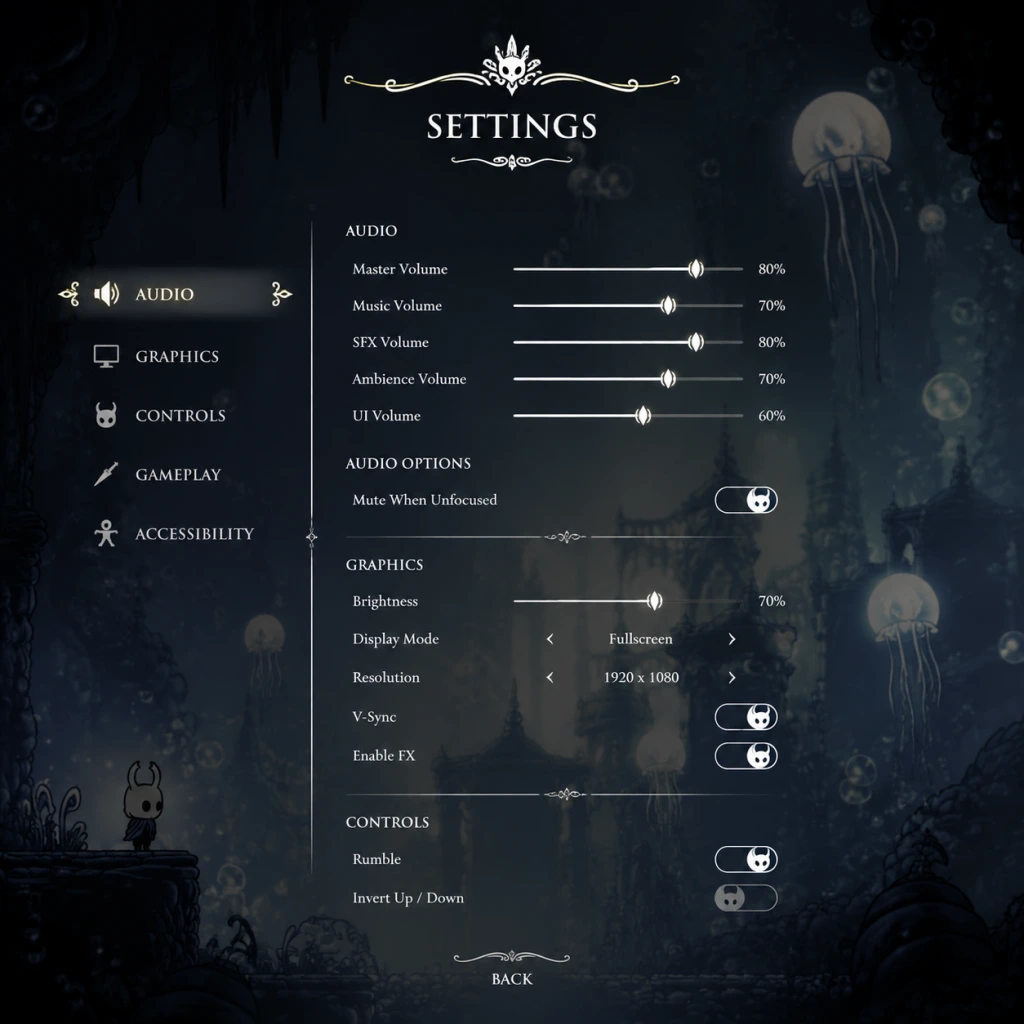
Game Settings
Game Settings Guide for Hollow Knight
This guide covers all configurable settings in Hollow Knight and provides optimal recommendations based on your hardware. Pay special attention to the settings marked easy to misconfigure—they can significantly impact performance, input lag, or your overall experience.
---
Graphics Settings
Graphics settings adjust visual fidelity and performance. Hollow Knight uses a fixed 2D art style, so the main trade-off is between smoothness (FPS) and visual extras like particles and lighting.
| Setting | Options | Impact | Recommended |
|---|---|---|---|
| Resolution | Native, 1920×1080, 1366×768, etc. | Performance | Match your monitor's native resolution unless struggling for FPS. |
| Fullscreen | Fullscreen, Windowed, Borderless | Stability / Input lag | Use Fullscreen for best performance and smoothness. Borderless helps alt-tabbing but may introduce slight input lag. |
| V-Sync | On / Off | Screen tearing vs. input lag | Off for lowest input lag (if you can tolerate tearing). On for smooth visuals. Easy to misconfigure: V-Sync adds ~1 frame of input lag; competitive players should turn it off. |
| Quality Preset | Low / Medium / High | Visual detail | Low-end hardware: Low. Mid-range: Medium. High-end: High. The difference between Low and High is small—mostly particle effects and lighting. |
| Particle Effects | Off / Reduced / Full | Performance on busy screens | Low-end: Off. Mid-range: Reduced. High-end: Full. Boss fights with many particles (e.g., Radiance) benefit from Reduced. |
| Frame Rate Cap | 30 / 60 / 120 / Unlimited | Smoothness vs. GPU load | Set to your monitor's refresh rate (usually 60 or 144). Easy to misconfigure: Uncapped can cause coil whine or excess heat with no visual benefit. |
- Low-End (e.g., integrated graphics, laptops): Resolution: 1366×768 or lower; Fullscreen; V-Sync Off; Low preset; Particles Off; Frame cap 30 or 60 (try 60 first).
- Mid-Range (e.g., GTX 1050, Ryzen 5 iGPU): 1080p, Fullscreen, V-Sync On (or Off if you want lower input lag), Medium preset, Particles Reduced, Frame cap 60.
- High-End (e.g., RTX 3060+, modern desktop): 1440p/4K downscaling? The game is 2D, so 1080p is fine. Fullscreen, V-Sync Off if you have a GSync/FreeSync monitor, otherwise On. High preset, Particles Full, Frame cap 120 or unlimited if you have a high-refresh monitor.
---
Audio Settings
| Setting | Range | Notes |
|---|---|---|
| Master Volume | 0–10 | Overall loudness. |
| Sound Effects | 0–10 | Controls combat, enemy, and UI sounds. |
| Music | 0–10 | Background music. The soundtrack is atmospheric; keep it high for immersion. |
| Voice | 0–10 | Unused in this game (no voice acting). Adjusting it does nothing. |
---
Controls Settings
Hollow Knight supports keyboard, mouse (menu only), and controllers (Xbox, PlayStation, Switch Pro, generic). Controllers are strongly recommended for platforming precision.
#### Recommended Controller Mappings (Default)
| Action | Xbox | PlayStation | Switch Pro |
|---|---|---|---|
| Move | Left stick | Left stick | Left stick |
| Attack (Nail) | X | Square | Y |
| Dash | RB | R1 | R |
| Focus (Heal) | A | Cross | B |
| Jump | A | Cross | B |
| Quick Cast | LB | L1 | L |
| Dream Nail | Y | Triangle | X |
| Super Dash (hold) | Down + Attack (or L3) | Down + Attack (or L3) | Down + Attack (or L3) |
#### Keyboard Settings
- Movement: WASD or Arrow keys.
- Attack: Z, X for Nail, Quick Cast, etc. (fully rebindable).
- Easy to misconfigure: The default keyboard layout is awkward. Rebinding Dash to Space and Attack to Left Mouse Button can greatly improve comfort.
- Controller Deadzone: Only adjustable in the game's .json config file (see "Advanced Configuration" below). The default deadzone is fine for most controllers.
- Brightness: Adjust screen brightness from the game's main menu (Options > Display). Set it so that dark caverns are still navigable but not washed out.
- Screen Shake: Found under Gameplay settings. Turn Off if you experience motion sickness or headaches. It disables screen shake during boss attacks and explosions.
- Subtitle/Menu Text: No subtitles (no voice acting). Menu text size is fixed; no zoom option.
- Text Language: Select from the game's launcher or main menu Options > Language. Supports English, French, German, Spanish, Italian, Portuguese (Brazilian), Russian, Japanese, Korean, Simplified Chinese, Traditional Chinese.
- Does not change in-game audio (no voice acting).
---
Accessibility Settings
Hollow Knight has very few built-in accessibility options. Settings that affect accessibility:
Note: For colorblind players, the game uses color coding for enemy health, soul, and geo, but is still playable due to distinct shapes and sounds.
---
Language Settings
---
Network / Online Settings
Hollow Knight has no multiplayer and no dedicated network settings. The only online feature is checking achievements via Steam, GOG Galaxy, etc. No options to configure.
---
Gameplay Settings
| Setting | Options | Effect |
|---|---|---|
| Screen Shake | On / Off | Controls visual shake during events. Off for accessibility. |
| HUD Opacity | 0–100% | Affects transparency of health, soul, geo displays. Keep high unless you want minimal UI. |
| Dialogue Speed | Slow / Normal / Fast | Text display speed. Normal is fine. |
| Damage Numbers | On / Off | Toggle floating damage numbers when you hit enemies. On is helpful for learning damage values. |
Special Attention Points During Setup
1. V-Sync vs. Input Lag: If you play on a high-refresh-rate monitor (144Hz+), turn V-Sync Off in-game and enable GSync/FreeSync in your GPU driver for the smoothest experience with minimal lag. If you don't have adaptive sync, V-Sync On is okay but expect ~16ms delay.
2. Controller Detection: If your controller is not recognized, ensure it's plugged in before launching the game. On Windows, try launching via Steam Big Picture mode for better compatibility. Some third-party controllers may require XInput emulation (e.g., DS4Windows for PlayStation controllers).
3. Save File Corruption Risk: The game auto-saves frequently. Do not force-quit during save icons (a spinning cog in the top-right corner). Doing so can corrupt your save.
4. Frame Cap for Bosses: For extremely precise boss fights (e.g., Nightmare King Grimm, Pantheon of Hallownest), setting the frame cap to 60 FPS (even on 144Hz monitors) can make parry windows feel more consistent due to the game's fixed delta-time logic.
5. Advanced Configuration (JSON): Some settings (e.g., controller deadzone, audio bitrate) are stored in `%APPDATA%\..\LocalLow\Team Cherry\Hollow Knight\` on Windows. Editing these files can fine-tune performance but is not officially supported. Backup your save before editing.
---
Summary Table for Quick Setup
| Setting | Best for Performance | Best for Quality |
|---|---|---|
| Resolution | 1366×768 | Native (1080p or higher) |
| Fullscreen | Fullscreen | Fullscreen |
| V-Sync | Off | On (if no adaptive sync) |
| Quality Preset | Low | High |
| Particles | Off | Full |
| Frame Cap | 30 | 60 (or monitor refresh) |
| Screen Shake | Off | On |
| Jump / Focus rebind | Separate buttons | Separate buttons |