Download & Installation
Introduction
Middle-earth: Shadow of Mordor is an open-world action-adventure game set in J.R.R. Tolkien's Middle-earth. This guide covers official download and installation methods for all supported platforms: PC (Steam, Epic Games Store), PlayStation 4/5, Xbox One/Series X|S, and Nintendo Switch (cloud version). Mobile platforms are not officially supported. Always purchase or download from legitimate sources to avoid security risks and ensure proper functionality.
---
PC (Steam / Epic Games Store)
System Requirements
| Component | Minimum | Recommended |
|---|---|---|
| OS | Windows 7 SP1 64-bit | Windows 10 64-bit |
| CPU | Intel Core i5-750 2.67 GHz / AMD FX-8350 4.0 GHz | Intel Core i7-3770 3.4 GHz / AMD FX-8350 4.0 GHz |
| RAM | 6 GB | 8 GB |
| GPU | NVIDIA GeForce GTX 460 / AMD Radeon HD 5850 (1 GB VRAM) | NVIDIA GeForce GTX 660 / AMD Radeon HD 7950 (2 GB VRAM) |
| DirectX | Version 11 | Version 11 |
| Storage | 40 GB available space | 40 GB available space |
| Network | Broadband Internet connection | Broadband Internet connection |
| Sound Card | DirectX-compatible | DirectX-compatible |
Step-by-Step Installation
1. Purchase the game
- Steam: Visit store.steampowered.com, search "Middle-earth: Shadow of Mordor", add to cart, and complete purchase. Wait for download to unlock.
- Epic Games Store: Visit epicgames.com, download the launcher if not installed, sign in, search for the game, buy or claim if free, and click "Install".
- Steam:
- Epic Games Store:
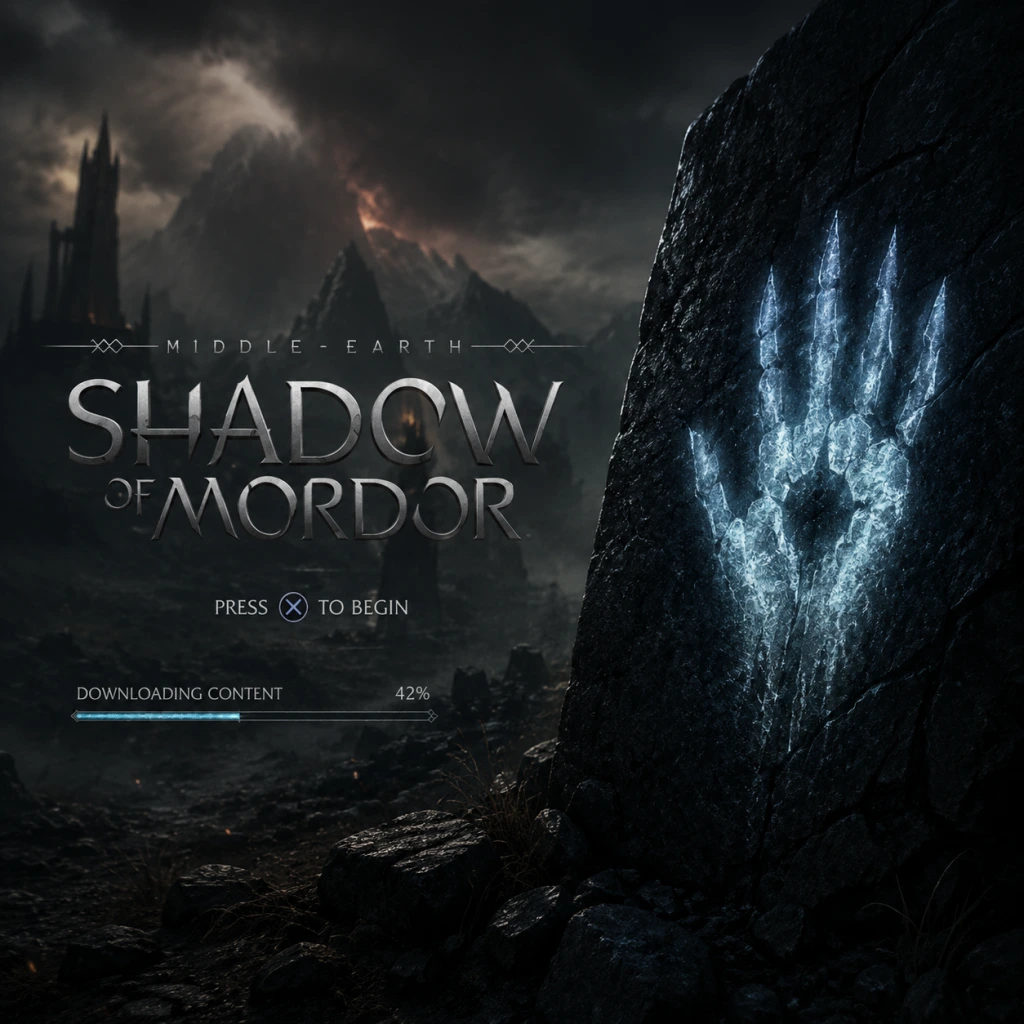
- After installation, click "Play" in Steam or Epic. The game will load to a splash screen.
- Steam: A DRM activation may occur silently. On first launch, you may be prompted to accept the EULA.
- Epic: No additional DRM steps; game launches directly.
- Adjust graphics settings from the main menu before starting gameplay (Options → Video).
- Verify file integrity (Steam): Right-click the game in Library → Properties → Local Files → Verify integrity of game files.
- Verify file integrity (Epic): Go to Library → click three dots under the game → Manage → Verify.
- Confirm game version (e.g., v1.0.0.0) via main menu or properties.
- PS4: PSN account, 40 GB free storage, system software 5.0 or higher.
- PS5: Backward compatibility (PS5 runs PS4 version via disc or digital), 40 GB free storage.
- Internet connection required for initial download and updates.
- Digital: From PlayStation Store on console or web. Add to cart, purchase, and the download will start automatically if console is in rest mode with auto-download enabled.
- Physical disc: Insert disc into console. The game will begin installing automatically. Wait for installation progress bar to complete.
- Digital download: Go to Library → Purchased → select the game → Download.
- Physical: Insert disc → follow on-screen prompts. After copying, the game icon appears on home screen.
- Launch the game from the home screen. Accept any EULA. The game may apply a title update; ensure internet is connected.
- Adjust settings (Audio, Video, Controller) from in-game menu.
- Check that game version matches latest patch (e.g., 1.07) by highlighting the game icon → Options → Information.
- Run a quick gameplay sequence to ensure no crashes.
- Xbox One: 40 GB free storage, Xbox Live account, console with latest system update.
- Xbox Series X|S: Backward compatible, 40 GB free storage, SSD recommended for best load times.
- Internet required for initial download and smart delivery (if applicable).
- Digital: Xbox Store → search game → buy → automatic download begins if console is set to instant-on.
- Physical: Insert disc → installation starts automatically. If not, go to My Games & Apps → Install.
- Digital: Game appears in "Ready to install" list (My Games & Apps → Full Library). Select and install.
- Physical: After disc insertion, installation occurs in background.
- Launch from Home tab. Sign in with Xbox profile. Accept EULA if prompted.
- Update may be required; ensure internet is active.
- Configure options (e.g., controller vibration, display).
- Verify installation via My Games & Apps → Manage → Shadow of Mordor → check file size (~40 GB) and update version.
- Validate by starting a new game and playing the opening sequence.
- Nintendo Switch (any model), active Nintendo Switch Online membership, stable high-speed internet (minimum 10 Mbps).
- Storage: The game streams; no large download, but a small launcher app (~250 MB) is required. Internet data usage can be high.
- Note: Shadow of Mordor is not natively on Switch; it is a cloud streaming version. Performance depends on internet quality.
- From Nintendo eShop on Switch or via web browser. Search "Middle-earth: Shadow of Mordor Cloud Version".
- Buy the game (price includes streaming license). Internet connection required to purchase.
- After purchase, the small Cloud client app downloads (~250 MB). Installation completes quickly.
- Ensure you have free space: the launcher plus future updates require about 500 MB total.
- Launch the Cloud version app. You will be prompted to sign in with your Nintendo Account (must have active Nintendo Switch Online membership).
- Accept terms. The game will connect to the server, and you can start playing immediately after a brief loading screen.
- For best performance, use a wired internet connection or 5 GHz Wi-Fi.
- Ensure the launcher app is up to date (check for updates via console settings).
- Test connectivity: Start a game and play for 5 minutes to verify stable streaming.
2. Download the game
1. Launch Steam and sign in.
2. Go to Library → select "Middle-earth: Shadow of Mordor" → click "Install".
3. Choose installation folder (default: `C:\Program Files (x86)\Steam\steamapps\common`).
4. Click "Next" to begin download. Monitor progress in the Downloads tab.
1. Open Epic Games Launcher and sign in.
2. Go to Library → find the game → click "Install".
3. Choose installation path and click "Install". Wait for download to complete.
3. Launch and first-time setup
Post-Installation Verification
---
PlayStation 4 / PlayStation 5
Requirements
Step-by-Step Installation
1. Purchase
2. Download & Installation
3. First launch
Post-Installation Verification
---
Xbox One / Xbox Series X|S
Requirements
Step-by-Step Installation
1. Purchase
2. Download & Installation
3. First launch
Post-Installation Verification
---
Nintendo Switch (Cloud Version)
Requirements
Step-by-Step Installation
1. Purchase
2. Download the Launcher
3. First Launch
Post-Installation Verification
---
Common Installation Errors & Fixes
| Error | Platform | Cause | Solution |
|---|---|---|---|
| "Steam disk write error" | PC | Insufficient disk space, corrupted download cache, or antivirus interference. | Free up space (40+ GB), clear Steam download cache (Settings → Downloads → Clear Download Cache), disable antivirus temporarily. |
| "Epic Games Launcher not downloading" | PC | Server issues, VPN, or launcher corruption. | Restart launcher, disable VPN, run as administrator, reinstall Epic Games Launcher. |
| "Failed to launch the game (0xc000007b)" | PC | Missing or corrupt Visual C++ Redistributable or DirectX. | Install/repair DirectX and Visual C++ Redistributables from Microsoft. Verify game files. |
| "Black screen on startup" | PC | Outdated GPU drivers or conflicting overlay apps (Discord, GeForce Experience). | Update GPU drivers, disable overlays, run game in windowed mode initially (add `-windowed` to launch options). |
| "Low FPS / stutter" | PC | Graphics settings too high for hardware, background processes. | Lower settings, disable v-sync, close background apps. Update GPU drivers. |
| "PS4: Cannot install from disc" | PS4/PS5 | Dirty disc, system software issue, insufficient space. | Clean disc, rebuild database (Safe Mode → Rebuild Database), delete unnecessary data. |
| "PS4: Download stuck at 99%" | PS4/PS5 | PSN server hiccup. | Pause and resume download, restart console, check PSN status. |
| "Xbox: Installation stopped" | Xbox | Corrupt install, HDD issues, full storage. | Clear local saved games (Settings → System → Storage → Clear local saved games), restart console, reinstall. |
| "Switch: Cloud version lag" | Switch | Poor internet speed or unstable Wi-Fi. | Use wired Ethernet, move closer to router, reduce other network usage, check Nintendo Switch Online membership is active. |
Account Requirements Summary
| Platform | Account | Membership Required? | Notes |
|---|---|---|---|
| Steam | Steam account | No, but needed for multiplayer features (if any). | Single purchase per account. |
| Epic Games Store | Epic Games account | No | Same as above. |
| PSN | PlayStation Network account | No, but required for downloads and updates. | Disc version works offline after install. |
| Xbox Live | Microsoft account | No, but required for updates and online features. | Disc works offline. |
| Nintendo Switch | Nintendo Account | Yes, Nintendo Switch Online membership required for cloud streaming. | Only cloud version available; no offline play. |
Post-Installation Verification (All Platforms)
1. Check game version: Look for version number in main menu (typically v1.0.0.0 or higher). Compare with latest patch notes on official site.
2. Test basic functionality: Start a new game, run through the opening tutorial (Talion’s intro). Ensure controls respond, audio works, no crashes.
3. Update graphics drivers (PC): Install the latest drivers from NVIDIA/AMD for optimal performance.
4. Verify storage space: Ensure at least 40 GB free (PC) or correct install size shown on console.
5. Save file: Create a manual save to confirm the save system works.
---
Additional Tips
- PC modding: Shadow of Mordor has a modest modding community. For mods, use Nexus Mods or Steam Workshop (PC only). Always backup original files.
- Cross-platform saves: Not supported.
- DLC: The Game of the Year Edition includes all DLC; verify if your purchase includes them.
- Performance on Switch: Requires stable 10+ Mbps internet. Latency should be under 50 ms. Cloud version may show streaming artifacts.
---
This guide covers legitimate download sources only. Avoid unofficial torrents or key resellers to prevent malware and account bans.
Conclusion
By following this guide, you should have Middle-earth: Shadow of Mordor installed and running on your chosen platform. If you encounter any issues not listed, consult the game’s official support pages (WB Games Support) or community forums.