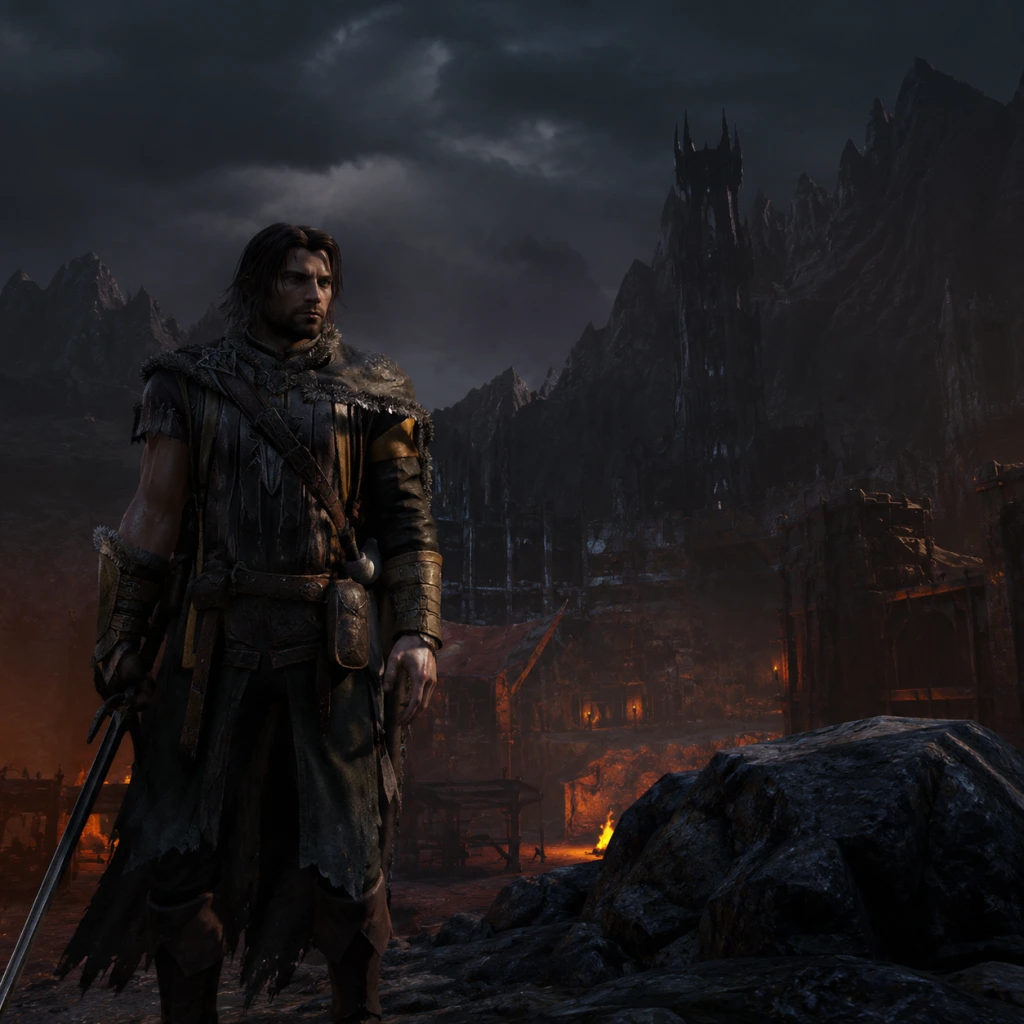
Game Settings
Graphics Settings
Graphics options in Middle-earth: Shadow of Mordor are located in the main menu under Options > Graphics. The game uses an in-house engine that scales well across hardware, but some settings have a disproportionate performance impact.
Key Graphics Settings
- Resolution: Set to your monitor's native resolution. Lower resolutions improve performance but cause blurriness.
- VSync: Prevents screen tearing. Disable if you have a G-Sync/Freesync monitor or if you experience input lag.
- Texture Quality: Controls texture detail. Low uses ~512MB VRAM, Ultra uses ~2GB. High texture quality is recommended for 1080p, Ultra for 1440p+.
- Shadow Quality: Medium shadows look decent and save performance. Ultra shadows are very demanding and only recommended for high-end GPUs.
- Lighting Quality: Determines dynamic light counts and volumetric effects. Set to Medium if your GPU has less than 4GB VRAM.
- Ambient Occlusion: Adds depth by darkening crevices. SSAO (on/off) is lightweight; HDAO is more accurate but costs frames. Disable if below 60 FPS.
- Mesh Quality: Controls polygon detail for objects. High is recommended; Low makes distant objects pop in.
- Depth of Field: Blurs background. Personal preference; disable for sharper image.
- Motion Blur: Blurs during camera movement. Many players disable for clarity.
- Anti-Aliasing: FXAA is low cost but blurry. SMAA is sharper with higher cost. Use SMAA if possible.
- Texture Filtering: Set to 16x for free sharpness.
- Vegetation Range: Controls draw distance of grass. Medium preserves performance without obvious pop-in.
Recommended Settings by Hardware Level
| Setting | Low (GTX 750 / HD 7850) | Medium (GTX 960 / RX 470) | High (GTX 1060 / RX 580) | Ultra (RTX 2060 / RX 5700) |
|---|---|---|---|---|
| Resolution | 720p or 900p | 1080p | 1080p or 1440p | 1440p or 4K |
| VSync | Off | Off | Off | Off (if G-Sync) |
| Texture Quality | Low | Medium | High | Ultra |
| Shadow Quality | Low | Medium | High | Ultra |
| Lighting Quality | Low | Medium | High | Ultra |
| Ambient Occlusion | Off | SSAO | SSAO | HDAO |
| Mesh Quality | Low | Medium | High | High |
| Depth of Field | Off | Off | On | On |
| Motion Blur | Off | Off | Off | Off |
| Anti-Aliasing | FXAA | SMAA | SMAA | SMAA |
| Vegetation Range | Low | Medium | High | High |
Settings That Are Easy to Misconfigure
- Resolution Scale: Hidden under advanced settings; often defaults to 100%. Setting it above 100% (e.g., 150%) forces supersampling and destroys performance. Keep at 100%.
- VSync: Enabling VSync with triple buffering can cause input lag. Disable or use adaptive VSync in GPU driver.
- Lighting Quality: Maximum lighting quality reduces FPS by 20-30% even on high-end GPUs. Leave at High unless you have an RTX 3070+.
- Shadow Quality: Ultra shadows use render-to-texture cascades that are very demanding. Medium shadows are often sufficient and nearly identical in motion.
- Master Volume: Overall volume.
- Music Volume: Background score. Lower to focus on sound effects.
- SFX Volume: Weapon clashes, orc shouts, etc.
- Voice Volume: Dialog and narration. Keep high for story immersion.
- Voice Language: Separate from text language. Options: English, French, German, Spanish, Italian, Polish, Russian, Japanese, etc. (depends on region).
- Subtitles: Toggle on/off. Recommended on for narrative-heavy moments.
- Subtitle Language: Can differ from voice language.
- Key Bindings: All actions are rebindable. Common changes:
- Mouse Sensitivity: Adjust separately for horizontal and vertical. Lower sensitivity (~30-40) improves aim precision.
- Mouse Smoothing: Disable for raw input.
- Invert Y-Axis: Toggle for camera controls (flight/crow aiming).
- Controller Support: Fully compatible with Xbox, PlayStation, and generic gamepads. Switch layout between Xbox and PlayStation.
- Vibration: On/Off.
- Controller Layout: Preset layouts (Default, Alternate, etc.) can be changed.
- Camera Sensitivity: Adjust to your comfort. Default is often too slow; set to 60-70 for quick target switching.
- Invert Y: For players used to flight controls.
- Auto-Aim: Toggle for ranged weapons. Disable for more challenge.
- Subtitles: On/Off.
- Subtitle Size: Small, Medium, Large. Recommended Large for readability.
- Difficulty Level: From Easy to Nemesis. Descriptions below in Gameplay Settings.
- Colorblind Modes: Not officially supported. Community mods exist for some color adjustments.
- Audio Cues: The game relies heavily on sound for combat alerts (e.g., incoming attacks). Ensure Voice and SFX are balanced high.
- Game Text: Choose interface and subtitle language. Affects menus, quest log, tutorial prompts.
- Audio: Choose voice-over language (note: only some versions have multiple voice tracks).
- Subtitle Language: Independent from spoken language; useful for hearing original voice while reading a different language.
- Online Features: Toggle on/off. Disabling removes leaderboards and the ability to view other players' Vendetta missions.
- Vendetta Missions: Asynchronous multiplayer where you avenge killed players. Button to claim those missions appears if online.
- Leaderboards: Track combat challenges and speedrun times.
Audio Settings
Audio settings are under Options > Audio.
Special attention: If you play with a non-English audio track, ensure subtitles match your preferred reading language. The game does not have a 'hearing impaired' subtitle mode, so environmental cues may be missing.
Controls Settings
Controls can be customized in Options > Controls.
PC (Keyboard + Mouse)
- Sprint: Change from Shift to Ctrl if Shift causes fatigue.
- Interact: The default is F; some prefer E.
- Ranged Attack: Default Q; consider binding to mouse thumb button.
Console (PlayStation / Xbox)
Special attention: On PC, the game defaults to controller-friendly prompts. If using keyboard, ensure the prompt icon set matches your input method (Options > Gameplay > Input Icon Set). Otherwise, buttons shown on screen won't match your keys.
Accessibility Settings
Middle-earth: Shadow of Mordor has limited built-in accessibility options. Available settings:
Special attention: The game does not have a contrast mode or HUD size adjustment. If you have difficulty reading small text, increase subtitle size and reduce HUD opacity in Gameplay Options (if available).
Language Settings
Language selection is separate from system language. Found under Options > Language.
Special attention: If you purchase a region-restricted version (e.g., Russian), you may be locked to that language. Changing audio language may require a separate language pack download (available on Steam under properties > DLC or language).
Network Settings
Network options are minimal because the game is primarily single-player.
Special attention: If you experience stuttering while online, disable Online Features. The constant background sync can cause micro-stutters on slower connections. The offline mode still allows full gameplay including the Nemesis System.
Gameplay Settings
Found under Options > Gameplay.
| Setting | Options | Recommendation |
|---|---|---|
| Difficulty | Easy, Normal, Hard, Nemesis | Play on Normal first. Nemesis requires perfect counter timing and full enemy awareness. |
| Auto-Sheathe Weapon | On, Off | Off to always have weapon drawn. Saves a button press when entering combat. |
| Auto-Target (Ranged) | On, Off | Off for manual aiming with bow/throwing knives. On casual runs, leave on. |
| Invert X/Y | On, Off | Only invert Y if you fly inverted in other games. X inversion is rare. |
| Vibration | On, Off | Off to save battery on controllers; on for immersion. |
| Combat Camera Distance | Near, Far | Far gives better situational awareness in large fights. |
| HUD Visibility | On, Off, Dynamic | Dynamic shows HUD only when needed (health low, quest update). Saves screen clutter. |
| Input Icon Set | Xbox, PlayStation, Keyboard (PC only) | Match your actual input device. Wrong icons confuse button prompts. |
| Quick-Use Item | Customize which item (e.g., dagger, ghost stun) is assigned to the quick-use button. | Default is fine; consider binding the 'Wraith Flash' for quick escapes. |
| Auto-Pickup Items | On, Off | On to automatically collect resources. |
- Difficulty cannot be changed mid-game – choose wisely. Nemesis mode is noticeably harder (enemies parry more, hits stun longer).
- Auto-Sheathe Weapon = Off prevents Talion from putting his sword away after attacking; good for aggressive play.
- Combat Camera Distance: Set to Far to avoid getting stuck on corners during Uruk fights.
- Input Icon Set: If you connect a controller after starting with keyboard, the prompts will still show keyboard keys unless you manually switch. Change this setting before a fight to avoid confusion.
- In-Game Menu: Press Esc (PC) or Start (console) > Options.
- Main Menu: At the title screen, select Options before loading a save.
- Launch Options: No launcher configuration file; all settings are saved in the save folder (`%USERPROFILE%\Documents\Shadow of Mordor\UserSettings.ini` on PC). You can edit this file manually (backup first) for advanced tweaks like disabling depth of field permanently.
General Setup Advice
1. Update GPU drivers – especially for Nvidia (Game Ready) and AMD (Adrenalin). Shadow of Mordor benefits from driver optimizations.
2. Disable superfluous overlays – Steam overlay, Discord overlay, etc. can cause micro-stuttering.
3. Set power management to 'Maximum Performance' in GPU control panel to prevent clock throttling.
4. If experiencing crashes, verify game files (Steam: Library > Right-click > Properties > Local Files > Verify integrity of game files).
5. For ultrawide monitors (21:9), the game natively supports them but HUD elements may be cut off. Community fixes are available on WSGF.
Accessing Settings
Special attention: The in-game graphics menu does not apply changes instantly until you close the menu. Tweak one setting at a time and observe FPS changes with a frame rate overlay (e.g., MSI Afterburner).