Download & Installation
Overview
Pokémon Red and Blue are classic Game Boy titles originally released in 1996. They are not available on modern platforms such as PC (Steam/Epic), PlayStation, Xbox, Nintendo Switch (eShop or Nintendo Switch Online), or mobile devices. The only official and legitimate ways to play the original games are:
- 3DS Virtual Console (discontinued – available only if previously purchased before the eShop closure in March 2023)
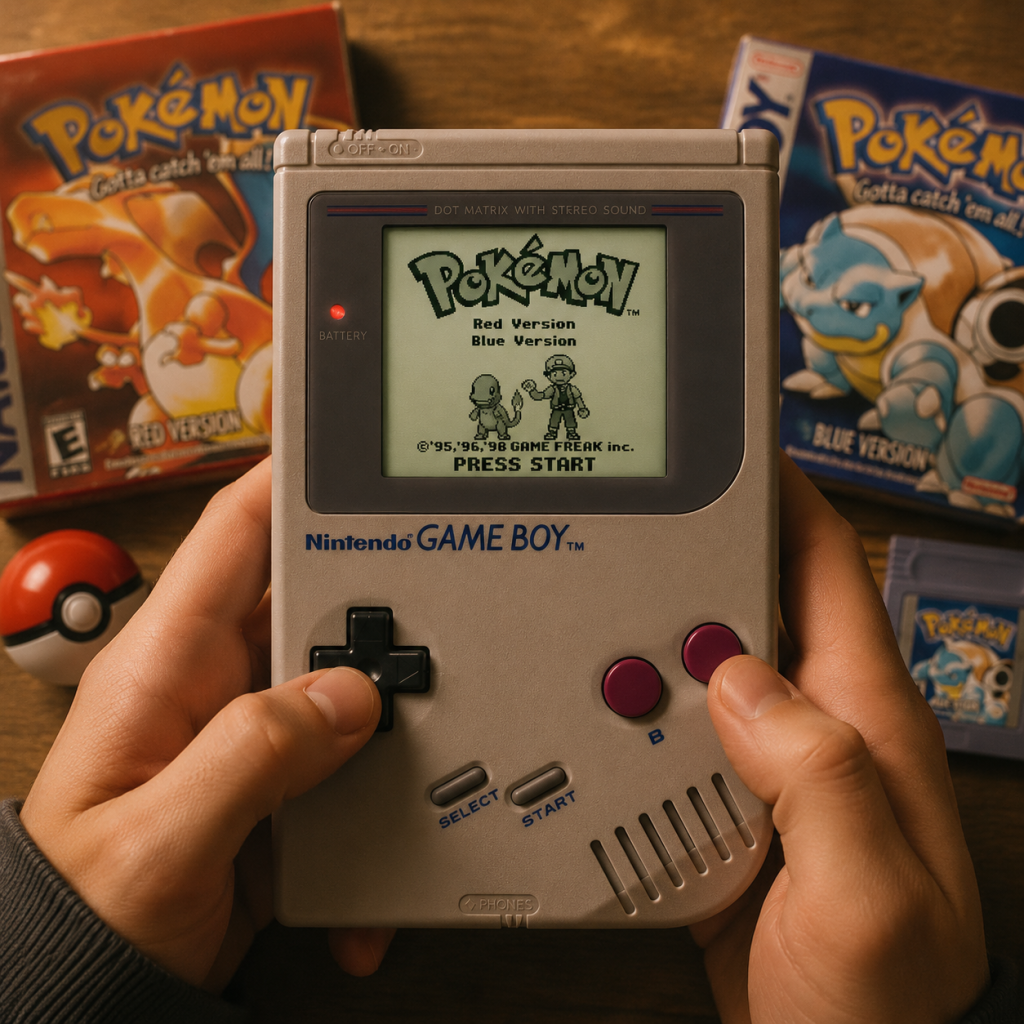
- Physical Game Boy cartridge (requires a Game Boy, Game Boy Color, or Game Boy Advance)
While there are unofficial emulation methods, this guide strictly covers official download and installation sources.
---
Official Download Sources
| Platform | Source | Status |
|---|---|---|
| Nintendo 3DS | Nintendo eShop (Virtual Console) | Discontinued. No longer available for purchase. Existing owners can re-download from their account history. |
| Game Boy / GBA | Physical cartridge (new or used) | Still available through second‑hand markets (e.g., eBay, retro game stores). |
| PC, PS, Xbox, Switch, Mobile | None | Not released officially on any of these platforms. |
Step‑by‑Step Installation
1. Nintendo 3DS (Virtual Console – existing purchases only)
#### Prerequisites
- A Nintendo 3DS, 3DS XL, 2DS, or New 3DS family system.
- Nintendo Network ID (NNID) linked to the original purchase.
- A valid Nintendo eShop account (still usable for re‑downloads).
- A compatible handheld: original Game Boy, Game Boy Pocket, Game Boy Color, Game Boy Advance, or Game Boy Advance SP.
- A legitimate Pokémon Red or Blue cartridge (check for “Nintendo” logo and proper label).
- Minimum: A functioning Game Boy, Game Boy Color, or Game Boy Advance.
- Recommended: A backlit model (GBA SP AGS‑101, or modded Game Boy) for easier visibility.
- Minimum: Any 3DS family system (original 3DS, 3DS XL, 2DS, New 3DS, New 3DS XL, New 2DS XL).
- Recommended: New 3DS family for faster system menus, though performance of the game itself is identical.
- Minimum PC: 1 GHz processor, 512 MB RAM, DirectX 9.0c compatible GPU, Windows 7.
- Recommended PC: 2 GHz dual‑core, 2 GB RAM, OpenGL 3.3 or Vulkan support, Windows 10/11.
#### Steps
1. Power on your 3DS and connect to the internet.
2. From the HOME menu, open the Nintendo eShop icon.
3. Tap the Menu icon (three horizontal lines) in the top‑left corner.
4. Select Download History.
5. Scroll through the list to find Pokémon Red Version or Pokémon Blue Version.
6. Tap the Download button next to the game.
7. Wait for the download to complete. The game will appear on your HOME menu as a Virtual Console icon.
> Note: If you never purchased the game before the eShop closure, you cannot buy it now. No workaround exists.
2. Physical Game Boy Cartridge
#### Prerequisites
#### Steps
1. Insert the cartridge into the slot with the label facing outward (for Game Boy classic) or upward (for GBA).
2. Power on the system.
3. The game will boot automatically. If you’re using a Game Boy Advance, it will boot in original Game Boy mode (black‑and‑white on GBA screen, unless using a GBA SP with frontlight).
> Hint: For the best visual experience, a Game Boy Color or Game Boy Advance SP (AGS‑101) provides a backlit screen. Original Game Boy screens require good lighting.
---
System Requirements
Original Hardware (Game Boy / GBA)
Nintendo 3DS (Virtual Console)
Emulation (Unofficial – not covered in this guide, provided for reference only)
> ⚠️ Using emulators to play ROMs that you do not own the original cartridge for is illegal in most jurisdictions. This guide only advocates for legitimate ownership.
---
Storage Space
| Method | Space Required |
|---|---|
| 3DS Virtual Console download | ~8 MB (KB?) Note: Virtual Console games are a few megabytes; actual size is negligible. |
| Physical cartridge | 0 MB (no install) |
| Save file on 3DS | ~0.5 MB (stored on SD card) |
| Save file on cartridge | Internal battery (saves kept while battery lasts; replaceable) |
Account Requirements
- 3DS Virtual Console: You must have a Nintendo Network ID (NNID) that was used to purchase the game before the eShop closure. No other accounts are required.
- Physical cartridge: No account or internet connection required. Simply insert and play.
---
First Launch Setup
On 3DS (Virtual Console)
1. Tap the game icon on the HOME menu.
2. The game will display the original startup screen with the Game Boy logo and a brief copyright notice.
3. Press Start (or A) on the title screen to begin a new game.
4. If you have a save from a previous session, it will load automatically.
On Game Boy / GBA (Physical)
1. Turn on the system with the cartridge inserted.
2. The Game Boy logo appears briefly; if you see a “Nintendo” logo with a black background, the cartridge is authentic.
3. Press Start on the title screen.
4. The game begins with Professor Oak’s introduction. There is no language or region setup.
---
Common Installation Errors & Fixes
| Error | Cause | Fix |
|---|---|---|
| 3DS “This software cannot be downloaded” | The game was never purchased on your NNID, or eShop servers are unreachable. | Verify your purchase history. If not purchased, no official method exists. |
| Game Boy cart “No game inserted” | Dirty or bent pins in cartridge or slot. | Clean cartridge contacts with isopropyl alcohol and a cotton swab. Insert firmly. |
| Game Boy cart fails to load / freezes at logo | Corrupted cartridge (battery leak, damage) or incompatible system (e.g., original Game Boy on a Game Boy Micro). | Try on a different system. If still fails, the cartridge may be defective. |
| Save file corrupt on 3DS | Improper shutdown or SD card error. | Restore from backup (if you had one). Otherwise, the save is lost. |
| Battery‑backed save on cartridge fails | Internal battery is dead (common after ~10–20 years). | Replace the battery (CR1616 or CR2025) using soldering, or use a backup device like GBxCart. |
Post‑Installation Verification
After installation or insertion, confirm the game runs correctly:
1. Boot the game and wait for the title screen.
2. Start a new game (if no save exists). You should see Professor Oak’s opening dialogue.
3. Play for a few minutes – move your character, encounter a wild Pokémon, save the game.
4. Power cycle the device, then reload the save to ensure it persists.
5. For 3DS, check that the game appears in your Activity Log and that save data is stored on the SD card.
If all steps succeed, your installation is complete.
---
Final Notes
Pokémon Red and Blue are historic titles that have never been officially re‑released on modern consoles. The only legitimate ways to play are via original hardware or the now‑discontinued 3DS Virtual Console. For those who missed these opportunities, considering purchasing authentic cartridges from reputable retro dealers is the sole legal option. Always avoid pirated copies and ROM sites.