Game Settings
Game Settings – Pokémon Red and Blue
Overview
Pokémon Red and Blue were designed for the original Game Boy, which had no graphics, audio, or control settings beyond the hardware buttons. However, when playing via emulators (on PC, mobile, or other platforms) or the Nintendo 3DS Virtual Console, additional settings become available. This guide covers both the limited in‑game options present in the original cartridge and the emulator/Virtual Console settings that can enhance your experience. The goal is to help you choose configurations for optimal performance and quality on your hardware.
> Important: The original Game Boy ROM has no dedicated settings menu for resolution, framerate, or network. All such features are provided by the emulator or Virtual Console environment.
---
In‑Game Options (Original Cartridge)
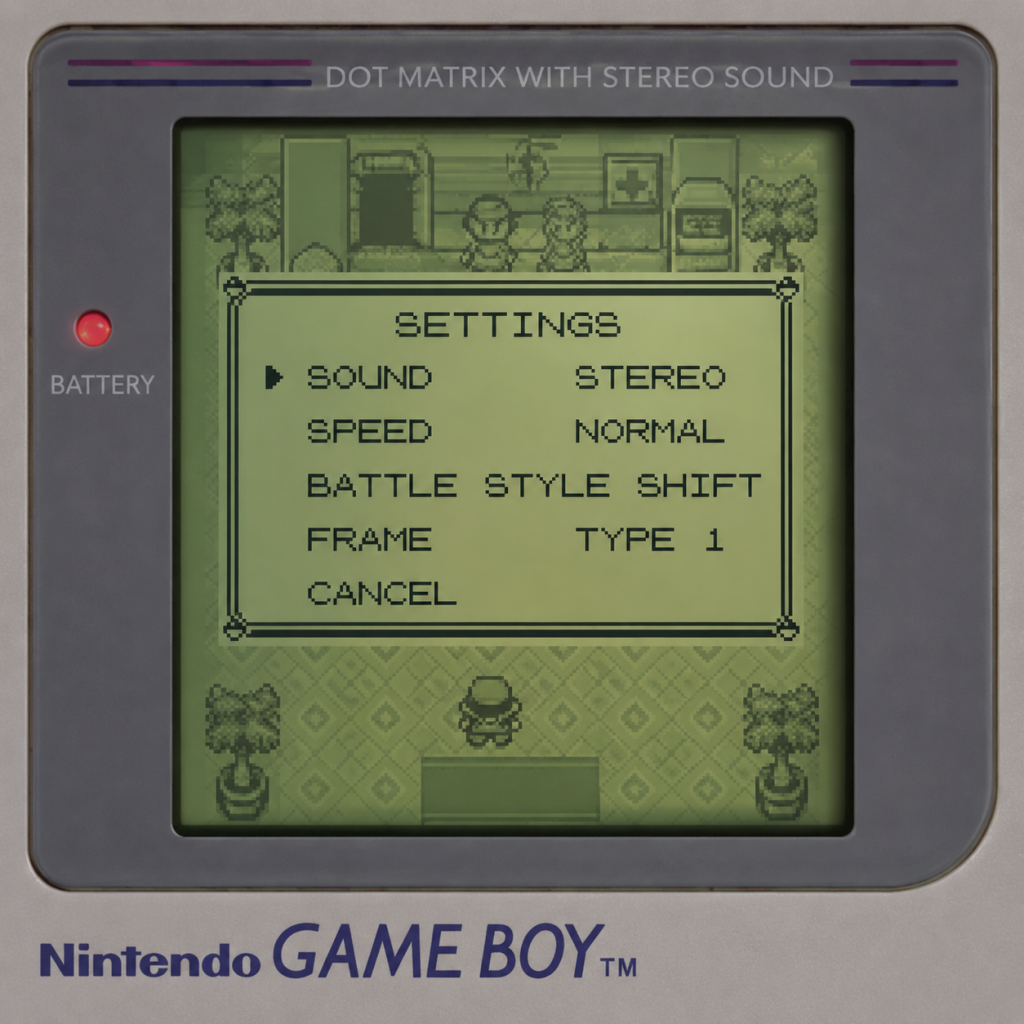
Even in the original Game Boy version, players can adjust a few gameplay parameters via the Options menu (accessible from the main menu). These settings are saved to the game’s battery‑backed save file.
| Setting | Options | Default | Description |
|---|---|---|---|
| Battle Style | Shift / Set | Shift | Shift asks you if you want to switch Pokémon after knocking out an opponent’s Pokémon; Set forces you to send out your next Pokémon without being asked. |
| Text Speed | Slow / Mid / Fast | Fast | Controls how quickly text scrolls during conversations and battles. |
| Sound | Mono / Stereo | Mono | On the original Game Boy, this only affects the headphone jack output. Stereo pans sound effects left/right; Mono plays both channels equally. |
- Battle Style: Most speedrunners and experienced players prefer Set to save time, but Shift is safer for beginners. Change it if you find the prompt annoying.
- Text Speed: Always set to Fast – there is no reason to use slower speeds.
- Sound: Use Stereo if you are playing on a device with headphone output or emulated stereo; otherwise Mono is fine.
---
Emulator Settings (For PC, Mobile, and Other Platforms)
When playing the game via emulation, you gain access to a wide range of settings beyond the original game. Below are the key categories, with explanations and recommended values.
#### Graphics Settings
| Setting | Options | Recommended | Notes |
|---|---|---|---|
| Internal Resolution | 1x, 2x, 3x, 4x+ (original is 160×144) | 2x or 3x for balance; 4x on powerful hardware | Higher = sharper, but more GPU load. On low‑end devices, stick to 1x or 2x. |
| Scaling / Aspect Ratio | Stretch, Keep Aspect, Pixel Perfect | Keep Aspect (4:3 or 1:1) | Stretching to full screen distorts the image. Use integer scaling (2x or 3x) for crisp pixels. |
| Video Filter | None, Bilinear, Bicubic, xBR, LCD Grid, CRT Curvature | None or LCD Grid | Filters can soften or add scanlines. LCD Grid simulates the original Game Boy screen. Avoid bilinear – it blurs pixels. |
| Shader | Various (e.g., CRT‑Royale, Game Boy Palette) | None for raw speed; Game Boy Color palette shader for nostalgic color | Shaders are GPU‑intensive. Use only on mid‑range or high‑end hardware. |
| Framerate | 60 FPS (original speed) or unlocked | Original 60 FPS | Running at higher FPS may break game logic. Some emulators offer “turbo” keys – use those only for grinding, not for normal play. |
| Setting | Options | Recommended | Notes |
|---|---|---|---|
| Emulation Accuracy | Interpreter, Fast, Synchronous, Asynchronous | Asynchronous for low latency; Synchronous for perfect accuracy | On low‑end devices, use Fast or Asynchronous to avoid crackling. |
| Sample Rate | 22050 Hz, 44100 Hz, 48000 Hz | 44100 Hz (CD quality) | Higher sample rates increase CPU usage with minimal audible benefit for Game Boy audio. |
| Volume | Slider | 100% (adjust system volume) | Use your system’s volume control rather than emulator gain to avoid clipping. |
| Channels | Mono / Stereo | Stereo if available | Original Game Boy had mono speaker; stereo works via emulation. |
| Setting | Options | Recommended | Notes |
|---|---|---|---|
| Keyboard Mapping | Remap each button (A, B, Start, Select, Directional Pad) | Use keyboard layout that mimics Game Boy: Z = A, X = B, Enter = Start, Shift = Select, Arrow keys = D‑Pad | Some emulators allow custom presets. Avoid overlapping keys that cause ghosting. |
| Controller Support | Xbox, PlayStation, Switch Pro, or generic USB | Map D‑Pad to left analog stick or digital pad; A/B to face buttons | Many players prefer the D‑Pad for directional precision. Test responsiveness before starting. |
| Turbo / Speed Toggle | Assign keys to increase speed | Assign to F1 (hold) or a shoulder button | Great for fast walking or grinding, but disable during battles to avoid mistakes. |
| Save State Hotkeys | F5 (save), F7 (load), F9 (quick load) | Use default or choose your own | Save states are not compatible between versions; always maintain a battery save as backup. |
- Color Palettes: Many emulators offer custom palettes (e.g., Game Boy Color default, Super Game Boy, custom green). Choose one that reduces eye strain. For example, a high‑contrast monochrome palette can help players with color blindness.
- Screen Magnification: Use the emulator’s zoom function (often Ctrl + and Ctrl ‑) to enlarge the display. Integer scaling avoids blurriness.
- Speed Controls: Emulators often allow speed‑up (2x, 3x, 4x) to reduce grinding time. Bind a convenient hotkey.
- Save State Quick Saves: Use save states before difficult sections (e.g., long caves, Gym Leaders) to quickly retry without replaying the entire route.
- The original English ROM has no language selector. There are fan‑translation patches for other languages (e.g., Spanish, French, German). Apply these to a legitimate ROM if you want a different language.
- The Japanese version (Pokémon Red/Green) can be played on a Japanese emulator, but text will be entirely in kanji/kana. Most players use the English version.
#### Language Settings
#### Network / Link Cable Emulation
| Feature | Options | Recommended | Notes |
|---|---|---|---|
| Trading / Battling | Local (same PC, multiple emulators), Online (via services like Netplay) | Local for simplicity; Online if you have a friend | Some emulators (e.g., mGBA, BizHawk) support link cable via a second window or TCP/IP. Requires two instances of the emulator. |
| Time Sync | Real Time / Emulated | Emulated (use in‑game clock logic) | The original games have no real‑time clock, so network play uses the emulator’s internal timing. |
---
Recommended Settings by Hardware Level
#### Low‑End Hardware (e.g., older PC without GPU, Raspberry Pi 3, Android phone with limited RAM)
- Graphics: 1x internal resolution, no filters, keep aspect ratio, no shaders.
- Audio: Fast or Interpreter emulation, sample rate 22050 Hz.
- Controls: Keyboard or simple USB gamepad.
- Accessibility: Save states disabled (to save CPU), use only battery saves.
- Result: Playable at full speed, minimal battery drain.
- Graphics: 2x or 3x integer scaling, LCD Grid filter, no shaders, keep aspect ratio.
- Audio: Asynchronous emulation, 44100 Hz.
- Controls: Controller recommended.
- Accessibility: Save states enabled, moderate speed‑up (2x) for grinding.
- Result: Crisp pixel art with slight nostalgia filter, smooth 60 FPS.
- Graphics: 4x or 5x integer scaling, shader (e.g., CRT‑Lottes or Game Boy Color palette), LCD Grid overlay optional.
- Audio: Synchronous emulation, 48000 Hz for perfect quality.
- Controls: Controller with turbo function mapped, joy‑to‑key for speed buttons.
- Accessibility: Full save state management, 4x speed‑up available, instant load.
- Result: Pixel‑perfect image with authentic “screen door” effect, flawless audio.
#### Mid‑Range Hardware (e.g., 5‑year‑old PC with integrated GPU, PS Vita, Nintendo Switch homebrew)
#### High‑End Hardware (e.g., modern gaming PC with dedicated GPU, high‑end Android tablets)
---
Settings That Are Easy to Misconfigure
| Setting | Common Mistake | Why It Matters | Proper Configuration |
|---|---|---|---|
| Battle Style (in‑game) | Leaving it on Shift and forgetting to switch can waste time in repeated battles. | Shift adds an unnecessary prompt after each KO. Speedrunners and efficiency‑minded players want Set. | If you are not a beginner, change to Set immediately. |
| Scaling / Aspect Ratio | Stretching to full screen (16:9) without keeping aspect ratio. | Stretches sprites into ovals, causing ugly distortion and breaking pixel art. | Always select Keep Aspect Ratio (4:3) or Integer Scale (e.g., 2x, 3x). |
| Save State vs. Battery Save | Using only save states and ignoring battery saves. | Save states can become corrupt or incompatible with newer emulator versions. You lose progress. | Always maintain at least one battery save (in‑game save). Use save states as supplements. |
| Link Cable Emulation | Trying to connect two different ROM versions (e.g., Red with Green) or mismatched save types. | Incompatible ROMs may cause freezes or desyncs. Each player must have the exact same ROM and save type (SRAM). | Use two instances of the same emulator with identical ROMs; verify save type in emulator settings (usually SRAM 128KB). |
| Speed‑Up Hotkey | Holding speed‑up during dialogue or battle transitions. | Some event scripts (e.g., Poke Ball shaking, evolution) depend on real‑time logic. Speeding through can cause glitches or softlocks. | Only use speed‑up while walking in tall grass or riding a bike. Release it for menus and battles. |
| Audio Sample Rate | Setting sample rate to 96000 Hz on low‑end hardware. | Increases CPU load without any audible benefit for Game Boy music. | Stick to 44100 Hz for most setups. Only go higher if you have surplus CPU and a good DAC. |
Special Attention Points During Setup
1. BIOS Requirement: Some emulators (e.g., Visual Boy Advance for Game Boy games) require the Game Boy boot ROM (BIOS) to run accurately. Without it, the emulator runs in “bare metal” mode, which may break some games. Always provide the correct BIOS file if the emulator asks.
2. Region Differences: Pokémon Red/Blue were released in multiple regions (USA, Europe, Japan). The English versions are near identical, but Japanese Red/Green have different Pokémon and some bugs. Ensure you are using the correct ROM for your intended language/features.
3. Palette Modes: The original Game Boy was monochrome (4 shades of green). Emulators often apply a default green palette. For authenticity, use a GB‑like palette; for visibility, try high‑contrast black‑and‑white.
4. Save File Location: Many emulators store save files (`.sav` or `.srm`) in the same folder as the ROM. If you move the ROM, the save may not sync. Configure a dedicated save directory in the emulator’s settings to avoid losing your progress.
5. Multi‑Window Trading: To trade Pokémon with yourself, you need two emulator windows. Set up separate save files for each window. Use the link cable option in the emulator (e.g., “Link” > “Start Link Mode”). Make sure both windows have unique Player IDs or you cannot trade.
6. Screen Recording / Streaming: If you plan to stream or record, disable any shaders that cause performance drops. Use a simple LCD filter and limit speed to 1x to avoid desyncs in your capture software.