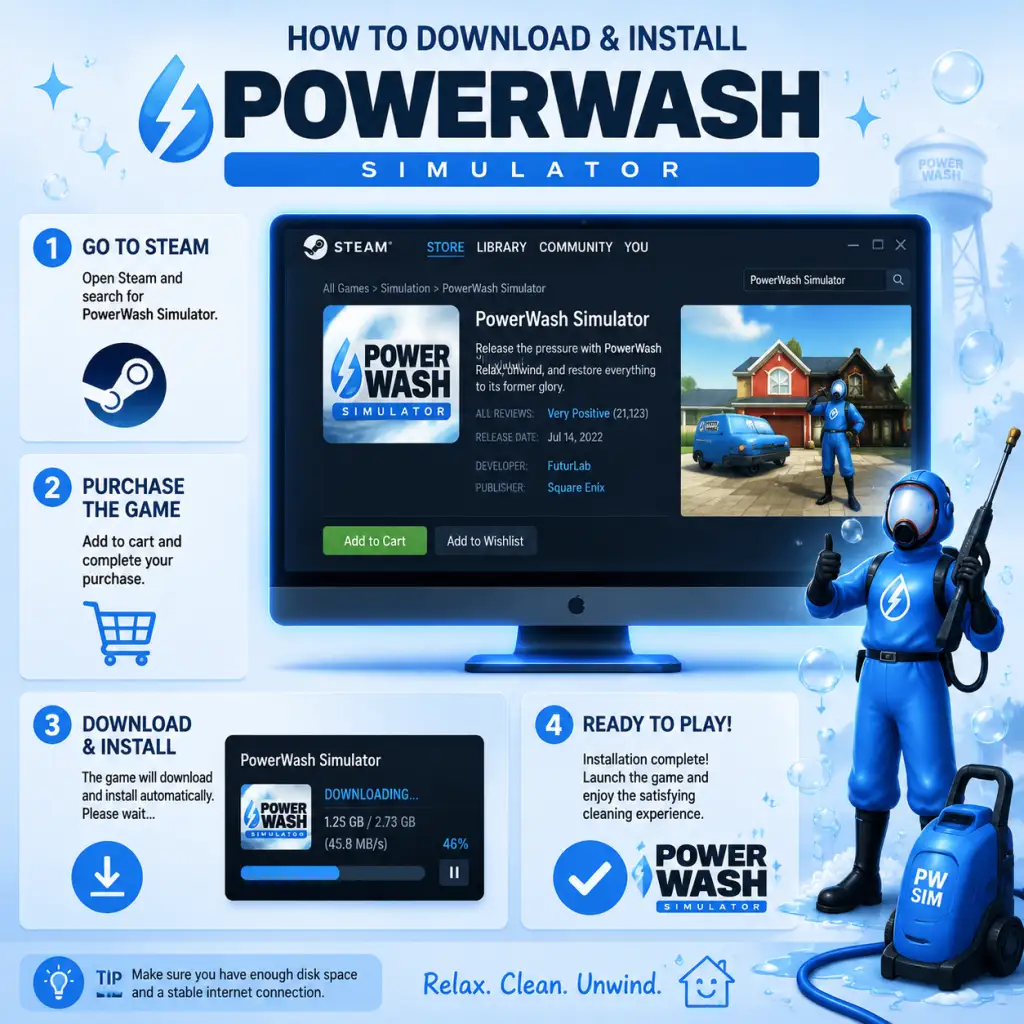
Download & Installation
PowerWash Simulator – Complete Download & Installation Guide
This guide covers everything you need to know to download and install PowerWash Simulator on all major platforms. Follow the steps for your platform to start cleaning up.
Platforms Available
- PC: Steam, Epic Games Store (Windows only)
- PlayStation: PS4, PS5
- Xbox: Xbox One, Xbox Series X|S (including Game Pass)
- Nintendo Switch
- Mobile: No official mobile version exists. Do not download from unofficial sources.
- OS: Windows 10 64-bit
- CPU: Intel Core i5-2500K / AMD FX-6300
- RAM: 8 GB
- GPU: NVIDIA GeForce GTX 960 / AMD Radeon R9 380 (2 GB VRAM)
- DirectX: Version 11
- Storage: 20 GB available space
- Additional: Integrated graphics not supported
- OS: Windows 10 64-bit
- CPU: Intel Core i7-6700K / AMD Ryzen 5 2600
- RAM: 16 GB
- GPU: NVIDIA GeForce GTX 1080 / AMD Radeon RX 5700 (4 GB VRAM)
- DirectX: Version 11
- Storage: 20 GB SSD recommended
- Additional: SSD strongly advised for faster loading
- Steam: Steam account (free) + purchase.
- Epic Games: Epic Games account (free) + purchase.
- PlayStation: PlayStation Network account (free) + purchase.
- Xbox: Microsoft account (free) + purchase or Game Pass subscription.
- Nintendo Switch: Nintendo Account (free) + purchase.
- Cross-platform accounts: No separate Square Enix account is required. Progress is saved per platform, no cross-save (except Xbox/PC via Xbox Play Anywhere? Not supported for PowerWash Simulator).
System Requirements (PC)
Minimum (1080p, 30fps, Low settings)
Recommended (1080p, 60fps, High settings)
Storage Space
All platforms require approximately 20 GB of free space. Nintendo Switch slightly less (~15 GB). Always check for updates after installation; patches may add several GB.
Step-by-Step Installation per Platform
PC (Steam)
1. Install the Steam client from [store.steampowered.com](https://store.steampowered.com) if not already installed.
2. Log into your Steam account (or create one for free).
3. In the Store, search for PowerWash Simulator.
4. Click Add to Cart and purchase (or add to library if already owned).
5. Go to your Library, find the game, and click Install.
6. Choose installation location (ensure at least 20 GB free).
7. Wait for download and automatic installation.
8. After completion, the game will appear in your library as Ready to Play.
PC (Epic Games Store)
1. Install the Epic Games Launcher from [store.epicgames.com](https://store.epicgames.com).
2. Log into your Epic account.
3. Search for PowerWash Simulator in the store.
4. Purchase or claim if free (e.g., from promotions).
5. Click Get / Install and select install location.
6. Download and installation proceed automatically.
7. Launch from Epic Library.
PlayStation (PS4 & PS5)
1. Turn on console and ensure internet connection.
2. Go to PlayStation Store from the home screen.
3. Search "PowerWash Simulator".
4. Select the game and choose Download (after purchase).
5. On PS5: you can install both PS4 and PS5 versions separately. Choose the PS5 version for best performance.
6. Download begins; you can monitor on the home screen.
7. Once installed, the game tile appears. Launch to start.
Xbox (One & Series X|S)
1. Press Xbox button to open guide, go to Store.
2. Search for PowerWash Simulator.
3. Select the game, then Buy or Install from Game Pass if you have the subscription.
4. Choose Install and select where to install (internal or external storage).
5. The download starts; you can see progress in My games & apps.
6. After installation, the game appears in your library.
7. Note: Smart Delivery ensures you get the best version for your console automatically.
Nintendo Switch
1. From the Home menu, open Nintendo eShop.
2. Search "PowerWash Simulator".
3. Select the game and proceed with purchase (or download if already purchased).
4. The download begins automatically; you can check progress on the Home screen.
5. Once complete, the game icon appears. Launch it.
6. Keep the console plugged in during download to avoid interruption.
Account Requirements
First Launch Setup
1. Upon first launch, the game will perform a brief initialisation (shader compilation on PC, especially Steam/Epic). This may take a few minutes.
2. You will be prompted to adjust display settings (brightness, resolution, etc.).
3. Then you must choose to start a new game or continue (if you have saved data from another platform? Only local).
4. A brief tutorial (optional) introduces basic controls.
5. Ensure controller is recognised if using one; keyboard and mouse fully supported on PC.
6. The game auto-saves at milestones; manual save available via pause menu.
Common Installation Errors & Fixes
| Error | Platform | Cause & Fix |
|---|---|---|
| Insufficient disk space | All | Free up at least 20 GB. On consoles, delete old games or expand storage. |
| Download stops or fails | PC | Check internet connection, pause and resume download. Verify game files via Steam (right-click → Properties → Local Files → Verify integrity). On Epic: Settings → Verify. |
| Graphics card not supported | PC | Update GPU drivers. Ensure you meet minimum requirements. Disable integrated graphics in favor of dedicated GPU. |
| Install loop on Xbox | Xbox | Hard reset (hold power button 10 sec). Then reinstall. |
| Error CE-108255-1 | PS5 | Rebuild database (Safe Mode → Option 5). Update system software. |
| Game crashes on launch | Switch, PC | Check for updates, restart device. On PC, run as administrator, disable overlays (Discord, etc.). |
| Epic launcher not detecting installation | Epic | Restart launcher and verify files. If persists, reinstall the game. |
| Black screen on startup | PC | Switch to windowed mode via config file (%LOCALAPPDATA%\PowerWashSimulator\GameUserSettings.ini) or run in compatibility mode. |
Post-Installation Verification
1. Check file integrity (PC): On Steam, right-click game → Properties → Local Files → Verify integrity. On Epic, click three dots → Manage → Verify.
2. Test launch: Run the game; it should load to the main menu within 1–2 minutes.
3. Update check: On all platforms, ensure the game is updated to the latest version (usually auto-updated).
4. Performance test: Start a level; if frame rate is low, adjust graphics settings. Use the in-game benchmark (if available) or observe.
5. Save functionality: Complete a small objective and confirm the game auto-saves (check save icon).
Additional Notes
- Game Pass subscribers (Xbox/PC): Install directly from the Game Pass app; ensure you are logged in with your active subscription account.
- Crossplay: Multiplayer works across all platforms (except Switch? Actually Switch does support crossplay with other platforms). Verify online features after installation.
- VR: No VR support.
- Demos & trials: Occasionally available; install via same storefront steps but usually expire after period.
If you still encounter issues, visit [PowerWash Simulator Support](https://www.powerwashsimulator.com/support) or the respective platform's help centre.