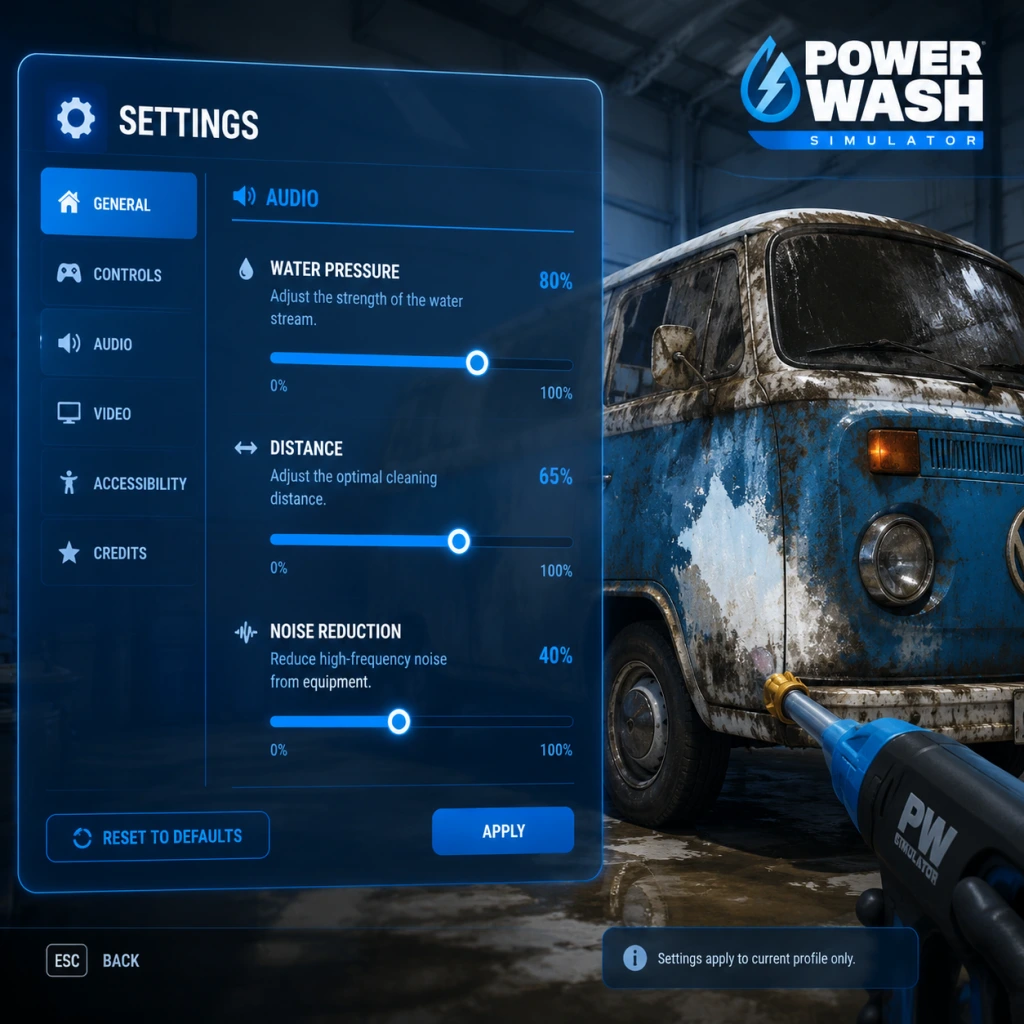
Game Settings
PowerWash Simulator – Complete Game Settings Guide
This guide covers every adjustable setting in PowerWash Simulator. Whether you're on PC, Xbox, PlayStation, or Nintendo Switch, you'll find recommendations for optimal performance and quality, as well as tips to avoid common misconfigurations.
---
Graphics Settings
Graphics settings affect visual fidelity and performance. PowerWash Simulator is not very demanding, but tweaking these can smooth out gameplay on older hardware.
Recommended Settings by Hardware Tier
| Setting | Low-End (Integrated GPU / 4GB VRAM) | Mid-Range (GTX 1060 / 6GB VRAM) | High-End (RTX 2060+ / 8GB+ VRAM) |
|---|---|---|---|
| Resolution | 1280×720 or 1600×900 | 1920×1080 | 2560×1440 or 4K |
| Display Mode | Windowed or Fullscreen | Fullscreen | Fullscreen |
| VSync | Off | On (if screen tearing) | Off |
| Frame Rate Limit | 30 FPS | 60 FPS | 144 FPS or Unlimited |
| Field of View | 70–75 | 80–90 | 90–100 |
| Anti-Aliasing | Off or FXAA | SMAA (low) | TAA or SMAA (high) |
| Texture Quality | Low | Medium | High / Ultra |
| Shadow Quality | Off | Low | Medium |
| Post-Processing | Off | Low | High (Bloom, DOF) |
| Volumetric Fog | Off | Off | On |
| Motion Blur | Off | Off | User preference (usually Off) |
| Ambient Occlusion | Off | SSAO low | HBAO+ |
| Decal Details (Dirt/Water) | Low | Medium | High |
Easy-to-Misconfigure Graphics Settings
- Field of View (FOV): Too low can cause motion sickness; too high distorts edges. Start at 80° and adjust slowly. Console defaults are usually fine.
- Motion Blur: Often enabled by default. Disabling it improves clarity and reduces nausea.
- VSync: On PC, if you have a variable refresh rate monitor (FreeSync/G-Sync) and frame rate stays within range, leave VSync Off. Otherwise, enable it to prevent tearing.
- Resolution Scaling: Some GPUs auto-scale; ensure it's set to 100% to avoid blurry image.
---
Audio Settings
Audio settings are straightforward but important for immersion and feedback.
Audio Options
| Setting | Description | Recommended |
|---|---|---|
| Master Volume | Overall game sound level | 80–100% |
| SFX Volume | Water spray, cleaning sounds, ambient | 100% |
| Music Volume | Background music | 50% (or personal preference) |
| Voice Volume | Dialogue from characters | 70% (helps hear job briefs) |
| UI Volume | Button clicks, menu sounds | 50% |
| 3D Audio | Spatial audio for headset | On if using headphones; Off for speakers |
| Audio Output Device | Select default or headset/headphones | Default |
Special Attention Points
- Music Volume: Turn it down if you find it distracting while focusing on cleaning. The game's music is relaxing but can loop.
- SFX Volume: Keep high to hear the 'ding' when finishing a job area—it’s easy to miss if too low.
- 3D Audio: On consoles, this is usually automatic. On PC, ensure Windows spatial sound is set correctly if using Windows Sonic or Dolby Atmos.
---
Controls Settings
Control customization is vital for playstyle comfort, especially during long sessions.
Key Bindings (PC)
All actions are rebindable. Default layout:
| Action | Default Key | Alternative |
|---|---|---|
| Move Forward | W | Controller left stick |
| Move Backward | S | |
| Move Left | A | |
| Move Right | D | |
| Look Around | Mouse | Controller right stick |
| Sprint | Left Shift | L3 (click stick) |
| Jump | Space | A on controller |
| Crouch | Left Ctrl | B on controller |
| Interact / Use Washer | Left Mouse / RT | |
| Wash Action (Hold) | Hold Left Mouse / Hold RT | |
| Switch Nozzle | 1-4 / D-Pad Up/Down | |
| Change Pressure | Mouse Wheel / LB+RB | |
| Use Soap | Q / Left Bumper | |
| Tablets / Map | Tab / View Button | |
| Pause | Esc / Start Button | |
| Photo Mode | F9 / Share Button |
Controller Settings (All Platforms)
| Setting | Options | Recommended |
|---|---|---|
| Invert Look | On / Off | Off (unless used to other games) |
| Aim Sensitivity | 1–10 slider | 4–5 (start low, increase gradually) |
| Look Sensitivity | 1–10 slider | 5 (default is fine) |
| Aim Assist | Off / Low / Normal / High | Normal (helps track dirt but never required) |
| Controller Deadzone | 0–100% | 10–15% (prevents drift without losing precision) |
| Vibration | On / Off / Reduced | On for immersion; Reduced if annoying |
| Trigger Effect (PS5/Xbox) | On / Off | Off (can reduce battery, no gameplay benefit) |
Easy-to-Misconfigure Controls
- Controller Deadzone: If your controller has stick drift, increase deadzone to 20% or more. Too low causes unintended camera movement while cleaning.
- Aim Assist Strength: High aim assist may make it hard to spray exactly where you want on small objects. Set to Normal or Low.
- Sprint Toggle vs Hold: Not directly configurable, but Sprint is Hold by default. No toggle option – you must hold the key/stick.
- Mouse Smoothing (PC): Hidden in settings? Not exposed; if you feel input lag, check your mouse polling rate and disable any mouse acceleration in Windows.
---
Accessibility Settings
PowerWash Simulator includes several accessibility options to ensure a comfortable experience.
| Setting | Description | Recommended |
|---|---|---|
| Subtitle Size | Small / Medium / Large | Large for readability |
| Subtitle Background | None / Subtle / Opaque | Subtle (opaque blocks more of screen) |
| Colorblind Mode | Off / Protanopia / Deuteranopia / Tritanopia | Set according to your type (affects UI and dirt highlight) |
| Screen Shake | On / Off | Off (reduces motion sickness) |
| Head Bobbing | On / Off | Off (can cause nausea) |
| High Contrast Mode | On / Off | Off unless needed for visual clarity |
| HUD Size | Small / Medium / Large | Medium |
| HUD Opacity | 50% – 100% | 100% for full information |
| Auto-Equip Washer | On / Off | On (saves button presses) |
Special Attention Points
- Screen Shake & Head Bobbing: Disable both for motion sickness prevention. They are on by default.
- Colorblind Mode: Adjusting this only changes some UI elements (like the dirt tint). The game’s significant dirt removal feedback (sound + visual) makes it playable even without this setting.
- Subtitle Background: Opaque can obscure important parts of the job area. Use Subtle or None if you have good contrast vision.
---
Language Settings
| Setting | Description | Options |
|---|---|---|
| Text Language | UI, menus, subtitles | Multiple languages (English, French, German, Italian, Spanish, Japanese, Chinese Simplified/Traditional, Korean, Polish, Portuguese-Brazil, Russian) |
| Voice Over Language | Spoken dialogue | Usually matches text language; some languages have separate voice packs |
| Subtitle Mode | Off / On (all) / On (cutscenes only) | On (all) to not miss story |
---
Network & Multiplayer Settings
Multiplayer (co-op) settings affect online play. Requires internet connection and platform subscription (Xbox Live Gold, PlayStation Plus, Nintendo Switch Online) for consoles.
| Setting | Description | Recommended |
|---|---|---|
| Online Status | Visible / Offline / Friends Only | Visible if you want to join or host public sessions |
| Voice Chat | Push-to-Talk / Open Mic / Disabled | Push-to-Talk to avoid background noise |
| Voice Chat Volume | Slider | 80% |
| Show Player Names | On / Off | On (identify teammates) |
| Invite Only Sessions | Toggle | Off for open co-op; On for private games |
| Crossplay | On / Off | On (enabled by default across PC, Xbox, PlayStation, Switch) |
| Region | Auto / Manual | Auto (matches lowest ping) |
Special Attention Points
- Crossplay: Ensure it’s enabled if you want to play with friends on different platforms. On PC, you need to link your Square Enix account in-game or via the Xbox app if playing through Game Pass.
- Voice Chat: Open Mic can cause feedback if you have speakers. Use Push-to-Talk or set a key bind for it.
- Session Visibility: If you prefer solo play, set Online Status to Offline to avoid invitations.
---
Gameplay Settings
These affect how the game plays beyond basic controls.
| Setting | Description | Recommended |
|---|---|---|
| Auto-Aim (for washer) | On / Off | Off (manual aim is more satisfying) |
| Washer Retraction | Manual / Automatic | Manual (gives control over when to stop) |
| Always Show Dirt Highlight | On / Off | On (helps see remaining dirt) |
| Job Complete Notification | On / Off | On (essential for knowing when a job is 100% cleaned) |
| Photo Mode Controls | Standard / Advanced | Standard is sufficient |
| Difficulty Presets | None – game has no difficulty settings | N/A |
| Pause While Cleaning (Single Player) | On / Off | On (pauses when menu opened) |
Easy-to-Misconfigure Gameplay Settings
- Auto-Aim (Washer): This setting slightly nudges your spray toward nearby dirt. Turn it off for precise cleaning on small objects (like signs or toys).
- Washer Retraction: If set to Automatic, your hose will retract when you stop spraying. This can be convenient but sometimes retracts while you’re still moving. Manual gives better control.
- Always Show Dirt Highlight: Keep this on. It tints dirty areas with a subtle color, making the cleaning process much easier. Without it, you might miss patches.
---
Special Attention Points During Initial Setup
1. Calibrate Controller Deadzone Immediately: If you notice any drift during the first job, go to Controls and increase the deadzone. Drift can be very frustrating while aiming.
2. Set FOV to Your Comfort: Play the first tutorial level, then pause and adjust FOV. A narrow FOV can make you feel cramped; a wide FOV can distort near objects. 80–85 is a safe starting point.
3. Disable Motion Blur & Screen Shake: The default motion blur can cause headaches in a game where you’re constantly turning. Turn both off before starting Career Mode.
4. Adjust Audio Balance: Turn up SFX and turn down music if you want to hear the satisfying hiss of water and the clean-up chimes. The chime is your confirmation that a section is fully clean – don’t miss it!
5. Set Aim Assist to Low or Normal: A high aim assist may lock onto large areas, preventing you from scrubbing small details. It’s best to learn manual aiming early.
6. Check Crossplay Status: If you plan to play with friends on different platforms, verify crossplay is enabled in Network Settings. Steam players need to link their Square Enix account (prompted on first multiplayer launch).
7. Save Your Settings: Some settings (like key bindings) save automatically, but it’s wise to confirm after changing anything critical (e.g., resolution) by restarting the game once.
---
Summary Table of All Setting Categories
| Category | Key Settings to Check |
|---|---|
| Graphics | FOV, Motion Blur, Resolution, Shadows |
| Audio | SFX volume (keep high), Music (adjust) |
| Controls | Deadzone, Invert Look, Aim Assist |
| Accessibility | Screen Shake, Head Bobbing, Colorblind |
| Language | Text language, Subtitle mode |
| Network | Crossplay, Voice Chat mode |
| Gameplay | Auto-Aim, Washer Retraction, Dirt Highlight |