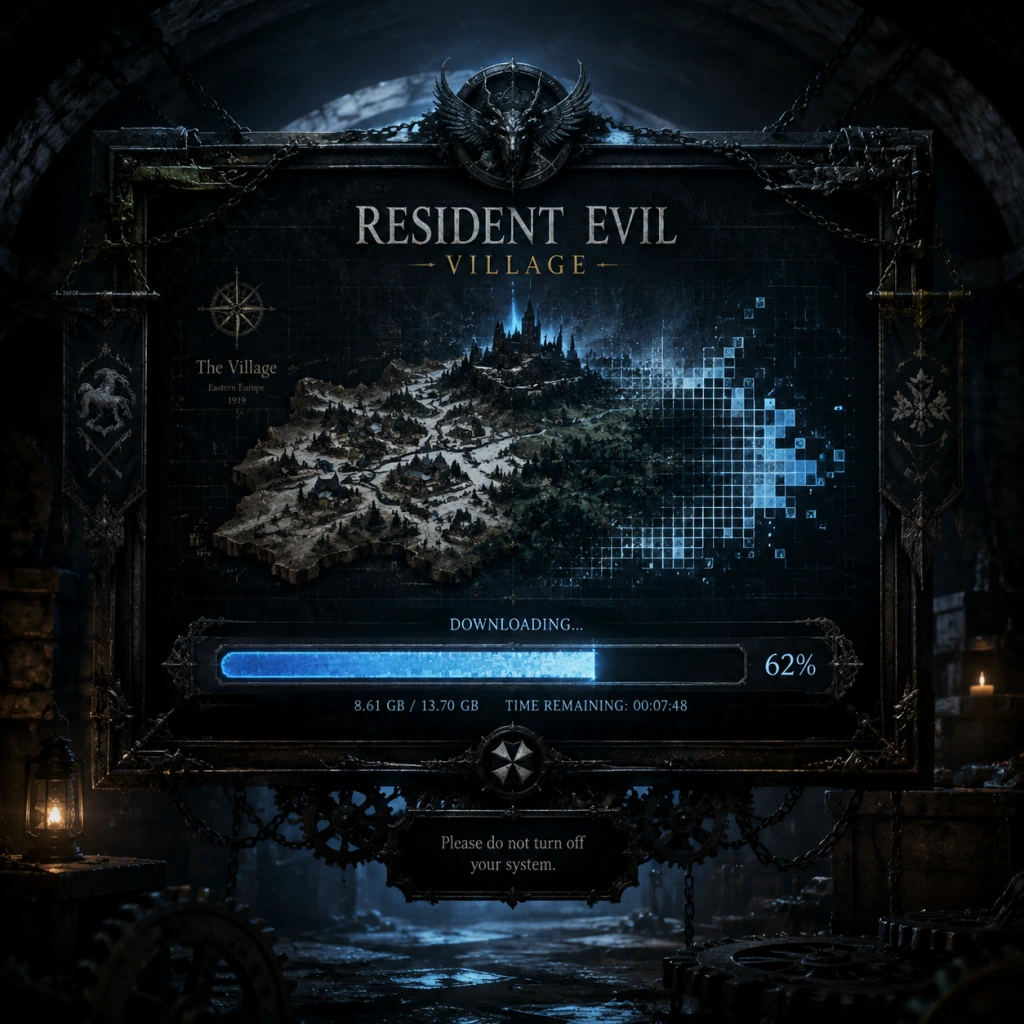
Download & Installation
Resident Evil Village – Download & Installation Guide
This guide covers everything you need to download, install, and verify Resident Evil Village (also known as Resident Evil 8 or RE8) on every major platform. Follow the section for your system.
---
1. System Requirements
PC (Windows)
| Component | Minimum | Recommended |
|---|---|---|
| OS | Windows 10 (64-bit) | Windows 10/11 (64-bit) |
| CPU | AMD Ryzen 3 1200 / Intel Core i5-7500 | AMD Ryzen 5 3600 / Intel Core i7-8700 |
| RAM | 8 GB | 16 GB |
| GPU | AMD Radeon RX 560 (4GB) / NVIDIA GeForce GTX 1050 Ti (4GB) | AMD Radeon RX 5700 (8GB) / NVIDIA GeForce GTX 1070 (8GB) |
| DirectX | Version 12 | Version 12 |
| Storage | 45 GB (SSD strongly recommended) | 45 GB (SSD) |
| Additional | 4GB VRAM | 8GB VRAM, high-quality audio device |
PlayStation
| Platform | Storage Required | Notes |
|---|---|---|
| PS4 / PS4 Pro | ~45 GB | Base PS4 runs at 1080p/45 FPS; PS4 Pro at 4K checkerboard/60 FPS |
| PS5 | ~45 GB | Full 4K/60 FPS with ray tracing; supports adaptive triggers and haptic feedback |
Xbox
| Platform | Storage Required | Notes |
|---|---|---|
| Xbox One / One X | ~45 GB | Xbox One X: 4K/30 FPS |
| Xbox Series S | ~45 GB | 1440p/60 FPS; no ray tracing |
| Xbox Series X | ~45 GB | 4K/60 FPS with ray tracing (performance vs. quality mode) |
Nintendo Switch (Cloud Version Only)
| Requirement | Details |
|---|---|
| Internet | Stable high-speed connection (at least 10 Mbps download, 5 Mbps upload) |
| Storage | ~300 MB for the launcher app (game data is streamed) |
| Account | Nintendo Account + Nintendo Switch Online membership (optional but recommended for stability) |
iOS / iPadOS (Mobile)
| Device | Requirements | Storage |
|---|---|---|
| iPhone | iPhone 15 Pro / Pro Max running iOS 17.0+ | ~7.5 GB (one-time download after streaming) |
| iPad | iPad with M1 chip or later (iPad Pro 2021+, iPad Air 5, iPad 10th gen? Actually only M1 or M2) running iPadOS 17.0+ | ~7.5 GB |
| Internet | Required for initial download and streaming; game data is stored locally after a one-time download of ~7.5 GB (but still requires online check-ins). |
2. Where to Buy & Legitimate Sources
| Platform | Official Store | Price (approx.) |
|---|---|---|
| PC (Steam) | [Steam Store](https://store.steampowered.com/app/1196590/Resident_Evil_Village/) | $39.99 (base) / $59.99 (Gold Edition) |
| PC (Epic Games Store) | [Epic Store](https://store.epicgames.com/en-US/p/resident-evil-village) | $39.99 (base) / $59.99 (Gold Edition) |
| PlayStation 4/5 | PlayStation Store | $39.99 (base) / $59.99 (Gold Edition) |
| **Xbox One/Series X | S** | Microsoft Store |
| Nintendo Switch | Nintendo eShop (cloud version) | $39.99 (includes all DLC? Check) |
| iOS/iPadOS | App Store (requires iPhone 15 Pro or M1 iPad) | $39.99 (universal purchase – one buy for phone and tablet) |
---
3. Step-by-Step Installation
PC – Steam
1. Create a Steam account if you don’t have one at [store.steampowered.com/join](https://store.steampowered.com/join).
2. Install the Steam client from [store.steampowered.com/about](https://store.steampowered.com/about).
3. Launch Steam and log in.
4. Purchase the game: Visit the [Resident Evil Village page](https://store.steampowered.com/app/1196590/Resident_Evil_Village/) and click “Add to Cart”, then complete checkout.
5. Go to your Library and find Resident Evil Village.
6. Click Install. Choose a destination drive (ensure at least 45 GB free).
7. Wait for the download and automatic installation. The game will create shortcuts.
8. (Optional) For DLC (e.g., Shadows of Rose), purchase and install the Gold Edition or the DLC separately.
PC – Epic Games Store
1. Install the Epic Games Launcher from [epicgames.com](https://www.epicgames.com/store/en-US/download).
2. Create or log in to your Epic Games account.
3. Purchase the game: Search “Resident Evil Village” in the Store, click to the product page, and buy.
4. Go to your Library and locate Resident Evil Village.
5. Click Install. Choose installation path and language.
6. The launcher will download and install the game. Shortcuts will be added.
PlayStation 4 / PlayStation 5
1. Digital purchase:
- On the console, go to PlayStation Store.
- Search for “Resident Evil Village”.
- Select the edition (Standard, Gold, or Deluxe) and purchase.
- The download will begin automatically. You can check progress under Notifications > Downloads.
2. Physical disc:
- Insert the disc into the console.
- The game will begin installing from the disc. You will need to download a day-one patch (size varies, ~5-10 GB).
- Ensure you have enough free space (~45 GB).
3. PS5 upgrade: If you own the PS4 version, you can upgrade to the PS5 version for free. Insert the PS4 disc (or own digital license) and go to the game hub, then select the “PS5 upgrade” offer. Download the PS5 version (separate install).
Xbox One / Xbox Series X|S
1. Digital purchase:
- Press the Xbox button, go to Microsoft Store.
- Search for the game and purchase.
- The download will start immediately. You can monitor from My Games & Apps.
2. Physical disc:
- Insert the disc. The console will prompt you to install the game.
- A mandatory update will download (patch).
3. Smart Delivery: If you own an Xbox One copy, the Xbox Series X|S will automatically get the optimized version when installed on the newer console (digital or disc).
Nintendo Switch (Cloud Version)
1. Connect to a stable Wi‑Fi network (wired Ethernet is strongly recommended).
2. Open the Nintendo eShop on your Switch.
3. Search for Resident Evil Village Cloud Version.
4. Purchase the game (requires a Nintendo Account).
5. Download the launcher app (~300 MB). Once downloaded, launch it.
6. The game will stream to your console. You must have an active internet connection to play. No offline mode.
7. (Optional) Purchase the Shadows of Rose DLC separately from eShop.
iOS / iPadOS (Mobile)
1. Check compatibility: You need an iPhone 15 Pro / Pro Max or an iPad with an M1 chip (or newer) running iOS 17.0+ / iPadOS 17.0+.
2. Open the App Store.
3. Search for “Resident Evil Village”.
4. Tap Get or the price to purchase (requires Apple ID payment method).
5. The initial download is about 7.5 GB. Ensure you have free space and a good Wi‑Fi connection. This may take 30–60 minutes.
6. After download, you can play without an internet connection for some time, but periodic online checks are required.
7. (Optional) Buy the Winters’ Expansion via in-app purchase.
---
4. Account Requirements
| Platform | Accounts Needed |
|---|---|
| PC Steam | Steam account (free) |
| PC Epic | Epic Games account (free) |
| PlayStation | PlayStation Network account (free for digital purchase; no account needed for disc after patch? But PSN required for updates and online features) |
| Xbox | Microsoft / Xbox Live account (free for basic; Game Pass optional) |
| Switch | Nintendo Account (free) |
| iOS/iPadOS | Apple ID (with payment method) |
---
5. First Launch Setup
1. Launch the game.
- PC: Double-click the desktop shortcut or launch from Steam/Epic Library.
- PlayStation/Xbox: Start the game from the home screen.
- Switch: Open the cloud launcher and wait for connection.
- iOS: Tap the app icon.
2. Adjust graphics settings (PC only):
- On first launch, the game will detect your hardware and suggest a preset (Low, Medium, High, Max, or Ray Tracing). You can change these later in Options > Graphics.
- Recommended: Set screen resolution to native, turn on FidelityFX Super Resolution (FSR) if you need better performance, and enable ray tracing only if your GPU can handle it (RTX 2060 or better).
3. Language and audio: Choose your preferred language for text and voice. The game supports multiple languages.
4. Display calibration (if prompted): Adjust brightness using the in-game HDR calibration tool (if your display supports HDR).
5. Load screen timeout: Be patient – the first load may take a few minutes, especially on HDDs. This is normal.
6. Main menu: You can start a new game, load a save, adjust settings, or enable accessibility options (subtitles, difficulty, etc.).
---
6. Common Installation Errors & Fixes
| Error / Symptom | Possible Cause | Fix |
|---|---|---|
| “Not enough disk space” | Drive full or incorrectly reported. | Free up at least 50 GB (the game needs 45 GB plus temporary files). Check drive formatting (NTFS for PC). |
| Steam “Content file locked” | Antivirus or permission issue. | Temporarily disable real-time scanning, or add Steam and game folder exceptions (e.g., `C:\Program Files (x86)\Steam\`). |
| Epic “Installation Failed” | Corrupted download cache. | In Epic Launcher, go to Settings > Manage Games > verify files? Or clear cache: Settings > Troubleshoot > Clear Web Cache. |
| PlayStation “Cannot install” | Insufficient space or patch stuck. | Delete unnecessary data. Restart console in safe mode and rebuild database. |
| Xbox “Installation stopped” | Network drop or disk error. | Go to My Games & Apps > Manage queue, cancel and reinstall. Hard reset console (hold power button 10 seconds). |
| Switch cloud version lag / disconnects | Poor internet. | Use a wired adapter. Close other apps. Ensure NAT type is open. |
| iOS “App not compatible” | Device not supported. | Verify device model and iOS version. Only iPhone 15 Pro/Pro Max and M1 iPad or newer are compatible. |
| PC crash on launch | Outdated drivers or missing VC++ runtimes. | Update GPU drivers (NVIDIA Game Ready, AMD Adrenalin). Install or repair Microsoft Visual C++ Redistributables. |
| Black screen after logo | DirectX 12 issue or HDR conflict. | Disable HDR in Windows display settings. Run the game in windowed mode (add `-windowed` to launch options in Steam). |
| Stuttering / low FPS | High settings for hardware. | Lower graphics settings, enable FSR, turn off ray tracing. |
- Steam: Right-click game in Library > Properties > Local Files > Verify integrity of game files.
- Epic: Click the three dots next to the game > Manage > Verify.
- PlayStation: Settings > Storage > select game > Check for corrupted data.
- Xbox: Settings > System > Storage > Clear local saved games (does not delete saves).
- PC users: For the best experience, install the game on an SSD. Loading times on HDD can exceed 2 minutes.
- Cross-platform progression: Saves are not transferable between platforms (e.g., Steam to PS5).
- Game updates: Enable automatic updates to receive patches and fixes.
- Mods: PC version supports modding, but be careful – mods may disable achievements or cause crashes. Always back up your save file (`%AppData%\Local\RE8` on Windows).
- Demo: Try the free Resident Evil Village Gameplay Demo before buying (available on all platforms except Switch? Actually Switch cloud version may have a demo too).
- Refunds: Digital purchases are generally non-refundable after download, but check the store’s policy (Steam allows refunds within 14 days/2 hours playtime).
---
7. Post-Installation Verification
After installation, ensure everything is working correctly:
1. Check game size:
- PC: Go to the installation folder (e.g., `Steam\steamapps\common\RE8`). Total size should be ~45 GB (with DLC slightly more).
- Consoles: In storage management, the game should show ~45 GB (PS5: ~40 GB after compression).
- iOS: Check in iPhone/iPad Storage settings; the app should be ~7.5 GB.
2. Test start: Launch the game and get past the title screen. The game should not crash.
3. Graphics benchmarks: PC users can run the in-game benchmark (Options > Graphics > Benchmark). A score of 60+ FPS on your target settings is good.
4. Achievements/Trophies: Check that your account is linked and you see the achievement list.
5. DLC activation: If you purchased the Gold Edition or additional DLC, confirm in-game that Shadows of Rose is accessible from the main menu (New Game > Bonus Content > Shadows of Rose).
6. Patch version: The game should be updated to the latest version (e.g., v1.05 or higher). Check in Settings > Update History.
---
8. Additional Tips
---
9. Download Size Overview
| Platform | Download Size | After Install |
|---|---|---|
| PC (Steam/Epic) | ~45 GB | ~45 GB |
| PS4 / PS5 | ~30–45 GB | ~45 GB |
| Xbox One / Series X | S | ~45 GB |
| Switch (Cloud) | ~300 MB launcher | N/A (streamed) |
| iOS / iPadOS | ~7.5 GB | ~7.5 GB |
---
10. Contact Support
If you encounter persistent issues, contact official support:
- Capcom Support: [support.capcom.com](https://support.capcom.com)
- Steam Support: [help.steampowered.com](https://help.steampowered.com)
- Epic Games Support: [epicgames.com/help](https://www.epicgames.com/help)
- PlayStation Support: [playstation.com/support](https://www.playstation.com/support)
- Xbox Support: [support.xbox.com](https://support.xbox.com)
- Nintendo Support: [nintendo.com/consumer](https://www.nintendo.com/consumer)
- Apple Support: [support.apple.com](https://support.apple.com)
---
Enjoy your survival horror experience in Resident Evil Village! Stay safe, and check your corners.