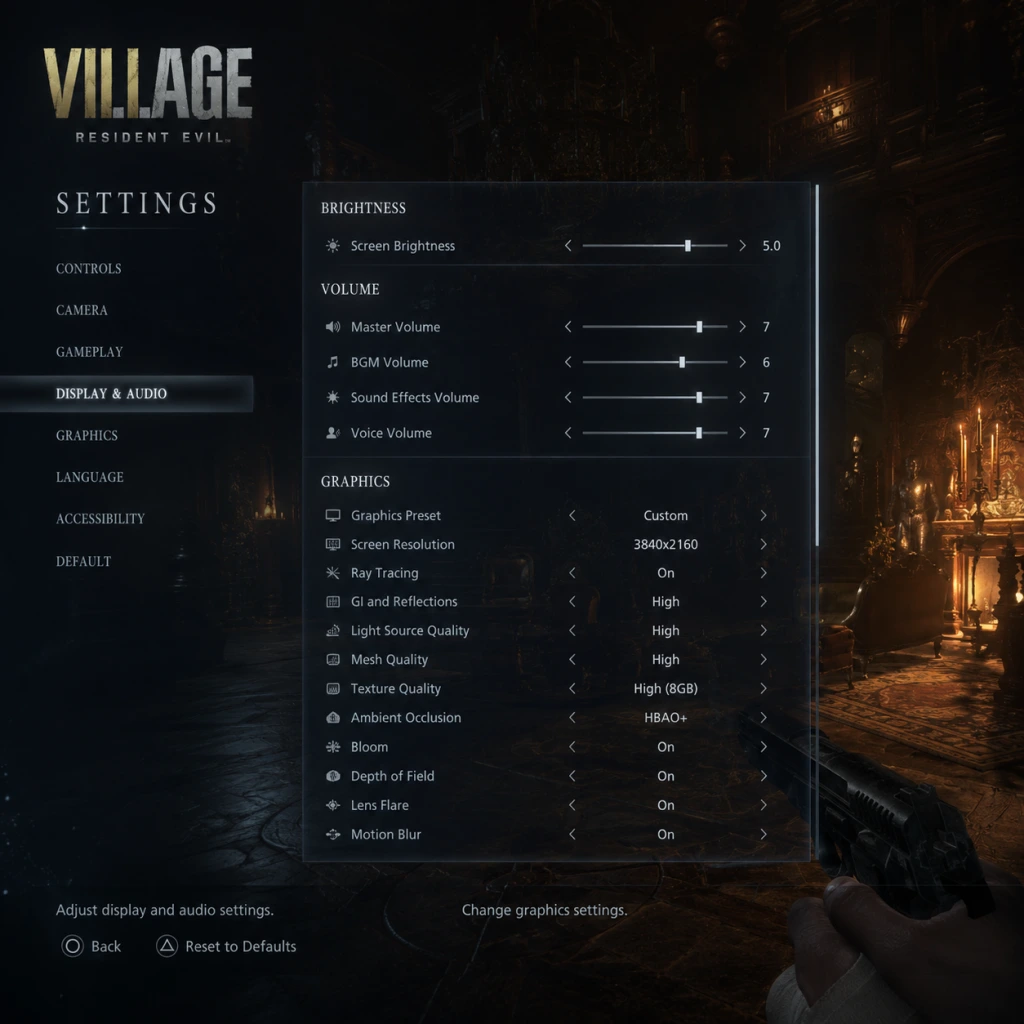
Game Settings
Resident Evil Village – Comprehensive Game Settings Guide
This guide covers every measurable setting in Resident Evil Village (RE8) across Graphics, Audio, Controls, Accessibility, Language, Network, and Gameplay. We provide optimal recommendations for different hardware tiers (Low, Medium, High, Ray Tracing) and highlight settings that are often misconfigured or require special attention during setup.
---
1. Graphics Settings
Graphics settings are the most impactful for performance and visual fidelity. RE8 uses Capcom’s RE Engine, which is well-optimized but still demands careful tuning.
1.1 Display Settings
| Setting | Options | Recommendation | Notes |
|---|---|---|---|
| Display Mode | Full Screen, Borderless, Windowed | Full Screen for best performance. Borderless is recommended for multi‑monitor setups. | Full Screen gives the most dedicated GPU resources. |
| Resolution | Native monitor resolution | Native (e.g., 1920×1080, 2560×1440, 3840×2160) | Lowering resolution gains large FPS but reduces clarity. |
| Refresh Rate | 60Hz, 120Hz, 144Hz, etc. | Maximum your monitor supports | Ensure Windows display settings match. |
| V‑Sync | On, Off, Adaptive (1/2, 1/3) | Off for lower input lag if your monitor supports G‑Sync/Freesync. Otherwise, set to On to prevent tearing. | V‑Sync adds latency; disable if you have adaptive sync. |
| Frame Rate Limit | 30, 60, 90, 120, 144, Unlimited | Unlimited if you have high‑refresh monitor and can maintain high FPS; otherwise cap at 60 or target FPS. | Use to stabilise performance when CPU/GPU limited. |
| HDR | On, Off | On if you have a proper HDR display (10‑bit, 600+ nits). Otherwise Off to avoid washed‑out colours. | Requires in‑game calibration brightness to 0.000 nits (black) and 2000 nits (white) typical. |
| Brightness | Slider 0–5 | 2.0 – 2.5 as default; adjust until the test image logo is barely visible. | Too high = washed‑out blacks; too low = lost details in shadows. |
| Monitor / Display Selection | Drop‑down list | Primary monitor | If using multiple GPUs, choose the dedicated GPU in Windows settings. |
1.2 Graphics Quality Presets & Individual Tuning
RE8 offers presets: Low, Medium, High, Max (Ray Tracing). Below is the breakdown of key individual settings.
| Setting | Low | Medium | High | Max (RT) | Performance Impact | Notes |
|---|---|---|---|---|---|---|
| Image Quality (Resolution Scale) | 70% | 85% | 100% | 100% | Very High – lower = sharper but blurry; use only as last resort. | 100% = native. For 4K, 85% is often indistinguishable. |
| Texture Quality | Low (0.5GB) | Medium (1GB) | High (2GB) | High (2GB) | Moderate – affects VRAM usage. Use High if VRAM ≥ 4GB. | Textures have huge memory pool; lowering reduces visual detail but helps low VRAM cards (e.g., GTX 1050 Ti). |
| Texture Filtering (Anisotropic) | 2x | 4x | 8x | 16x | Low – almost no FPS cost. Always set to 16x on anything above Low. | Improves ground/surface clarity at angles. |
| Mesh Quality | Low | Medium | High | High | Moderate – controls geometric detail (rocks, foliage). | Low can cause pop‑in. Medium is a good compromise. |
| Anti‑Aliasing | FXAA+TAA | TAA | TAA High | TAA High | Low to Moderate – TAA High is sharper. FXAA+TAA blurs more. | TAA High is recommended for balance. SMAA not available. |
| Shadow Quality | Low | Medium | High | High | Moderate – Low reduces shadow resolution; may cause flickering. | High is visually rich but costly on older GPUs. |
| Ambient Occlusion | Off | Low (SSAO) | High (HBAO+) | High (HBAO+) | Moderate – HBAO+ adds realistic contact shadows. | Off saves FPS; SSAO is lighter. |
| Bloom | On/Off | On | On | On | Very Low – negligible FPS hit. | Adds glow to bright lights; keep On for atmosphere. |
| Motion Blur | Off | Off | On | On | Low – subjective. | Many players disable for clarity; recommended to turn Off. |
| Lens Flare | Off | On | On | On | Negligible | Keep On for immersion unless you dislike it. |
| Volumetric Lighting | Low | Medium | High | High | High – Large FPS drain in smoky/fog areas. Low disables most volume. | Medium is a good compromise; High can cut FPS by 15‑20% in Castle interiors. |
| Reflections | Low (SSR) | Medium (SSR) | High (SSR) | Max (Ray Traced) | Very High with RT; SSR High still heavy. | Ray tracing reflections are extremely demanding. Use only on RTX 3060 Ti+ or RX 6800+ for 60fps. |
| Subsurface Scattering | Off | On | On | On | Low – improves skin looks. Keep On if possible. | |
| Shader Cache | On / Off | On | On | On | None – prevents stuttering. Always enable. | Must be enabled for smooth gameplay after shaders compile. |
| Ray Tracing | Off | Off | Off | On (Cascade) | Extreme – can drop FPS by 30‑50% even on high‑end GPUs. | Only for RT reflections and shadows; turn off if losing target FPS. |
| Variable Rate Shading (VRS) | Off | Off | Off | On | Low to Moderate – increases performance where shadows reduce pixel detail. | Supported on NVIDIA Turing+ and AMD RDNA2+. Leave Off if no performance issue. |
| FidelityFX CAS | Off / On | Off | Off | Off | Low – optional sharpening filter. | Can help when using resolution scaling; keep Off at native. |
1.3 Hardware Tier Recommendations
####