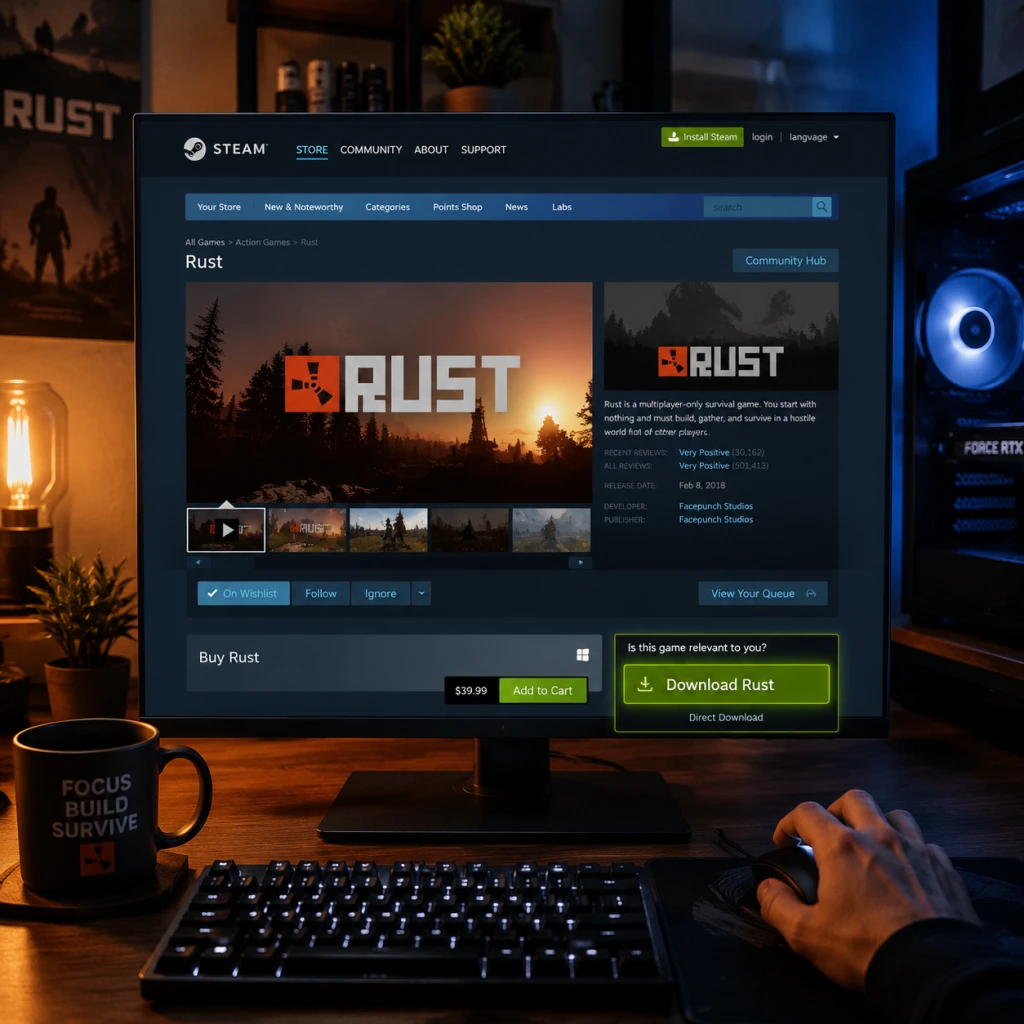
Download & Installation
Introduction
This guide covers the official, legitimate methods for downloading and installing Rust (both the PC version and Rust Console Edition). Rust is a multiplayer survival game developed by Facepunch Studios (PC) and published by Double Eleven (console). The PC version is available exclusively on Steam; console versions are available on PlayStation 4, PlayStation 5, Xbox One, and Xbox Series X|S. There is no version for Nintendo Switch, Epic Games Store, or mobile devices.
---
Platforms Overview
| Platform | Store | Version Notes |
|---|---|---|
| PC (Windows) | Steam | Full game; requires Steam client |
| PlayStation 4/5 | PlayStation Store | Rust Console Edition (separate from PC) |
| **Xbox One / Series X | S** | Microsoft Store |
---
System Requirements
PC (Steam)
Minimum:
- OS: Windows 10 64-bit (version 1909 or newer)
- CPU: Intel Core i7-3770 / AMD FX-9590 or better
- RAM: 10 GB
- GPU: Nvidia GeForce GTX 670 2GB / AMD Radeon HD 7870 2GB or better
- DirectX: Version 12
- Storage: 30 GB available space (SSD recommended)
- Network: Broadband internet connection
- OS: Windows 11 64-bit
- CPU: Intel Core i7-8700K / AMD Ryzen 5 3600X
- RAM: 16 GB
- GPU: Nvidia GeForce GTX 1080 8GB / AMD Radeon RX 580 8GB or better
- DirectX: Version 12
- Storage: 30 GB SSD
- Network: Broadband internet connection
Recommended:
PlayStation 4 / PlayStation 5
| Console | Storage Required |
|---|---|
| PS4 | ~30 GB |
| PS5 | ~30 GB (uses SSD) |
Xbox One / Xbox Series X|S
| Console | Storage Required |
|---|---|
| Xbox One | ~30 GB |
| Xbox Series X | S |
---
Download & Installation: PC (Steam)
Step 1: Create a Steam Account
1. Go to [store.steampowered.com](https://store.steampowered.com).
2. Click Login → Join Steam.
3. Follow the registration instructions (email verification required).
Step 2: Install the Steam Client
- Download the Steam installer from the official site.
- Run the installer and follow on-screen prompts to install Steam.
- Launch Steam and log in.
- Rust is a paid game (typically $39.99 USD, often on sale).
- In Steam, go to Store → search for Rust.
- Click Add to Cart → complete purchase via any accepted payment method.
- Once purchased, the game will appear in your Library.
- In your Library, find Rust.
- Click Install.
- Choose installation directory (default is `C:\Program Files (x86)\Steam\steamapps\common\Rust`). SSD is strongly recommended.
- Click Next → the download starts. The game is ~25–30 GB.
- Wait for download and installation to complete (Steam automatically decompresses files).
- Rust uses Easy Anti-Cheat (EAC). Steam will install EAC automatically during first launch.
- On first launch, you may see a prompt to install EAC; accept it.
- Rust will then update shaders and verify game files.
- You will be asked to choose language and video settings. Adjust as needed.
- Create a character and start playing.
- You must have a PlayStation Network (PSN) account. If not, create one via console or [playstation.com](https://www.playstation.com).
- Ensure your console is connected to the internet.
- On your console, go to the PlayStation Store.
- Search for Rust Console Edition.
- Select the edition (Standard or Deluxe) and purchase.
- After purchase, the game will start downloading automatically. Alternatively, you can manually start the download from your library.
- The download size is ~30 GB. Ensure you have adequate free space.
- Download and installation happen in the background.
- Once complete, you can launch the game from the home screen.
- On first launch, Rust Console Edition may prompt for optional updates (e.g., server lists).
- Accept the license agreement.
- Configure audio, video, and control settings.
- The game will initialize (may take a few minutes).
- Sign in with your Microsoft / Xbox Live account. If you don’t have one, create it via console or [xbox.com](https://www.xbox.com).
- Ensure your console is connected to the internet.
- Open the Microsoft Store on your Xbox.
- Search for Rust Console Edition.
- Choose the desired edition (Standard, Deluxe, or Ultimate) and purchase.
- The game will be added to your library and begin downloading automatically.
- The download is ~30 GB. Keep enough free space.
- Installation proceeds in the background. You can check progress in My games & apps.
- Once installed, the game tile will appear on your home screen.
- Launch the game.
- Accept any terms and updates.
- Adjust settings (graphics, controls, audio).
- The game will connect to official servers.
- Error: EAC not installed or fails to launch.
- The game requires ~30 GB free. Even after download, installation may require additional temporary space.
- Fix: Free up space by deleting unnecessary files or moving the install drive. Use Disk Cleanup on Windows.
- Some antivirus software may flag Rust executable or EAC as a threat.
- Fix: Add exceptions for `Rust.exe` and `<Steam folder>\steamapps\common\Rust\EasyAntiCheat\`.
- Fix: Change download region in Steam Settings → Downloads → Download Region (choose a different nearby region).
- Restart Steam. Alternatively, clear download cache: Steam Settings → Downloads → Clear Download Cache.
- PS4/PS5: If download stops, go to Notifications → Downloads and resume. Restart console if needed.
- Xbox: Try a hard reset (hold power button for 10 seconds). Check network connection.
- PC: In Steam, right-click Rust → Properties → Installed Files → Verify integrity of game files.
- Console: Delete the game and reinstall from your library (your purchased license is tied to your account, no need to buy again).
- Ensure your system meets requirements. Update graphics drivers (Nvidia, AMD, Intel).
- In-game video settings: reduce Graphics Quality, Shadow Quality, Draw Distance, and disable Motion Blur or Bloom.
- PC:
- Console:
- General:
- Storage Space: The game requires approximately 30 GB on all platforms. After updates and future content, the size may increase; keep at least 10 GB buffer.
- Account Requirements: You must have a separate paid account per platform (Steam, PSN, Xbox Live). Game licenses are not transferable.
- Updates: Rust receives large monthly updates (First Thursdays). Ensure you have enough bandwidth and disk space for updates.
- Offline Mode: Rust is an always-online game. No offline single-player mode exists.
- PC: [Rust Community Support](https://rust.facepunch.com/support)
- Console: [Double Eleven Support](https://double11.com/support)
Step 3: Purchase / Add Rust to Your Library
Step 4: Download & Install
Step 5: First Launch Setup (EAC)
---
Download & Installation: PlayStation (PS4 / PS5)
Step 1: PlayStation Network Account
Step 2: Purchase Rust Console Edition
Step 3: Installation
Step 4: First Launch
---
Download & Installation: Xbox (One / Series X|S)
Step 1: Xbox Live Account
Step 2: Purchase Rust Console Edition
Step 3: Installation
Step 4: First Launch
---
Common Installation Errors and Fixes
1. Easy Anti-Cheat (EAC) Errors on PC
- Fix: Right-click Rust in Steam → Properties → Installed Files → Verify integrity of game files. This reinstalls EAC.
- Alternatively, navigate to `<SteamFolder>\steamapps\common\Rust\EasyAntiCheat` and run the EAC installer manually (`EasyAntiCheat_Setup.exe`).
2. Insufficient Disk Space
3. Antivirus Interference
4. Steam Download Stuck / Slow
5. Console Download Errors
6. Corrupted Game Files
7. Low FPS or Performance Issues After Installation
---
Post-Installation Verification
After installation, perform these checks to ensure the game runs correctly:
- Launch Rust from Steam. If you get any error messages, run a file verification.
- Open the in-game console (F1) to check for missing assets or script errors.
- Try joining a server (e.g., official Facepunch server). If you cannot connect, check firewall/antivirus settings.
- Ensure the game updated to the latest version (check for updates via console menu).
- Join a server to test connectivity. If stuck on connecting, restart the game.
- Verify that the game sound works, controls are responsive, and you can see the main menu.
- If you encounter persistent crashes, reinstall the game or contact support.
---
Additional Notes
---
If you encounter any issues not covered here, visit the official support channels:
Happy surviving!