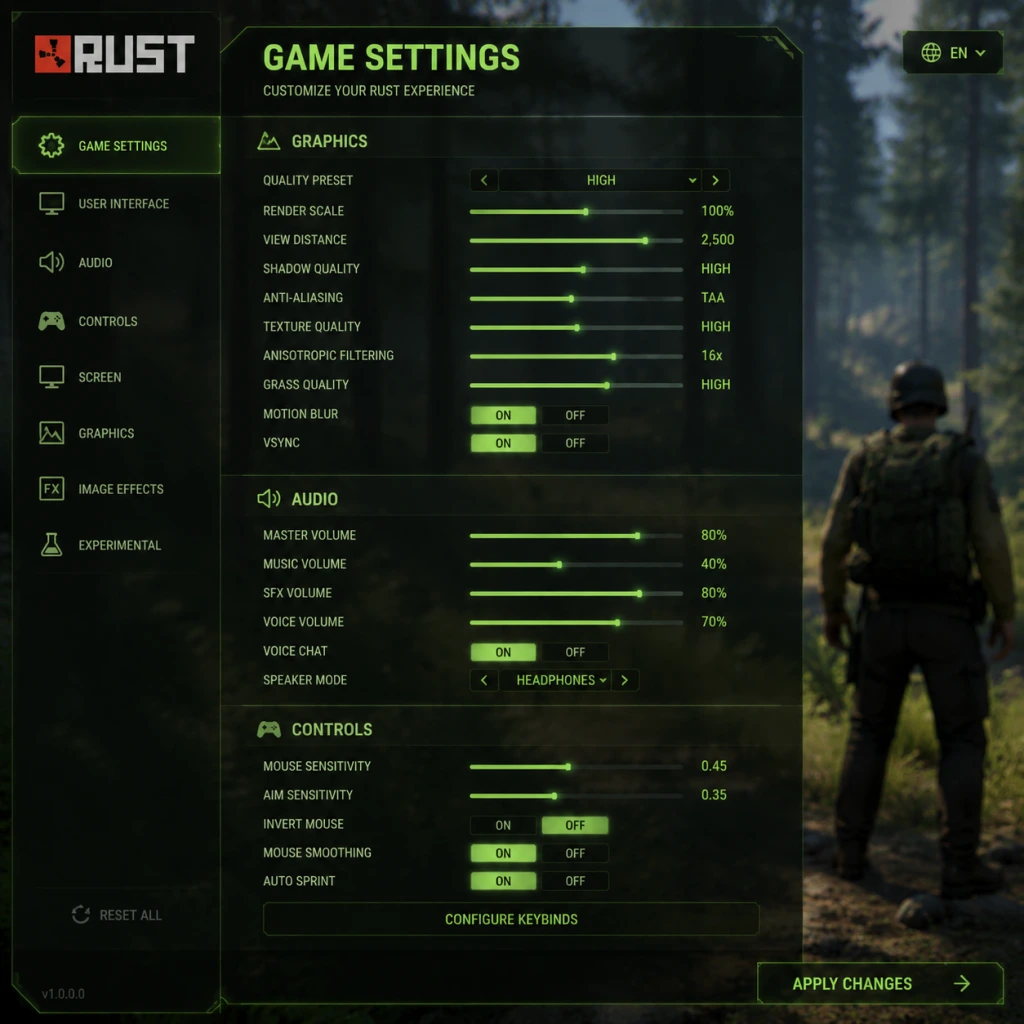
Game Settings
Game Settings
Below is a comprehensive guide to all major settings in Rust (PC and Console Edition). Proper configuration can mean the difference between a smooth 60+ FPS experience and a stuttery slideshow, or between winning a firefight and being blinded by shadows. I cover each category with recommended values for low-end, mid-range, and high-end hardware, plus common pitfalls and special attention points.
---
Graphics Settings
Graphics settings have the largest impact on performance and visibility. Rust’s Unity engine is CPU-heavy, but GPU also matters significantly.
#### Tab: Graphics
| Setting | Low-End (e.g., GTX 1050 / Ryzen 3) | Mid-Range (GTX 1660 / Ryzen 5) | High-End (RTX 3070+ / i7-10700K+) | Notes |
|---|---|---|---|---|
| Quality Preset | Fastest / Custom (manual) | Good / Custom | Beautiful / Custom | Manually fine-tune below for best performance/visibility. Presets often enable wasteful effects. |
| Resolution | Native monitor (e.g., 1920x1080) | Native | Native | Lowering resolution yields big FPS gain but makes game blurry. Use if desperate. |
| Resolution Scale | 100% | 100% | 100% | Never go below 80% unless absolutely needed; it destroys readability. |
| Display Mode | Fullscreen | Fullscreen | Fullscreen | Windowed/Borderless adds input lag. Fullscreen offers best performance. |
| VSync | Disabled | Disabled | Disabled | Enables screen tearing but massively reduces input lag. Only enable if you hate tearing. |
| FPS Limit | Unlimited (or capped at monitor refresh) | Unlimited | Unlimited | Set a cap (e.g., 144) to reduce GPU load and temps if running uncapped causes stutter. |
| Field of View (FOV) | 90-100 | 90-100 | 90-100 | Higher FOV gives peripheral vision but reduces target size. 90 is a good balance. |
| Gamma | Default (0.5) | Default | Default | Too high brightens nights but washes out colors. Keep default or adjust slightly if your monitor is dark. |
| Brightness | 0.5-0.6 | 0.5 | 0.5 | Night visibility is part of the game. Don’t cheat by maxing brightness; it ruins immersion and contrast. |
| Object Quality | 25-50% | 75% | 100% | Low values make distant bases vanish – good for FPS but can hide enemies. |
| Terrain Quality | 50% | 75% | 100% | Low can cause ground pop-in. Keep at least 50% to avoid seeing through mountains. |
| Grass and Trees | Off / Low | Low / Medium | Medium / High | Grass off gives huge visibility advantage (enemies lying in grass are invisible with grass on). Recommended to turn off for PvP. |
| Shadows | Off (or Low) | Low / Medium | High | Shadows eat FPS and can hide enemies in dark corners. Off is competitive, but Low gives directional cues. |
| Ambient Occlusion | Off | Off | On (Low) | Costs FPS, minimal benefit. Keep off. |
| Anti-Aliasing | FXAA (or Off) | SMAA (or FXAA) | TAA (or SMAA) | TAA blurs edges but causes motion blur; SMAA is sharper. FXAA is cheapest. Off gives jagged edges but highest FPS. |
| Anisotropic Filtering | x4 | x8 | x16 | Little performance cost, improves texture clarity at angles. Keep high. |
| Water Quality | Low | Medium | High | Low still shows water, just less reflections. |
| Shader Level | Low | Medium | High | Low flattens lighting; Medium is a good compromise. |
| Draw Distance | 1500-2000 | 2500 | 3000+ | Higher draw calls: enemies far away render. Low can hide players behind terrain. |
| Shadow Casting | Off | Off | On (Sun Only) | Disable for competitive play; shadows from players cost FPS. |
| Motion Blur | Off | Off | Off | Always off – reduces clarity and nausea. |
| Depth of Field | Off | Off | Off | Blurs distant objects. Off is mandatory for spotting players. |
| Lens Flare / Sun Rays | Off | Off | Off | Just visual noise. Off helps see clearly. |
| Chromatic Aberration | Off | Off | Off | Adds a cheap film look; off for clarity. |
| Film Grain | Off | Off | Off | Same as above. |
| Vignette | Off | Off | Off | Darkens edges; off for full vision. |
- Grass and Trees: Turning grass off is controversial – many servers enforce “grass on” via mods (e.g., no grass mod). In vanilla, turning it off makes players lying in bushes completely visible. This is a competitive advantage, but some consider it unfair. Use responsibly.
- Shadows: Setting shadows to Low or Off can make it hard to judge height/depth (e.g., jumping over cliffs). For building, shadows help see foundation edges. Turn them on temporarily when building.
- Draw Distance: Low draw distance can cause players to pop in at medium range, making sniper fights impossible. On mid-range hardware, set to at least 2000.
- Resolution Scale: Accidentally setting it to 50% will make everything blurry. Always keep at 100% unless FPS is terrible.
- VSync: Enables input lag – avoid for competitive play. If screen tearing bothers you, use Fast Sync (Nvidia) or Enhanced Sync (AMD) via driver control panel instead.
---
Audio Settings
Audio is crucial in Rust – footstep sounds, gunshots, environmental cues (helicopter, bear growl). Proper audio setup can alert you to enemies before they appear.
#### Tab: Audio
| Setting | Recommended | Notes |
|---|---|---|
| Master Volume | 80-100% | Keep high but not uncomfortable. |
| Music Volume | 0% (or very low) | Music is atmospheric but masks important sounds. Off is best for PvP. |
| Sound Effects | 100% | This includes footsteps, gunshots, birds. Crank it. |
| Ambient Volume | 50-70% | Nature sounds can be loud; lower if they drown out footsteps. |
| Voice Volume | 80-100% | Helps hear teammates and enemy proximity chat. |
| Input (Microphone) | Push-to-talk (not voice activation) | Voice activation can broadcast your breathing or random noise, giving away position. Bind to a key (e.g., V). |
| Output Device | Headset (not speakers) | Speakers cause echo and echo-reduction may break voice chat. Headset is essential for directional audio. |
| 3D Sound (HRTF) | On (if available) | Improves vertical and directional audio. Only works with stereo headphones. Do not use with virtual surround sound software – disable Razer Surround, etc. |
| Mute Non-Steam Voice Chat | Off | Many players use Steam voice; disabling it may cut off important communication. |
- Music off: The default music is loud and epic, but it masks footsteps. Turn it to 0% immediately.
- Headphones mandatory: Rust has directional audio (left/right, front/back, up/down). With speakers you lose positional accuracy.
- HRTF: This is a per‑player setting inside the game (under Audio). Enabling it improves sound localization but can cause slight warble on some sounds. Test in a quiet area; if you hear weird phase effects, try turning it off.
- Voice activation: Never use voice activation. Push-to-talk (PTT) ensures you only transmit when you press a key. Default is C but rebind to something more comfortable (e.g., V or Mouse4).
- Footstep equalization: Some players use third-party EQ software (e.g., Peace Equalizer) to boost footstep frequencies (around 500-1000 Hz). This is not a setting in Rust but can be done via Windows sound settings. Be careful not to violate any server rules.
---
Controls (Keyboard & Mouse / Controller)
#### Tab: Controls – Keyboard / Mouse
Most actions are rebindable. Here are the defaults and recommended changes for efficiency.
| Action | Default Key | Recommended | Reason |
|---|---|---|---|
| Forward/Back/Strafe | W/A/S/D | Same | Standard. |
| Sprint | Shift (hold) | Same | Keep; many use toggle instead – check accessibility. |
| Crouch | Ctrl (hold) | Same (or C for toggle) | Hold crouch is better for peeking; toggle is easier on hands for long sits. |
| Prone | X | Same | Not used often; fine. |
| Jump | Space | Same | No change. |
| Use / Open | E | Same | Keep. |
| Reload | R | Same | Keep. |
| Holster | H (or double tap R?) | Unbind or use mouse side button | Accidentally pressing H can get you killed. Swap to a mouse button or unbind if you never holster. |
| Inventory | Tab | Same | Keep. |
| Crafting Menu | Q | Same | Keep. |
| Map | G | Same | Keep. |
| Voice Chat (PTT) | V | Same (or C if you prefer) | Default V works. Some use Caps Lock. Ensure it’s not conflicting with crouch. |
| Voice Chat (Global) | C | Same | Global chat (proximity) is useful. |
| Team Voice | Y | Same | Only works if you are in a team (press + on numpad to invite). |
| Look Around (Free Look) | Hold Alt | Same | Essential for checking surroundings while moving forward. Do not rebind. |
| Weapon Slot 1-6 | 1-6 | 1-6 | Default fine. |
| Flashlight / Laser | F | Same | Keep. |
| Drop Item | Z | Same (or unbind) | Accidentally dropping items is disastrous. Consider unbinding or moving to a less accessible key. |
| Screenshot | F12 (Steam) | Same | No change. |
| Setting | Recommended | Notes |
|---|---|---|
| Sensitivity | 0.25 – 0.50 (for 400 DPI) or 0.15 – 0.30 (for 800 DPI) | Very low sensitivity improves aim. Most pros use ~40cm/360°. Adjust to your mousepad space. |
| ADS Sensitivity | 0.5 – 0.8 (of hipfire) | Lower ADS sens helps with precise long-range shots. |
| Invert Mouse | Off unless you prefer | Standard. |
| Mouse Acceleration | Off (in Windows and in-game) | Accelerate causes inconsistent muscle memory. Disable in Windows “Enhance pointer precision” and in game (if checkbox exists). |
| Mouse Smoothing | Off | Adds input lag. |
Rust Console has simplified controls due to gamepad limitations. Key bindings are not customizable. Important settings:
- Look Sensitivity: Start at 30-40% and adjust. Higher sensitivity helps building but hurts aim.
- ADS Sensitivity: Lower to 20-30% for better accuracy.
- Deadzone: Both sticks. Keep low (5-10%) to avoid drift, but higher if your controller has stick drift.
- Button Layout: Default, Builder Pro, or Custom. Many players prefer Builder Pro (L1=place, R1=rotate) for faster building.
- Vibration: Off – it delays reactions and drains batteries.
- Auto-Run: On – double tap left stick to autorun. Saves thumb strain.
- Invert Y: Personal preference.
- Drop Item (Z): It’s far too easy to accidentally press Z while reaching for X (prone) or C (crouch). Many veterans rebind Drop to something like U (unused) or remove binding entirely. If you want to drop items, you can drag them out of inventory instead.
- Holster: H is in a dangerous position near Y. Unbind it if you never use it. When you need to holster, press 1-6 or double-click inventory.
- Sprint Toggle vs Hold: Hold (default) lets you stop sprinting instantly for shooting. Toggle can be easier for extended travel. Test both.
- Mouse Acceleration: Windows has “Enhance pointer precision” – turn that off. Also, in Rust, there is no in-game mouse acceleration, but ensure your mouse software (Logitech G Hub, etc.) does not have it enabled.
- Controller Deadzone: On Console, a deadzone that’s too high will make fine aiming impossible – you want it as low as possible without drift.
- Subtitles: Not available in Rust. Audio cues are vital. For hearing-impaired players, consider third-party tools (not recommended due to anti-cheat).
- Colorblind Mode: None. However, you can adjust gamma and brightness (see Graphics) to improve contrast.
- Controller Support (PC): Full controller support with aim assist (toggle in settings). Aim assist can help players with motor impairments but may hinder in PvP due to aim punch. Turn it on if needed.
- Large Text / UI Scaling: There is no UI scale slider. Text is small. You can try changing Windows scaling (150-200%) before launching Rust, but UI may become blurry.
- Toggle Crouch vs Hold: In Controls, you can set crouch to toggle. This helps players who cannot hold a button for long periods.
- Toggle Sprint: Similar benefit.
- Auto-Run: Bind a key for auto-walk (default is / in chat? Actually, double-tap W for auto-walk – but not always reliable). Use an external macro at your own risk (could be flagged).
- Chat Text Size: Not configurable. Use Steam overlay zoom (Shift+Tab then +/-) to zoom in on chat.
- No subtitles: This is a major drawback. The only way to “see” audio cues is through visual indicators (footstep icons?) – none exist. Deaf players are at a severe disadvantage. Some servers provide visual footstep mods, but official Facepunch servers do not.
- High-contrast crosshair: You can install a custom crosshair overlay (e.g., Crosshair X) – but it may be considered cheating on some servers. Use at your own risk.
- One-handed play: Impossible without extensive rebinding or foot pedals. Consider a gaming keypad (e.g., Razer Tartarus) for left-hand, mouse for right.
- Game Language: Rust uses your Steam client language. To change, go to Steam > Settings > Interface > select language, then restart Steam. The game’s UI, menus, and items will update. Voice lines and item names are always in English regardless.
- In-game Chat: Text chat defaults to English. Players often use regional languages. You cannot filter or translate. Use Steam’s chat translation? Not built-in.
- Server Language: Many servers have community rules about language (e.g., English only in global chat). Check server description.
- Changing Steam language will affect all your games, not just Rust. To keep other games in English, you can change Rust’s language via launch options: `-language <code>` (e.g., `-language russian`). This only works for UI text, not all aspects.
- Item names are always English – you cannot change them. Memorization is necessary for crafting.
#### Special Attention Points – Controls
---
Accessibility Settings
Rust has limited built-in accessibility options, but some can be adjusted.
#### Special Attention Points – Accessibility
---
Language Settings
#### Special Attention Points – Language
---
Network Settings
Network settings affect ping, packet loss, and connection stability.
| Setting | Recommended | Notes |
|---|---|---|
| Region | Closest to your physical location | Select your continent (e.g., US East, Europe West) for lowest ping. Cross-region play introduces high latency. |
| Max Players | No setting – server dependent | Choose servers with <100 pop if you prefer less lag comp issues. Higher pop stresses netcode.
| Network Quality | No in-game slider | The game automatically adjusts based on your connection. If you have packet loss, try lowering graphics to reduce CPU/GPU load, which can indirectly improve network stability.
| Voice Chat Bandwidth | Default | No option to change. Voice uses separate UDP ports. |
| Port Forwarding | Not required for clients | Only server hosts need to forward ports 28015 (game) and 28016 (RCon). For players, nothing needed.
| FPS and Ping Correlation | Lower FPS can cause rubberbanding | A weak CPU can’t process network packets quickly. See FPS optimization earlier.
#### Console Specific Network
- Console Edition uses the same regional selection. NAT type can affect ability to join others. Open NAT is best. If you have moderate/strict NAT, troubleshoot router settings (UPnP enabled).
- High ping / Packet loss: If you experience rubberbanding or delayed interactions, first check your internet speed. Rust requires stable ~5 Mbps down, 1 Mbps up. Wi-Fi can cause spikes – use Ethernet if possible.
- Region mismatch: Playing on a server far away (e.g., European player on US server) will give you ~150-200ms ping. This is playable for casual runs but terrible for PvP. Always pick your region.
- VPN usage: Some servers ban VPNs. Using a VPN can increase ping and packet loss. Stick to direct connection.
#### Special Attention Points – Network
---
Gameplay Settings
These are settings that affect the gameplay experience, not performance.
| Setting | Recommended | Explanation |
|---|---|---|
| Show Information (HUD) | On | Displays health, rads, food, water, compass, etc. Turn off only for immersion or screenshots. |
| Crosshair | Default (or custom) | Default small cross is fine. Use a colored crosshair overlay if allowed by server. |
| Compass | On (enabled) | Essential for navigation and callouts. Keep it. |
| Temperature / Wetness | On | Tells you if you’re freezing or too hot. Keep on. |
| Biome Indicators | On | Shows current biome (desert, forest, snow). Useful. |
| Auto-Whitelist | Off | This is for server admin – ignore. |
| Client Info (FPS, ping) | On (via command `perf 1` in F1 console) | Allows you to monitor performance. Type `perf 1` to show small overlay. |
| Decay / Raid Block display | On (default) | Shows block timers when building. |
| Team UI | On (if in team) | Shows teammates’ health, armor, distance. |
| Item Drop Physics | Default | No setting – items dropped in world are physics objects. |
| Voice Proximity | On | Voice is local. Off disables hearing others. Keep on for social interaction. |
| Chat | Visible | Keep enabled to read messages. Can be hidden with F1 chat toggle. |
- Aim Assist: On (default) helps with controller, but can snap to wrong target. Many high-level players turn it off for more control.
- Auto-Run / Auto-Walk: On by default (double-click left stick). Essential.
- Vibration: Off (as above).
- Team UI: Same as PC.
- Crosshair: Default crosshair is tiny and white. On snowy maps it disappears. Use a neon green or pink custom crosshair (via overlay or monitor crosshair) to always see it.
- perf 1: Open console with F1, type `perf 1`, press Enter – shows FPS, ping, and memory usage. Very helpful for troubleshooting performance. Type `perf 0` to hide.
- Compass: Without compass, you’ll get lost. Always keep it visible. You can also switch to map (G) but compass is real-time.
- Team UI: If you are solo, you can turn off team UI to reduce screen clutter. There’s no direct toggle – it only appears when you’re in a team (by pressing + on numpad). To never see it, just never be in a team.
- Start with “Good” preset, then:
- Turn off motion blur, depth of field.
- Cap FPS at 75 or 90 to reduce load (if GPU is not maxed).
- Start with “Beautiful” preset, then:
- Uncap FPS or cap at monitor refresh.
- Consider enabling NVIDIA Reflex (if available in driver) for reduced latency.
- Screen space reflections: Off (they cost lots of FPS even on high-end).
- Launch Options: Right-click Rust in Steam > Properties > General > Launch Options. Add:
- Rust+ Companion App: Running on phone? It doesn’t affect PC performance.
- Memory leak: Rust has memory leaks. If FPS drops over time, open console (F1) and type `gc.buffer`, wait a few seconds, then restart game if still bad.
- Disable Steam Cloud Saves: Reduces sync overhead (not major).
- Disable Discord Overlay: Discord overlay can cause FPS drops.
- Building sensitivity: On console, building quickly requires high sensitivity. Many players use 50-70% build sensitivity and lower aim sensitivity. The game has separate sliders for “On Foot” and “ADS”. Keep building sens around 2x higher than aim sens.
- Controller deadzone: Cannot remove completely. If your controller drifts, increase deadzone slightly.
- Field of View: On console, FOV is locked (around 75-80). No slider available.
- Voice chat: Console also has proximity chat (via gamepad). Ensure your headset is connected properly.
- No custom keybindings: You are limited to preset layouts. “Builder Pro” is most popular for efficient building. Practice in a build server.
- Before tweaking, join a low‑population “build” server (e.g., Rusticated Build) to test settings without pressure.
- Use the in-game console (F1) for real-time feedback: type `toggle_visibility` to enable/disable attachments? No. But `perf 1` is essential.
- Keep a backup of your config file: locate `%APPDATA%\Rust\cfg\config.cfg` on your profile. After you perfect settings, copy this file somewhere safe – if you reset graphics, you can restore it.
- Update graphics drivers (NVIDIA Game Ready, AMD Adrenalin) regularly – Rust patches sometimes optimize GPU usage.
- Server‑side settings (Admin) are beyond this guide.
#### Special Attention Points – Gameplay
---
Performance Optimization Summary
#### Low-End Hardware (target 30-60 FPS)
1. Set Quality Preset to “Fastest” then modify:
- Object Quality: 25%
- Terrain Quality: 50%
- Grass: Off
- Shadows: Off
- Anti-aliasing: Off
- Resolution: Native (if FPS >30) else lower resolution scale to 80%.
2. Close all background apps (Discord, Chrome).
3. In NVIDIA/AMD control panel, set power management to “Maximum Performance”.
4. Disable game overlays (Steam, Discord).
5. Verify “-force-d3d11” launch option (Rust runs on DX11 anyway, but some swear by it).
6. Lower launch option: `-window-mode exclusive` (ensures fullscreen exclusive).
#### Mid-Range Hardware (target 60-90 FPS)
- Grass: Low (or Off if you want advantage)
- Shadows: Low
- Anti-aliasing: SMAA
- Ambient Occlusion: Off
- Draw Distance: 2500
- Anisotropic: x8
#### High-End Hardware (target 90-144+ FPS)
- Grass: Medium (or Low for PvP)
- Shadows: High (or Low for competitive)
- Anti-aliasing: TAA (if you can tolerate blur) or SMAA
- Ambient Occlusion: On (Low)
- Draw Distance: 3000
- Anisotropic: x16
#### Common Performance Tricks (All Levels)
`-high -maxMem=16384 -malloc=system`
`-high` gives high CPU priority; `-maxMem` sets memory limit in MB (adjust to your RAM); `-malloc=system` uses system memory allocator (reduces stutter for some).
---
Misconfiguration Pitfalls
1. Resolution Scale too low – Makes game blurry and difficult to see enemies. Keep at 100% unless extremely low FPS.
2. Grass enabled – Players become invisible in bushes. Turning grass off is a huge PvP advantage, but some servers disallow it (grass on enforced). Check server rules.
3. Music volume >0 – Masks footsteps. Turn off.
4. Drop Item on Z – Accidental presses cause you to drop your weapon. Go into controls and unbind Z, or rebind to a far key.
5. Mouse acceleration enabled – Both in Windows and mouse software. Disable for consistent aim.
6. VSync on – Adds input lag. Off for competitive play.
7. Voice activation – Breaks silence; use push-to-talk.
8. HRTF off with surround software – HRTF is for stereo; if you have virtual 7.1, disable it in your headset software and use HRTF in Rust for best directional audio.
9. Playing on server far from region – High ping leads to dying around corners. Always select your region.
10. Not using F1 console for perf – You can’t monitor FPS/ping without it. Type `perf 1` as soon as you join a server.
---
Console Specific Final Notes
---
Final Recommendations
With these settings optimized, you’ll have a smoother, more competitive Rust experience. Good luck surviving the wasteland!