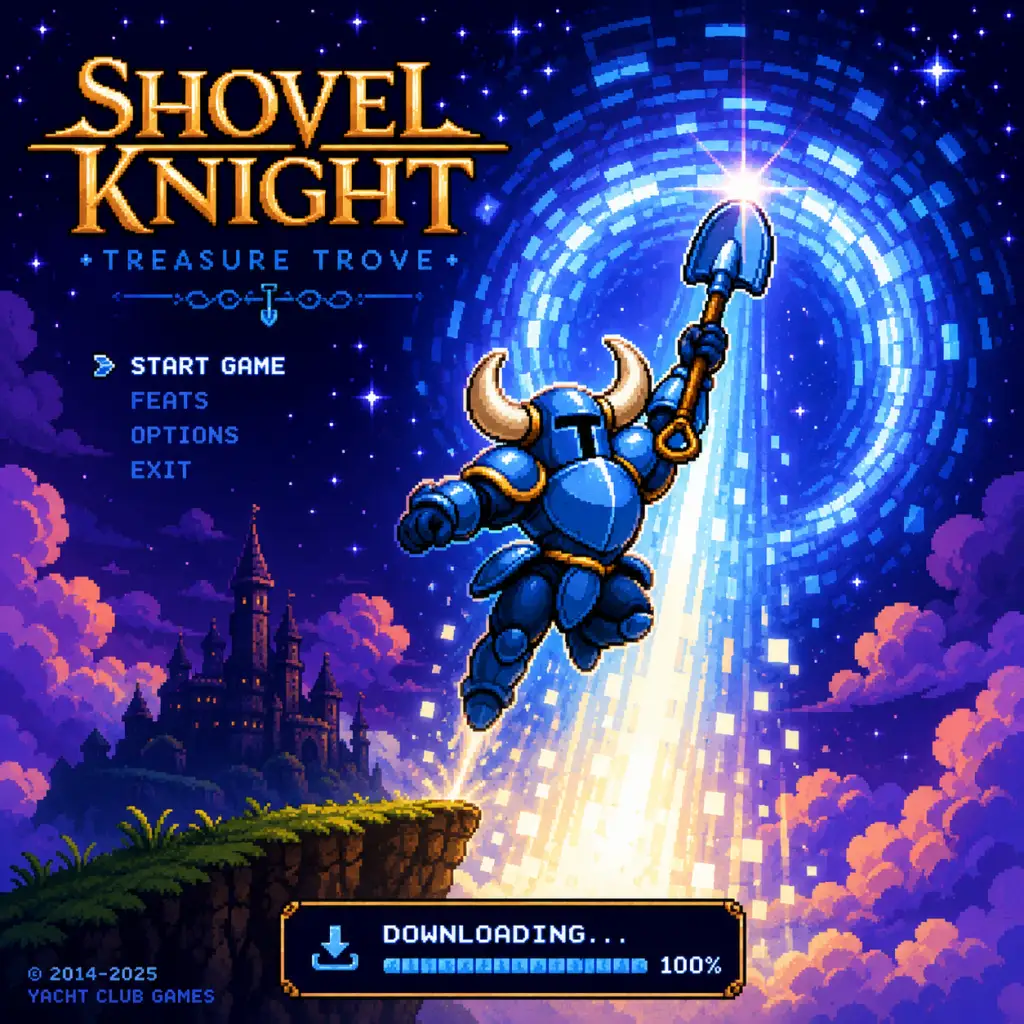
Download & Installation
Overview
Shovel Knight is a critically acclaimed 2D action-adventure platformer developed by Yacht Club Games. The definitive collection, Shovel Knight: Treasure Trove, includes all four campaigns (Shovel of Hope, Plague of Shadows, Specter of Torment, King of Cards) and the multiplayer brawler Showdown. This guide covers official download and installation on PC (Steam, Epic Games Store, GOG), PlayStation 4 & 5, Xbox One & Series X|S, and Nintendo Switch. Mobile versions are no longer officially available.
---
Platform-Specific Instructions
PC (Steam, Epic Games Store, GOG)
Step-by-Step Installation
1. Steam:
- Create or log in to your Steam account.
- Open the Steam client or visit store.steampowered.com.
- Search for “Shovel Knight: Treasure Trove”.
- Click “Add to Cart” and complete purchase.
- Go to your Library, find the game, and click “Install”.
- Choose installation directory (default is fine) and wait for download.
- Once downloaded, click “Play” to launch.
2. Epic Games Store:
- Log in to your Epic Games account via the launcher.
- Visit the store and search for “Shovel Knight: Treasure Trove”.
- Purchase the game (or claim if free).
- Click “Install” from the game page in your Library.
- Select installation folder and confirm.
- After download, launch from the library.
3. GOG (Good Old Games):
- Sign in to your GOG account on gog.com.
- Use the GOG Galaxy client or browser.
- Search for “Shovel Knight: Treasure Trove” and buy.
- In GOG Galaxy, go to your Library, click on the game.
- Choose “Install” and select location.
- Offline backup installers are also available from your account.
System Requirements
| Component | Minimum | Recommended |
|---|---|---|
| OS | Windows 7+ | Windows 10/11 |
| Processor | 2.0 GHz Dual Core | 2.5 GHz Dual Core |
| Memory | 2 GB RAM | 4 GB RAM |
| Graphics | DirectX 9.0c, 512 MB VRAM | DirectX 10+, 1 GB VRAM |
| DirectX | Version 9.0c | Version 11 |
| Storage | 300 MB | 500 MB |
Storage Space:
- Base installation: ~300 MB.
- Additional save data and cloud sync: negligible.
- Steam: Free Steam account.
- Epic: Free Epic Games account.
- GOG: Free GOG account.
- Language selection (English, French, German, etc.)
- Optional: adjust resolution, fullscreen/windowed mode.
- Controller configuration (Xbox/PlayStation/Switch Pro controllers supported).
- The game will present the main menu; you can start any campaign immediately.
Account Requirements:
First Launch Setup:
Common Installation Errors & Fixes
| Error | Cause | Solution |
|---|---|---|
| “Failed to initialize graphics” | Outdated GPU drivers | Update DirectX and GPU drivers. Run the game in compatibility mode (Windows 7). |
| “Missing DLL files” | Corrupted download | Verify game files via Steam/Epic/GOG. On Steam: right-click game → Properties → Local Files → Verify. |
| Controller not recognized | Driver issue | Unplug/replug controller. Use Steam Input or JoyToKey. On Epic, ensure controller is detected in Windows. |
| Game crashes on launch | Antivirus interference | Add Shovel Knight executable to antivirus exceptions. Run as administrator. |
PlayStation 4 & 5
Step-by-Step Installation
1. Disc: Insert the Shovel Knight: Treasure Trove disc into the console. The installation will start automatically. Follow on-screen prompts.
2. Digital:
- On PlayStation Store (via console or web), purchase the game.
- From the console dashboard, go to your Library > Purchased.
- Find Shovel Knight and select “Download”.
- Installation completes automatically.
Storage Requirements:
- ~350 MB (PS4) / ~500 MB (PS5, due to backward compatibility layer).
- PlayStation Network account (free for digital purchase; optional for disc).
- Trophy support enabled automatically.
- Language follows system language.
- Option to invert analog sticks or adjust brightness.
Account Requirements:
First Launch Setup:
Common Errors & Fixes
| Error | Cause | Solution |
|---|---|---|
| “CE-30022-7” (cannot start) | Corrupted install | Delete game and re-download. |
| Game not appearing in Library | Region mismatch | Ensure you bought from the correct region store. Contact PSN support. |
| No sound | HDMI/audio settings | Check audio output settings on console. |
Xbox One & Series X|S
Step-by-Step Installation
1. Disc: Insert disc, installation begins. Wait for completion.
2. Digital:
- Purchase from Microsoft Store (console or web).
- On console, go to My games & apps > See all > Full library.
- Select Shovel Knight: Treasure Trove > Install.
- The game will download and install.
Storage Requirements:
- ~400 MB.
- Xbox Live account (free for digital purchase; disc can be played offline after install).
- Achievements enabled.
- Language follows console region.
- Adjust screen bounds if needed.
Account Requirements:
First Launch Setup:
Common Errors & Fixes
| Error | Cause | Solution |
|---|---|---|
| “0x80070005” (access denied) | Profile sync issue | Restart console, clear persistent storage (Settings > System > Storage > Clear local saved games). |
| Installation stuck | Servers down | Check Xbox Live status. Hard reboot console. |
| No audio in cutscenes | Audio codec | Update console firmware. Try changing audio format to stereo. |
Nintendo Switch
Step-by-Step Installation
1. Physical cartridge: Insert cartridge into Switch. The game icon appears on home screen. It may require a small update download (usually ~100 MB).
2. Digital (Nintendo eShop):
- Launch eShop from home menu.
- Search for “Shovel Knight: Treasure Trove”.
- Purchase and download.
- The game installs automatically; you can launch from home screen.
Storage Requirements:
- ~350 MB (digital).
- Physical version uses no internal space for gameplay (only saves).
- Nintendo Account (free) for eShop purchases; physical can be played with any user profile.
- No mandatory setup; language follows system.
- Option to display with or without screen shake when landing.
- Amiibo support (if you have Shovel Knight amiibo).
Account Requirements:
First Launch Setup:
Common Errors & Fixes
| Error | Cause | Solution |
|---|---|---|
| “Unable to start software” | Corrupted data | From System Settings > Data Management > Manage Software > Shovel Knight > Check for Corrupt Data. |
| MicroSD card slow | Slow card | Use a UHS-I U3 card for best performance. Move game to internal storage (System Settings > Data Management > Move Data Between System/microSD). |
| Controller disconnects | Low battery | Charge Joy‑Cons or Pro Controller. |
Post-Installation Verification
After installation on any platform, run the game to verify:
1. Launch the game – you should see the Yacht Club Games logo followed by the title screen.
2. Check version number – usually shown on the main menu (e.g., v5.6 or later) or in Options > About.
3. Test basic controls – navigate menus using a controller or keyboard (PC).
4. Start any campaign (e.g., Shovel of Hope). The game should load within seconds.
5. Check for updates – ensure you have the latest patch (update should be automatic on consoles; on Steam/Epic it’s automatic; GOG may require manual update check via Galaxy).
---
Final Notes
- Shovel Knight is a small, well-optimized game that runs on almost any modern hardware.
- Cross-platform saves are not supported.
- If you experience recurring crashes, visit the official Yacht Club Games support page or the game’s community forums.
- All legitimate copies include full offline play (no always-online requirement).