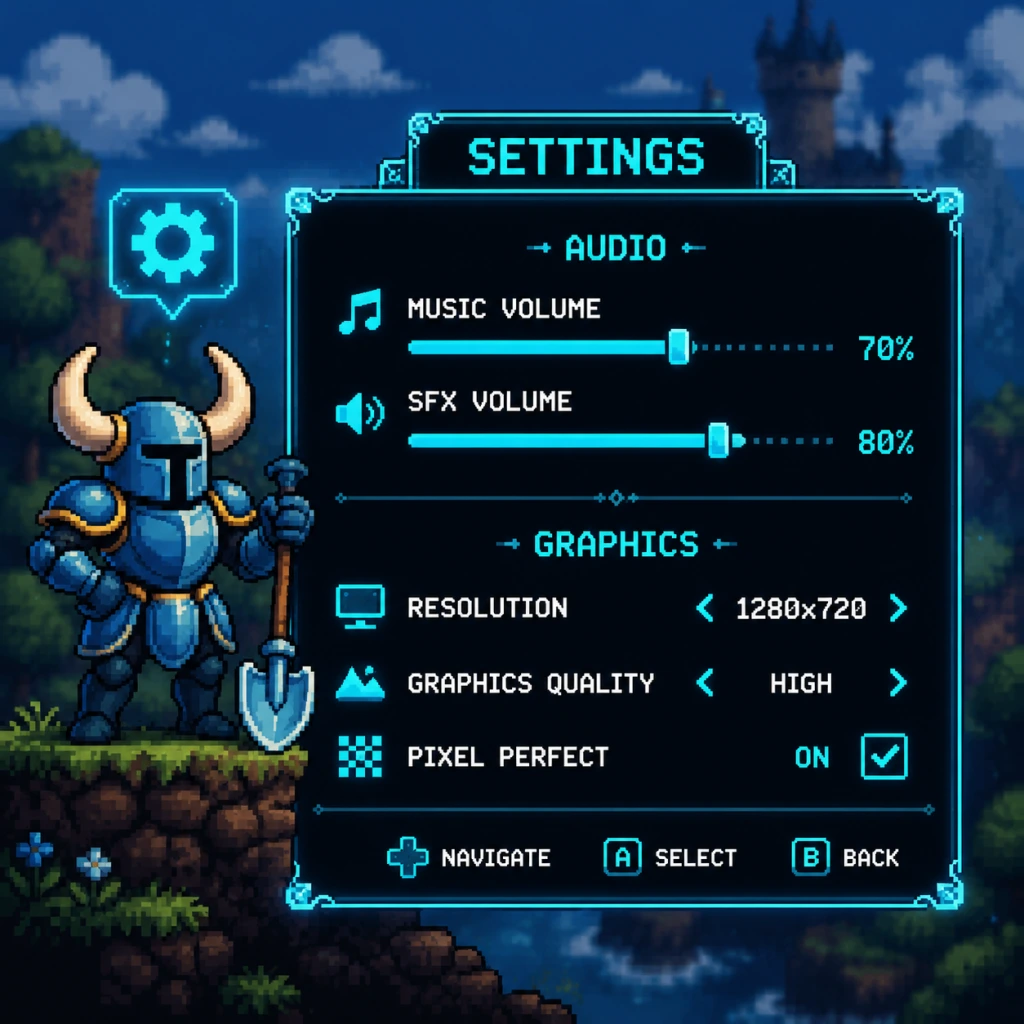
Game Settings
Game Settings Guide for Shovel Knight: Treasure Trove
Shovel Knight offers a modest but important set of settings, primarily focusing on controls and visual/audio preferences. Given its 2D pixel-art presentation and low system requirements, most options are straightforward, but some can significantly impact gameplay or comfort. Below is a comprehensive breakdown of every settings category, along with optimal recommendations for different hardware levels and pitfalls to avoid.
---
Graphics Settings
Shovel Knight uses a retro pixel-art style, so there are no resolution scaling, anti-aliasing, or texture quality sliders. The graphics section is minimal:
- Screen Resolution: Set to your monitor's native resolution. The game will scale pixel-perfectly. For CRT monitors or emulation, 4:3 aspect ratios (e.g., 1920x1440) are supported.
- Window Mode: Options are Fullscreen, Windowed, and Borderless Windowed. Recommendation: Borderless Windowed for quick alt-tabbing; Fullscreen for potential input lag reduction (very minor).
- V-Sync: On/Off. Recommendation: On to prevent screen tearing, especially if your display refreshes at 60Hz. Shovel Knight runs at a fixed 60 FPS, so V-Sync incurs negligible input lag.
- Shaders: Some versions include CRT or scanline filters. These are purely cosmetic and may cause a slight performance hit on very old hardware. Recommendation: Disabled for clarity and performance unless you prefer the retro look.
- Frame Rate Limit: Usually locked to 60 FPS. No adjustment needed.
- Master Volume: 0–100. Recommendation: 70-80% to avoid distortion while still hearing sound effects clearly.
- Music Volume: Separate slider. Recommendation: Keep at 100% for the fantastic chiptune soundtrack, but lower if you find it distracting.
- SFX Volume: Separate slider. Recommendation: 100% – critical for hearing enemy cues, treasure chests, and pogo bounce sounds.
- Ambient Volume: (Present in some versions) Controls environmental sounds like wind or water. Recommendation: 70-100% for immersion.
- Audio Output: Typically automatic. Use your system default. No surround sound or special options.
- D-Pad / Left Stick: Movement
- A (X) / Cross: Jump
- X (Square) / Triangle: Attack (Shovel swing)
- B (Circle) / Circle: Shovel Drop (Pogo) – CRITICAL
- Y (Triangle) / Square: Items / Magic
- LB / L1: Relic shortcut 1
- RB / R1: Relic shortcut 2
- Start: Pause / Menu
- Select: Map / Inventory
- Shovel Drop (pogo): Press down + jump in mid-air. Requires precise timing.
- Dive (Specter of Torment): Down + jump while sliding.
- Buttons: Standard controller, Switch Pro, etc.
- D-Pad Sensitivity: Some controllers have loose D-pads. If you get accidental diagonal inputs, consider using the analog stick (but stick can be less precise for pogo). Recommendation: D-pad for pixel-perfect 4-direction movement; analog stick for comfort if you prefer.
- Rumble: Can be enabled/disabled. Recommendation: Off for competitive play or if you find it distracting during speedruns. On for immersion.
- Arrow keys for movement, Z = Jump, X = Attack, C = Shovel Drop, A/S = items. Customizable. Recommendation: Use a controller – keyboard is fine but less natural for pogo timing.
- Difficulty Modes: In Shovel of Hope, you can enable “Checkpoint Mode” (infinite lives, but you lose gold) or “New Game+” after beating the game. Recommendation: Start on normal difficulty; use Checkpoint Mode if stuck.
- Speedrun Mode: Unlockable – removes cutscenes, adds a timer.
- Colorblind Mode: Present in some updates – offers color palette adjustments or enemy outlines. Recommendation: Enable if you have any color deficiency, especially for distinguishing blue/red chests or item colors.
- Screen Shake: On/Off. Recommendation: Off if you experience motion sickness or want a cleaner view. The game has screen shake on landing and hitting enemies; disabling it reduces visual noise.
- Subtitles: On/Off. Recommendation: On for all dialogue, including boss taunts and campfire chats.
- UI Scaling: Possibly present – scales health bar and text. Set to 100% or larger if playing on 4K.
- Text Language: English, French, German, Spanish, Italian, Japanese, Korean, Chinese (Simplified/Traditional), Russian, Portuguese (Brazilian), and more. Recommendation: Choose your preferred language. The game has full text localization, but no voice acting.
- UI Language: Usually follows text language.
- Automatic Updates (Steam, GOG, etc.): Keep enabled to receive bug fixes and new content (e.g., Showdown mode updates).
- Cloud Saves: Enabled by default on platforms. Recommendation: Keep on to sync progress across devices.
- Default Campaign: You can choose which campaign to launch when starting the game. Recommendation: Leave as “Shovel of Hope” for first playthrough.
- Stage Select: Unlocked after beating a boss – allows replaying stages. No settings needed.
- Auto-Parry: (Specter of Torment) – can be toggled on/off? Actually auto-parry is always on for Specter Knight. Not adjustable.
- Item Assignment: In the pause menu, you can assign relics to shortcut buttons (LB/RB). Recommendation: Bind the most-used relic (e.g., Propeller Dagger, Chaos Sphere) to easy-to-reach triggers.
- Quick Load/Save: Not manually configurable, but the game uses autosave at checkpoints.
Performance Notes: The game runs on virtually any hardware. Even integrated GPUs from 2010 can maintain 60 FPS. No special tweaks required. The most demanding thing is the shader filter.
---
Audio Settings
Pitfall: If you lower music volume too much, you may miss game over cues or boss phase transitions. Keep at least 50%.
---
Controls Settings
This is the most critical section. Shovel Knight relies on precise inputs for jumping, pogoing (downward stab), and using items.
#### Input Mapping
You can remap almost every action. Default (Xbox/PS layout):
Recommendation: Keep defaults, but ensure Shovel Drop is on a comfortable, easy-to-reach button. Many players accidentally map it to an awkward button and struggle with pogo combos. A common custom setup: set Attack to X (left face button) and Shovel Drop to A (bottom face button) – similar to jump + attack in other games.
Additional Button Details:
#### Controller Type
#### Keyboard Controls (PC)
Easy to Misconfigure: The Shovel Drop button. If you map it to a hard-to-reach key (e.g., R or F), pogo combos become nearly impossible. Also, avoid setting Attack and Shovel Drop to the same button – they must be distinct.
---
Accessibility Settings
Shovel Knight has limited built-in accessibility features, but some settings help:
Special Attention: Screen Shake is often overlooked; turning it off can improve precision platforming.
---
Language Settings
Pitfall: If you change the language mid-game, you may need to restart to apply fonts correctly. Do it from the main menu.
---
Network Settings
Shovel Knight does not have any online multiplayer or leaderboards in the base game. There are no network settings. The only network-related options are:
No latency, server, or matchmaking options.
---
Gameplay Settings
Mostly related to game modes and startup preferences:
Easy to Overlook: The relic shortcuts. Many players forget to assign them and have to open the menu to switch items mid-battle. Set shortcuts early.
---
Optimal Settings for Different Hardware Levels
Because Shovel Knight is a 2D pixel game, hardware differences matter very little. However, here are recommendations for different situations:
| Hardware Level | Graphics Settings | Controls | Audio | Other |
|---|---|---|---|---|
| Low-End (e.g., Intel HD 3000, Atom, Raspberry Pi) | V-Sync Off (to reduce input lag if screen tearing not an issue), Shaders Off, Borderless Window | Controller recommended; disable rumble | Master 70% | Disable screen shake, subtitles on |
| Mid-Range (e.g., GT 710, Vega 8) | V-Sync On, Fullscreen, Shaders Off or CRT filter on low resolution | Default controls; adjust D-pad sensitivity if needed | All at 80% | Enable colorblind mode if needed, screen shake off for precision |
| High-End (e.g., RTX 2060, 2020+ iGPU) | V-Sync On, Fullscreen 4K with UI scaling, Shaders (CRT or scanline) if desired | Remap shovel drop to a comfortable button (e.g., LB) – enables easy pogo | Full volume | All options enabled for full experience |
| Handheld (Switch, Steam Deck) | Borderless (Steam Deck), 720p/800p, Shaders Off for battery life | Use analog stick for pogo? D-pad can be cramped; remap shovel drop to a shoulder button | Master 60% to save speakers | Rumble off on console for battery, screen shake off |
---
Settings Easy to Misconfigure & Special Attention Points
1. Shovel Drop Button: This is the most commonly misconfigured control. Ensure it is on a button you can press while holding down and jumping. Many players accidentally put it on the same key as Attack – they are distinct actions.
2. Screen Shake: New players often leave it on and later complain about nausea or missing platforms. Turn it off if you find it disorienting.
3. V-Sync: If you turn V-Sync off on a 60Hz monitor, you may get screen tearing that distracts during speedruns. Keep it on unless you have a high-refresh display with G-Sync/FreeSync.
4. Rumble: Enabled by default; some players find it masks audio cues (e.g., chains breaking when a boss is stunned). Disable if you rely on audio.
5. Widescreen vs 4:3: The game supports both. If you use 4:3, the HUD may get slightly cutoff on some monitors. Always test.
6. Language Change: If you change language to one with non-Latin characters (e.g., Japanese, Korean), some modded fonts may break. Stick to your native language for the first playthrough.
7. Relic Shortcut Assignment: Forgetting to assign a relic to a shortcut button (LB/RB) forces you to open the pause menu. Do it at the start of each stage after acquiring a relic.
---
Summary
Shovel Knight’s settings are minimal and largely intuitive. The most important choices are the control layout – especially the Shovel Drop button – and whether to disable screen shake and rumble. For optimal performance, leave V-Sync on and shaders off unless you want a retro aesthetic. The game runs flawlessly on any modern hardware, so focus on personal comfort rather than frame rates. Use the table above for quick hardware-specific recommendations. Happy digging!