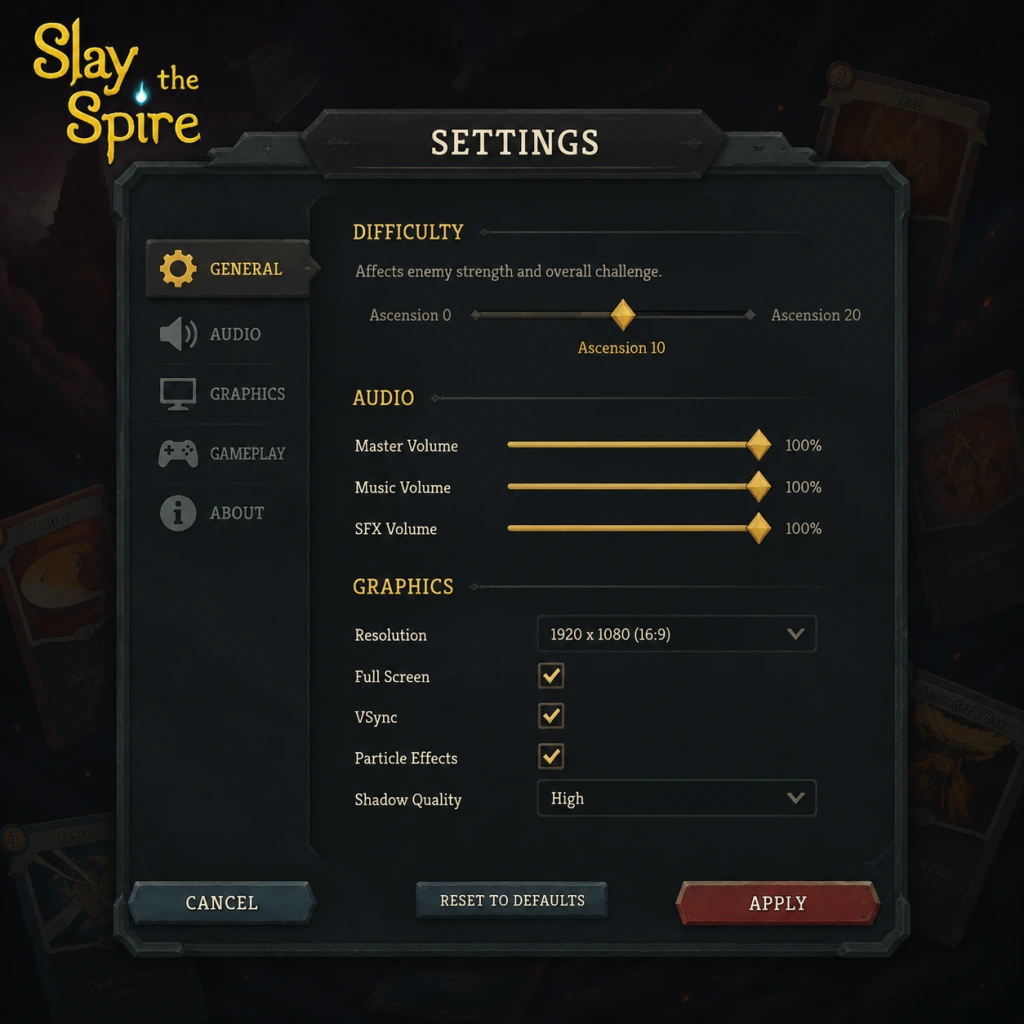
Game Settings
Game Settings Guide for "Slay the Spire"
Slay the Spire offers a range of settings to customize your experience. While the game is not graphically intensive, configuring settings correctly can improve performance on low-end hardware, enhance accessibility, and tailor controls to your preference. This guide covers every settings category and provides optimal recommendations for different hardware levels.
Graphics Settings
The graphics menu is minimal due to the 2D nature of the game. Adjusting these settings can improve frame rate on weaker systems.
- Resolution: Set to your monitor’s native resolution for sharpest text and cards. Lower resolutions (e.g., 1280x720) can boost performance on very old hardware.
- Fullscreen: Select “Fullscreen” for best performance. “Windowed” or “Borderless Window” may introduce input lag on some systems.
- V-Sync: Turn Off to reduce input lag and achieve higher frame rates. Enable only if you experience screen tearing.
- Frame Rate Cap: Set to 60 FPS or match your monitor’s refresh rate. Higher caps (144) are not necessary for a card game but can make animations smoother.
- Graphics Quality: Options are “Low” and “High”. “Low” disables subtle particle effects and minor animations; “High” keeps them. Performance impact is negligible on modern PCs.
Recommended Graphics Settings by Hardware
| Hardware Level | Resolution | Fullscreen | V-Sync | Frame Rate | Quality |
|---|---|---|---|---|---|
| Low-end (Integrated graphics, 4GB RAM) | 1280x720 or native | Fullscreen | Off | 60 FPS | Low |
| Mid-range (GTX 1050, 8GB RAM) | Max native | Fullscreen | Off | 60 FPS (or monitor cap) | High |
| High-end (RTX 2060+, 16GB RAM) | Max native | Fullscreen | Off | 144 FPS | High |
Audio Settings
- Master Volume: Control overall sound level.
- Music Volume: Adjust background music. The soundtrack is atmospheric but can be repetitive; suggest 70-80%.
- SFX Volume: Sound effects for cards, combats, and UI. Keep at 100% for clear feedback.
- Voice Volume: Only affects the narrator’s voice lines (e.g., campfire, boss introductions). If you find them distracting, lower to 0%.
- Subtitles: Enable if you have hearing difficulties or play in a noisy environment. Subtitles appear for key events.
- Music Volume: If you play long sessions, consider lowering music to 50% to reduce ear fatigue while retaining audio cues.
- SFX Volume: Do not set too low—card sounds provide critical feedback for combat actions (e.g., shuffle, power activation).
- Left Click: Select cards, confirm actions, interact with UI.
- Right Click: Cancel selection, view card details (hold or click).
- Mouse Wheel: Scroll through card list or hand / potions bar.
- Escape or Tab: Pause menu / Map.
- Space: End turn.
- H: Show / hide card descriptions permanently.
- Number keys 1-5: Use potions from left to right.
- Ctrl + Click: Skip card reward screen (quick pick).
- A / X: Select / Confirm.
- B / Circle: Cancel / Back.
- X / Square: View card details (hold).
- Y / Triangle: Open map.
- LB / L1 & RB / R1: Navigate between screens (e.g., card rewards, shop).
- LT / L2 & RT / R2: Cycle through cards in hand.
- Left Stick: Move cursor / highlight options.
- Start / Options: Pause menu.
- Select / View: (Often unused; can be mapped for quick potion use).
- Rebindable Keys: You can reassign most keyboard commands. Common optimizations:
- Controller Dead Zone: Only available if using controller; adjust if stick feels unresponsive.
- Right Click Behavior: In the settings, you can choose between “Cancel selected card” (default) and “View card details”. If you accidentally play wrong cards, set right-click to cancel first.
- Mouse Scroll Direction: The game uses “Scroll Up” to move right in menus. Some users prefer inverted; check your muscle memory.
- Colorblind Mode: Changes card color coding (e.g., red-green for status effects). Available for Protanopia, Deuteranopia, and Tritanopia. Enable if you have difficulty distinguishing card rarities or buff icons.
- Screen Shake: Toggles camera shake on hits. Recommended Off for motion sensitivity or headaches.
- Camera Movement: Animations when panning between rooms. Keep On for immersion; disable if you experience motion sickness.
- Toggle Fast Mode: Speeds up card animations and combat actions. Essential for repetitive play—turn On to reduce play time and strain.
- Auto-play Potions: Not in base game; but mods can add this. Official settings do not include it.
- Text Size: No slider, but base font is large and readable. If you need magnification, use OS-level scaling or Steam’s overlay zoom.
- Colorblind Mode: Works well but may alter normal visuals slightly. Test in a run before committing if you are not colorblind.
- Fast Mode: Enable immediately. It makes the game feel snappier and reduces mental fatigue. Some players prefer normal speed for immersion, but Fast Mode is recommended for all skill levels.
- Available Languages: English, French, Italian, German, Spanish, Japanese, Korean, Polish, Brazilian Portuguese, Russian, Simplified Chinese, Traditional Chinese, Thai, Turkish, Ukrainian.
- Selection: Changes all text (cards, menus, dialogue) to the chosen language. No separate voice language option because only the narrator speaks English.
- Note: Language changes require a restart. Save your progress before switching.
- Community Translations: Some languages (e.g., Vietnamese, Dutch) are available via mods on Steam Workshop.
- Cloud Save: Enable to sync progress across multiple computers (Steam only). Works with Steam Cloud. Disable if you play on multiple platforms and want separate saves.
- Multiplayer: None; Slay the Spire is single-player only. No online matchmaking or leaderboards (except daily climb scores, which are submitted locally but ranked globally via Steam).
- Data Collection: Option to send anonymous usage data to the developer. Can be disabled for privacy.
- Cloud Save Conflicts: If you play on two PCs without closing Steam gracefully, old saves may overwrite new ones. Always exit the game properly (“Save and Quit”) before closing.
- Game Speed: Options: “Normal” and “Fast”. Fast mode is recommended; see Accessibility.
- Confirm Before Playing Unplayable Cards: When enabled, the game will ask for confirmation if you try to play a card that has no valid targets (e.g., attack when all enemies are dead). Enable to avoid wasting energy.
- Auto-calc Damage Numbers: Shows total damage before playing an attack. Enable to plan combos.
- Entity Tooltips: Show detailed descriptions on hover. Keep On.
- Discard Action After Playing Cards: If enabled, the game will automatically show the discard pile after a card is played. Some find this helpful; others find it annoying. Disable for cleaner play.
- Potions Activate Immediately: When using a potion, it takes effect without confirmation. Enable for speed; disable if you sometimes misclick potions.
- Daily Climb Leaderboard: Show/hide your standing. Not a functional gameplay setting, but affects UI.
- Confirm Before Playing Unplayable Cards: Turn this ON. It prevents accidental energy waste, especially when you click a card with your mouse and there are no targets.
- Potions Activate Immediately: Consider turning OFF until you are familiar with potion effects, because some potions (e.g., Entropic Brew) shuffle your hand and may surprise you.
Special Attention
Controls Settings
Keyboard & Mouse (Default)
Controller (Xbox/PlayStation)
Customization
- Binding “End Turn” to a mouse side button for one-click play.
- Setting potion keys to Z, X, C, V for easier reach.
- Mapping “Map” to Tab (default) or M to avoid reaching for Escape.
Settings Easy to Misconfigure
Accessibility Settings
Slay the Spire offers several options to accommodate different needs:
Special Attention
Language Settings
Network Settings
Easy to Misconfigure
Gameplay Settings
These settings affect how the game plays, not just visuals.
Special Attention
Summary of Recommended Setup
1. Set graphics to High quality, native resolution, V-Sync off, frame rate 60+.
2. Enable Fast Mode and Confirm Before Playing Unplayable Cards.
3. Enable Auto-calc Damage Numbers.
4. If using controller, adjust right-click mapping to your preference.
5. Enable Cloud Save if you play on multiple devices.
6. Turn Screen Shake off if prone to motion sickness.
7. Set SFX Volume to 100% for combat feedback.
8. Colorblind Mode only if needed.
By following these recommendations, you’ll have a smooth, responsive, and comfortable experience climbing the Spire.