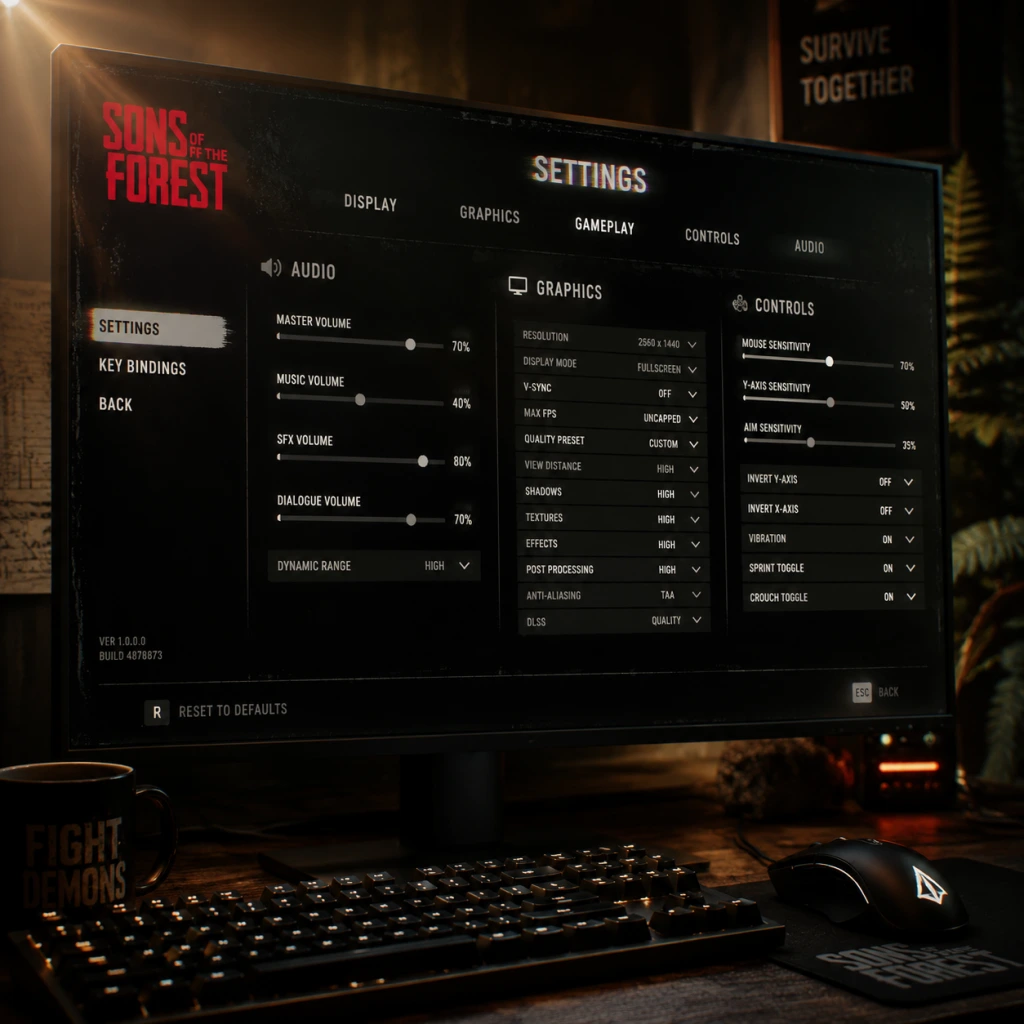
Game Settings
Game Settings Guide for Sons of the Forest
This guide covers every setting in Sons of the Forest across all categories: Graphics, Audio, Controls, Accessibility, Language, Network, and Gameplay. You'll find recommended values for different hardware levels, explanations of confusing options, and tips to avoid common misconfigurations.
---
Graphics Settings
Graphics are the most performance-impacting category. Sons of the Forest uses the Unity Engine and is more CPU-intensive than many other games due to enemy AI, building physics, and dynamic world events. Adjust these settings first.
#### Display & Resolution
| Setting | Recommendation | Note |
|---|---|---|
| Fullscreen Mode | Fullscreen | Borderless may introduce input lag. Use exclusive fullscreen for best performance. |
| Resolution | Native monitor resolution (e.g., 1920x1080, 2560x1440) | Always match your monitor's native resolution. Downscaling causes blur. |
| Resolution Scale | 100% | Lowering this makes the game blurry but improves FPS. Use Dynamic Resolution instead (see below). |
| Dynamic Resolution | Off | Unless you have severe FPS drops. When enabled, the game dynamically lowers resolution to maintain target FPS. Can cause distracting resolution shifts. |
| VSync | Off (if using G-Sync/Freesync) | Turn on only if you experience screen tearing and lack adaptive sync. Adds input lag. |
| Frame Rate Limit | Set to monitor refresh rate (e.g., 60, 144) | Prevents unnecessary GPU load. Use in-game limiter or driver cap. |
| Field of View (FOV) | 90–100 (default 75) | Higher FOV increases peripheral vision but can reduce performance slightly. Adjust to avoid motion sickness. |
Use these presets as a baseline, then fine-tune individual options.
| Hardware Tier | Example GPU | Preset | Key Changes |
|---|---|---|---|
| Low-End | GTX 1060 / RX 580 | Low | Texture Quality Medium, everything else off or low. |
| Mid-Range | RTX 2060 / RX 6600 | Medium | Shadows Medium, Ambient Occlusion SSAO, Anti-Aliasing TAA. |
| High-End | RTX 3070 / RX 6800 | High | Shadows High, Ambient Occlusion HBAO+, Textures Ultra. |
| Ultra | RTX 4090 / RX 7900 XTX | Ultra | All max, Ray Tracing On (if available), SSR High. |
| Setting | Low | Medium | High | Ultra | Note |
|---|---|---|---|---|---|
| Texture Quality | Medium | High | Ultra | Ultra | VRAM heavy. 4GB cards use Medium, 6GB+ use High. |
| Shadow Quality | Off | Low | High | Ultra | Major performance impact. High shadows look sharp, but eat FPS in forests. |
| Ambient Occlusion | Off | SSAO | HBAO+ | HBAO+ | Adds depth to shadows. SSAO is a good balance. |
| Reflections | Off | Low | SSR | SSR+ | Screen Space Reflections cause shimmer. Low acceptable. |
| Anti-Aliasing | FXAA | TAA | TAA | TAAx2 | TAA blurs slightly but reduces jaggies. TAAx2 smoothest. |
| Motion Blur | Off | Off | Off | Off | Personal preference, but often disabled for clarity. |
| Depth of Field | Off | Off | Low | Low | Blurs distant background. Off improves visibility. |
| Terrain Quality | Low | Medium | High | High | Affects draw distance of ground details. |
| Water Quality | Low | Medium | High | High | Underwater reflections cost performance. |
| Volumetric Cloud Quality | Off | Low | High | High | Heavy FPS cost in clouds. Low is fine. |
| Foliage Density | Low | Medium | High | Ultra | Dense bushes hide enemies but also cost performance. |
| Draw Distance | Low | Medium | High | Ultra | Increase if you spot pop-in. Low for FPS. |
| Ray Tracing | Off | Off | Off | On (if supported) | Only for RTX cards. Massive performance hit (~30-50%). |
- CPU bottleneck? Lower Foliage Density and Draw Distance to reduce CPU load from AI and building calculations.
- VRAM overflow? If you see stutters, lower Texture Quality and Resolution Scale.
- Use DLSS/FSR (if available)? The game may not have native DLSS. Check for updates; you can force via drivers or use Resolution Scale instead.
- Hide trees? Consider turning off Grass Sway and Tree Wind for 5-10% FPS gain.
---
Audio Settings
Audio is crucial for survival – hearing enemies, animals, and environmental cues can save your life.
| Setting | Recommended | Note |
|---|---|---|
| Master Volume | 80–100 | Keep high to hear subtle sounds. |
| Music Volume | 30–50 | Music can mask footsteps. Lower it for awareness. |
| SFX Volume | 100 | Most important for gameplay. |
| Voice Volume | 80 | For Kelvin and other characters. |
| Ambient Volume | 70–90 | Forest ambiance, rain, wind. Useful for immersion but can be reduced if you need to hear enemies. |
| UI Volume | 50–70 | Inventory clicks and menu sounds. |
| Spatial Audio | On (3D Audio) | Requires stereo or surround headphones. Enhances directional hearing. |
| Output Device | System Default or dedicated headset | Avoid virtual surround if using good stereo headphones. |
- Spatial Audio Off: If off, enemy sounds may not pinpoint direction. Enable for survival.
- Music Too Loud: New players often leave music high. Reduce to 20-30% to hear cannibal footsteps.
- Voices vs. SFX: If you play co-op and need to hear teammates, keep Voice high. Otherwise, reduce to avoid distraction.
---
Controls Settings
Sons of the Forest uses standard first-person shooter controls with extra survival actions.
| Binding | Default | Alternative | Note |
|---|---|---|---|
| Move | WASD | ESDF (if left-hand) | ESDF opens more keys for other actions. |
| Look | Mouse | Gamepad right stick | Use higher mouse sensitivity for quick turns. |
| Interact | E | F | Keep E; it's intuitive. |
| Attack | Left Mouse | Right Mouse (some prefer) | Default is fine. |
| Build Mode | B | G | Often misclicked. Remap if you accidentally open it. |
| Crouch | C | Left Ctrl | In combat, Ctrl is easier to hold while moving. |
| Run | Left Shift | Middle mouse (toggle) | Many prefer toggle run to avoid holding shift. |
| Toggle Flashlight | L | Q | Quicker access near Q. |
| Inventory | I | Tab | Tab often feels faster. |
| Map | M | - | Leave default. |
| Glider/Wingsuit | Space (double jump) | Mouse wheel up | Double jump is fine. |
- Controller recommended? For building and exploration, controller is comfortable. For combat, KBM is more precise.
- Aim Assist: Turn off if using mouse; turn on if using controller.
- Dead Zone (controller): Default 0.15; reduce to 0.10 if your analog stick has drift.
- Sensitivity: Start at 50% for mouse, 70% for controller. Adjust based on your DPI.
---
Accessibility Settings
The game offers limited accessibility options, but some can be adjusted.
| Setting | Description | Recommendation |
|---|---|---|
| Subtitles | On/Off | Always ON – dialogue helps with lore and Kelvin's notes. |
| Chat Size (co-op) | Small / Medium / Large | Medium for readability. |
| Colorblind Mode | Not natively available | You can use Windows color filters or ReShade. |
| Invert Y | On/Off | Off for most, On if flying sim muscle memory. |
| Controller Vibration | On/Off | Off if you need precision aiming. |
| Hold vs Toggle | Crouch: Toggle or Hold | Hold gives better control; Toggle reduces finger strain. |
- No UI scaling: Text may be small on 4K displays. Increase UI size via Windows display scaling.
- No separate speech-to-text: For deaf players, subtitles are essential – keep them on.
- High contrast: The game is dark. Adjust gamma in Graphics settings (default 1.0). Raise to 1.2 if you struggle to see in caves.
---
Language Settings
Available via Steam and in-game options.
| Setting | Default | Options |
|---|---|---|
| Text Language | Install locale | English, French, German, Spanish, etc. |
| Voice Language | English only | Only English voice acting. Spanish, Japanese, etc. are subtitled. |
| Subtitles | On | Turn on for non-native speakers. |
- How to change: Steam > Game Properties > Language. Some languages require downloading extra files.
- Regional differences: The game uses British spelling (e.g., "Armour"). No impact on gameplay.
---
Network Settings (Multiplayer)
For co-op play (up to 8 players).
| Setting | Explanation | Recommended |
|---|---|---|
| Multiplayer | Off/Invite Only/Friends Only/Open | Invite Only for controlled groups. |
| Server Region | Automatic or manual | Choose nearest region for lower ping. |
| Voice Chat | Push to Talk / Always On | Push to Talk (default key: V) to avoid background noise. |
| Voice Chat Volume | 50–100 | Adjust based on team communication. |
| Auto-Join Voice | On/Off | On so you hear team without manual join. |
- Host: The host's PC needs a strong CPU and decent upload speed (at least 5 Mbps).
- Ping: If you have high ping (>150ms), consider switching to a wired connection or playing with local friends.
- NAT: Ensure your router has UPnP or forward ports (27015-27020 UDP/TCP).
- Dedicated Server: Game does not have official dedicated servers; host via in-game lobby. You can rent a server from third-party providers.
---
Gameplay Settings
These affect how the game plays, not performance.
| Setting | Options | Recommendation |
|---|---|---|
| Difficulty | Normal / Hard / Hard Survival | Start on Normal. Hard Survival removes save points and map markers. |
| Story Difficulty | Separate from combat difficulty | Custom: you can adjust enemy damage, aggression, etc. |
| Compass | On/Off | On for navigation. Off for immersion. |
| GPS | On/Off | On – shows your position on map. Turn off for challenge. |
| Objective Markers | Always / Context / Off | Always for beginners. |
| Auto-Save | On/Off | Keep ON. Save frequency is adjustable (every 5/15/30 min). |
| Permadeath | On/Off | Off for learning. On for hardcore (character deleted on death). |
| Building Collapse | On/Off | On adds realism (structures can collapse). Off for creative mode. |
| Enemy Spawn Rate | Off / Low / Normal / High | Normal for balanced gameplay. High for challenge. |
| Cave Darkness | Normal / Reduced | Reduced if you fear the dark or have trouble seeing. |
| Aim Assist | Off / Partial / Full | Off for mouse; Partial for controller. |
| Crosshair | Always / Dynamic / Off | Dynamic – only shows when aiming. |
| Quick Save | F5 (default) | Remap to a more accessible key. |
| Quick Load | F9 | Caution: loads last save immediately. |
- Permadeath + Auto-Save: If you toggle permadeath, the game deletes your save on death. Only enable after you are comfortable.
- Building Collapse: New players often turn this off to avoid frustration, but it removes physics. Keep on for intended experience.
- Compass vs GPS: Compass doesn't show map coordinates; GPS does. Use GPS if you get lost easily.
- Cave Darkness Reduced: Turning it on makes caves significantly brighter. Some consider it cheating. Adjust to your comfort.
- Launch Options (Steam): Add `-window-mode exclusive` to force exclusive fullscreen if borderless causes input lag.
- Graphics Config File: Located at `%localappdata%\SonsOfTheForest\Saves\UserSettings\GameSettings.xml`. You can edit `ShadowDistance`, `DrawDistance`, etc. beyond in-game limits.
- Configurable FOV: Default 75. Edit `FOV` in the XML (e.g., `fov 100`) for a wider view without UI.
- Disable V-Sync via Driver: Override in GPU control panel (NVIDIA Control Panel / AMD Radeon Software) to avoid double buffering.
---
Advanced Configuration (Tweaks)
These settings are outside the game UI but can improve performance or quality.
> Warning: Editing configuration files may break achievements or cause instability. Backup the file first.
---
Quick Reference: Optimal Settings by Hardware
| Hardware Level | Resolution | Preset | Key Changes for Smooth 60 FPS |
|---|---|---|---|
| Low (GTX 1060 / 16GB RAM) | 1080p | Low | Textures Medium, Shadows Low, Off everything fancy. |
| Mid (RTX 2060 / 16GB) | 1080p | Medium | Shadows High, AO SSAO, TAA, Textures High. |
| High (RTX 3070 / 32GB) | 1440p | High | Shadows Ultra, AO HBAO+, Textures Ultra, Reflections Low. |
| Ultra (RTX 4090 / 64GB) | 4K | Ultra | All max, Ray Tracing On (if available), DLSS Quality (if supported). |
---
This concludes the comprehensive settings guide. Adjust based on your preferences and hardware. When in doubt, start with the recommended presets and tweak individual options until you find your perfect balance of visuals and performance.