Game Settings
Game Settings Overview
Star Wars Jedi: Fallen Order offers a comprehensive settings menu covering graphics, audio, controls, accessibility, language, network, and gameplay. Proper configuration ensures a smooth performance, immersive experience, and avoids potential frustrations. This guide details each setting, recommends optimizations for different hardware tiers, and highlights commonly misconfigured options.
---
Graphics Settings
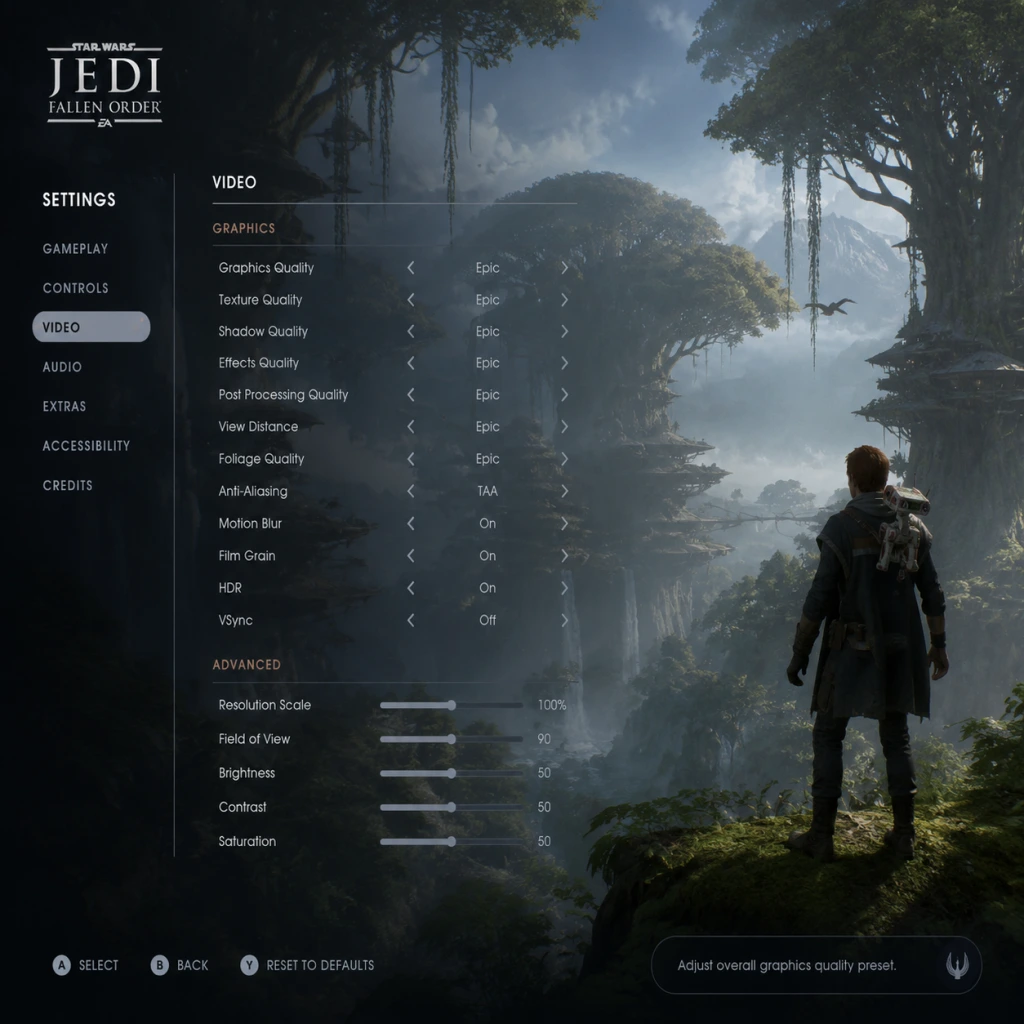
The graphics menu provides extensive options to balance visual fidelity and performance. The game uses Unreal Engine 4, which is demanding on mid-range and older hardware.
Display Mode
- Fullscreen: Best performance, exclusive access to GPU. Recommended.
- Windowed Fullscreen: Alt-tab friendly, slight performance penalty. Use if you often switch windows.
- Windowed: Useful for testing or multi-monitor setups, but reduces performance.
- Native resolution: Match your monitor's native resolution for crisp image. Lower for performance gains.
- Resolution Scale: Slider (50-100%). A quick way to improve performance. 80% with TAA looks acceptable.
- Low / Medium / High / Epic: Adjusts many settings in bulk. Recommended starting point.
- Custom: Manually set individual options for fine-tuning.
Resolution
Graphics Quality Presets
Key Individual Settings (Performance Impact: Low/Medium/High)
| Setting | Impact | Recommendation |
|---|---|---|
| View Distance | Medium | High (quality) / Medium (performance) |
| Shadow Quality | High | Medium (balanced) / Low (performance) |
| Anti-Aliasing | Medium | TAA (Epic) for best quality; FXAA (Low) if performance is tight |
| Texture Quality | Low (mainly VRAM) | High if VRAM >= 4GB; Medium if 2-3GB; Low if lower |
| Effects Quality | Medium | High for particle-rich scenes; Medium for performance |
| Post-Processing | Low | High for bloom and depth of field; Medium to save a few frames |
| Ambient Occlusion | High | Medium or Low (performance-heavy) |
| Volumetric Fog | High | Medium or Low (can obscure vision, also performance hog) |
| Motion Blur | Low | Personally toggle off for clarity; "On" adds cinematic feel |
| Film Grain | None | Personal preference; off for cleaner image |
| Chromatic Aberration | None | Off to reduce blurriness |
Recommended Presets by Hardware Tier
Low-End (e.g., GTX 1050 Ti, 8GB RAM)
- Preset: Low
- Resolution: 1080p
- Resolution Scale: 75-80%
- Turn off Motion Blur, Film Grain, Chromatic Aberration
- Texture Quality: Medium (if VRAM allows)
- Target: 30-45 FPS stable
- Preset: High
- Resolution: 1080p or 1440p
- Shadow Quality: Medium
- Ambient Occlusion: Medium
- Volumetric Fog: Medium
- Target: 50-60 FPS
- Preset: Epic
- Resolution: 1440p or 4K (with DLSS if available? No DLSS in this game, but use Resolution Scale)
- All settings maxed except possibly Motion Blur and Chromatic Aberration (personal)
- Target: 60 FPS at 1440p; 30-60 FPS at 4K (use 80% resolution scale)
- Shadow Quality: High shadows cause significant performance drops during intense combat and in dense forests. Setting to Medium retains good visuals.
- Volumetric Fog: Drops frame rate heavily on Bogano and Zeffo. Medium is a good compromise.
- Motion Blur: Can cause motion sickness for some players. Disable if you feel dizzy.
- Resolution Scale: Lower below 70% yields blurry image. Pair with TAA to reduce aliasing.
- VRAM Limit: Game may stutter if VRAM overflows. Use Texture Quality accordingly.
- Default 100%. Adjust based on your system.
- Sound effects: lightsaber swings, enemy attacks, explosions. Keep at 100% for combat awareness.
- Conversation and story moments. Set to 90-100% for clear narrative.
- John Williams score and ambient tracks. 80-100% recommended for atmosphere.
- See Language section.
- Speakers or Headphones: Select appropriately for spatial awareness.
- Stereo / Surround: Choose according to your hardware. 5.1/7.1 if supported.
- Toggle subtitles (Language section) and optionally a "Closed Captions" option for sound cues (e.g., footsteps, alarms).
- Master Volume too low: May miss audio cues (e.g., enemy ambushes, BD-1 beeps). Ensure balanced with other volumes.
- Dialogue vs SFX: If you struggle to hear conversations during combat, raise Dialogue Volume slightly above SFX.
- Default buttons: WASD movement, mouse for camera, left click attack, right click block/parry, Q for Force Push, E for Force Pull, etc.
- Recommend customization:
- Sensitivity: Adjust mouse sensitivity to your comfort (default 50%). Higher sensitivity aids quick camera turns.
- Invert Mouse Y: Toggle as personal preference.
- Supports both Xbox and PlayStation prompts.
- Dead Zones: Adjust stick dead zones if you experience drift or unresponsive inputs. Default is okay for most.
- Vibration: Toggle on/off (personal). Some players prefer off for precise combat.
- Button Mapping: Options limited; can swap jump and interact in some menus but not full remapping. Use OS-level remapping if needed.
- Parry Timing Window: Not adjustable in settings, but consistent latency matters. Use a wired controller or low-latency mouse.
- Keyboard + Mouse vs Controller: Controller is recommended for easier platforming and precision dodges. Keyboard is fine but requires practice.
- Controller Dead Zones: Too large dead zone delays response. Adjust smaller if you have a new controller.
- Input Buffering: The game has slight input lag. Don't button mash; time presses deliberately.
- Colorblind Modes: Protanopia, Deuteranopia, Tritanopia options for UI elements (health, force meters, enemy indicators).
- Subtitles: On/Off, with background opacity adjustment (50% to 100%) for readability.
- HUD Size: Normal or Large. Larger HUD helps those with visual impairments.
- Camera Shake: Toggle off to reduce dizziness during force attacks and explosions.
- Visual Feedback: Not directly adjustable, but in-game Force vision highlights objects.
- Sound settings earlier apply.
- Subtitles for All Dialog: Already included.
- Closed Captions: Adds descriptions for important sounds (e.g., \"lightsaber ignite\").
- Aim Assist: On/Off (for controller). On helps with auto-targeting in combat.
- Toggle vs Hold: Certain actions like aiming BD-1 can be set to toggle (press once) or hold. Toggle reduces strain.
- Button Mashing: Not present in game (wall running requires held button). No accessibility option for reduced repetition.
- Colorblind Modes: May cause confusion if accidentally enabled. Only enable if needed.
- HUD Size: Large may block game view for some. Default is fine.
- Camera Shake: On by default; turn off if you experience motion sickness.
- Choose from available languages (English, French, German, Italian, Spanish, etc.). Affects menus, subtitles, UI.
- Voiceover language separate from text. Default matches system language.
- For authentic experience, use English (original cast).
- On/Off. Recommended On if playing in non-native language or for better comprehension.
- Can be toggled independently per language.
- Mismatch: Setting text to English but audio to another language is possible but may cause disconnects if you want subtitles in one language and voices in another.
- Restart Required: Some language changes require a game restart to apply fully.
- Online Services: Toggle on/off for leaderboards and community challenges (optional). Game can be played completely offline.
- Data Collection: Telemetry for EA. You can opt in/out.
- Connection: Ensure stable internet if you want to sync achievements (Steam/Origin/EA app). Offline mode works fine.
- None major. Just note that if you launch offline, some achievements may not track until reconnected.
- Story Mode: Minimal challenge, forgiving parry window, enemy damage reduced. Suitable for narrative focus.
- Jedi Knight: Balanced, recommended for first-time players.
- Jedi Master: Standard challenge, tighter parry windows.
- Jedi Grandmaster: Highest difficulty, one-hit kills possible. For soulslike veterans.
- Custom: Not available. Difficulty affects enemy damage, aggression, and parry timing.
- Controller only: Toggle aim assist for BD-1. On helps track small targets.
- Applies to both camera and aiming. Set to personal preference.
- Slider for camera speed. Combine with aim assist.
- Already covered, but they are also in gameplay settings.
- Difficulty cannot be changed mid-playthrough after starting a new game! You must restart to change difficulty. Choose wisely.
- Auto-Aim may interfere with precise shots on weak points. Test both on/off.
- Controller Sensitivity too low makes camera slow in combat. Raise to 80%+ for quick turns.
- Update GPU drivers (NVIDIA Game Ready or AMD Adrenalin).
- Close background apps: especially browsers, Discord overlay.
- Disable V-Sync in-game and enable in GPU control panel if screen tearing occurs.
- Use Borderless Windowed if Fullscreen stutters (rare).
- Cap frame rate via GPU control panel (e.g., 60 FPS) to avoid fluctuation stutter.
- Disable Steam/EA overlay if having input lag.
Mid-Range (e.g., GTX 1660 Super, RTX 2060, 16GB RAM)
High-End (e.g., RTX 3070/3080, 32GB RAM)
Special Attention Points
---
Audio Settings
Audio settings are straightforward but can impact gameplay immersion and clarity.
Master Volume
SFX Volume
Dialogue Volume
Music Volume
Voice Language & Subtitles
3D Audio / Output Configuration
Subtitles & Closed Captions
Easy to Misconfigure
---
Controls Settings
Customizable key bindings for keyboard/mouse and controller. Focus on ergonomics and combat efficiency.
Keyboard & Mouse
- Dodge: Shift (default) is fine, but some prefer a thumb button (e.g., side mouse button).
- Force Abilities: Map to easy-to-reach keys: Force Slow (C), Force Push (Mouse 4), Force Pull (Mouse 5), Force Speed (V).
- Stim (heal): Near movement keys (e.g., X or R).
Controller (Xbox/PlayStation/Generic)
Special Attention Points
---
Accessibility Settings
Star Wars Jedi: Fallen Order includes several accessibility options to accommodate different needs.
Visual
Auditory
Motor/Control
Easy to Misconfigure
---
Language Settings
Text Language
Audio Language
Subtitles
Special Attention Points
---
Network Settings
Given the single-player offline focus, network settings are minimal.
Easy to Misconfigure
---
Gameplay Settings
Difficulty
Auto-Aim
Invert Y-Axis
Controller Sensitivity
Subtitles & Closed Captions
Special Attention Points
---
Summary: Starting Configuration Checklist
1. Set graphics preset based on your hardware (use recommendations above).
2. Adjust resolution and resolution scale for target framerate (60 FPS preferred).
3. Go to Audio: ensure Master Volume is balanced, Dialogue slightly above SFX if needed.
4. Configure controls: rebind Force powers to comfortable keys if on KBM, or stick to controller.
5. Accessibility: toggle any colorblind mode, adjust subtitles, disable camera shake if prone to motion sickness.
6. Language: confirm text and audio languages, enable subtitles.
7. Network: decide online sync on/off.
8. Gameplay: pick difficulty (Jedi Knight recommended for first play).
9. Save settings and test combat on Dathomir or Zeffo to gauge performance.
---
Tips for Optimizing Performance Further
---
By following this guide, you can tailor Star Wars Jedi: Fallen Order to your hardware and preferences, ensuring an immersive and fluid journey as Cal Kestis. May the Force be with your settings.