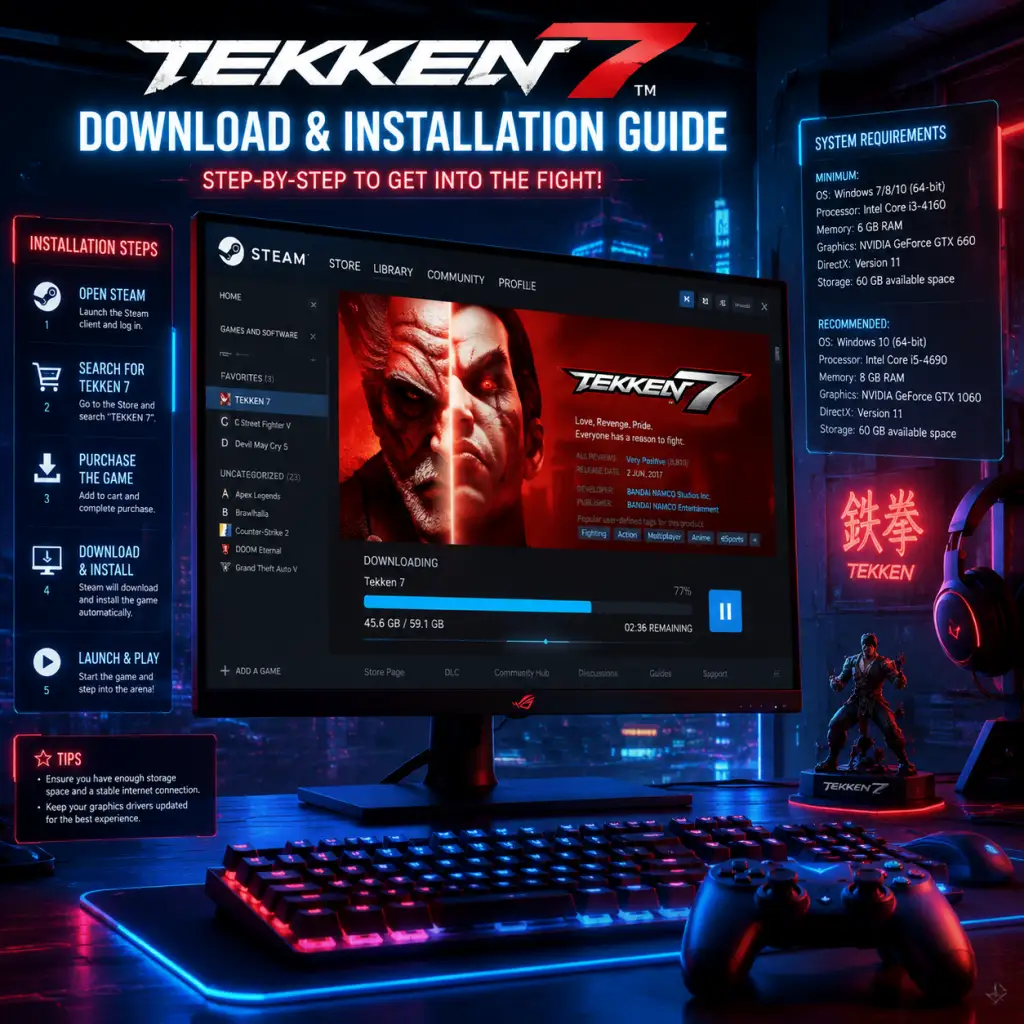
Download & Installation
Tekken 7 - Download & Installation Guide
This guide covers all official platforms for downloading and installing Tekken 7. The game is available on PC (Steam), PlayStation 4 & 5, and Xbox One & Series X|S. There is no Switch or mobile version.
---
1. System Requirements (PC) – Minimum & Recommended
Before purchasing on PC, ensure your system meets the following specifications (these are for the base game; higher settings may require better hardware).
#### Minimum Requirements (720p, Low settings, ~30 FPS)
| Component | Specification |
|---|---|
| OS | Windows 7/8/10 (64-bit) |
| CPU | Intel Core i3-4160 @ 3.60 GHz or equivalent |
| RAM | 6 GB |
| GPU | NVIDIA GeForce GTX 660 2GB, GTX 750Ti 2GB, or Radeon HD 7870 2GB |
| DirectX | Version 11 |
| Storage | 60 GB available space |
| Sound | DirectX-compatible sound card |
| Component | Specification |
|---|---|
| OS | Windows 7/8/10 (64-bit) |
| CPU | Intel Core i5-4690 3.50 GHz or equivalent |
| RAM | 8 GB |
| GPU | NVIDIA GeForce GTX 1060 3GB, GTX 970 4GB, or Radeon R9 390X 4GB |
| DirectX | Version 11 |
| Storage | 60 GB available space (SSD recommended) |
| Sound | DirectX-compatible sound card |
---
2. Account Requirements
| Platform | Account Needed |
|---|---|
| PC (Steam) | Steam account. Game must be purchased or activated via Steam. |
| PlayStation 4 & 5 | PlayStation Network (PSN) account. |
| **Xbox One & Series X | S** |
---
3. Download & Installation Steps by Platform
#### 3.1 PC (Steam)
1. Purchase or obtain a Steam key – Buy from Steam store directly or from authorized retailers (e.g., Humble Bundle, Fanatical). Do not use unofficial grey-market key sellers—risk of revocation.
2. Install Steam – Download the Steam client from [store.steampowered.com](https://store.steampowered.com) and install it.
3. Log in to your Steam account.
4. Redeem your key (if purchased elsewhere): Go to Games > Activate a Product on Steam and enter the key. If bought on Steam, it will be automatically added to your library.
5. Initiate download:
- Go to Library -> find Tekken 7 -> click Install.
- Choose installation directory (default: `C:\Program Files (x86)\Steam\steamapps\common`). You may select a different drive if space is limited.
- Ensure at least 60 GB free space.
6. Wait for download and installation. Steam will automatically install required dependencies (e.g., DirectX, Visual C++ redistributables).
7. Launch: Once installed, click Play from Library or Desktop shortcut.
> Optional: Enable Steam Cloud for save backup (Settings > Cloud > tick Enable Steam Cloud synchronization).
#### 3.2 PlayStation 4 & 5
1. Purchase:
- Buy digital version from PlayStation Store (PS4 or PS5 store) or purchase a physical disc.
- For PS5, the game runs via backward compatibility (no native PS5 version).
2. Install from disc (if disc):
- Insert the disc into the console.
- The system will prompt you to install. Select OK.
- Download any available updates when prompted (required for online play).
3. Install digital:
- Go to PlayStation Store.
- Search for Tekken 7 and select Download (or Add to Library if already purchased).
- The download will begin automatically. You can check progress from the Home screen (Notifications > Downloads).
4. PS5 specific: The game runs as a PS4 title. Ensure you have enough storage (console internal or external USB drive). Adjust settings in Settings > Storage if needed.
5. Launch: Once installed, the game appears on your home screen. Select to start.
> Tip: For physical copies, region lock does not apply to PS4/PS5 – any disc works on any console. However, DLC must match the disc region.
#### 3.3 Xbox One & Series X|S
1. Purchase:
- Digital: Buy from Microsoft Store (search for Tekken 7).
- Physical: Purchase disc and insert into console.
2. Install from disc:
- Insert disc; console installs game automatically.
- May need to download a mandatory update (takes a few minutes).
3. Install digital:
- Go to Store > Search for Tekken 7.
- Select Get or Install (if already owned).
- Choose installation destination (Console internal or external storage).
4. Xbox Series X|S optimization: The game runs via backward compatibility but benefits from faster loading on SSDs. No separate version.
5. Launch: After installation, the tile appears in My games & apps. Select to play.
---
4. First Launch Setup
#### 4.1 Graphics & Audio Configuration
- On first launch, you can adjust settings from the Option menu:
- For 60 FPS on PC, ensure VSync is on or cap frame rate (Steam launch options can be added: `-fps 60`).
- The game natively supports Xbox and PlayStation controllers on PC. If using a generic gamepad, configure via Controller Settings in Options.
- For PlayStation and Xbox consoles, the system handles controller profiles automatically.
- To play online, you must:
- On PC, no extra subscription needed beyond Steam account.
- If you purchased a Deluxe/Ultimate edition, DLC characters and stages will auto-download on first launch. Check Downloadable Content in the main menu to verify.
- On PC, ensure all DLC is installed: Right-click Tekken 7 in Steam Library -> Properties -> DLC tab to manage.
- Display: Resolution, Fullscreen/Windowed, VSync, Anti-aliasing.
- Graphics: Texture quality, Shadow quality, Effects, Post-processing. Use the built-in benchmark (found in Options > Graphics) to determine optimal settings.
- Audio: BGM volume, SFX volume, Voice language.
#### 4.2 Controller Setup
#### 4.3 Network/Online Setup
1. Have an active internet connection.
2. Be signed into your platform’s online service (PSN, Xbox Live, Steam).
3. On consoles, a paid subscription (PS Plus or Xbox Game Pass Core/Ultimate) is required.
#### 4.4 DLC & Season Pass
---
5. Common Installation Errors & Fixes
#### 5.1 PC Errors
| Error | Cause | Solution |
|---|---|---|
| "Microsoft Visual C++ Runtime Error" | Missing redistributable | Install VC++ redist from Steam\steamapps\common\Tekken 7\_CommonRedist or manually from Microsoft website. |
| Game crashes on launch | Outdated GPU drivers | Update your graphics card drivers (NVIDIA/AMD). Ensure DirectX 11 is installed. |
| "Insufficient Storage" despite free space | Steam sometimes miscalculates; leave extra 10 GB overhead. | Clear space and restart Steam. |
| Stuttering/low FPS | Settings too high or overheating | Lower graphics settings; disable unnecessary background apps; check temps. |
| "Unable to synchronize cloud" | Steam Cloud conflict | Disable cloud sync for Tekken 7 (Library > right-click > Properties > Cloud > uncheck). Or verify game files. |
| Download stuck/paused | Server issues or corrupted cache | Restart Steam; clear download cache (Steam > Settings > Downloads > Clear Download Cache). |
#### 5.2 Console Errors
| Error | Cause | Solution |
|---|---|---|
| Disc not recognized | Dirty disc or region mismatch | Clean disc; ensure disc is from same region as console (rare). |
| Update download slow/fail | Network congestion or server issues | Pause/resume download; switch to wired connection; restart console. |
| "You do not own this content" on digital | License not synced | Go to Settings > Account Management (PS4) or Profile & system (Xbox) > Restore licenses. |
| Corrupted install | Interrupted download | Delete and reinstall game. On PS4/5: Options button on game tile > Delete; re-download from Library. |
| "Error CE-30005-8" (PS4) | Corrupted data | Rebuild database via Safe Mode (option 5). |
| "0x80070490" (Xbox) | Account issue | Sign out and back in; clear cache (hold power button 10 sec). |
6. Post-Installation Verification
After installation, do the following to confirm everything works:
1. Launch the game – It should reach the main menu without crashes. On PC, the initial loading may take a moment (especially on HDD).
2. Check version number – Go to Options > Library/About (or similar) – should be version 1.00 or later (updated to latest patch).
3. Run a quick offline match – Select versus mode vs CPU to test controls and performance.
4. Test online (if intended) – Go to Online > Ranked Match or Player Match to verify connectivity.
5. Verify DLC (if purchased) – Go to Character Select – any DLC characters (e.g., Geese Howard, Noctis, Negan) should appear. If missing, reinstall DLC from platform store.
6. Save file – Play a round – a save file should be created. On PC, saves are in `%USERPROFILE%\Documents\Tekken 7\` (Steam cloud syncs by default).
---
7. Uninstalling the Game
If needed, to free space:
- PC (Steam): Library > right-click Tekken 7 > Manage > Uninstall.
- PlayStation 4/5: Highlight game tile > Options (or Start) > Delete.
- Xbox: My games & apps > Tekken 7 > More options > Uninstall.
- Mods: Tekken 7 on PC supports mods. Use reputable sources (e.g., TekkenMods.com). Installing mods can affect online play (anti-cheat may ban). Beware of malware.
- Crossplay: Tekken 7 does not support cross-play between PC, PlayStation, and Xbox. You can only play against users on the same platform.
- Region Locks (consoles): Discs are region-free on PS4/PS5 but DLC must match region. Xbox discs are region-free. Digital purchases are tied to your account region.
> Note: Saved data may remain on the system. To delete saves as well, do so manually (platform-specific).
---
8. Important Disclaimers
---
Congratulations! You are ready to step into the King of Iron Fist Tournament. If you encounter additional issues, consult the official Tekken 7 forums or platform-specific support pages.