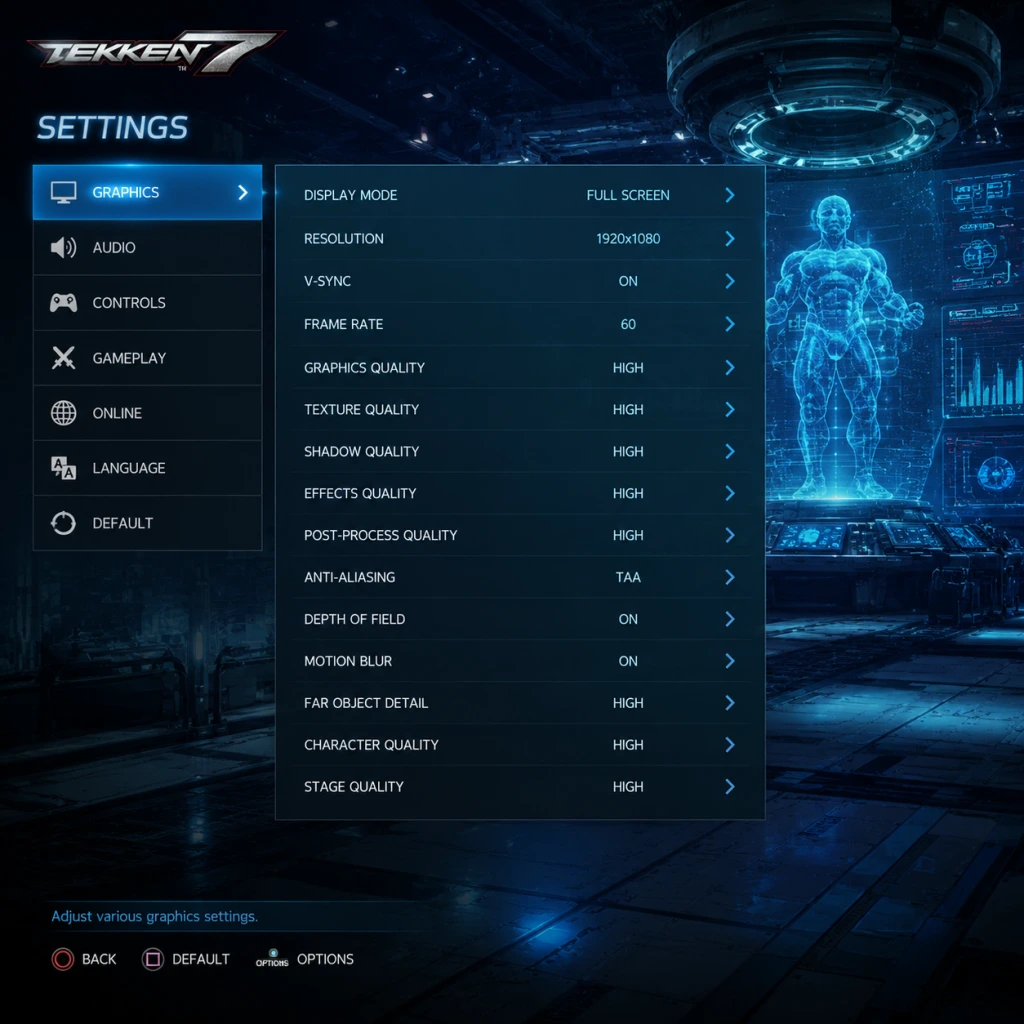
Game Settings
Game Settings Guide: Tekken 7
This guide covers all configurable settings in Tekken 7 across PC (Steam), PlayStation 4/5, and Xbox One/Series X|S. It provides optimal recommendations for different hardware tiers and highlights settings that are often misunderstood or misconfigured.
---
1. Graphics Settings
#### PC Resolution & Display Mode
| Setting | Low-End (GTX 1050 / RX 560) | Mid-Range (GTX 1660 / RX 580) | High-End (RTX 2060+) |
|---|---|---|---|
| Resolution | 1280×720 or 1600×900 | 1920×1080 | 1920×1080 or 2560×1440 |
| Display Mode | Fullscreen | Fullscreen | Fullscreen |
| V-Sync | Off (forces 60 FPS cap) | Off (minimize input lag) | Off |
| Anti-Aliasing | FXAA (low performance cost) | TAA (smoother edges) | TAA (best quality) |
| Shadow Quality | Low | Medium | High |
| Post-Processing | Off | Low | Medium (motion blur OFF) |
| Texture Quality | Medium | High | Ultra |
- V-Sync: Turning V-Sync ON can introduce 1–2 frames of input lag. For competitive play, keep it OFF (the game already caps at 60 FPS). Only enable if you experience screen tearing.
- Motion Blur: Disable this in post-processing; it obscures crucial visual cues during fast combos.
- PS4 / Xbox One: No user-accessible graphics settings. Game runs at 1080p, 60 FPS on base models; PS4 Pro / Xbox One X offer dynamic 1440p.
- PS5 / Xbox Series X|S: Runs at 4K, 60 FPS (backward compatible). No in-game graphics tweaks available.
#### Console Graphics Options
---
2. Audio Settings
| Setting | Recommendation | Notes |
|---|---|---|
| Master Volume | 80–100% | Keep high to hear audio cues clearly. |
| BGM Volume | 50–70% | Lower BGM slightly to focus on sound effects. |
| SFX Volume | 100% | Essential for hearing hit confirms and footstep sounds. |
| Voice Volume | 100% | Character cries and announcer – useful for conditioning. |
| Microphone / Voice Chat | Disabled | Prevents accidental distractions during online matches. |
| Sound Mode | Stereo (default) | For headset users; no surround sound advantage. |
- Hit Sound Delay: Not configurable, but ensure your audio output device has low latency (use wired headphones).
- Stage BGM: Some stages have distracting music; consider lowering BGM for specific stages in Practice Mode.
---
3. Controls Settings
#### Button Mapping (Recommended for Competitive Play)
Tekken 7 uses a four-button layout by default: 1 (left punch), 2 (right punch), 3 (left kick), 4 (right kick). Consider the following optimal bindings:
| Action | Default | Recommended (PlayStation) | Recommended (Xbox) | PC (Keyboard) |
|---|---|---|---|---|
| 1 (LP) | Square | Square | X | A |
| 2 (RP) | Triangle | Triangle | Y | S |
| 3 (LK) | X | X | A | Z |
| 4 (RK) | Circle | Circle | B | X |
| Rage Art | L1+L2 | R1 (or any single button) | RB | Space |
| Ki Charge | L1 | R2 | RT | Q |
| Throw | 1+3 (L1) | L1 | LB | 1 (remap to easy throw) |
- Rage Art Activation: Default requires pressing two buttons simultaneously (L1+L2). Many players bind Rage Art to a single shoulder button (e.g., R1) for instant activation. Go to Customize Controls → Button Bindings and assign the "Rage Art" action to a button of your choice.
- Input Delay Reduction: Set Input Buffer to "Short" (some prefer 1–2 frames). Available only on PC via config file or mods; not recommended for beginners.
- Deadzone & Sensitivity: Not adjustable in-game. For analog sticks, keep deadzone default (no option). Most players use the D-pad for precise directional inputs.
---
4. Accessibility Settings
Tekken 7 has limited built-in accessibility options. Use these workarounds:
| Need | Solution |
|---|---|
| Colorblind Mode | Not available. Adjust TV/monitor color settings or use third-party reshade filters on PC. |
| Subtitle Size | Fixed – increase TV/capture card zoom. |
| Controller Remapping | Full remapping available (see Controls section). |
| Button Macros | Not allowed for competitive play, but can be mapped via Steam Input (PC) for practice. |
| Difficulty Scaling | Story Mode has adjustable difficulty; Arcade Mode is fixed. |
| Auto-Recovery | Not available – must manually recover. |
- Menu Navigation: Menus are not screen-reader friendly. For PC, use a controller for faster navigation.
- Online Chat: The in-game text chat in lobbies uses small fonts. Consider using voice chat via platform party system.
---
5. Language Settings
| Option | PC | Console |
|---|---|---|
| Game Text | English, Japanese, French, Italian, German, Spanish, etc. | Dependent on system language. |
| Voice Language | English or Japanese (selectable in Options → Language). | Try both – Japanese voice acting is often preferred for authenticity. |
| Subtitles | Always on for Story Mode (no option to toggle off). | Same as PC. |
- Character-Specific Language: Some characters have unique voice lines only in Japanese. Switching to Japanese voice is recommended for the full experience.
- UI Language: On PC, changing Steam language will affect game text; for a mix, modify the game’s config file (not officially supported).
---
6. Network Settings
#### Matchmaking & Connection
| Setting | Recommendation | Notes |
|---|---|---|
| Search Range | Any (default) | Only changes matchmaking region. Leave on "Any" for faster queues. |
| Connection Filter | 4–5 bars | Stable matches only. Avoid 3 bars or lower. |
| Platform Crossplay | Not supported | PC, PS, Xbox each have separate player pools. |
| Ranked Match | Manual Accept | Disable auto-accept to check opponent’s connection; always look for wired indicators. |
| Player Match | Any | No rating impact; use for casual practice. |
- Network Indicator: Opponent’s connection is shown as bars (1–5). Never accept matches below 4 bars – the netcode is delay-based, not rollback, so poor connections cause massive input latency.
- Wired Connection: Always use Ethernet. Wi-Fi introduces packet loss and jitter.
- Upload/Download Test: In Options → Network Info, you can test your connection. Aim for <30ms ping and <5ms jitter.
- NAT Type: Ensure NAT is Open (Type 1/2 on PS, Open on Xbox) to reduce disconnects.
---
7. Gameplay Settings
#### General Options
| Setting | Recommendation | Impact |
|---|---|---|
| Stage Selection | Random (Ranked only) | Prevents people from picking disruptive stages (e.g., "Forgotten Realm" with lava hazards). |
| Round Time | 60 seconds (default) | Standard tournament setting. 99 seconds only for practice. |
| Timer Display | On | Essential for knowing when to play defensive. |
| Health Bar Position | Top (default) | No gameplay difference. |
| Character Skin | 1P or custom | Choose one you can recognize quickly (avoid flashy mods on PC that might distract). |
| Replay Saving | Automatic for Ranked; Manual for Player matches | Helps review mistakes. |
| Setting | Recommendation |
|---|---|
| CPU Action | Guard All, then move to Guard & Attack at random intervals |
| Refill Health | On for repetitive drills |
| Counter Hit Setting | On for practicing punish combos |
| Frame Data Display | Turn on (PC mod required for full frame data) |
- Auto-Wins in Story Mode: You can enable "Auto-Win" after losing a certain number of times – intended for casual players but avoid using it to learn proper execution.
- Damage Display: Off by default in ranked; you can enable it in Options → Display → Damage Numbers to see exact damage (helps learning combos).
---
8. Settings Easy to Misconfigure
1. Controller Deadzone / Trigger Sensitivity — The game offers no calibration; if you use analog sticks, unintended diagonal inputs can occur. Stick with D-pad.
2. V-Sync Decision — Many players leave V-Sync ON (default) thinking it helps stability, but it adds lag. Turn it OFF for better input response.
3. Rage Art Binding — Default dual-button can fail under pressure. Remap to a single button in Customize Controls → Special Style → Rage Art.
4. Voice Chat in Lobbies — If you enable microphone input during online matches, your opponent can hear you. Disable it to avoid distractions.
5. Search Range in Ranked — Setting to "Region" may increase wait times. Use "Any" but then manually reject poor connections.
6. Motion Blur in Post-Processing — High settings on PC add blur; turn off for clarity.
7. Input Buffer Settings — Not in standard menus; on PC, config file tweaks can change buffer window. Do not modify if you are unfamiliar with risk of ban from Anti-Cheat.
---
9. Optimal Settings Summary Table
| Category | Best for Performance | Best for Quality |
|---|---|---|
| Graphics (PC) | 720p, Low shadows, FXAA, V-Sync Off | 1080p, High shadows, TAA, Post-Processing Medium (motion blur off) |
| Audio | Stereo, SFX 100%, Voice 100% | Same as performance |
| Controls | Rage Art on R1, D-pad, Input Buffer default | Same |
| Network | Wired, 4–5 bar filter, Open NAT | Same |
| Gameplay | Round Time 60s, Timer On, Damage Numbers On | Same |
Final Tips for Setting Up
- Before your first online match, go to Options → Display → Screen Border and ensure the aspect ratio is correct (no black bars).
- Test controller mapping in Practice Mode for at least 10 minutes. Pay attention to slow escape (1+2 break throws) – bind to comfortable finger position.
- For keyboard players, consider using a hitbox layout by mapping Up to a separate button (e.g., Space) for better Korean back-dash execution.
- Save settings profiles to multiple slots if you share the game with others.
- Update graphics drivers to the latest version to avoid stuttering.
By following this guide, you’ll have a lag-free, visually clear, and accessible experience tailored to your hardware and skill level.