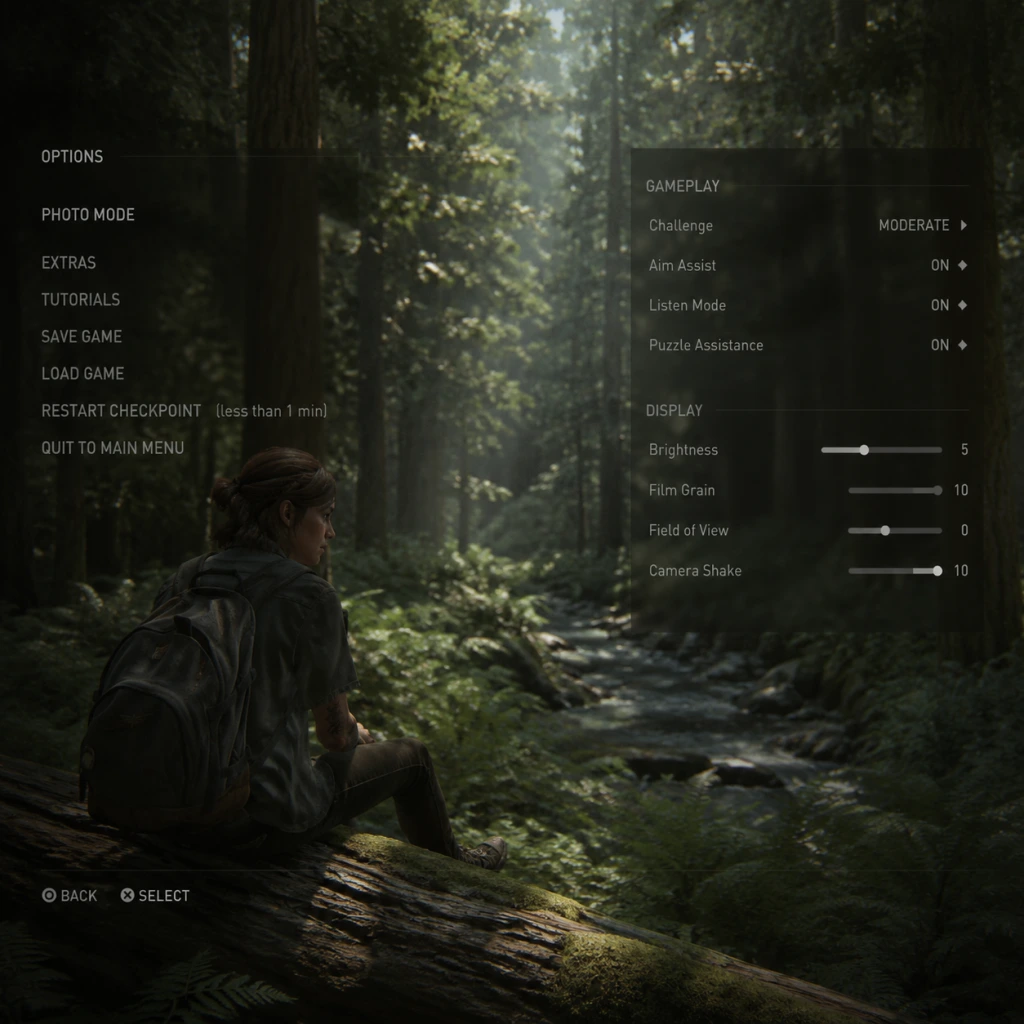
Game Settings
Overview
The Last of Us Part II offers a comprehensive settings menu that allows you to tailor the experience to your hardware, playstyle, and preferences. Since the game is exclusive to PlayStation 4 and PlayStation 5, the available options vary slightly between platforms. This guide covers every setting category — Graphics, Audio, Controls, Accessibility, Language, Network, and Gameplay — with clear explanations, platform-specific recommendations, and tips to avoid common misconfigurations.
---
Graphics Settings
Platform-Specific Modes
PS4 (Base):
- Resolution Mode: 1080p (or 1920×1080), 30 FPS, higher graphical fidelity (better shadows, textures, draw distance).
- Performance Mode: 1080p, 60 FPS (unlocked, but targets 60), slight reduction in some effects (e.g., ambient occlusion, shadow quality).
- Resolution Mode: 1440p upscaled to 4K, 30 FPS, highest visual quality.
- Performance Mode: 1080p, 60 FPS (more stable than base PS4).
- PS4 Pro Performance Mode: 1440p~1800p dynamic resolution, 60 FPS, with improved loading and stable framerate.
- Native PS5 Patch (2021 update): 1440p~1800p dynamic, locked 60 FPS, higher-quality textures and draw distance than PS4 Pro Performance Mode, faster loading.
- PS4 Base: Use Performance Mode for smoother gameplay; the visual trade-off is minimal. Resolution Mode can feel sluggish during combat.
- PS4 Pro: Choose Performance Mode for 60 FPS, as the resolution difference is barely noticeable on a 1080p TV. Use Resolution Mode only if you have a 4K display and prefer visual consistency over framerate.
- PS5: The game automatically runs in the enhanced mode (60 FPS with high settings). No manual toggle needed; just ensure your console’s display settings are set to “Game Mode” for low input lag.
- Brightness: Adjust until the logo in the calibration screen is barely visible. Default is usually fine.
- HDR (High Dynamic Range): If your TV supports HDR, enable it. Increase paper white (up to 800–1000 nits) and adjust black level so shadows are dark but retain detail. Misconfiguration: Setting paper white too low leads to washed-out highlights; too high loses detail in bright scenes (e.g., sunlight). Use in-game HDR calibration tool.
- Film Grain: Adds a cinematic film texture. Many players prefer turning it off for a cleaner image.
- Chromatic Aberration: Simulates camera lens distortion. Turn off for sharper visuals.
- Vignette: Darkens edges. Turn off to reduce peripheral darkness.
- Motion Blur: Blurs objects during camera movement. Can cause disorientation for some; consider turning off or setting to low.
- Camera Shake: Intensity of screen shake during explosions or heavy footsteps. Set to taste; some players turn it off for comfort.
- Master Volume: Set to a comfortable level (70–80% is typical).
- Music Volume: Default 100%; reduce if music overpowers dialogue.
- Sound Effects Volume: Keep high for environmental cues (e.g., clickers, footsteps).
- Dialogue Volume: Set to 100% for clear story and contextual hints.
- Speaker Configuration:
- Audio Output: Choose between Linear PCM (uncompressed, best quality) or Bitstream (Dolby/DTS). Use PCM if your receiver supports it.
- 3D Audio (PS5 only): Enable Tempest 3D Audio for pinpoint positional cues. Highly recommended for headphones. Misconfiguration: If using TV speakers, 3D Audio may sound hollow; disable it.
- Subtitles:
- Controller Layout: Default (Naughty Dog standard). Customizable in Accessibility menu (see below).
- Invert Look: Controls camera pitch inversion. Default: normal. Change if you prefer flight-stick style.
- Vibration Intensity: Affects DualShock 4 / DualSense haptics (PS5: adaptive triggers). Can reduce for longer sessions or if vibration distracts.
- Trigger Effect Intensity (PS5 only): Adjust resistance of L2/R2 for drawing bow, shooting, etc. Set to strong for immersion, weak for comfort, or off for rapid fire.
- Camera Speed: Sensitivity for looking around. Default 5/10. Increase for faster target acquisition; decrease for precision aiming (common in stealth).
- Aiming Sensitivity: Separate from camera speed. Start at 5/10 and adjust after first few firefights.
- Aim Assist:
- Auto-Aim (only on Very Easy difficulty): Always on; cannot change.
- Camera Follow: When turning, camera snaps to a direction. Off is default; On reduces manual turning.
- Context Actions: Default is press/tap. Can enable Hold to Interact to prevent accidental interactions during combat.
- Motion Sickness Reduction: Reduces camera shake, field-of-view adjustments (FOV cannot be changed natively, but reduction is done via camera motion options).
- High Contrast Display: Makes enemies, items, and characters highly visible with configurable colors (e.g., enemies in red, allies in blue). Four presets: Default, High Contrast, Left/Right Visual Field adjustments.
- Magnifier: Hold PS button to zoom; sub-option for zoom level (move cursor).
- Tinnitus Visual Indicator (optional): Shows a visual pulsing when hearing damage occurs.
- Subtitles: As above.
- Closed Captions: On/Off with style options (Speaker ID, Sound Descriptions).
- Directional Indicators: Arrows appear around the player icon for sounds (e.g., enemy footsteps). Three modes:
- Alert Signs: Exclamation marks above off-screen enemies that are aware of you. Essential for deaf/hard-of-hearing players.
- Audio Cues (PS5 only): Visual flash for audio logs.
- Hold vs Tap: Change hold duration for interact (60ms to 2s). Increase for accidental tap prevention.
- Button Mapping: Remap any button or stick. Pre-made presets:
- Auto-Pickup: Automatically collect ammo and supplies when walking over them. Highly recommended to turn On to reduce repetitive button presses.
- Auto-Equip Melee Weapon: When you pick up a weapon, it equips automatically. On/Off.
- Camera Assist: Automatically rotates camera toward enemies (for motor difficulties). Three intensities: Off, Light, Strong.
- Lock-on Aim: As in Controls, but persists across difficulty modes. Enable if fine motor control is limited.
- Quick Turn: Double tap down to spin 180 degrees. On by default.
- Navigation Assistance: Highlights the correct path with a glowing or dotted line. Three modes: Off, Light (path only), Full (path + arrow).
- Puzzle Hints: Can toggle hints for environmental puzzles. On/Off.
- Combat Accessibility:
- Text Speed: For subtitle and menu text scroll speed.
- Menu Narration: Screen reader for menus (PS4 accessibility feature must be enabled).
- Audio Language: Choose from English, French, German, Italian, Spanish (EU), Spanish (LATAM), Japanese, Portuguese (Brazil), Polish, Russian, Arabic, Turkish, Czech, Hungarian, Dutch, Greek, Korean, Simplified Chinese, Traditional Chinese, Thai.
- Subtitle Language: Independent from audio; can mix (e.g., English audio + Spanish subtitles).
- Menu Language: Determined by PS system language; cannot be changed in-game.
- Online Features: Enable to allow game updates, photo mode sharing, and optional data collection. Must be enabled to download the free 60 FPS PS5 patch and any bug fixes.
- Photo Mode Upload: You can share photos from Photo Mode to social media (requires PS Network).
- Automatic Downloads: Set to On (default) to auto-download updates.
- Allow Player-Generated Content: N/A (no user content).
- Very Light – Focus on story; minimal enemy aggression, infinite ammo, one-hit kills optional.
- Light – Easy combat; ample resources.
- Moderate – Balanced challenge (default).
- Hard – Scarce resources, smarter enemies.
- Survivor – Extremely limited resources, no HUD, heightened enemy senses.
- Grounded – No HUD, minimal resources, enemies one-shot you, no Listen Mode.
- Custom – Adjust the following sub-categories individually:
- First-time players: Start on Moderate with default settings. Adjust down if stuck, up if too easy.
- Exploration-focused: Use Light difficulty so you can enjoy the world without stress.
- Veteran players: Try Hard for a rewarding challenge, or Survivor for a tense experience.
- Accessibility: Use Custom to fine-tune: e.g., keep Enemy Damage high but Player Damage low if you want a power fantasy without being overwhelmed.
- Auto-Equip Weapon: On/Off – when picking up a weapon, it takes the current slot. Enable for convenience.
- Show Crafting Information: Toggle detailed tooltips when crafting. On recommended.
- Resource Highlight: When aiming, resources (plants, cans) are highlighted with a faint glow. On by default; turn off for harder scavenging challenge.
- Autosave Only: The game saves at checkpoints; you can also manual save (not in combat). There are no settings to adjust save frequency.
- Continue vs Chapter Select: Use Continue to resume at last checkpoint. Chapter Select for replaying story sections (progress overwrites).
- Accessible via Options > Photo Mode. Not a setting, but an in-game tool. Options include field of view, filters, poses, exposure, depth of field, etc.
PS4 Pro:
PS5 (Backward Compatible):
Recommendation:
Sub-Graphics Options (available on all platforms)
---
Audio Settings
- TV Speakers (stereo or 2.0).
- Headphones (stereo) — recommended for immersive 3D audio.
- Surround Sound (5.1 or 7.1) — for home theater setups. Must be set in PS system settings first.
- Subtitles: On/Off.
- Closed Captions: Adds descriptions of sounds (e.g., “glass shatters”). Recommend On for accessibility or language learning.
- Subtitle Size: Small/Medium/Large. Larger is easier to read.
Special Attention: Audio mix is crucial for resource gathering (listen for clickers in vents) and stealth. Test headphone settings early in the game’s prologue.
---
Controls Settings
- Off: No magnetism.
- Lock-on: Strong auto-aim. Not recommended for skilled play.
- Light: Subtle reticle drag. Best balance for most players.
- Window: How tightly the aim assist works (Small/Medium/Large). Default Medium.
Misconfigured Setting: Aim Assist is often left on “Lock-on” by new players, making combat too easy and removing the challenge. Set to Light or Off for a more rewarding experience. Similarly, Camera Speed too low will make you slow to respond to flanking enemies.
---
Accessibility Settings
The Last of Us Part II is a gold standard for accessibility. These options are grouped in a separate menu and can be toggled at any time.
Vision
-
Hearing
-
- Directional (Arrow) – shows direction.
- Directional & Distance – also shows distance (close/far).
- Off.
Motor / Dexterity
-
- Default.
- One-handed (Left) – moves all crucial actions to left side (e.g., shoot with L1).
- One-handed (Right) – similar for right side.
- Custom – full remapping.
Cognitive
-
- Enemy Awareness Meter: Shows how aware enemies are (diamond shape). Helps players track stealth.
- Invisibility Toggle: Can make player completely invisible (for story-only enjoyment).
- One-Hit Kill: Press a button to instantly kill all enemies in an encounter (for re-trying scenes or narrative focus).
- Infinite Ammo & Crafting: For players who want to avoid resource management.
Special Attention: The Navigation Assistance is easy to miss. If you feel lost, enable “Navigation Assistance – Full” to see the objective path. Conversely, if you enjoy exploration, keep it Off. Also, Auto-Pickup is a game changer for resource collection — enable it immediately.
---
Language Settings
Recommendation: Play with original English audio if you wish to preserve the intended performance. Subtitles can be turned on for clarity, even in your native language.
---
Network Settings
The Last of Us Part II is a single-player-only game with no multiplayer or cooperative modes. However, there are some network-related options:
Misconfiguration: If you turn off online features, you will not receive the performance-enhancing patches. Keep Online Features enabled.
---
Gameplay Settings
Difficulty Options
TLOU2 offers five difficulty presets, plus many custom sliders. You can change difficulty at any time from the Pause menu.
Presets:
- Player Damage (Very Light / Light / Moderate / Hard / Survivor / Grounded)
- Enemy Damage (same scale)
- Ally Damage (same scale)
- Resources (Plentiful / Moderate / Scarce / Very Scarce / None)
- Stealth (Very Easy / Easy / Moderate / Hard / Very Hard)
- Agility (how quick enemies react) – Slow / Normal / Fast / Very Fast
- Listen Mode (distance of Echo-location) – Normal / Far / Very Far / No Listen Mode
- Aim Assist (On / Off / Light / Lock-on)
- Navigation Assistance (Off / Light / Full)
Recommendations:
Inventory & Crafting
Game Save
Photo Mode
---
Misconfigurations to Watch Out For
1. Leaving Aim Assist on “Lock-on” – remove all challenge; switch to “Light” or “Off”.
2. Film Grain + Chromatic Aberration + Vignette all ON – drastically reduces visual clarity; turn off at least Film Grain and Chromatic Aberration.
3. HDR Calibration Skipped – results in washed-out or crushed blacks. Always use the in-game calibration tool.
4. Network Features Disabled – prevents patches and the PS5 60 FPS update.
5. Navigation Assistance set to “Full” – can spoil exploration if left on; toggle off after going through an area you know.
6. Auto-Pickup turned OFF – forces you to manually pick up every item, which is tedious. Enable it.
7. Subtitle Size too small – if you rely on subtitles, set to Large for quick reading.
8. Vibration Intensity Too High – can cause hand fatigue; reduce if nessacary.
9. Trigger Effect Intensity (PS5) set to “Strong” – can be strenuous for rapid-fire weapons; adjust to “Weak” if you experience discomfort.
10. Camera Speed too low – makes combat sluggish; start at 6/10 and adjust.
---
Quick Reference Table: Optimal Settings by Platform
| Setting | PS4 (Base) | PS4 Pro | PS5 |
|---|---|---|---|
| Graphics Mode | Performance | Performance | Enhanced (auto) |
| Resolution | 1080p | 1080p (upscaled on 4K) | 1440p~1800p dynamic |
| Frame Rate Target | 60 FPS | 60 FPS (stable) | 60 FPS (locked) |
| HDR | On if supported | On if supported | On (use calibration) |
| Film Grain | Off | Off | Off |
| Chromatic Aberration | Off | Off | Off |
| Motion Blur | Off or Low | Off or Low | Off or Low |
| Vignette | Off | Off | Off |
| 3D Audio (headphones) | N/A | N/A | On (recommended) |
| Auto-Pickup | On | On | On |
| Aim Assist | Light | Light | Light |
| Navigation Assistance | Off (first play) | Off | Off |
Final Setup Checklist
1. Connect to the internet and ensure Online Features are enabled.
2. Install the latest game update (check for PS5 patch if on PS5).
3. Calibrate your display brightness and HDR.
4. Choose your Graphics Mode (Performance recommended).
5. Set Audio to Headphones (stereo) or your system configuration. Enable Subtitles and Closed Captions.
6. Adjust Camera Speed and Aim Sensitivity to your comfort.
7. Set Aim Assist to Light.
8. Turn Auto-Pickup ON.
9. Enable any Accessibility features you need (Navigation Assistance, High Contrast, etc.).
10. Choose your preferred difficulty (Moderate or Custom).
11. Save your settings (automatically applied).
Your settings are now optimized for an enjoyable and immersive journey through The Last of Us Part II. Remember, you can change almost any setting from the pause menu at any time, so feel free to experiment as you play.