Game Settings
Game Settings Guide for This War of Mine
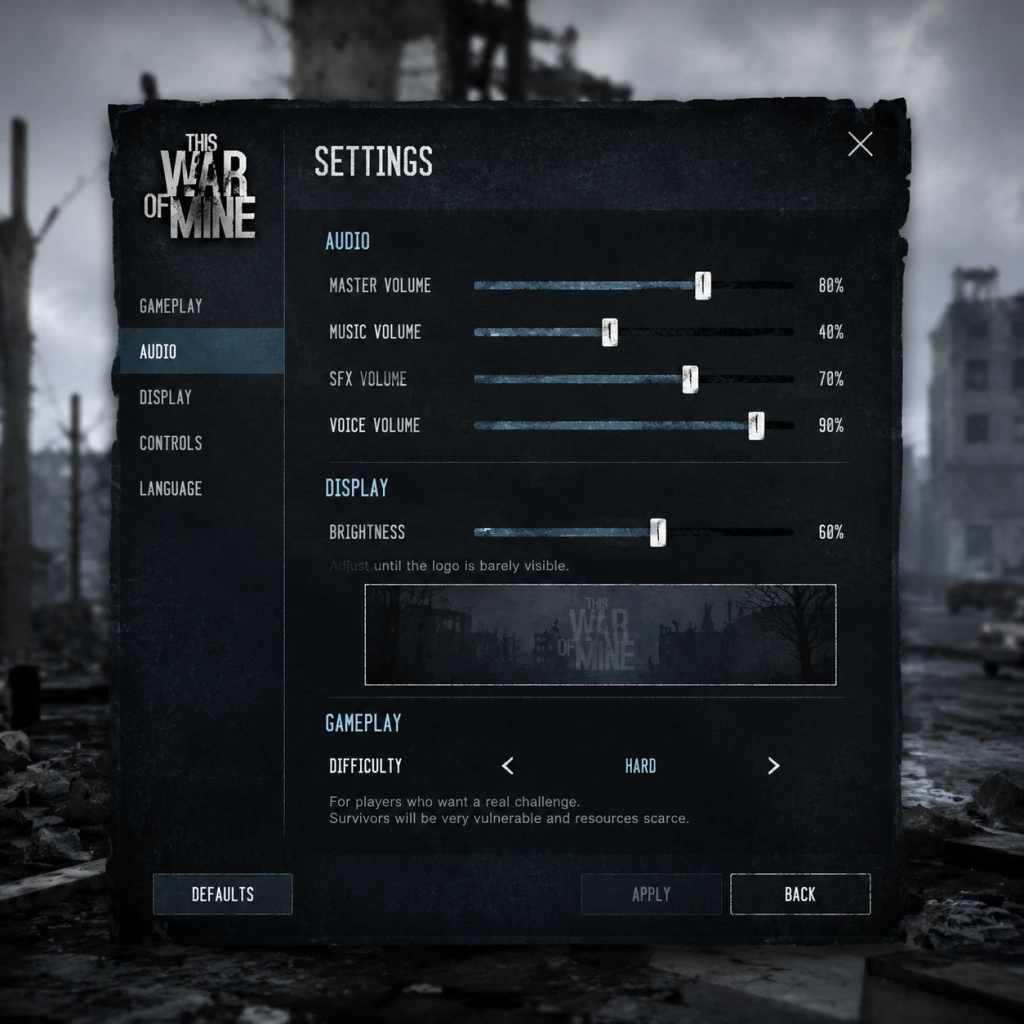
This guide covers every configurable setting in This War of Mine, including graphics, audio, controls, accessibility, language, network, and gameplay options. We'll also recommend optimal settings for low-end, mid-range, and high-end hardware to balance performance and visual quality. Special attention is given to settings that are easy to misconfigure.
---
Graphics Settings
The graphics menu is accessible from the main menu under Options > Graphics. This War of Mine uses a 2D isometric art style with subtle lighting and shadow effects, so it runs on a wide range of hardware.
| Setting | Options | Impact | Recommendation |
|---|---|---|---|
| Resolution | Native, list of common resolutions | Determines display clarity and performance | Always use native monitor resolution for best image quality. Lower only if struggling with FPS. |
| Fullscreen | On / Off | Windowed vs exclusive fullscreen | Enable for maximum performance and immersion. Disable if you need quick alt-tab. |
| VSync | On / Off | Synchronizes frame rate with monitor refresh; reduces screen tearing | Enable if you notice tearing. Disable on low-end systems to improve input responsiveness. |
| Anti-Aliasing | Off, 2x, 4x, 8x | Smooths jagged edges on character sprites and objects | 2x or 4x on mid-range; Off on low-end; 8x only on high-end with no performance cost. |
| Shadow Quality | Off, Low, High | Controls shadow detail and distance | Use Off on low-end, Low on mid-range, High on high-end. Shadows are subtle in this game. |
| Texture Quality | Low, Medium, High | Affects detail of character models, environment, and UI | Medium or High on most systems; Low only for very old GPUs. |
| Ambient Occlusion | Off, Low, High | Adds realistic contact shadows between objects | Off on low-end, Low on mid, High on high. Minimal visual gain but noticeable performance hit on low-end. |
| Bloom | On / Off | Simulates light glow | Off on low-end; On for atmosphere on others. |
| Color Grading | Default, Sepia, Noir, etc. | Changes overall color palette | Purely cosmetic; use Default for standard look. |
- VSync: Often left on by default. On low-end hardware, it can cause input lag and stuttering. Turn it off if your FPS is below 60 and unstable.
- Anti-Aliasing: High values (8x) have little benefit on a 2D game and can drain resources. Stick to 2x or 4x.
- Shadow Quality: Setting to High can reduce FPS significantly on integrated graphics. Test with Low first.
#### Performance Recommendations by Hardware Level
| Hardware Level | Description | Recommended Graphics Preset |
|---|---|---|
| Low-End | Intel HD Graphics, older integrated chips | Resolution: Native, all other settings: Low or Off. VSync Off, Anti-Aliasing Off, Shadows Off, Textures Low. |
| Mid-Range | GTX 960 / RX 560 or better | Settings: High or Max for most, Shadows Low, AA 2x, Ambient Occlusion Low. VSync On (if 60Hz). |
| High-End | GTX 1060 / RX 580 and above | Everything at maximum, 8x AA, High Shadows, Ambient Occlusion High. VSync On (or cap at 60 via driver). |
Audio Settings
From Options > Audio:
| Setting | Options | Notes |
|---|
| Music Volume | 0-100 | Background music. Lower if you prefer ambient sounds.
| SFX Volume | 0-100 | Sound effects: footsteps, crafting, gunshots, etc.
| Voice Volume | 0-100 | Character barks (e.g., "I'm hungry").
| Enable Subtitles | On / Off | Shows text for character speech. Recommended ON for accessibility and clarity.
| Audio Language | English / ... (varies by version) | Voice over language. Usually only English.
- No special misconfiguration risks; adjust to taste.
- Most actions are bound to mouse clicks (click to move, interact). Keyboard shortcuts exist for quick actions.
- Key Bindings: Fully customizable. Commonly changed keys:
- Mouse Sensitivity: Slider from 0-100. Adjust if camera panning feels too slow/fast.
- Invert Y Axis: On / Off – for camera panning (rarely needed).
- Full controller support on PC (Xbox/PlayStation layouts). Plug in and the game auto-detects.
- Controller bindings are not customizable in-game; must use Steam Input or third-party software.
- Recommended for relaxed gameplay; cursor navigation is less precise than mouse.
- Sneak Mode toggle: Many new players don't bind it to a comfortable key, then struggle silently while looting. Set to a thumb button (e.g., C or Space).
- Run Mode: Default Shift is fine, but if you have trouble holding it, rebind to a toggle key.
---
Controls Settings
Options > Controls offers choices for keyboard/mouse and controller.
#### Keyboard & Mouse
- Sneak Mode (default: Q) – very helpful to toggle.
- Run Mode (default: Shift) – use when exploring empty areas.
- Inventory (default: I) – crucial.
- Crafting (default: C).
#### Controller Support
#### Easy to Misconfigure Settings
---
Accessibility Options
Located under Options > Accessibility:
| Feature | Options | Recommendation |
|---|---|---|
| Colorblind Mode | Off, Deuteranopia, Protanopia, Tritanopia | Enables color filters for resource indicators (e.g., green/red for health). Enable if you have difficulty distinguishing colors. |
| UI Scale | Normal, Large | Enlarges entire interface (buttons, icons). Helpful for touchscreens or vision impairments. |
| High Contrast Mode | On / Off | Increases contrast of UI elements. Reduces eye strain. |
| Screen Reader Support | On / Off | Integrates with OS screen readers for menus (Windows only). |
- Colorblind Mode is easy to forget; if you have trouble telling a character's condition (wounded vs healthy) at a glance, turn it on.
- Text Size defaults to Small; change to Medium or Large early to avoid squinting.
- Supported languages: English, French, German, Spanish, Polish, Russian, Chinese (Simplified), Japanese, Korean, Brazilian Portuguese, and more depending on version.
- Interface, Text, and Subtitles can be set independently (some languages have voice dubbing, but most use English voices).
- Setting: Dropdown list. Select your preferred language.
- No performance impact. Note that achievements or messages may display in the chosen interface language.
---
Language & Region
Options > Language:
---
Network Settings
This War of Mine is a single-player game with no multiplayer. Network settings are minimal:
| Setting | Options | Notes |
|---|---|---|
| Steam Cloud | On / Off | Syncs save files across devices via Steam. Keep ON to back up progress. |
| Enable Achievements | On / Off | Disabling prevents achievement tracking (only in some versions). |
| Automatic Updates | On / Off | Managed by platform (Steam, GOG, etc.). Not a game setting. |
- Steam Cloud can cause conflicts if you play on multiple PCs. Turn off if you prefer manual save management.
- No bandwidth concerns; the game uses almost no internet once loaded.
---
Gameplay Settings
These settings change core survival mechanics and are available on the New Game screen (Custom Game) or in the main Options > Gameplay for future games.
| Setting | Options | Effect | Recommended |
|---|---|---|---|
| Difficulty | Easy, Normal, Hard, Custom | Affects hunger rate, crime, loot amount, raider aggression. | Normal for first playthrough; Hard for veterans. |
| Day Length | Short (≈8 min), Normal (≈12 min), Long (≈16 min) | Determines real-time duration of each day. Longer days give more time to act but slow pace. | Normal for balanced gameplay. |
| Combat Mode | Classic (turn-based), Real-time (experimental) | Classic pauses for actions; Real-time plays out continuously. | Classic is stable and intended. Real-time can be chaotic. |
| Trade Restrictions | On / Off | Limits which characters can trade with merchants. | On for challenge; Off for easier economy. |
| Dark, Dismal, and Starving | (scenarios) | Preset groups of survivors and starting conditions. | Pick a scenario or create custom in Advanced. |
| Season | Summer, Winter (some scenarios) | Affects temperature, need for fuel, foraging. | Typically fixed by scenario. |
| Survivors | Random, Choose | Whether you get random characters or select from a pool. | Choose for learning; random for variety. |
- Day Length: If set to Short, you will feel rushed and may miss looting opportunities. New players often pick Short without realizing how fast the clock ticks. Stick with Normal.
- Combat Mode: Real-time is labeled "experimental" and can break game balance. Do not enable on first playthrough.
- Difficulty: Setting to Hard immediately spawns fewer resources and more raids. Learn the game on Normal first.
- Save Settings: Before starting a new game, confirm all options under Gameplay because they cannot be changed mid-game. Graphics, audio, controls, and accessibility can be adjusted anytime from the pause menu.
- Performance Tweaks on Laptops: Ensure your laptop uses the dedicated GPU (not integrated) for This War of Mine. For NVIDIA, right-click desktop > NVIDIA Control Panel > Manage 3D Settings > Program Settings > add This War of Mine > select High-Performance Processor.
- Windowed Mode for Multitasking: If you need to reference a guide, use Windowed or Borderless Windowed (available via Fullscreen toggle in some versions) for easy alt-tabbing.
---
Additional Setup Notes
---
Summary of Optimal Settings for Each Hardware Tier
| Tier | Graphics Preset | VSync | Key Audio | Controls | Gameplay |
|---|---|---|---|---|---|
| Low-End | All Low/Off, AA Off, Shadows Off | Off | Subtitles ON, master 70% | Rebind Sneak to Space | Normal difficulty, Normal day length |
| Mid-Range | High textures, Low shadows, AA 2x, AO Low | On | Subtitles ON | Default or custom | Normal or Custom |
| High-End | Max everything, AA 8x, High AO | On | Subtitles ON | Default | Hard difficulty, Long days |
Final Checklist Before Playing
- [ ] Graphics resolution set to native.
- [ ] VSync toggled appropriately for your hardware.
- [ ] Sneak Mode bound to a comfortable key.
- [ ] Subtitles enabled.
- [ ] Difficulty and day length as desired (Custom Game).
- [ ] Steam Cloud on for save sync.
- [ ] Controller plugged and recognized (if applicable).
With these settings, you're ready to endure the siege with optimal performance and clarity. Good luck, survivor.