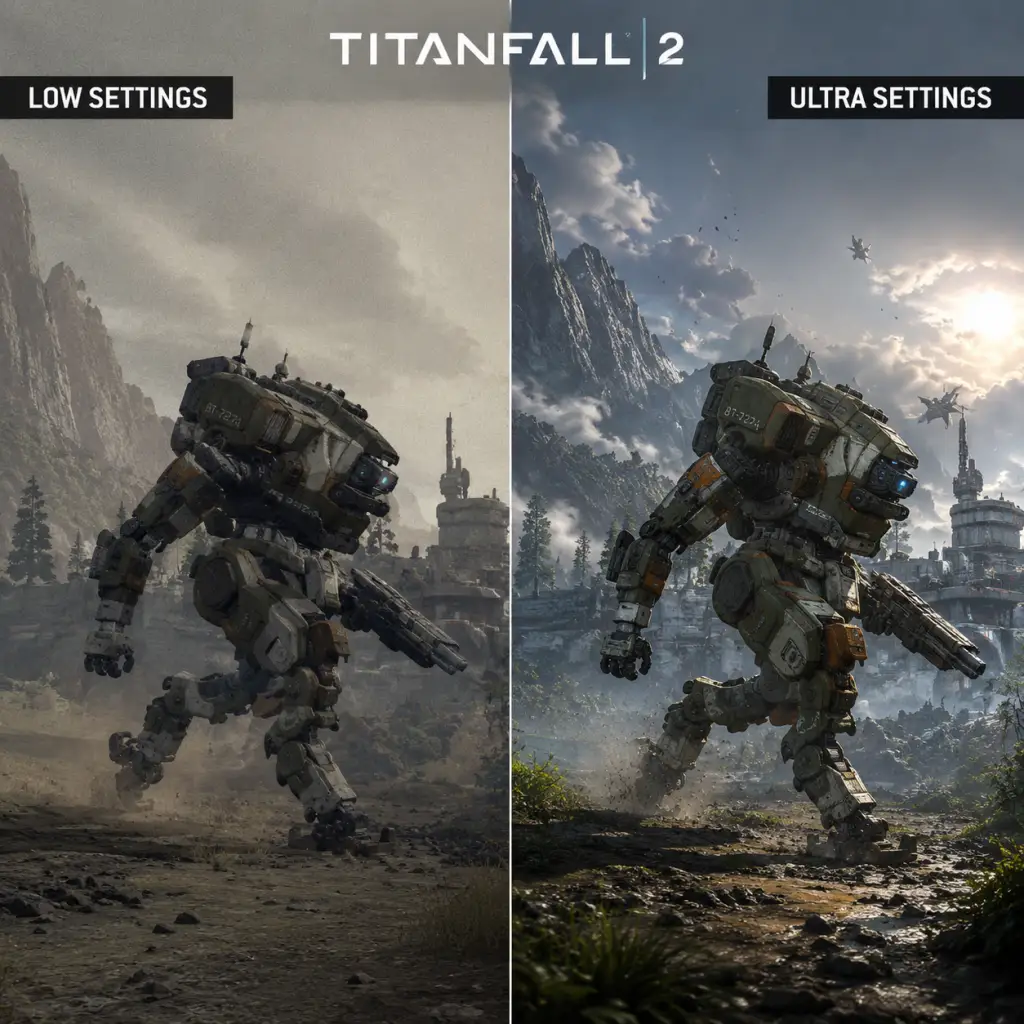
Game Settings
Graphics Settings
Display & Resolution
- Display Mode: Fullscreen (best performance), Windowed Borderless (for multi-monitor/alt-tab), Windowed (not recommended).
- Resolution: Native monitor resolution. For lower-end hardware, try 1920x1080 or 1600x900.
- Aspect Ratio: Default 16:9. Adjust if using ultrawide (21:9) – supports it natively.
- Field of View (FOV): 90–110 recommended. Higher FOV improves peripheral vision but slightly reduces performance. Default is 70; increase to 90 for competitive advantage.
- Brightness: Calibrate using the in-game test card (should see all shades clearly).
- Very Low: 720p upscaled, no shadows, low textures. For iGPUs or very old GPUs (GTX 600 series).
- Low: 900p/1080p, low shadows, medium textures. For GTX 750/HD 7790.
- Medium: 1080p, medium shadows, high textures. For GTX 960/RX 460.
- High: 1080p/1440p, high shadows, very high textures. For GTX 1060/RX 580.
- Very High (Max): 1440p/4K, ultra shadows, insane textures. For RTX 2060 or better.
Graphics Quality Presets
Individual Settings & Recommendations
| Setting | Low-End (GTX 750/HD 7790) | Mid-Range (GTX 1060/RX 580) | High-End (RTX 2070 Super/RTX 3060 Ti) | Notes |
|---|---|---|---|---|
| Texture Quality | Low (or Medium if VRAM ≥2GB) | Very High | Insane | Insane requires ~6GB VRAM; may cause stutter on 4GB cards. |
| Shadow Quality | Low | Medium | High/Ultra | Shadows have moderate performance impact. Low removes some dynamic shadows. |
| Model Detail | Medium | High | Very High | Affects geometry LOD; low can cause pop-in. |
| Effect Detail | Low | High | Very High | Impacts explosions, smoke, particle effects. Low saves FPS in firefights. |
| Impact Marks | Low | High | High | Bullet holes and decals. Low reduces clutter. |
| Ragdolls | Low | Medium | High | Number of concurrent ragdolls. Low improves performance in crowded areas. |
| Post-Processing | Disabled | Low | Medium/High | Includes bloom, HDR, motion blur. Disable for competitive clarity. |
| Dynamic Light | Off | On | On | Affects lighting quality. Off can flatten visuals but boosts FPS significantly. |
| Ambient Occlusion | Off | SSAO | HBAO+ | HBAO+ is expensive; SSAO offers good balance. |
| Anti-Aliasing | Off or FXAA | SMAA 2x | SMAA 4x or TXAA | FXAA is blurry; SMAA offers sharper image. TXAA smoothens with slight blur. |
| Texture Filtering | Bilinear (1x) | Trilinear (4x) | Anisotropic 16x | Hardly impacts FPS, set to 16x for clarity. |
| Vsync | Off (use in-game frame cap) | Off | Off | Use G-Sync/FreeSync if available; otherwise cap FPS slightly below refresh rate. |
| Adaptive Resolution FPS Target | 60 | 144 | Off | For lower-end, set to 60 to maintain smoothness via dynamic resolution scaling. |
Special Attention Points
- Adaptive Resolution FPS Target: On PC, this setting dynamically lowers resolution to maintain target FPS. It can cause blurriness. Disable if you have a stable frame rate, or set a high target (e.g., 120) on mid-range to avoid heavy drops.
- Post-Processing (Motion Blur): Turn off for competitive multiplayer—motion blur reduces target visibility. Single-player may keep it for cinematic feel.
- Dynamic Light: This setting has a large impact on performance, especially in Titans (high beam lights). On low-end, turn off.
- Insane Texture Quality: Requires 6GB+ VRAM. On GPUs with 4GB or less, using Insane causes texture streaming stutter; stick to Very High.
- Field of View: Increasing FOV beyond 100 may cause screen tearing on some monitors. Pair with Vsync or G-Sync.
- PS4/Xbox One: 900p–1080p, 60 FPS locked, no FOV slider, no graphics tweaks. Motion blur cannot be disabled.
- PS4 Pro/Xbox One X: 1440p, 60 FPS (dynamic resolution). Still no FOV slider.
- PS5/Xbox Series X|S: 4K with 120 FPS mode (120Hz display required). On Xbox Series, you can enable 120 FPS via system settings; PS5 auto-detects. No FOV slider, motion blur still present.
- Master Volume: 70–80% (leaves headroom for loud moments).
- SFX Volume: 100% (footsteps, gunshots, titan roars are crucial).
- Music Volume: 50% (campaign) or 0% (multiplayer to avoid distraction).
- Dialogue Volume: 80% (campaign) or 10% (multiplayer—pilot chatter less critical).
- Voice Chat Volume: Adjust per platform; default 100%.
- Sound Mix: Choose "Headphones" for best spatial awareness (uses HRTF). "Stereo" for 2.0 speakers, "Surround" for 5.1/7.1.
- Speaker Configuration: Matches your actual speakers/headphones. Incorrect setting mutes channels.
- Sound Mix – Headphones: This enables 3D audio simulation. Highly recommended for multiplayer – you will hear footsteps and titan footsteps with direction. Some players find it too sharp; try "Stereo" if unclear.
- Voice Chat Echos: On PC, ensure your microphone is set correctly in Windows sound devices; in-game push-to-talk default is `,` (comma) – change to a convenient key like V.
- Mouse Sensitivity: Start at 4.0 for hipfire, 2.5 for ADS. Adjust by 0.1 increments.
- Mouse Acceleration: Off (default). Enable only if you use Windows acceleration.
- Mouse Smoothing: Off (adds input lag).
- Invert Look: Off (unless used to flight sims).
- ADS Sensitivity Multiplier: 0.7–1.0 – lower helps with precise tracking.
- Per-Optics Sensitivity: Not available; only global ADS multiplier.
- Key Bindings:
- Layout: Default "Bumper Jumper" is highly recommended for wall-running without sacrificing aim. This swaps jump to LB/L1 and crouch/slide to RS click (R3).
- Stick Layout: Default (Look: Right stick, Move: Left stick). Southpaw for left-handed.
- Button Layout: Choose from Default, Bumper Jumper, Evolved (crouch on RB/R1), etc. Bumper Jumper is the competitive standard.
- Stick Sensitivity (Look): 3–5 (out of 10). Higher for faster turns, lower for precision.
- Look Response Curve: Choose "Linear" (1:1) for consistency, "Dual Zone" (fast outer zone) for snappy turns, or "Exponential" (slow center). Linear requires more stick control.
- Look Deadzone: 0% (if no stick drift) up to 5% if drift appears. Keep minimal.
- Move Deadzone: 0% (no drift) or 5%.
- Aim Assist: On by default. Higher settings (Strong) help track targets in close quarters. Competitive players often set to "Normal" or "Off".
- Toggle Sprint vs Hold Sprint: Default is Hold (advanced movement). If you prefer click-to-sprint, enable Toggle.
- Titan Movement: Default is fine; use A/X for dash.
- Bumper Jumper on Controller: This layout is critical for advanced movement (wall-running, slide-hopping). If you stay on Default, you will struggle to jump and aim simultaneously. Practice Bumper Jumper for 2 hours.
- Mouse Smoothing on PC: Many players accidentally enable it; performance degrades. Double-check it's off.
- Slide-hopping Bind: On Keyboard, map Crouch to a finger-accessible key (e.g., L-ALT or V) so you can slide-hop easily. Default C is fine but may be awkward.
- ADS Sensitivity Multiplier: If you overshoot while ADSing, lower it to 0.7. If you track too slowly, raise to 0.9.
- Subtitles: On – shows dialogue and important callouts.
- Subtitles Background: On (increases readability).
- Color Blind Mode: Three options: Protanopia, Deuteranopia, Tritanopia. Affects UI elements (health, ammo, minimap). Use if diagnosed; otherwise default.
- HUD Opacity: 80%–100% – keep high for readability.
- Friendly/Enemy Highlight: Not available in Titanfall 2. Enemy pilots glow orange/red; friendlies blue. Use your minimap.
- Mono Audio: Off – unless you have monaural hearing aids.
- Sound Mix: Already covered – Headphones for spatial awareness.
- Toggle Crouch: Off (hold for crouch) – better for slide. Toggle available for comfort.
- Toggle ADS: Off (hold to aim) – recommended for snap aiming. Toggle for sniper-style.
- Hold/Toggle Sprint: Hold is default; toggle for easier constant sprint.
- Stick Invert: Only if needed.
- Language: Change in Language Settings section below.
- Color Blind Mode: Only changes UI colors; does not affect enemy highlights. Test in training—some find certain settings harder to read.
- Toggle vs Hold Crouch: For slide-hopping, Hold is superior because you can release to stop sliding immediately. Toggle can get you stuck in crouch.
- No Aim Assist Toggle on PC: PC players cannot turn off aim assist (it's not present for mouse). Console players can set to Off, Normal, or Strong.
- Voice Language: English (default). Supports French, German, Italian, Spanish, Polish, Russian, Japanese, Simplified Chinese, Traditional Chinese, Korean, Brazilian Portuguese.
- Text Language: Same set as voice.
- Changing Language:
- Subtitle Language: Separate from game language. Set to your preferred text language.
- Region Lock for Voice Chat: Language selection does not affect matchmaking region. Voice chat language is not separated.
- Missing DLC Voice Packs: If you change language in Steam, some campaign audio may be missing. Verify game files after change.
- Chinese/Korean Fonts: On PC, ensure your system has those fonts installed for proper rendering. Default Windows 10/11 includes them.
- Data Center Selection: In main menu, go to Settings → Network. Shows ping to all regions (e.g., "Oregon - 35ms", "Sydney - 180ms"). Select the one with lowest ping under 100ms. Do not let the game auto-select; it may put you in a region with team balance but high ping.
- Matchmaking Region Lock: Manually choosing a data center overrides matchmaking. Useful if you want to play with friends in another region (add 50-100ms ping).
- Crossplay: Enabled by default. PC, PlayStation, Xbox players are in the same pool. Cannot disable.
- Private Match Network: Use the same data center selection for private matches.
- Telemetry: Off. Sends game data to Respawn. No performance impact.
- Network Quality Indicators: On – shows packet loss/latency icons.
- Data Center Selection: This setting is easy to misconfigure. Players often leave it on "Auto" which can put them in a region with high ping (e.g., a US player ending up in Europe). Check it every time you launch the game if you travel.
- Packet Loss Indication: If you see yellow/red network icons often, your connection is unstable. Try changing data center to one with more stable routing or use a wired connection.
- Port Forwarding: Not required but can help: ports 88 (UDP), 3074 (UDP), 4500 (UDP), 500 (UDP).
- Auto-Sprint: Off (default). You lose immediate control – leave off.
- Double Jump Timing: Not adjustable – default works well.
- Wall-Running Style: No toggle; always hold forward and jump to wall.
- Slide Hop: Hold crouch in air while moving – no setting.
- Titan Dash Mode: Choose between "Single Press" (press and release to dash) or "Hold to Charge" (hold to dash after a short delay). Single press is faster – use that.
- Titan Aim Assist: On by default. Off makes aiming more manual.
- Titan Autotitan Mode: In campaign, assistant may auto-target. In multiplayer, your Titan follows waypoints. No manual slider.
- Minimap Rotation: Fixed (north up) – standard. Others may prefer rotation (player facing up). Choose in HUD options.
- Minimap Size: Small, Medium, Large. Medium is balanced.
- Crosshair: Style: Default, Dot, Circle, Cross. Dot is clean. Color: White (default) or custom RGB – set to magenta or yellow for high contrast against backgrounds.
- Crosshair Damage Indicator: On – shows hit confirmation.
- Pilot Health/Shield Bar: Always visible – no toggle.
- View Bob: 0% (off) for multiplayer – reduces motion sickness and improves accuracy. Campaign may keep 20–30% for immersion.
- Weapon Bob: 0% (off).
- First Person Camera Movement: Default – cannot adjust.
- Spectator Camera: Free or follow – set to follow for ease.
- View Bob: This is often left at default (30%) causing disorientation in fast-paced movement. Set to 0% for both pilot and titan.
- Crosshair Color: The default white can disappear on bright maps. Use bright green (#00FF00) or pink for visibility.
- Titan Dash Mode: "Hold to Charge" can lead to delayed dashes – switch to Single Press immediately.
- Minimap Rotation: Choose fixed if you rely on cardinal directions; choose rotate if you prefer intuitive orientation. Both are fine, but pick one and stick to it.
Console Graphics Settings
Console versions (PS4, Xbox One, PS5, Xbox Series X|S) have limited options:
Audio Settings
Master & Individual Volume
Output & Device
Special Attention Points
Controls Settings
Mouse & Keyboard (PC)
- Slide: Hold C (default) or toggle? Hard to bind to side mouse for easier slide-hopping.
- Titan Embark/Disembark: E (default) is functional; rebind to mouse button if desired.
- Titan Abilities: Q for utility, F for core – keep as is.
- Ping: Z (easier than default `,`).
- Voice Chat: V (push-to-talk) works well.
Controller (PC & Console)
Special Attention Points
Accessibility Settings
Visual
Audio
Controls
Text & Language
Special Attention Points
Language Settings
Game Language
- PC (Steam): Right-click Titanfall 2 in library → Properties → Language tab. Choose from dropdown. Game will download ~2GB voice pack if needed.
- PC (EA app): Settings → Titanfall 2 → Advanced → Language. Or in-game options (once installed).
- PlayStation: System settings → Language → Game Language. Game must restart.
- Xbox: System settings → Language & region. Game reads system language.