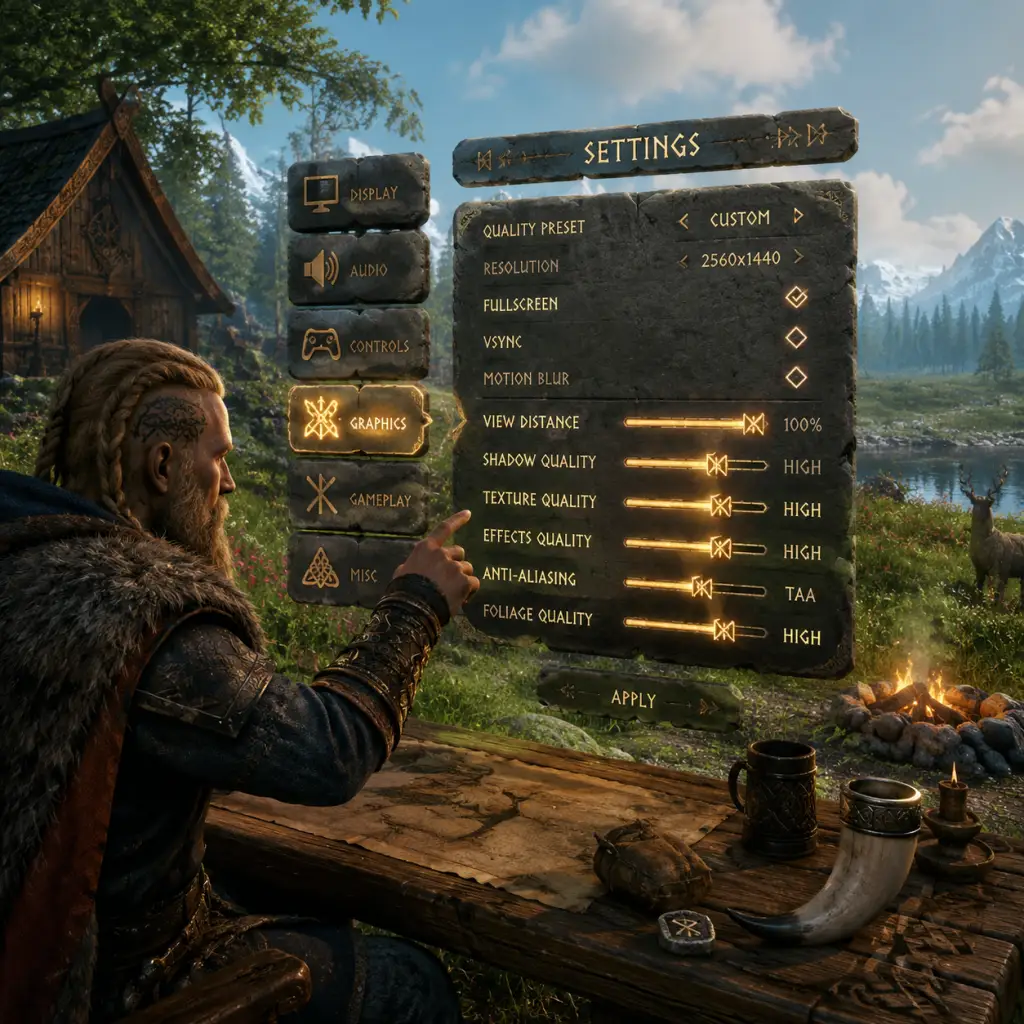
Game Settings
Game Settings Guide
Valheim offers a wide range of settings that affect performance, visual quality, audio, controls, and multiplayer experience. This guide covers every category available in the in-game Esc → Settings menu (PC) or Pause Menu → Settings (Xbox), with platform-specific notes. Properly configuring these settings ensures smooth gameplay and avoids common pitfalls.
Accessing Settings
- PC (Steam / Game Pass): Press `Esc` and select Settings.
- Xbox: Press the Menu button on your controller, go to Settings.
- Advanced (PC only): You can manually edit the configuration file at `%userprofile%\AppData\LocalLow\IronGate\Valheim\global_prefs.txt` (Windows) or `~/.config/unity3d/IronGate/Valheim/global_prefs.txt` (Linux). Changes here override in-game settings.
---
Graphics Settings
Graphics settings have the largest impact on performance and image quality. Valheim uses Unity and can be demanding for its style due to many draw calls and dynamic lighting.
| Setting | Options | Performance Impact | Notes |
|---|---|---|---|
| Graphics Quality | Very Low, Low, Medium, High, Very High, Ultra | High | A master preset that changes many sub-settings. Medium is a good balance for most systems. |
| Display Mode | Fullscreen, Windowed, Borderless | Low | Use Fullscreen for best performance. Borderless is useful for alt-tabbing. |
| Resolution | Native, Lower options | High | Match your monitor’s native resolution. Lowering reduces pixel count drastically. |
| Resolution Scale | 50%–100% (slider) | Very High | Controls internal render resolution. 100% uses native. Lower values improve performance significantly but make image softer. This is the most effective performance slider. |
| Vegetation Quality | Very Low, Low, Medium, High, Very High, Ultra | Medium-High | Controls grass density, tree LOD. Medium reduces visual clutter without making world look barren. |
| Soft Particles | On / Off | Medium | When enabled, particles (smoke, sparks, etc.) blend smoothly. Disable on low-end GPUs; bug with certain AMD cards causes artifacting. |
| Shadows | Very Low, Low, Medium, High, Very High | High | Low/Medium is recommended for most setups. High shadows consume significant GPU time. |
| SSAO (Ambient Occlusion) | On / Off | High | Adds depth to surfaces. Off gains 10-20% FPS on weak systems. |
| Bloom | On / Off | Low | Adds a glow effect to bright areas. Some find it distracting; can be Off for a clearer image. |
| Motion Blur | On / Off | Low | Blurs the image during movement. Personal preference; Off improves clarity. |
| Anti-Aliasing | None, FXAA, SMAA, TAA | Medium | TAA is best but can cause slight blurriness. FXAA is lighter. None gives jagged edges but higher FPS. |
| Texture Quality | Very Low, Low, Medium, High, Very High | Medium | Affects VRAM usage. Medium works for 2-4 GB cards. |
| Water Quality | Low, Medium, High | Medium-High | Higher = more reflections/waves. Low looks flat but improves performance in sailing. |
Recommended Presets by Hardware Level
#### Low-End (e.g., integrated graphics, GT 1030, Ryzen 3 with Vega)
- Graphics Quality: Very Low or Low
- Resolution Scale: 50-75%
- Shadows: Very Low
- Vegetation: Very Low
- SSAO: Off
- Soft Particles: Off
- Anti-Aliasing: None or FXAA
- Target: 30-45 FPS
- Graphics Quality: Medium
- Resolution Scale: 100%
- Shadows: Low or Medium
- Vegetation: Medium
- SSAO: On
- Soft Particles: Off (if issues), otherwise On
- Anti-Aliasing: SMAA
- Target: 60 FPS
- Graphics Quality: Very High or Ultra
- Resolution Scale: 100%
- Shadows: High
- Vegetation: Very High
- SSAO: On
- Soft Particles: On
- Anti-Aliasing: TAA
- Target: 60-144 FPS (depending on CPU)
- Xbox One X / Series S|X: The game offers two modes in the settings: Performance (targets 60 FPS, lower resolution/details) and Quality (higher resolution/effects, capped at 30 FPS).
- Recommended: On Series X use Quality if your display supports VRR; otherwise Performance for smoother play. On Series S / Xbox One X Performance is more stable.
#### Mid-Range (e.g., GTX 1060, RX 580, RTX 3050)
#### High-End (e.g., RTX 3070, RX 6800 XT)
> Pitfall: The Graphics Quality preset changes many settings. Users often lower only one or two but leave presets on High, causing no performance gain. Always set the preset first, then adjust individual settings. Another common mistake: setting Resolution Scale to 100% on low-end systems while expecting playable FPS. Lowering it to 75% is the single best performance gain.
Xbox Graphics Settings
---
Audio Settings
Audio affects immersion and gameplay cues (enemy sounds, environmental ambiance).
| Setting | Options | Notes |
|---|---|---|
| Master Volume | 0-100 | Affects all sounds. |
| Music Volume | 0-100 | Valheim’s soundtrack is dynamic; lower if distracting. |
| SFX Volume | 0-100 | Includes combat, footsteps, crafting, weather. |
| Voice Chat Volume | 0-100 | Affects incoming voice chat from other players (PC only; Xbox uses party chat). |
| Voice Chat Input | Device selection (PC) | Choose microphone for in-game voice. |
| Push-to-Talk | On / Off | Must be on for PTT. Default key is `V` (PC). On Xbox, voice chat is handled via system party. |
| Subtitles | On / Off | Enables subtitles for NPC voices (Raven, Haldor, etc.) and some ambient lines. Helpful for hearing impaired or when audio is too low. |
---
Controls Settings
You can remap almost every action on PC. Xbox control scheme is fixed but supports both button presets (default, alternate).
PC – Input & Key Bindings
- Mouse Sensitivity: Slider for camera movement speed. Recommended 0.5–0.8 for precision aiming with bow.
- Invert Mouse Y: On/Off. Preference.
- Key Bindings: Click on any action to assign a new key. Common changes: moving Crouch from Left Ctrl to `C`, or Inventory from Tab to `I`.
- Gamepad (PC): If using a controller, you can still remap buttons in the same menu. Xbox controllers are natively supported.
- Button Layout: Default or Alternate (swaps dodge/crouch, jump/interact). Test both.
- Look Sensitivity: 1-10. 5 is default. Increase if you want faster camera when fighting.
- Vibration: On/Off. Personal preference; can be distracting.
- Subtitle Display: Already covered in Audio – enables captions for dialogue.
- Color Blindness: No native support. However, the game’s color palette (green meadows, purple swamp) can be hard for deuteranopia. Workaround: use external software (e.g., Windows Color Filters) or adjust monitor settings.
- UI Scale: Not adjustable. Some players on 4K monitors find UI too small. There is a community mod “BetterUI” for PC.
- Text Size: Fixed. Cannot be increased.
- Steam: Right-click Valheim in Library → Properties → Language → Select your preferred language. Restart the game.
- Xbox: The game uses your console’s language setting. Change via Settings → System → Language & region.
- Supported languages (partial list): English, French, German, Spanish, Portuguese (BR), Russian, Polish, Chinese (Simplified), Japanese, Korean. Full list varies.
Xbox – Controller Options
> Pitfall: On PC, the default key for Crouch (Left Ctrl) is awkward for many. Rebinding it to `C` or one of your mouse thumb buttons improves movement. Also, the Build Menu (`B`) and Hammer (`H`) are close together; ensure you don’t accidentally toggle hammer when trying to build.
---
Accessibility Settings
Valheim has limited built-in accessibility options. Key features:
> Note: If you have visual impairments, consider increasing Gamma/Brightness in the Graphics menu (a slider) to lighten dark areas like caves and the Black Forest at night.
---
Language Settings
Valheim does not have an in-game language selector. The language used in menus, UI, and subtitles is determined by your Steam client language (on PC) or system language (on Xbox).
> Pitfall: Changing the language via Steam will also change the language for other games using the same setting. Always restart Valheim after changing.
---
Network & Multiplayer Settings
Configure how you connect and host games.
| Setting | Options / Details | Notes |
|---|---|---|
| Server List | Browse public servers | Filter by name, ping, player count. |
| Join via IP | Enter IP:Port to connect directly | Useful for private dedicated servers. |
| Start Server | Toggle: Host local game (friends can join) or Host dedicated server | For local co-op, host a game from the main menu. Dedicated server is a separate executable. |
| Server Password | Set a password when hosting | Required to prevent unwanted joiners. |
| Crossplay | Inherently supported between PC Game Pass, Steam, and Xbox. No toggle necessary. | Ensure all players are on the same game version. |
| Voice Chat | In-game voice chat (PC) or Xbox Party | On PC, you can use in-game proximity chat. On Xbox, party chat is separate. |
| Port Forwarding | For dedicated servers: need to forward UDP ports 2456-2458. | Router configuration required for public servers. |
---
Gameplay Settings
As of the Hildir’s Request update (August 2023), Valheim includes World Modifiers that allow you to adjust difficulty and survival mechanics before creating or loading a world. These are accessed from the World Select screen.
| Modifier | Options | Effect |
|---|---|---|
| Combat | Normal, Hard, Very Hard, Easy, Very Easy | Changes enemy damage, health, and aggression. Hard makes bosses extremely tough. |
| Resources | Normal, Very High, High, Low, Very Low | Alters resource drop rates from trees, ore, and enemies. Very High doubles yields; Very Low makes grinding much longer. |
| Raid Rate | Normal, Very High, High, Low, Very Low, None | Controls how often enemies raid your base. None disables raids entirely. |
| Portal | Normal, Casual, Hard | Affects portal restrictions: Casual allows all metal through portals (including ore). Hard disables portals entirely. |
| Death Penalty | Normal, Casual, Hard | Casual drops only equipped items? (Actually drops all items but on death they are easier to retrieve? The tooltip says: “Items dropped on death can be retrieved with less penalty” – reduces skill loss). Hard increases skill loss and destroys items? Check exact: “Items dropped on death disappear after a shorter time.” |
Additional Gameplay Options
- Auto Pickup: Toggle on/off for automatically picking up items when close. Enabled by default. Disable if you need to avoid picking up heavy stone while building.
- Show Map Name: Shows the name of the area you are in (e.g., “Black Forest”). Can be toggled in Map UI.
- Show Player Names: Displays names above other players. Useful in co-op.
- Test settings for a few minutes before committing to a world. The performance impact of Graphics settings is most noticeable in dense biomes like Swamp or Plains.
- On PC, use the Performance overlay (F2 by default in some GPU software) to monitor FPS while adjusting settings.
- For the best experience, set a fixed FPS cap (e.g., 60) in your GPU driver if you cannot maintain a stable framerate.
- Keep your graphics drivers up-to-date for optimal performance.
> Pitfall: The Auto Pickup can be annoying when you are trying to place building pieces and pick up wood at the same time. You can toggle it with a keybind (default `Z` on PC, but not on Xbox).
---
Summary of Easy-To-Misconfigure Settings
1. Resolution Scale – Many players leave this at 100% even with a weak GPU. Lower it to 75% or 50% for instant FPS boost.
2. Graphics Quality Preset – Manually adjusting individual settings without changing the preset often yields no benefit. Always set preset first.
3. Server Password – Forgetting to set one leads to random players joining your world.
4. World Modifiers – Once set, they cannot be changed. Do not choose “Hard” combat if you are new.
5. Voice Chat Volume – Can cause echo if too high. Lower or use push-to-talk.
6. Controls – Crouch Key – Default Left Ctrl is uncomfortable; rebind to `C` for easier sneak attacks.
7. Subtitles – Many players miss this option. Turn on if you have hearing difficulties or want to catch all lore.
---
Final Tips
[End of Game Settings Guide]