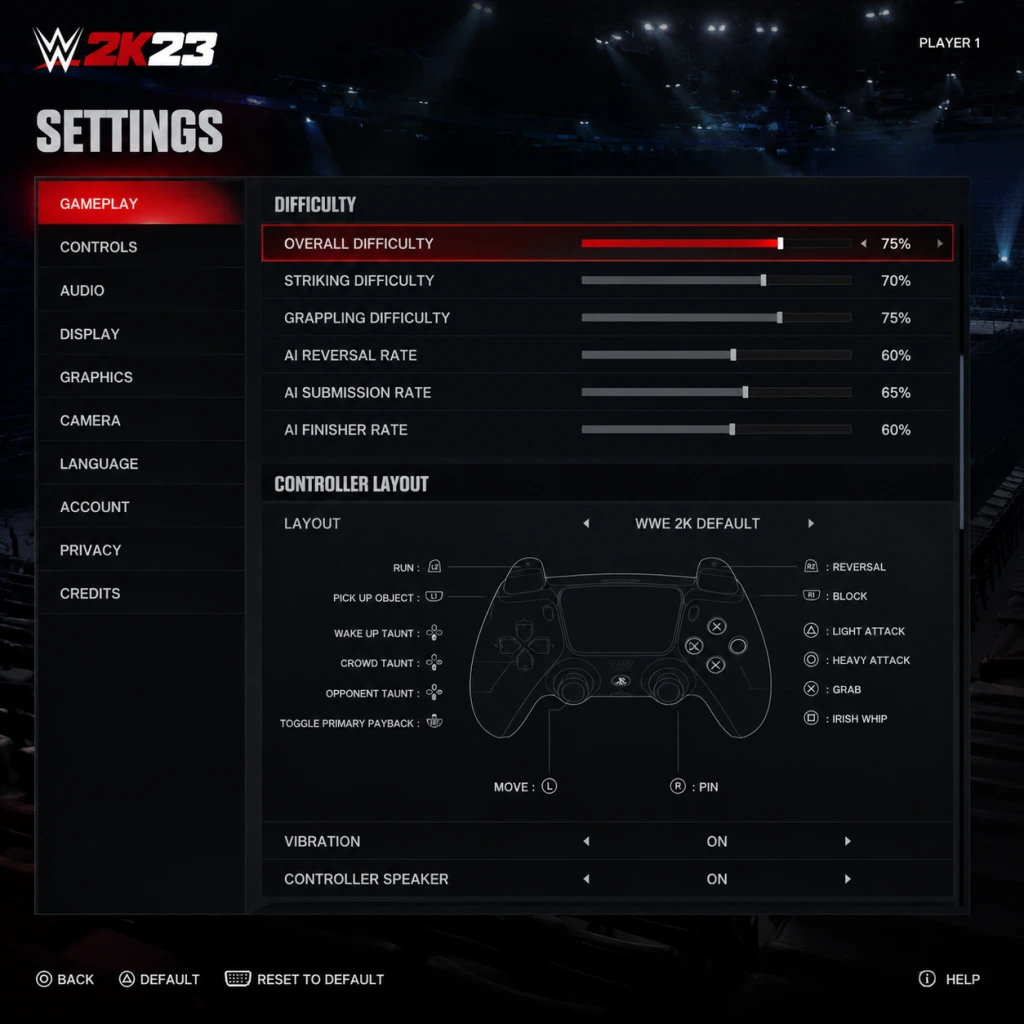
Game Settings
WWE 2K23 Game Settings Guide
Properly configuring your settings is essential for the best WWE 2K23 experience. This guide covers all categories: Graphics, Audio, Controls, Accessibility, Language, Network, and Gameplay. We provide recommended settings for performance vs. quality on different hardware levels and highlight common pitfalls.
---
Graphics Settings
Access: Main Menu → Options → Graphics
#### Important Options
| Setting | Options | Description |
|---|---|---|
| Display Mode | Windowed, Borderless Window, Fullscreen | Fullscreen gives best performance; Borderless for alt-tabbing. |
| Resolution | Native (your monitor) to lower | Always set to your monitor's native resolution unless performance needs lower. |
| Refresh Rate | 60 Hz / 120 Hz / 144 Hz (if supported) | Match your monitor's refresh rate. High refresh rates make movements smoother. |
| V-Sync | On / Off | On prevents screen tearing but may add input lag. Off for lower latency if you have G-Sync/FreeSync. |
| Texture Quality | Low / Medium / High / Ultra | High and Ultra require 6+ GB VRAM. Reduces blurriness on models and arenas. |
| Shadow Quality | Low / Medium / High / Ultra | High impact on performance. Medium is a good balance. |
| Anti-Aliasing | Off / FXAA / TAA | TAA smoothest but slightly blurs. FXAA is lighter. Off for raw performance. |
| Ambient Occlusion | Off / Low / High | Adds depth but costs FPS. Off on low-end systems. |
| Motion Blur | On / Off | Personal preference. Off can improve clarity during fast moves. |
| Depth of Field | On / Off | Off for competitive play; On for cinematic entrances. |
| Reflections | Low / Medium / High | High can hit performance in arenas with shiny floors. |
| Character Detail | Low / Medium / High / Ultra | Affects polygon counts on wrestlers. High or Ultra recommended for cutscenes. |
| Crowd Density | Low / Medium / High | Low improves FPS significantly. Medium is acceptable. |
| Anisotropic Filtering | 1x to 16x | 16x for sharper textures from angles. Low performance cost. |
| Hardware Level | Texture | Shadows | Anti-Aliasing | Crowd | Other | Target |
|---|---|---|---|---|---|---|
| Low-end (GTX 1050 Ti / RX 570, 8GB RAM) | Medium | Low | Off | Low | Turn off AO, Motion Blur, Depth of Field. Reflections Low. | 30 FPS stable at 1080p |
| Mid-range (RTX 2060 / RX 5600 XT, 16GB RAM) | High | Medium | TAA | Medium | AO High, Reflections Medium, Shadows Medium. | 60 FPS at 1080p |
| High-end (RTX 3070 / RX 6800, 16GB RAM) | Ultra | High | TAA | High | All max except maybe Motion Blur off. | 60+ FPS at 1440p |
| Ultra (RTX 4080 / RX 7900 XTX, 32GB RAM) | Ultra | Ultra | TAA | High | Everything maxed. | 60+ FPS at 4K |
| PS5 / Xbox Series X | Equivalent to High/Ultra | High | TAA | High | System optimised. Adjust motion blur to preference. | 60 FPS at 4K (dynamic) |
| PS4 / Xbox One | Medium | Medium | FXAA | Medium | Not adjustable fully; use performance mode if available. | 30 FPS at 1080p |
---
Audio Settings
Access: Main Menu → Options → Audio
- Master Volume: Adjust overall sound. Beware of sudden loud entrance themes. Start at 70%.
- Music Volume: Controls background music (entrance themes, menu music).
- SFX Volume: In-ring sounds (slams, impacts, crowd reactions). Keep high for feedback.
- Commentary Volume: Can be lowered if distracting.
- Crowd Volume: Affects atmosphere. Max for immersion.
- Entrance Music Volume: Separate from Music. Useful to keep loud while reducing other sounds.
- Voice Chat Volume: Adjust player voices during online matches.
- Mic Input Device / Output Device: For multiplayer; ensure correct device selected if using headset.
- Button Layout: Choose from several presets (Default, Alternate, Classic, etc.). Default is generally best for new players.
- Grapple/Submission Style (Gameplay tab, but affects controls): Normal (button mashing) or Mini-game (timing-based).
- Reversal Timing: Adjustable in Gameplay settings (see below).
- Controller Vibration: On/Off – turn off for reduced battery drain or if vibration distracts.
- Controller Joystick Deadzone: Default is usually fine. Increase if you experience drift.
- Trigger Deadzone: Affects running and kicking. Keep default unless unintended actions occur.
- Subtitles: On/Off. Displays all story dialogue and cutscene text. Recommended On.
- Subtitle Size: Small / Medium / Large. Large for readability.
- Commentary Subtitles: Adds subtitles for commentary. On for hearing impaired.
- Colorblind Mode: Options for Protanopia, Deuteranopia, Tritanopia. Alters UI elements (health bars, reversal prompts) to distinct colors.
- UI Scaling: Adjusts HUD size. Larger for easier viewing on small screens or far distance.
- Screen Flash Effects: Can be reduced for photosensitive players.
- Audio Cues for Reversals: Toggle an alternative sound when a reversal prompt appears.
- Voice Language: Choose between English, Spanish, French, German, Italian, Japanese, etc. (varies by region). Affects commentary and story dialogue.
- Text Language: Language for menus, subtitles, and UI.
- Commentary Team: Some languages have multiple teams (e.g., English has default and alternative).
- Audio Language: For in-ring announcer (ring introductions).
- Online Mode: Enable/Disable. Disable to avoid interruptions in offline modes.
- Cross-Platform Play: On/Off. WWE 2K23 supports cross-play between PS5, Xbox Series X|S, and PC (Steam/Windows). Turn off if you want console-only lobbies.
- Matchmaking Region: Auto or choose specific (e.g., Europe, North America). Set to region with lowest ping for smoother matches.
- Connection Type: Wired (Ethernet) vs. Wireless (Wi-Fi). Wired is strongly recommended for competitive online.
- NAT Type: Displayed; must be Open (Type 1/2) for reliable matchmaking. Strict NAT may cause disconnects.
- Voice Chat Enable: On/Off – allows communication with opponents.
- Allow Friends Only: Restricts voice to friends list.
Easy to Misconfigure: If you can't hear your opponent's voice in online, check voice chat volume and that your mic is not muted in system settings. Also, the commentary volume often gets accidentally turned down when adjusting other sliders.
---
Controls Settings
Access: Main Menu → Options → Controls
Custom Button Mapping: Some players remap strong strike to R1 or L1. Experiment in exhibition matches. Note that mapping changes in menus affect only controller; keyboard mapping is separate.
Special Attention: If you switch to Alternate layout, the HUD prompts will update, but many tutorial guides assume Default. Memorize your layout before entering online or MyRISE.
---
Accessibility Settings
Access: Main Menu → Options → Accessibility
Easy to Misconfigure: The Colorblind Mode does not preview changes; you may need to exit to match to see effect. Also, screen flash reduction may make it harder to spot finisher prompts.
---
Language Settings
Access: Main Menu → Options → Language
Note: Changing voice language requires a restart. If commentary audio is missing, check that language files are fully installed.
---
Network Settings
Access: Main Menu → Options → Network (or via Online menu)
Special Attention: If you're having trouble finding matches, disable cross-play temporarily to see if it improves. Also, ensure your network ports are forwarded for PS/Xbox/PC (see official support page for port numbers). The in-game latency indicator during matches shows ping: <50 ms is excellent, 50-100 ms good, >150 ms laggy.
---
Gameplay Settings
Access: Main Menu → Options → Gameplay
#### Essential Gameplay Toggles
| Setting | Options & Recommendations |
|---|---|
| Difficulty | Easy / Normal / Hard / Legendary. Recommendation: Normal for newcomers, Hard for veterans. Legendary is suitable for practice against tough AI. |
| Match Duration | Quick (5 min), Normal (10 min), Epic (20 min), Custom. Sets default match time. Longer matches allow more storytelling. |
| Pin Difficulty | Easy / Normal / Hard. Hard makes kickouts more precise; Easy gives generous windows. |
| Submission Difficulty | Easy / Normal / Hard. Affects mini-game difficulty. Normal is balanced. |
| Reversal Window Timing | Very Early / Early / Normal / Late / Very Late. Aligns with your reaction speed. Normal default; Late for slower reactions. |
| Automatic Reversal | Off / On (but limited). On may reverse some attacks automatically—off for full control. |
| Finisher/Signature Requirement | Normal / Slow / Fast. Controls how quickly you build finisher meter. |
| Stamina System | On / Off. On adds fatigue management. Off for arcade feel. |
| Break Grapples | Automatic / Button Hold. Button Hold gives more control during chain wrestling. |
| Foreign Object Usage | Allowed / Disallowed in matches. Set per match or globally. |
| DQ Rules | On / Off. Off enables weapons without disqualification. |
| Rope Break | On / Off. On forces breaks after count; Off allows fighting outside. |
| Weight Detection | On / Off. On affects moves based on size difference (realistic). |
| Count Out | On / Off. On can result in countout losses. |
| Special Referee | Enabled / Disabled. Unlocks special referee matches. |
These are found within MyFACTION menu:
- Tower Difficulty Scaling: Adjust per match.
- Wager Match Settings: Choose to risk cards or points.
- Reversal Window Timing is often set too fast (Very Early) by mistake, making reversals almost impossible. Reset to Normal.
- Automatic Reversal can rob you of skill expression—keep Off.
- Stamina System being Off might break certain objectives in MyRISE where stamina management is required. Check mode requirements before toggling.
- Match Duration can affect achievement unlocks. Some unlock only in Epics.
Easy to Misconfigure:
Special Attention: When playing online, the host's Gameplay settings override for the match (except difficulty, which is fixed to Normal in rankeds). Adjust your local settings for solo practice, but expect different conditions online.
---
Summary of Settings to Double-Check
1. Graphics: V-Sync and Frame Rate cap (prefer off vs. on). 2. Audio: Commentary volume often too high or low. 3. Controls: Layout mismatch – verify before online. 4. Accessibility: Subtitles off can miss story. 5. Network: Cross-play status – disable if connection issues. 6. Gameplay: Reversal Timing and Stamina – default Normal and On for best experience.
Take 10 minutes in an Exhibition match to test your settings before diving into MyRISE or online. Adjust one category at a time to avoid confusion.