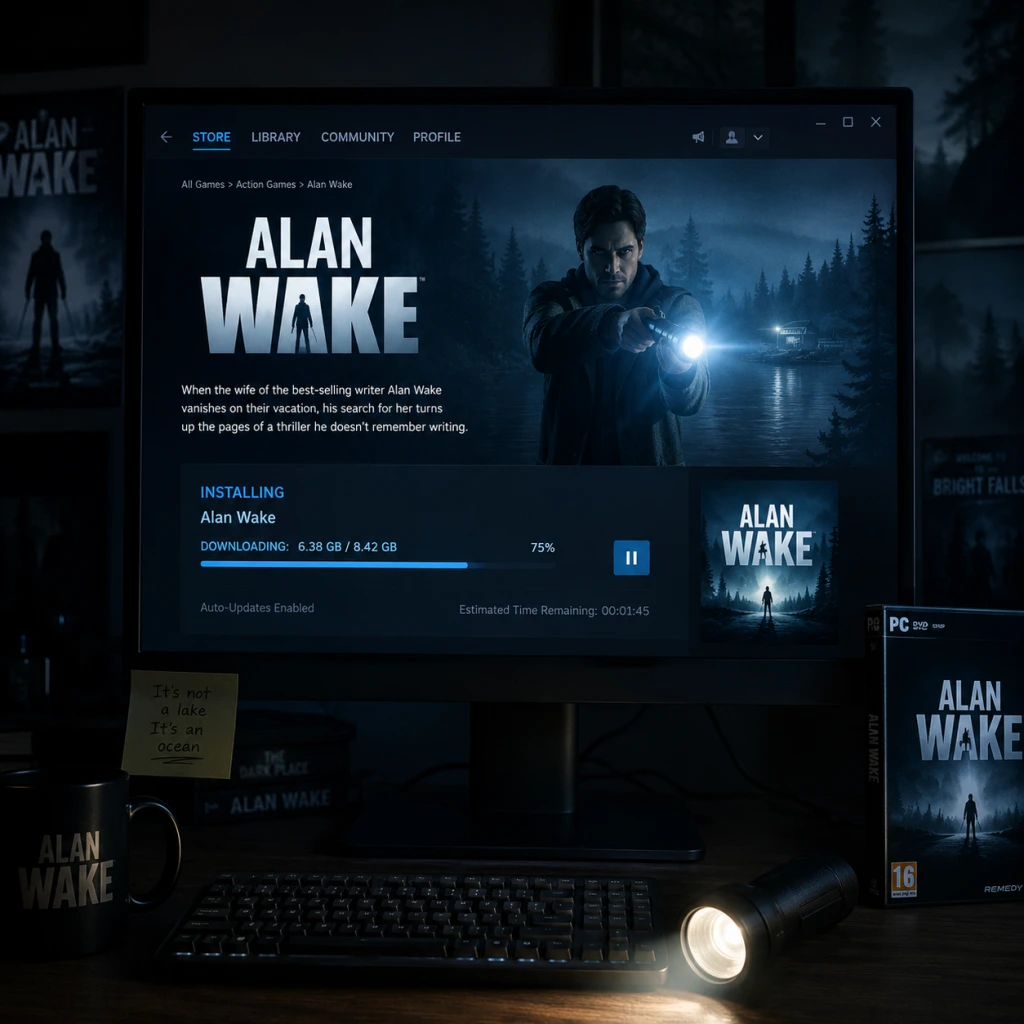
Download & Installation
Download & Installation Guide for Alan Wake
This guide covers the official, legitimate download and installation processes for Alan Wake (the original 2010 PC release) and Alan Wake Remastered (2021) across all major platforms. It includes system requirements, step-by-step instructions, account requirements, first-launch setup, common errors and fixes, and post-installation verification.
1. Platform Overview
| Version | Platforms | Storefronts |
|---|---|---|
| Alan Wake (Original) | PC (Windows) | Steam, GOG, Epic Games Store |
| Alan Wake Remastered | PC, PlayStation 4/5, Xbox One/Series X | S, Nintendo Switch |
2. System Requirements
Alan Wake (Original PC)
| Component | Minimum | Recommended |
|---|---|---|
| OS | Windows 7 | Windows 10 |
| CPU | Intel Core 2 Duo 2.0 GHz or AMD Athlon X2 2.0 GHz | Intel Core 2 Quad 2.66 GHz or AMD Phenom II X4 2.66 GHz |
| RAM | 2 GB | 4 GB |
| GPU | NVIDIA GeForce 8800 GT 512 MB or AMD Radeon HD 3870 512 MB | NVIDIA GeForce GTX 560 or AMD Radeon HD 5850 |
| DirectX | Version 10 | Version 11 |
| Storage | 8 GB available space | 8 GB available space |
| Sound | DirectX-compatible | DirectX-compatible |
Alan Wake Remastered (All Platforms)
| Component | Minimum | Recommended |
|---|---|---|
| OS (PC) | Windows 10 (64-bit) | Windows 10 (64-bit) |
| CPU (PC) | Intel Core i5-3340 or AMD Ryzen 3 1200 | Intel Core i7-4790 or AMD Ryzen 5 1600 |
| RAM (PC) | 8 GB | 16 GB |
| GPU (PC) | NVIDIA GeForce GTX 950 or AMD Radeon RX 550 | NVIDIA GeForce GTX 1660 or AMD Radeon RX 5600 |
| DirectX (PC) | Version 12 | Version 12 |
| Storage (PC) | 25 GB available space | 25 GB available space |
| Console/Handheld |
- PS4/PS5: 25 GB, PS5 (backward compatibility)
- Xbox One/Series: 25 GB, optimized for Series X|S
- Nintendo Switch: 8.5 GB (game) + ~2 GB updates |
- Steam: Valid Steam account (free registration).
- Epic Games Store: Epic Games account (free registration).
- GOG: GOG account (free).
- PlayStation Network: Account for PS4/PS5 (free, but PlayStation Plus not required for single-player).
- Microsoft: Xbox profile (free) for Xbox consoles; on PC, a Microsoft account for Xbox app (if playing via Game Pass – although Alan Wake is not on Game Pass).
- Nintendo: Nintendo Account and Nintendo Switch Online membership not required (only for multiplayer features, which this game lacks).
3. Download & Installation Instructions
3.1 PC – Steam (Original & Remastered)
1. Purchase: Visit [store.steampowered.com](https://store.steampowered.com), search for "Alan Wake", and buy the game.
2. Install Steam Client: If not installed, download the Steam installer from [store.steampowered.com/about](https://store.steampowered.com/about) and run it.
3. Log In: Launch Steam, log into your account.
4. Library: Click Library > find Alan Wake (or Remastered).
5. Install: Click Install, choose installation directory (default: `C:\Program Files (x86)\Steam\steamapps\common`).
6. Wait: Steam downloads ~8 GB (original) or ~25 GB (Remastered).
7. Play: After download, click Play.
3.2 PC – Epic Games Store (Remastered & Original)
1. Purchase: On [epicgames.com](https://www.epicgames.com), search "Alan Wake" and buy.
2. Install Epic Launcher: Download the Epic Games Launcher from the site and install.
3. Log In: Open the launcher, log in.
4. Library: Go to Library > find the game.
5. Install: Click Install, select path.
6. Wait: Downloads complete, progress visible.
7. Launch: Click Launch.
3.3 PC – GOG (Original Only)
1. Purchase: Visit [gog.com](https://www.gog.com), search for "Alan Wake", add to cart, check out.
2. Install GOG Galaxy (optional): Download GOG Galaxy client or use offline installer.
3. Install via Galaxy: Log in, Library > Alan Wake > Install.
4. Offline Installer: Download the exe from your account, run it, follow prompts.
5. Play: Launch via Galaxy or desktop shortcut.
3.4 PlayStation 4/5 (Remastered)
1. Purchase: On PS4/PS5, open PlayStation Store, search "Alan Wake Remastered", buy.
2. Download: Go to Library > Purchased > select game > Download.
3. Install: The console automatically installs the game (25 GB).
4. Play: Once download completes, select the game from the home screen.
> PS5: Game runs via backward compatibility; ensure system software is up-to-date.
3.5 Xbox One / Xbox Series X|S (Remastered)
1. Purchase: On Xbox, open Microsoft Store or Xbox Store, search "Alan Wake Remastered", buy.
2. Download: Game appears in My games & apps > Ready to install. Select Install.
3. Wait: Downloads ~25 GB. Optimized on Series X|S for 60 FPS.
4. Play: Launch from home or library.
> Original Alan Wake on Xbox is only available via backward compatibility with a disc; digital version delisted.
3.6 Nintendo Switch (Remastered)
1. Purchase: Open Nintendo eShop from the Home menu, search "Alan Wake Remastered", buy.
2. Download: The game will automatically start downloading (~8.5 GB base + updates).
3. Install: No manual steps; the console handles it.
4. Play: Icon appears on the Home screen.
> Note: The Switch version is a native port (not cloud streaming), runs at 30 FPS in handheld/docked.
4. Account Requirements
5. First Launch Setup
1. Language Selection: On first launch (PC), you may be prompted to choose language via a launcher or in-game settings. The Steam version defaults to system language; can be changed in game options.
2. Graphics Settings:
- Original PC: Set resolution, texture quality, anti-aliasing, shadows, etc. Recommended to cap FPS at 60 (game engine may have issues above 60).
- Remastered: Options include resolution, quality presets (Low/Medium/High/Ultra), V-Sync, ray tracing (if supported), and dynamic resolution.
- Console: Auto-detects optimal settings; you can adjust brightness and subtitles.
3. Audio Calibration: Access Options > Audio, adjust master volume, voice, music, SFX sliders.
4. Brightness Calibration: Use the in-game calibration screen (usually a barely visible logo) to set brightness for HDR (if supported) or SDR.
5. Cloud Saves:
- Steam/Epic/GOG Galaxy: Enable cloud saves to sync progress across devices.
- Consoles: Automatic via respective services (PS Plus cloud saves optional, Xbox Live, Nintendo Switch Online).
6. Patches/Updates: On first launch, the platform may download a small patch; ensure you are online.
6. Common Installation Errors & Fixes
| Error | Cause | Solution |
|---|---|---|
| “MSVCP140.dll / VCRUNTIME140.dll missing” | Missing Visual C++ Redistributable | Install the latest VC++ redistributable ([Microsoft Visual C++ 2015-2022](https://aka.ms/vs/17/release/vc_redist.x64.exe) for 64-bit). |
| “D3DCOMPILER_47.dll not found” | Missing DirectX runtime | Reinstall DirectX End-User Runtime from Microsoft’s website. |
| “The game won’t launch / crashes at startup” | Outdated graphics drivers | Update your GPU drivers (NVIDIA GeForce Experience, AMD Adrenalin, Intel Driver & Support Assistant). |
| Low disk space warning | Not enough free space (game requires 8 GB original / 25 GB Remastered) | Free up space or install on a different drive. |
| Steam/Epic download stuck or slow | Network issues or corrupted cache | Pause/resume download, or clear download cache (Steam: Settings > Downloads > Clear Download Cache; Epic: Settings > Troubleshoot > Verify). |
| “Failed to initialize renderer” | GPU does not support required DirectX feature level | Update GPU drivers; if using integrated GPU, switch to dedicated. Original may need DirectX 10-capable card. |
| Game runs at very low FPS | Settings too high for hardware | Lower graphics preset, disable V-Sync, reduce shadow quality. For original, consider the “FOV fix” mod (optional). |
| Antivirus blocking installation | False positive | Temporarily disable antivirus during install, or add the game folder to exceptions. |
| Nintendo Switch download fails | Corrupt SD card or insufficient space | Reformat SD card (backup data) or free space. Re-download. |
7. Post-Installation Verification
After installation, perform these checks to ensure everything is working:
- Integrity Check:
- Launch Game: Start a new game and play for at least 5 minutes. Listen for audio, check for graphical glitches.
- Check for Updates: Ensure the game is patched to the latest version (often auto-updates).
- Benchmark (PC): For Remastered, there is an in-game benchmark under Options > Graphics. Run it to gauge performance.
- Cloud Sync: After playing a few minutes, exit and check that a cloud save was uploaded (Steam overlay cloud icon, Epic/Galaxy indicator).
- Steam: Right-click game in Library > Properties > Local Files > Verify integrity of game files.
- Epic: Settings > Manage Games > Verify.
- GOG Galaxy: Click game > Manage > Verify / Repair.
- Console: No manual option; reinstall if issues arise.
8. Conclusion
You are now ready to enjoy Alan Wake (or Alan Wake Remastered). The game is a single-player, story-driven experience; no additional subscriptions are needed beyond the base game. If you encounter further issues, consult official support pages or community forums (Steam Community, Reddit r/AlanWake). Remember to adjust your settings for the best balance of visuals and performance, and consider using a controller for the intended experience (especially on PC where keyboard and mouse are fully supported but the game was designed for a gamepad).
---
Guide last updated: December 2025. Game versions and store policies may change; verify official sources for the most current information.