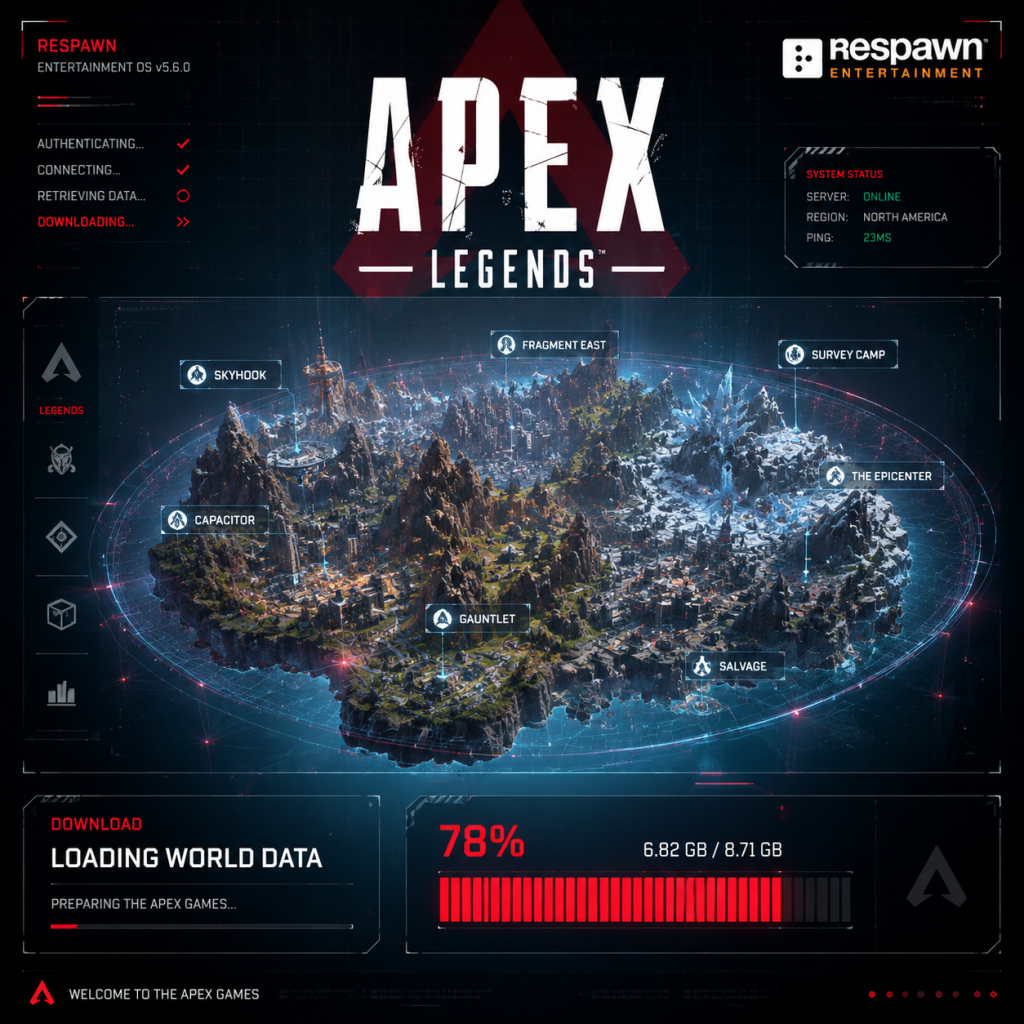
Download & Installation
Introduction
Apex Legends is a free-to-play battle royale developed by Respawn Entertainment and published by Electronic Arts. This guide covers legitimate download sources and step-by-step installation for PC (Steam, Epic Games Store, EA app/Origin), PlayStation 4 & 5, Xbox One & Series X|S, and Nintendo Switch. Apex Legends Mobile is a separate title and is also covered briefly.
---
System Requirements (PC)
Minimum Requirements (for 30 FPS @ 720p)
| Component | Specification |
|---|---|
| OS | Windows 7 64-bit |
| CPU | Intel Core i3-6100 / AMD FX-4350 |
| GPU | NVIDIA GeForce GT 640 / AMD Radeon HD 7730 |
| RAM | 6 GB |
| DirectX | Version 11 |
| Storage | 45 GB (SSD recommended) |
| Internet | Broadband connection |
Recommended Requirements (for 60 FPS @ 1080p)
| Component | Specification |
|---|---|
| OS | Windows 10 64-bit |
| CPU | Intel Core i5-3570K / AMD Ryzen 5 1400 |
| GPU | NVIDIA GeForce GTX 970 / AMD Radeon R9 290 |
| RAM | 8 GB |
| DirectX | Version 11 |
| Storage | 45 GB SSD |
| Internet | Broadband connection |
---
Platform-Specific Installation Guides
PC – Steam
1. Download and install the [Steam client](https://store.steampowered.com/about/) if not already installed.
2. Launch Steam and log in to your Steam account.
3. Click the Store tab, search for "Apex Legends".
4. Click Play Game (free) and select your account region (if asked).
5. Click Install – choose an installation directory with at least 45 GB free space.
6. Wait for download (approx. 30-60 minutes on a 100 Mbps connection) and installation.
7. Once installed, click Play from Library or Desktop shortcut.
PC – Epic Games Store
1. Install the [Epic Games Launcher](https://www.epicgames.com/store/en-US/download).
2. Open launcher, log in, go to Store.
3. Search "Apex Legends", click Get to add to your library.
4. Go to your Library, find Apex Legends, click Install.
5. Select installation folder (ensure 45 GB free), confirm.
6. After download, launch from Library.
PC – EA app (formerly Origin)
1. Download and install the [EA app](https://www.ea.com/ea-app) from EA's official site.
2. Open EA app, log in with your EA account.
3. Go to Store, search "Apex Legends", click Download (free).
4. Choose install location, click Install.
5. Once complete, launch from My Library.
Note: The old Origin client is being phased out; use EA app for best compatibility.
PlayStation 4 & 5
1. Ensure your console is connected to the internet and has enough storage (45 GB).
2. Go to the PlayStation Store from the home screen.
3. Search for "Apex Legends".
4. Click Download (the game is free to play).
5. For PS4: Download will begin automatically. For PS5: choose PS5 version if available (recommended) or PS4 version.
6. Wait for installation – you can monitor progress from Notifications > Downloads.
7. Once installed, launch from the game tile on the home screen.
PS5 Native Version: Offers improved graphics, faster loading, and DualSense features. It is a separate download (approx. 50 GB).
Xbox One & Series X|S
1. Turn on Xbox and sign in to your Microsoft account.
2. Press the Xbox button to open the guide, go to Microsoft Store.
3. Search "Apex Legends".
4. Select Get (free) to start download.
5. On Xbox Series X|S, the system will automatically choose the optimized version.
6. Download progress appears in My games & apps > Manage > Queue.
7. After installation, launch from Home or Game Library.
Cross-Platform Progress: Log in with your EA account on any platform to keep your progress.
Nintendo Switch
1. Ensure your Switch is updated and has at least 25 GB free space (the game is around 25-30 GB).
2. Go to the Nintendo eShop from the HOME menu.
3. Search "Apex Legends".
4. Click Free Download. Confirm download (you may need to add a payment method even for free games – add a credit card or PayPal, it will not be charged).
5. Download begins automatically. You can play while downloading (partial download).
6. Launch from the game icon on the HOME screen once installation completes.
Note: Switch version has lower graphical fidelity and runs at 30 FPS. Cross-play is enabled by default.
Apex Legends Mobile (iOS / Android)
1. Open the App Store (iOS) or Google Play Store (Android).
2. Search "Apex Legends Mobile" – do not confuse with the console/PC version.
3. Tap Install / Get. The file is ~3-5 GB (additional assets may download in-game).
4. Wait for installation, then launch the app.
5. Sign in with your EA account or guest account (cross-progression is NOT shared with PC/console).
Note: Apex Legends Mobile is a separate game and not cross-play compatible with other platforms.
---
Account Requirements
- EA Account: Required to play on all platforms. Create one at [help.ea.com](https://help.ea.com) or during first launch.
- Console: Requires respective platform subscription (Xbox Game Pass Core/Ultimate, PlayStation Plus, Nintendo Switch Online) for online multiplayer.
- PC: No subscription required, but you need an internet connection.
- Mobile: Optional EA account – guest play is possible but progress will be lost if app is deleted.
- Fix: Free up space by deleting unused programs. For PC, move the installation to a drive with at least 50 GB free (SSD preferred). For consoles, delete old games or media.
- PC: Restart the launcher (Steam/EA/Epic). Pause and resume the download. Check internet connection.
- Console: Restart the console. Check network settings. For Xbox, go to Settings > Network > Test connection.
- Switch: Put the console in sleep mode and wake it, or restart the eShop download.
- Steam: Right-click Apex Legends in Library > Properties > Local Files > Verify Integrity of Game Files.
- EA App: Click the gear icon next to Apex Legends > Repair.
- Epic Games: Click the three dots > Manage > Verify.
- Update your GPU drivers (NVIDIA GeForce Experience, AMD Adrenalin).
- Disable incompatible overlays (Discord, MSI Afterburner).
- Run the game as administrator.
- Check server status at [ea.com/service-status](https://ea.com/service-status).
- Restart router/modem.
- Add Apex Legends and launcher to firewall exceptions (allowed through Windows Defender).
- Change DNS to Google (8.8.8.8 / 8.8.4.4) or Cloudflare (1.1.1.1).
- PC: Update Windows, disable antivirus temporarily, close background apps (Razer Cortex, etc.).
- Console: Rebuild database (PS4/5 Safe Mode, Option 5) or clear cache (Xbox: hold power button 10 sec).
- Switch: Archive and redownload the game.
- This may appear if you’ve downloaded before. Try restoring licenses:
- PC SSD: Installing on an SSD drastically reduces loading times and texture pop-in.
- Console External Drive: You can move Apex Legends to an external USB drive (USB 3.0 required for best performance).
- Avoid Mods: Apex Legends does not support mods and using them may result in a ban.
- Preload: For major updates (season launches), preload is available about 24 hours before. Keep the launcher updated.
- Mobile Data: Apex Legends Mobile consumes ~15-25 MB per match. Use Wi-Fi for initial download.
---
First Launch Setup
1. Language/Region Selection: Choose your language and region (affects server latency).
2. Login: Enter your EA account credentials. You may be prompted to link your platform account (e.g., Steam, PSN).
3. Tutorial: You can skip the introductory cinematic and tutorial match, but it's recommended for new players.
4. Graphics Settings (PC): Adjust resolution, V-Sync, texture quality, etc. The game will auto-detect optimal settings.
5. Shader Compilation (PC): First launch may take a few minutes to compile shaders – this is normal.
6. Game Updates: Check for any pending updates before playing.
7. Accessibility Options: Enable subtitles, colorblind modes, etc. in Settings.
---
Common Installation Errors & Fixes
Error: "Not Enough Disk Space"
Error: "Download Stuck/Paused"
Error: "Corrupted Files" (PC)
Error: "Failed to Initialize Graphics" (PC)
Error: "Connection to EA Servers Timed Out"
Error: "Apex Legends Stopped Working" (Crash on Launch)
Error: "Product Code Already Redeemed" (Console)
- PS4/5: Settings > Account Management > Restore Licenses.
- Xbox: Settings > Account > Licenses > Refresh.
---
Post-Installation Verification
1. Check Game Version: On the main menu, look at the bottom left corner for the version number (e.g., v1.85). Update if necessary.
2. Test Connection: Go to the Data Center selection in settings to see ping. Aim for <100 ms.
3. Update Graphics Drivers (PC): Ensure you have the latest Game Ready driver.
4. Launch a Match: Join the Firing Range to test performance and controls.
5. Audio Check: Ensure sound is working: gunshots, footsteps, voice comms.
6. Storage Check: The installed folder should be ~45 GB. On consoles, verify under System Storage.
7. Cross-Play Verification: If playing with friends on other platforms, ensure cross-play is enabled (Settings > Gameplay > Cross-Platform Play).
---
Additional Tips
---
Last updated: [Current Date]. Always download from official sources to avoid malware.