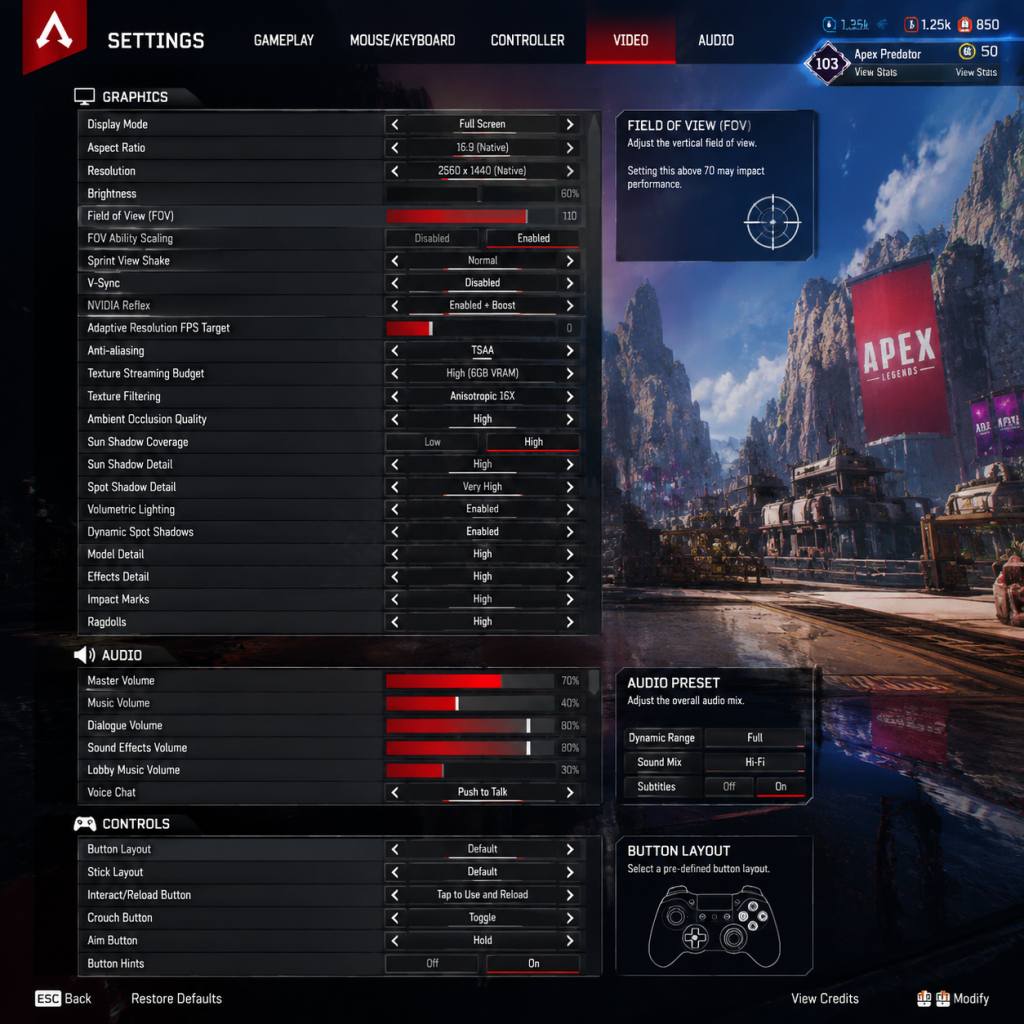
Game Settings
Game Settings Guide for Apex Legends
Apex Legends offers a wide array of settings across multiple categories. Proper configuration can significantly improve your performance, visibility, and overall experience. This guide covers each settings category, recommends optimal values for different hardware tiers, and highlights common pitfalls.
---
Graphics Settings
Graphics settings primarily affect visual quality and performance (FPS). Apex Legends is a competitive shooter, so high and stable FPS is more important than maximum eye candy.
#### Display Mode
- Fullscreen (recommended): Best performance, lowest input lag.
- Windowed Fullscreen: More convenient for alt-tabbing, but can introduce minor input lag and frame drops.
- Windowed: Not recommended for gaming.
- Set to your monitor’s native resolution (e.g., 1920x1080). Downscaling reduces clarity.
- For low-end PCs: 1600x900 or 1280x720 can boost FPS significantly.
- Use Native (usually 16:9). Stretching to 4:3 can enlarge player models but distorts the field of view; not recommended unless you prefer it.
- Disabled (recommended). V-Sync introduces input lag and can reduce FPS. Use an FPS cap instead.
- Enable only if you experience severe screen tearing and can tolerate the lag.
- Options: None, TSAA, FXAA
- TSAA (preferred): Reduces jagged edges with minimal performance cost.
- FXAA: Slightly faster but blurs image more.
- None: Sharper but jaggies may distract.
- Recommendation: TSAA for most; FXAA for very low-end.
- Controls how much video memory (VRAM) is used for textures.
- Set based on your GPU’s VRAM:
- Special Attention: If you set this too high for your VRAM, you will experience stuttering and texture pop-in. Monitor VRAM usage in-game via task manager or OSD.
- Anisotropic 4x or 8x for best balance of quality and performance. Higher (16x) minimal visual gain over 8x.
- Low-end: 2x or 4x.
- Disabled or SSAO (low quality). Ambient occlusion darkens corners and shadows. Disabling gives a noticeable FPS boost with little competitive disadvantage.
- Shadows can help spot enemies hiding in dark areas, but they are expensive.
- Low or Medium are recommended. Low gives a significant FPS boost; shadows still show general locations.
- Ultra is very demanding; avoid.
- Low: Shows player shadows more clearly (good for spotting).
- High: More detailed but less impactful. Keep Low.
- Disabled. Very taxing on GPU. Minimal gameplay benefit.
- Disabled. Saves performance.
- Controls particle effects like explosions, smoke, muzzle flash.
- Medium recommended. Low removes important visual cues (e.g., smoke grenade size). High can obscure vision and lower FPS.
- Enabled or Low. Shows bullet holes and damage decals. Low reduces clutter.
- Low or Medium. High can cause FPS drops when many bodies are present.
- Medium recommended. Low reduces far LODs, making enemies slightly harder to see at range.
- This dynamic resolution scaler reduces render resolution to maintain target FPS.
- Disabled for consistent image quality. Enable only if you need to hit a specific FPS floor (e.g., 60 FPS on low-end).
- Affects how much of the game world you see horizontally.
- Slider: 70 to 110 degrees.
- Competitive players often use 100-104 (max 110). Higher FOV lets you see more peripherally, but makes targets appear smaller.
- Special Attention: If you experience motion sickness, lower FOV (90-96) may help. Do not go below 90 unless necessary.
Special Attention: Always use Fullscreen for competitive play. Windowed modes can cause inconsistent frame pacing.
#### Resolution
#### Aspect Ratio
#### V-Sync
#### Anti-Aliasing
#### Texture Streaming Budget
- 2 GB VRAM: Low
- 4 GB VRAM: Medium
- 6+ GB VRAM: High / Insane (if you have enough VRAM spare)
#### Texture Filtering (Anisotropic)
#### Ambient Occlusion
#### Sun Shadow Coverage & Resolution
#### Spot Shadow Detail
#### Volumetric Lighting
#### Dynamic Spot Shadows
#### Effect Detail
#### Impact Marks
#### Ragdolls
#### Model Detail
#### Adaptive Resolution FPS Target
#### FOV (Field of View)
#### Recommended Graphics Presets by Hardware
| Hardware Tier | Example GPU | Recommended Preset | Key Adjustments |
|---|---|---|---|
| Low-End | GTX 1050 / RX 560 | All Low + 75% Render Scale | Disable shadows, ambient occlusion, volumetric lighting; FOV 90-96 |
| Mid-Range | GTX 1060 / RX 580 | Low/Medium Mix | TSAA, Texture Streaming Medium, Shadows Low, Effect Detail Medium, FOV 100 |
| High-End | RTX 2060 / RX 5600 XT | Medium/High Mix | TSAA, Texture Streaming High, Shadows Medium, Volumetric Lighting Off, FOV 104 |
| Ultra | RTX 3080 / RX 6800 XT | High (or custom) | Max textures, shadows High, but keep Volumetric Off, spot shadows Low; FOV 104-110 |
---
Audio Settings
Audio is critical in Apex Legends for directional awareness. Footsteps, gunshots, and abilities give vital cues.
#### Master Volume
- Set to a comfortable level (80-100%). Do not set too loud; you need to avoid distortion.
- 100%. This covers all in-game sounds including footsteps and gunfire.
- 0-10%. Music is not needed for gameplay and can mask important sounds. Many pros mute it entirely.
- 100%. Legend callouts tell you if a teammate is downed, pinging, or using ultimates.
- Adjust based on your squadmates. Typically 70-100%. Can be lowered if teammates are loud.
- 0% to reduce distractions in menu.
- Options: Stereo, Surround Sound (5.1/7.1)
- Recommendation: Stereo Headphones (or Stereo if using headphones). Most headsets are stereo; virtual surround sound can distort spatial audio.
- If you have a true multi-speaker setup, select your configuration.
- Windows setting (not in-game). Disable in Windows sound settings. Equalization compresses audio, reducing dynamic range and making footsteps harder to distinguish.
- Ensure it's set to your headphones/speakers. Avoid "Default" if you have multiple devices; select explicitly.
- Adjust input volume so your teammates can hear you clearly without clipping.
- Push-to-Talk (PTT) recommended to avoid background noise.
- Use DPS * in-game sensitivity formula. Common eDPI (effective DPI) for Apex: 800-1600 DPI, in-game sensitivity between 1.0 and 2.5.
- Most pros use 800 DPI and 1.4-2.0 sens.
- Special Attention: Low sensitivity improves aim precision but requires larger mouse movements. Find a balance. Use a large mousepad.
- Default is 1.0. For better recoil control, some players use 0.8-1.0. If you find ADS too fast, lower it.
- Per optic sensitivity can be set individually.
- Crouch: Toggle (recommended for slide-jumping) or Hold. Many pros bind crouch to C or a mouse side button.
- Jump: Spacebar or scroll wheel down (for easier bhop/tap strafe - requires enabling in config).
- Interact: E or F.
- Ping: Middle mouse button or Q.
- Ability: Q (tactical), Z (ultimate).
- Item binds: 1-4 for weapon slots. Consider binding healing items to side buttons.
- Toggle Sprint: Set to "Auto-Sprint"? Many players keep Auto-Sprint Off to avoid accidental sprinting when looting or crouching. Alternatively, bind Sprint to Shift (hold).
- Look Sensitivity: (per ADS) Fine-tune per optic.
- Response Curve: Classic or Linear (preferred by many). Linear gives direct stick movement.
- Deadzone: Small deadzone (0.10-0.15) to avoid stick drift.
- Aim Assist: On (default). Apex has strong aim assist on controllers; keep enabled.
- Button Layout: Use "Evolved" or "Ninja" to jump and slide without taking thumbs off sticks.
- Off, Protanopia, Deuteranopia, Tritanopia. Select based on your color vision type. This changes HUD colors, shield bars, and enemy highlights.
- Even if not colorblind, some players use Deuteranopia mode to make enemies more visible (shields appear yellow).
- All Speech or Dialogue Only. Enables speech-to-text for voice lines. Helpful for hearing-impaired or non-native speakers.
- On/Off. Reads menu options aloud. Useful for visually impaired.
- Adjust transparency of HUD elements. Can reduce clutter.
- Color: Choose a color that contrasts with backgrounds (e.g., bright green or cyan).
- Dot/Cross: Some players prefer a small dot for precision. Toggle using `bind "X" "toggle crosshair 0 1"` in autoexec.
- Thickness: 1 or 2 (thin).
- Size: Default or slightly smaller.
- Reduce motion sickness by disabling background blur in menus.
- Display Language: Change text and UI language (e.g., English, Spanish, Japanese).
- Audio Language: Separate from text. Some players prefer English audio for clear callouts; others use native language.
- Voice Chat Language: Not a setting—team-based.
- Special Attention: Changing audio language may affect the pitch of Legends’ voices; it’s purely preference.
- In the main menu, click the data center icon (bottom right, looks like a globe). Select a ping with low latency and 0% packet loss. Avoid servers above 150ms ping for competitive play.
- Special Attention: If you experience lag or rubber-banding, try another data center.
- Adaptive Resolution – Enable to reduce resolution during packet loss spikes (smoother experience).
- Networking: ‘Low Latency’ or ‘Balanced’. Low latency prioritizes response over smooth movement; may cause rubber-banding on unstable connections.
- Unlimited (recommended). If you have data caps, set a limit, but this can affect texture streaming.
- Not exposed in UI, but can be set via config files (rate 128000, cl_interp 0, cl_interp_ratio 1). Default is fine.
- On (default). Cannot be turned off independently; only on PC with controller you can disable via config? Not officially.
- Off (recommended). Reduces visual shake while sprinting, improving clarity.
- Off. Prevents weapon switching automatically when you empty a magazine. Keep off to maintain control.
- Stacking: Enabled (cumulative damage text).
- Position: Default (bottom center).
- Size: Small or Normal.
- Rotates with you (default) or Fixed North. Personal preference; rotating helps orientation.
- Double-tap Ping Danger: On (double-tap pings to indicate enemies). Enable.
- Ping Wheel Menu: Customize quick pings (enemy here, looting here, etc.).
- On (default). Allows pressing Interact to both open doors and pick up items. Keeping on is recommended.
- Hold to Interact: Some players prefer Hold to prevent accidental looting; but it's slower.
- Off for most competitive players. Having control over sprint vs. walk is helpful for silent movement and crouch-strafing.
- If you have difficulty holding shift, consider On, but be aware of the trade-off.
- You can bind jump/wheel down and +forward/wheel up to enable easier movement tech (bunny hop, tap strafe). Requires editing config or autoexec. Not official in menu.
- Start with the Low preset on low-end hardware and adjust upward until FPS is stable at your target.
- On mid/high-end, use a custom mix: keep shadows Low-Medium, volumetric lighting Off, TSAA on, textures High (if VRAM allows), FOV 100-104.
- Perform a field test: drop into the firing range or a low-population server to test settings before queuing.
- Save your settings after changes; they sometimes revert after updates (note: most settings are saved locally and may reset).
- For advanced tweaks (e.g., autoexec.cfg), see community guides. This guide covers in-menu settings only.
#### Sound Effects Volume
#### Music Volume
#### Dialogue Volume
#### Voice Chat Volume
#### Lobby Music Volume
#### Sound Mode
#### Loudness Equalization
#### Audio Output Device
#### Microphone
---
Controls Settings
Customizing controls can improve aim and movement. Apex Legends allows extensive keybinding.
#### Mouse Sensitivity
#### ADS Sensitivity Multiplier
#### Keybinds
Special Attention: Weapon Cycle — Do not bind "Next Weapon" to mouse wheel unless you are comfortable with accidental weapon swaps during fights. Bind to specific keys (1,2).
#### Controller Settings (if applicable)
---
Accessibility Settings
Apex Legends includes options to help players with visual, auditory, or motor impairments.
#### Colorblind Mode
#### Subtitles
#### Menu Narrator
#### HUD Opacity
#### Crosshair
#### Menu Background Blur
---
Language Settings
---
Network Settings
#### Data Center Selection
#### Network Quality Settings
#### Bandwidth Limit
#### Incoming/Outgoing Rates
---
Gameplay Settings
These affect how the game plays and interacts.
#### Aim Assist (Controller)
#### Sprint View Shake
#### Weapon Auto-Cycle
#### Damage Numbers
#### Minimap Rotation
#### Pinging
#### Contextual Tap/Interact
#### Auto-Sprint
#### Mouse Wheel Tweak (PC)
---
Settings Easy to Misconfigure & Special Attention Points
1. FOV: Setting too high (110) can reduce target visibility at distance. Use 100-104 for a good balance.
2. VSync: Default may be enabled; turn it off immediately to reduce input lag.
3. Texture Streaming Budget: Too high for your VRAM = stutter. Always check VRAM usage.
4. Sound Mode: Selecting virtual surround can make footsteps less precise. Stick to Stereo.
5. Mouse Sensitivity: Extremely low or high hinders aim. Measure your eDPI and adjust gradually.
6. Auto-Sprint: Many new players leave it on, but it can cause accidental loud movements. Test both modes.
7. Data Center: The game sometimes auto-selects a server with high ping; always manually choose the best.
8. Windowed Fullscreen: Introduces minor input lag. Use Fullscreen.
9. Accessibility Colorblind Mode: Even if you aren't colorblind, try Deuteranopia – many pros use it for better shield visibility.
10. Damage Numbers: If you find them distracting, reduce size or disable stacking.
---
Final Recommendations
With these optimizations, you can enjoy a smooth, competitive Apex Legends experience regardless of your hardware. Good luck in the Apex Games!