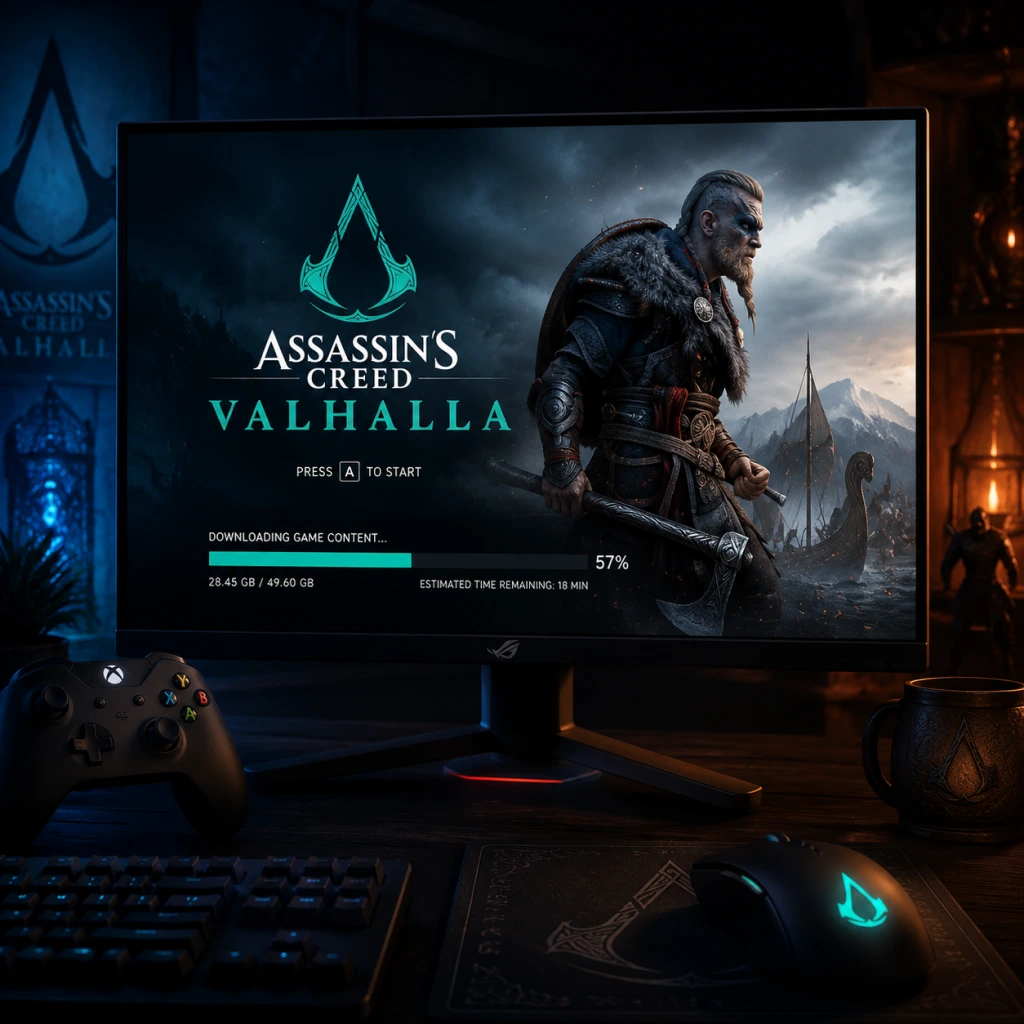
Download & Installation
Download & Installation Guide for Assassin's Creed Valhalla
This guide covers all official platforms and methods to download and install Assassin's Creed Valhalla. Follow the steps for your specific platform.
---
Official Download Sources
| Platform | Store / Launcher | Notes |
|---|---|---|
| PC | Ubisoft Connect | Required; purchase from Ubisoft Store or redeem codes. |
| PC | Epic Games Store | Purchase & download via Epic; launches Ubisoft Connect. |
| PC | Steam | Purchase & download via Steam; launches Ubisoft Connect. |
| PlayStation | PlayStation Store (PS4/PS5) | Digital purchase required; disc version available. |
| Xbox | Microsoft Store (Xbox One, Series X | S) |
| Stadia | Stadia Store | Service discontinued Jan 2023; no longer purchasable. |
---
System Requirements (PC)
#### Minimum Requirements (1080p, Low Settings, 30 FPS)
- OS: Windows 10 (64-bit)
- CPU: Intel i5-4460 or AMD Ryzen 3 1200
- RAM: 8 GB
- GPU: NVIDIA GTX 960 (4GB) or AMD R9 380 (4GB)
- DirectX: Version 12
- Storage: 160 GB HDD (SSD recommended)
- OS: Windows 10 (64-bit)
- CPU: Intel i7-6700 or AMD Ryzen 5 1600
- GPU: NVIDIA GTX 1060 (6GB) or AMD RX 570 (8GB)
- RAM: 16 GB
- Storage: 160 GB SSD
- Digital:
- Disc:
- Digital:
- Disc:
- Ubisoft Account: Mandatory for all platforms. Required for cloud saves, online features, and DRM.
- Platform Accounts: PlayStation Network (PS), Xbox Live/Microsoft Account, Steam, Epic Games account (if using those stores).
- No subscription needed for single-player; online co-op features require respective platform subscription (PlayStation Plus, Xbox Game Pass Core/Ultimate) for multiplayer modes.
#### Recommended Requirements (1080p, High Settings, 30 FPS)
Ultra / 4K: i7-8700K or Ryzen 7 2700X, RTX 2080S / RX 5700 XT, 16 GB RAM, 160 GB SSD.
> Note: Actual storage required after updates is ~140-160 GB. Ensure at least 180 GB free for installation and patching.
---
Step-by-Step Installation
#### PC – Ubisoft Connect
1. Download and install Ubisoft Connect PC from [ubisoft.com](https://ubisoft.com).
2. Log in with your Ubisoft account. If you don't have one, create it.
3. Go to Games > All Games and find Assassin's Creed Valhalla (or use search).
4. Click Download (or Install if already purchased).
5. Choose installation directory (ensure 180+ GB free).
6. Wait for download and installation. The launcher will verify files afterwards.
7. Launch the game from Ubisoft Connect or desktop shortcut.
#### PC – Epic Games Store
1. Install Epic Games Launcher from [epicgames.com](https://epicgames.com).
2. Log in and go to Library.
3. Locate Assassin's Creed Valhalla and click Install.
4. Select an installation folder. Epic will also install Ubisoft Connect automatically.
5. After download, Ubisoft Connect will open and perform additional setup.
6. Complete any Ubisoft updates, then launch from Epic or Ubisoft Connect.
#### PC – Steam
1. Install Steam from [store.steampowered.com](https://store.steampowered.com).
2. Log in and go to Library.
3. Right-click Assassin's Creed Valhalla > Install.
4. Choose a folder on an SSD with ample space.
5. Steam will download; once done, it will prompt to install Ubisoft Connect.
6. Accept, and Ubisoft Connect will handle final setup. Launch via Steam.
#### PlayStation 4 / 5
1. Navigate to PlayStation Store on your console.
2. Search for Assassin's Creed Valhalla.
3. Purchase (or redeem code) and select Download.
4. The game will install automatically. On PS5, choose PS5 version if available.
5. Once installed, launch from the home screen.
1. Insert the game disc.
2. Follow on-screen prompts to copy the data from disc and download patches.
3. Patches are required; ensure internet connection.
4. Launch after installation.
PS4 → PS5 Free Upgrade: Insert PS4 disc into PS5 (or own digital PS4 version) and download the free PS5 upgrade from the store.
#### Xbox One / Series X|S
1. Go to Microsoft Store on your console or online.
2. Search for Assassin's Creed Valhalla and purchase.
3. Select Install on your console.
4. The game will download and install; Smart Delivery automatically gives the best version for your console.
5. Launch from Home.
1. Insert disc. Console will install mandatory data.
2. Download any required updates via internet.
3. Play after installation.
Smart Delivery: If you own Xbox One version, the Series X|S upgrade is free and automatic.
---
Account Requirements
---
First Launch Setup
1. After installation, launch the game.
2. Ubisoft Connect overlay will appear (on PC). Log in if not already.
3. Choose Graphics Settings (auto-detected, adjust as needed).
4. Accept the End User License Agreement (EULA).
5. Select Difficulty (Exploration/Combat/Narrative).
6. Adjust Audio (subtitles, language).
7. Wait for shader compilation (PC – may take several minutes).
8. The game will begin a prologue cutscene and tutorial.
9. Optional: Link Twitch Drops or Ubisoft Connect rewards from the menu.
---
Common Installation Errors & Fixes
| Error | Platform | Cause & Solution |
|---|---|---|
| Insufficient disk space | All | Free up space; at least 180 GB required. Run Disk Cleanup. |
| Ubisoft Connect not installed | PC (Epic/Steam) | Uninstall and reinstall Ubisoft Connect from Ubisoft's site. |
| Download stuck / slow | All | Pause/resume; check internet; disable VPN; restart launcher. |
| “Failed to install” errors | PC | Run launcher as Administrator; disable antivirus temporarily; verify game files. |
| Corrupted data | PlayStation | Rebuild database (Safe Mode) or delete and reinstall game. |
| Disc read errors | Xbox/PS | Clean disc; try offline installation; contact support. |
| Shader compilation crash (PC) | PC | Update GPU drivers (NVIDIA/AMD). Lower graphics settings before launch. |
| Ubisoft Connect offline | PC | Ensure Ubisoft servers are online; check firewall. |
| Controller not working | PC | Connect via USB; update drivers; disable Steam Input per-game. |
- Ubisoft Connect: Right-click game > Verify files.
- Steam: Right-click > Properties > Local Files > Verify integrity.
- Epic: Click three dots > Manage > Verify.
- PC (base game + day 1 patch): ~140 GB
- PS5: ~85 GB
- PS4: ~105 GB
- Xbox Series X|S: ~95 GB
- Xbox One: ~115 GB
- With all DLC (Wrath of the Druids, Siege of Paris, Dawn of Ragnarök): Add ~30-50 GB total.
- SSD highly recommended on all platforms to reduce load times (PC/Xbox/PS5).
- Pre-loading – If you pre-ordered, download the game before launch day. On PC, this is typically available 2 days before release.
- Cross-progression – If you play on multiple platforms (e.g., PS and PC), enable cloud saves via Ubisoft Connect (requires same Ubisoft account).
- Game updates – Enable automatic updates on your platform to keep the game patched without manual action.
---
Post-Installation Verification
1. Check game version – Main menu should show version number (e.g., 1.7.0).
2. Test performance – Run the built-in benchmark (Options > Graphics > Benchmark) to confirm FPS targets.
3. Check DLC/Season Pass – Ensure purchased content appears in “Downloadable Content” menu.
4. Cloud saves – Play for a few minutes, then exit. Verify that a cloud save icon appears in Ubisoft Connect.
5. Audio/Visual – Ensure no missing textures, audio crackles, or crashes.
If issues persist, visit [Ubisoft Support](https://support.ubisoft.com) or your platform’s help center.
---
Storage Space Breakdown (Approximate)
Always keep at least 20 GB free above the required space for updates and saves.
---
Additional Tips
---
This guide is accurate as of game update 1.7.0. Always check official channels for changes.