Game Settings
Game Settings
Overview
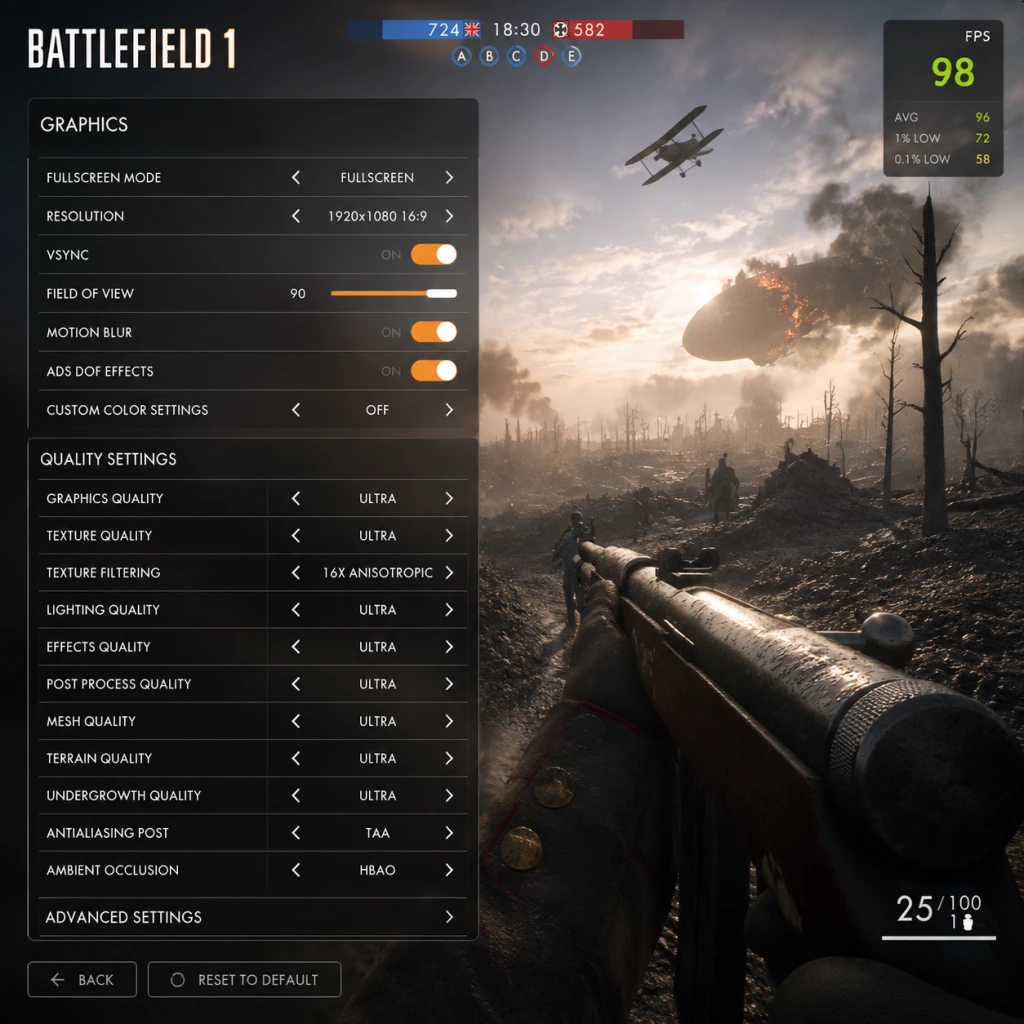
Configuring Battlefield 1 correctly is crucial for both competitive performance and visual immersion. This guide covers all settings categories—Graphics, Audio, Controls, Accessibility, Language, Network, and Gameplay—with platform-specific advice for PC, PlayStation, and Xbox. Special attention is given to settings that are easy to misconfigure and can significantly impact your experience.
Graphics Settings (PC)
#### Key Options
- Resolution: Set to native monitor resolution (e.g., 1920×1080). If using a 4K display and your GPU struggles, reduce to 1440p or use resolution scaling (below).
- Display Mode: Fullscreen preferred for exclusive performance; Borderless Windowed for quick alt-tabbing (minor performance cost).
- Field of View (FOV): Default 55 (vertical). For a wider peripheral view, set to 70–80. Higher FOV reduces frame rate slightly. PC players often use 74–78.
- Graphics Quality Preset: Auto-detect vs manual. Manual tuning yields better balance.
- Advanced Settings (all below)
- Texture Filtering: Anisotropic 4x–16x. Minimal performance cost; 16x recommended.
- Lighting Quality: Low = flatter lighting, Medium is balanced, Ultra adds shadows and ambient occlusion.
- Effects Quality: Controls explosions, smoke, fire. Low for performance, Ultra for spectacle.
- Post-Process Quality: Includes bloom, lens flare. Medium recommended; High blurs edges.
- Mesh Quality: Low reduces detail on distant objects; Ultra helps spot enemies at range (costly).
- Terrain Quality: Affects ground texture and detail. Medium is fine.
- Terrain Decoration: Grass and undergrowth. Low = less cover visibility but easier to see enemies; Ultra = realistic but harder to spot prone soldiers.
- Anti-Aliasing: Options: Off, TAA (Temporal), FXAA, SMAA, 4x MSAA. TAA is best balance of sharpness and performance. MSAA is heavy.
- Ambient Occlusion: SSAO (medium cost) or HBAO (higher cost). Off improves FPS but flattens shadows.
- Motion Blur: Off for clarity; On for cinematic feel (performance cost negligible).
- Vertical Sync (V-Sync): Off to avoid input lag. Use in-game frame limiter or GPU driver control to cap FPS (e.g., 144).
- Resolution Scaling: Reduce from 100% to 75%–50% to boost FPS (blurry image).
- DXR (Ray Tracing): Not available in Battlefield 1.
- HDR: Enable if display supports it; requires Windows HDR setting on.
#### Recommended Graphics Settings by PC Tier
| Setting | Low-End (GTX 1050 Ti / RX 570) | Mid-Range (RTX 2060 / RX 5600 XT) | High-End (RTX 3080 / RX 6800 XT) |
|---|---|---|---|
| Resolution | 1080p | 1080p or 1440p | 1440p or 4K |
| FOV | 70 | 75 | 80 |
| Texture Quality | Low | Medium | Ultra |
| Texture Filtering | 4x | 8x | 16x |
| Lighting Quality | Low | Medium | Ultra |
| Effects Quality | Low | Medium | High |
| Post-Process Quality | Low | Medium | High |
| Mesh Quality | Low | Medium | Ultra |
| Terrain Quality | Low | Medium | Ultra |
| Terrain Decoration | Low | Low | High |
| Anti-Aliasing | TAA (low) | TAA | TAA or SMAA |
| Ambient Occlusion | Off | SSAO | HBAO |
| Motion Blur | Off | Off | Off |
| V-Sync | Off | Off | Off |
| Resolution Scaling | 75% (if needed) | 100% | 100% |
Audio Settings (All Platforms)
- Master Volume: 100% (adjust system volume).
- SFX Volume: 100% – crucial for hearing footsteps and gunfire.
- Music Volume: 50% or lower – music can mask enemy sounds.
- Dialogue Volume: 80% – for commander and soldier callouts.
- VOIP Volume: 100% – squad communication.
- Audio Device: Choose correct output (speakers/headset).
- Output Configuration:
- Dynamic Range:
- Audio Language: Set to your preference (see Language section).
- Key Bindings: Customize movement (WASD), actions (E interact, R reload, Q spot, etc.), vehicles (W/S throttle, A/D steer). Remap Q (spot) to a convenient key (some use mouse button).
- Mouse Sensitivity: Start at 5–10 in-game, adjust DPI (e.g., 800 DPI). Uniform Soldier Aiming ON for consistent scope sensitivity.
- Mouse Acceleration: OFF – always set to raw input.
- Controller Support: Enable if using gamepad; customize stick deadzones.
- Controller Layout: Default or Custom; Southpaw (left-stick movement) for left-handed.
- Sensitivity: X/Y axis sensitivity – increase gradually. Start at 50%.
- Aim Assist:
- Controller Stick Deadzones: Lower values (0–10) for quicker response; increase if stick drift occurs.
- Invert Y Axis: Off unless preferred.
- Separate sensitivity for aircraft and tanks. For flight, decrease sensitivity slightly for smoother aiming.
- Toggle/Hold: For ADS (aim down sights) – Hold is faster for quick scoping; Toggle reduces finger strain. Choose based on comfort.
- Crouch/Prone: Separate or combined? Separate recommended.
- Colorblind Modes: Three modes (Deuteranopia, Protanopia, Tritanopia) adjust minimap, squad colors, and UI elements. Enable based on your type.
- Subtitle Display: Turn ON for dialogue and commander callouts. Can set size (Small/Medium/Large) – Medium recommended.
- Text Chat Size: PC only – adjust chat font size for readability.
- Controller Vibration: ON for haptic feedback; OFF to reduce distraction and improve battery life.
- High Contrast Mode: Not present in BF1.
- Audio Cues: Relies on existing directional sound; no separate settings.
- Text Language: Affects menus, UI, and subtitles. Select from available languages (English, French, German, Italian, Spanish, etc.).
- Audio Language: Determines soldier voices and announcer. Can be different from text. Many players prefer English audio for clarity.
- Subtitle Language: Choose separately, e.g., English audio with French subtitles.
- Region: Affects server browser default; set to your region for lower ping.
- Region Selection: Choose the nearest region (North America, Europe, Asia, etc.) to minimize ping. Use server browser filter.
- Bandwidth Limiter:
- Network Smoothing Factor:
- VOIP: Enable/Disable. If you communicate via third-party (Discord), you can disable in-game VOIP.
- Server Browser: Refresh rate – set to high for frequent updates. Filter by game mode, map, player count.
- Ping Cap: Avoid servers with ping > 100 ms for smooth gameplay.
- Minimap:
- Soldier Auto-Center: ON by default – camera recenters after melee or fall. OFF gives more control.
- ADS Behavior:
- Crosshair:
- Vehicle Exit: Hold or Tap – Tap recommended to avoid accidental dismounts.
- Kill Cam: ON – shows enemy location briefly after death. OFF if you prefer respawn quickly.
- Auto-Run: Enable to double-tap forward key (PC) or push stick (console).
- Headphones: War Tapes preset (enhances bass and compression) or the new "Headphones" preset (more balanced). Avoid War Tapes on speakers due to distortion.
- Surround Sound: Enable if using 5.1/7.1 system; otherwise stereo.
- Night Mode (console) or Reduced Dynamic Range (PC): Compresses loud sounds, helpful for late-night play without disturbing others. War Tapes preset already compresses.
Controls Settings
#### PC
#### PlayStation/Xbox
- Snap Aim (console only): Helps lock onto nearby enemies. Many veteran players turn it off to gain more precise control.
- Target Aim Assist: Slows crosshair over enemies. Keep ON.
#### Vehicle Controls
Accessibility Settings
Battlefield 1 offers limited native accessibility options:
Language Settings
Network Settings
- Up/Down Limit: Set to your internet speed (e.g., 20 Mbps down, 5 Mbps up). Leave default if unsure.
- Client-Side: The game limits bandwidth used for syncing; lowering can reduce lag-spikes but may increase delay.
- Slider 0–100%. Lower values (0–20%) give more responsive movement but can cause jitter. Higher values smooth out packet loss but add latency. Competitive players use 0–10%; casual use 50%.
Gameplay Settings
- Size: 150% or larger for better situational awareness.
- Zoom: Default zoom level – area around you. Can bind zoom keys.
- Rotation: Fixed (north up) or Rotating (player direction up). Most prefer Rotating.
- Hold/Toggle: As in Controls.
- Aim Down Sight Sensitivity Scaling: ON (Uniform Soldier Aiming) for consistent feel across all weapons.
- Color: Choose contrasting color (green, cyan) for visibility against backgrounds.
- Size/Thickness: Not adjustable in BF1. Use custom reticle overlay if needed (PC).
Common Misconfigurations & Special Attention Points
1. FOV Too High: Setting FOV above 80 can distort peripheral vision and heavily impact FPS on low-end PCs. Start at 70–75.
2. Terrain Decoration on Ultra: Thick grass hides prone enemies but also increases GPU load. Many competitive players set to Low to spot enemies easier.
3. V-Sync Enabled: Introduces 1–3 frames of input lag. Disable V-Sync and cap FPS with in-game limiter (or RTSS) for smoother responsiveness.
4. Audio Output Set to Speakers While Using Headset: War Tapes preset with speakers causes distortion. Use Headphones preset and set dynamic range to reduced.
5. Network Smoothing Factor Above 50: Adds noticeable latency. If you have stable connection, keep it below 20%. Experiment in empty server.
6. Aim Assist on PC: Should be OFF – it can interfere with precise mouse aiming (console only). Check that it is disabled in options; sometimes resets after patches.
7. Resolution Scaling Below 75%: Very blurry; often not needed. Instead lower other settings first.
8. Mouse Acceleration Enabled in Windows: Ensure "Enhance Pointer Precision" is OFF in Windows mouse settings; otherwise aim will feel inconsistent.
9. Minimap Off or Too Small: New players often miss this. Keep minimap at 150% and zoomed out to see nearby threats.
10. Controller Deadzone at Default (20%): Too high, causing slow response. Reduce to 5–10% if no drift.
By carefully adjusting these settings to your hardware and playstyle, you will gain a clear edge in Battlefield 1 while maximizing visual fidelity. Revisit settings after major game updates or hardware changes.