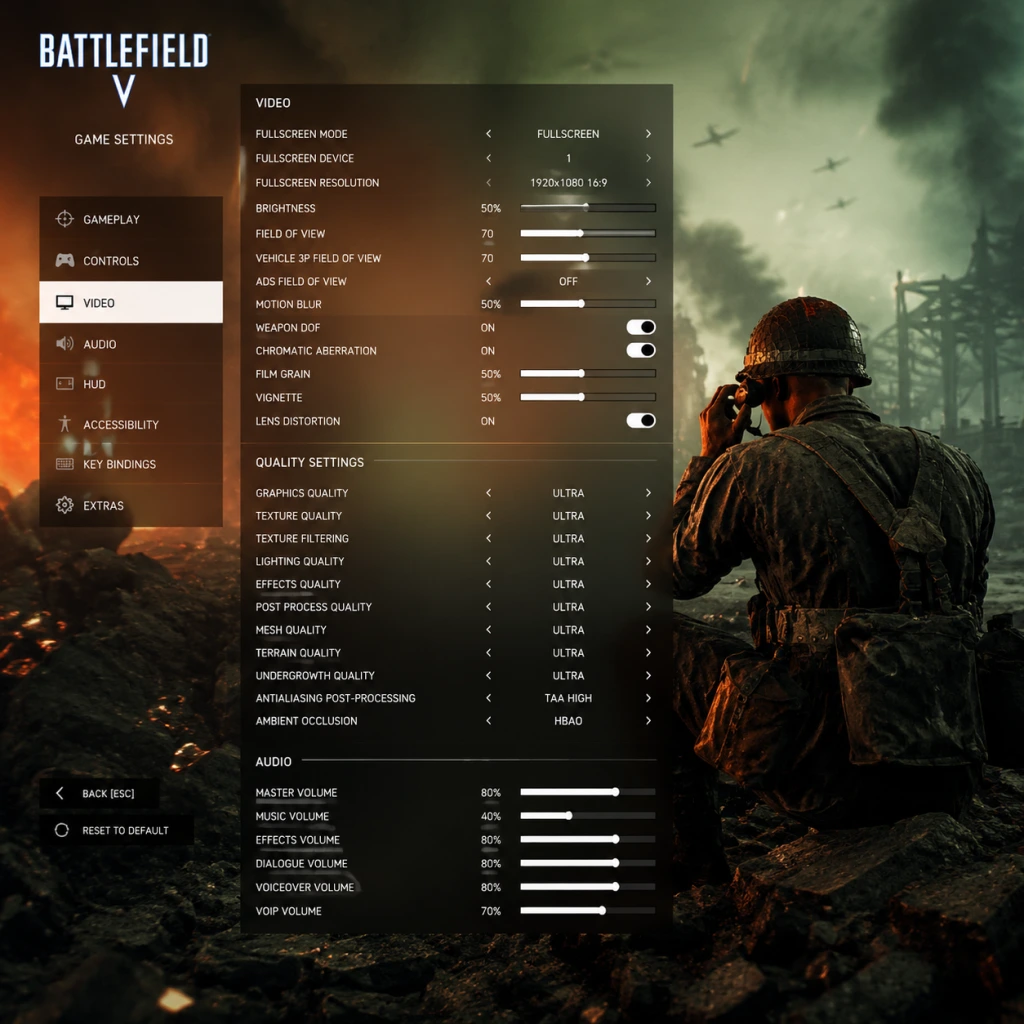
Game Settings
Game Settings Guide for Battlefield V
This guide covers every setting category in Battlefield V and provides optimized recommendations for different hardware tiers. Proper configuration can significantly improve performance, clarity, and competitive advantage. Settings that are commonly misconfigured or require special attention are highlighted.
---
Graphics Settings
Graphics are the most impactful category for both visual quality and performance. Battlefield V uses the Frostbite engine and supports DirectX 11, DirectX 12, and Ray Tracing (on RTX cards).
#### Key Graphics Options
| Setting | Description | Recommendation |
|---|---|---|
| Video Resolution | Native display resolution. | Set to monitor native (e.g., 1920x1080). For performance, use a lower resolution or enable DLSS/FSR. |
| Display Mode | Fullscreen, Borderless, Windowed. | Fullscreen for best performance and lowest input lag. Borderless may cause micro-stutters. |
| Field of View (FOV) | Horizontal FOV in degrees. | 70-90 (default 55 is too narrow). 90 is common for awareness. Higher FOV reduces visual stress but slightly increases performance cost. |
| Soldier FOV | Affects first-person view. | Same as FOV suggestion. |
| Vehicle FOV | Third-person vehicle camera. | 70-90 for better situational awareness. |
| Graphics Quality Preset | Ultra, High, Medium, Low, Custom. | Start with Custom and adjust individual settings. |
| Texture Quality | Detail of surfaces. | Medium on low-end; High/Ultra on high-end. VRAM bottleneck: 4-6GB use Medium, 8GB+ use High/Ultra. |
| Texture Filtering | Anisotropic filter level. | 4x minimum; 16x negligible performance hit on modern GPUs. Improves texture clarity at angles. |
| Lighting Quality | Dynamic shadows and lighting. | Low for performance (reduces shadow density). Medium on mid-range. High/Ultra are expensive. |
| Effects Quality | Explosion particles, smoke, fire. | Low to reduce visual clutter and particle load. Medium if you have spare performance. |
| Post-Process Quality | Bloom, motion blur, depth of field. | Low to disable motion blur and other distracting effects. Improves clarity. |
| Mesh Quality | Draw distance and detail of objects. | Medium is a good balance. High/Ultra heavily impacts CPU. |
| Terrain Quality | Ground texture detail. | Low to reduce load on GPU. Medium for visual improvement. |
| Undergrowth Quality | Grass and foliage density. | Low improves visibility of prone enemies. Also saves performance. |
| Anti-Aliasing | FXAA, TAA, TAA+FXAA. | TAA (best quality) or TAA+FXAA (if you have CPU headroom). Off for sharpest image but aliasing visible. |
| Ambient Occlusion | HBAO, SSAO, Off. | Off or SSAO (cheaper) on low end; HBAO on high end. Adds depth but costs performance. |
| Level of Detail (LOD) Distance | Object detail scaling. | Medium; high barely improves experience but costs performance. |
| Dynamic Resolution Scaling | Automatically lowers resolution to maintain FPS. | Off for consistent quality. Use instead of lowering resolution if you need smoothness. |
| Resolution Scale | Percentage of native resolution. | 100% by default. Lower if desperate for FPS (e.g., 75% on low-end). |
| DirectX Version | DX11 vs DX12. | DX11 for most systems (more stable). DX12 can improve CPU utilization on multi-core systems but may cause stuttering on older hardware. |
| Ray Tracing (RTX) | Real-time reflections and shadows (requires RTX card). | Off for performance. On only if you have an RTX 3060 or better and can tolerate ~20% FPS loss. |
| DLSS (NVIDIA) | AI upscaling for performance. | Quality if you want image quality, Performance if FPS is critical. Requires RTX card and DX12. |
| FSR (AMD) | Similar upscaling for all GPUs. | Quality or Balanced. Works with DX11 as well. |
| Future Frame Rendering | Pre-renders frames for smoother output. | Enable (default) for higher FPS, Disable to reduce input lag at the cost of frame pacing. |
| GPU Memory Restriction | Limits VRAM usage. | Off (unchecked) to allow full utilization. Check only if you experience VRAM-related crashes. |
| Tier | Example Hardware | Graphics Settings Summary | Expected FPS (1080p) |
|---|---|---|---|
| Low-End | Intel HD 630, GTX 1050, RX 560 | Resolution 1600x900 or 1280x720, all settings Low or Off (except textures medium), FOV 70, DX11, no RT/DLSS, Future Frame Rendering ON | 40-60 |
| Mid-Range | GTX 1060 6GB, RX 580, GTX 1660 Super | 1080p Fullscreen, Textures High, Filtering 16x, Lighting Medium, Effects Low, Post-Process Low, Mesh Medium, Terrain Low, Undergrowth Low, Anti-Aliasing TAA, Ambient Occlusion SSAO, DX11, FSR Quality | 60-90 |
| High-End | RTX 3060 Ti, RTX 4060, RX 6700 XT | 1440p Fullscreen, Textures Ultra, Filtering 16x, Lighting High, Effects Low, Post-Process Low, Mesh High, Terrain Medium, Undergrowth Low, Anti-Aliasing TAA, Ambient Occlusion HBAO, DX12, DLSS/FSR Quality | 90-144 |
| Ultra (4K) | RTX 4090, RX 7900 XTX | 4K Fullscreen, Ultra preset except Effects Low, Post-Process Low, Undergrowth Low, FOV 90, DX12, DLSS/FSR Performance or Ultra Performance, RT Off | 60-120 |
- Field of View (FOV): Default 55 is extremely narrow and can cause motion sickness and reduce peripheral awareness. Always increase to 80-90.
- Post-Process Quality: Includes motion blur and depth of field. Many players turn these off for competitive clarity, but they are enabled by default on High/Ultra presets.
- Undergrowth Quality: High undergrowth hides enemies but tanks performance. Set to Low for both visibility and FPS.
- DirectX 12: While DX12 can improve CPU scaling, many players experience stuttering or crashes. Test thoroughly. DX11 is more reliable.
- Future Frame Rendering: Off reduces input lag but may cause less smooth frametimes. Recommend ON for most.
- Resolution Scale: Accidentally setting below 100% without Dynamic Resolution Scaling can blur the game unnecessarily.
---
Audio Settings
Audio in Battlefield V is crucial for spatial awareness. Proper setup can let you hear footsteps, vehicle engines, and gunfire direction.
#### Key Audio Options
| Setting | Description | Recommendation |
|---|---|---|
| Master Volume | Overall game volume. | 80-100%, adjust based on your speakers/headphones. |
| Music Volume | Background musical score. | 0% for competitive play (music obscures footsteps). |
| SFX Volume | All sound effects. | 100%. |
| Voice Over Volume | Character voices. | 100% (announces objectives). |
| Dialogue Volume | In-game radio chatter. | 80-100%. |
| Vehicle Music | Epic music when entering vehicles. | 0% (distracting). |
| Dynamic Range | Compression of loud sounds vs soft. | Headphones (most realistic) or Small Speakers. TV/Large Speakers may reduce subtle sounds. |
| Speaker Setup | Stereo, Surround, etc. | Stereo for headphones; Surround 5.1/7.1 for proper home theater system. |
| War Tapes | Audio filter that boosts bass and explosion. | Off – creates unnatural sound that masks footsteps. |
| Hit Marker Sound | Confirm hits. | Keep On (default). Helps confirm damage. |
- Use headphones with stereo setting.
- Disable War Tapes and all music (Vehicle and Background).
- Set Dynamic Range to Headphones for best directional cues.
---
Controls & Input
Optimizing controls improves reaction speed and comfort.
#### Key Control Options
| Setting | Description | Recommendation |
|---|---|---|
| Controller Sensitivity (X/Y) | Stick sensitivity. | Start at 50% and adjust per preference. Lower for precision, higher for snap turning. |
| Aim Assist (Controller) | Slowing reticle over enemies. | ON for beginners, but competitive players often turn it off to maintain full control. |
| ADS Sensitivity | Sensitivity while aiming down sights. | 70-100% of hipfire sensitivity. Lower for sniping. |
| Uniform Soldier Aiming | Makes sensitivity scale uniformly across all scopes. | Enable for consistency. |
| Mouse Sensitivity (PC) | Base pointer speed. | Choose a low eDPI (800-1200 DPI) for precision. E.g., 400 DPI * 8 in-game = 3200 eDPI. |
| Mouse Acceleration | Pointer speed changes with movement speed. | Disable completely. |
| Raw Input | Bypasses Windows mouse settings. | Enable to avoid artificial smoothing. |
| Key Bindings | Customize all actions. | Remap grenade (G) to a thumb button, spot (Q) to a side mouse button if possible. Set push-to-talk. |
| Vibration (Controller) | Controller rumble. | Disable for competitive play (distracting and delays input). |
| Invert Vertical Look | Invert Y-axis. | Off (unless used to flight sims). |
- Mouse Acceleration: By default it's off, but some Windows settings can interfere. Check Windows "Enhance pointer precision" – disable.
- Aim Assist on PC: Aim assist is only for controllers. PC players should not have it.
- Uniform Soldier Aiming: This setting is often overlooked; enable it to have consistent muscle memory across all weapons.
- Controller Deadzone: In the controller section (accessible only when controller is plugged in), adjust inner deadzone to smallest value without drift for faster response.
---
Accessibility Settings
Battlefield V offers several options to make the game more accessible.
| Setting | Description | Recommendation |
|---|---|---|
| Subtitle Size | Text size of subtitles. | Large if you have visual difficulties; default is fine. |
| Subtitles | On/Off for spoken dialogue. | On to never miss callouts. |
| Colorblind Modes | Protanopia, Deuteranopia, Tritanopia. | Choose based on your vision type. Affects UI elements (team colors, minimap icons). Test each. |
| Controller Remapping | Customize all controller buttons. | Use to assign slide, crouch, jump to paddles if available. |
| Vibration | Already covered. Disable for clarity. | Off. |
| Text-to-Speech | Not available in BFV. | N/A. |
| Chat Font Size | In PC only, adjust chat font. | Larger for readability. |
Language Settings
In the game options (PC and consoles):
| Setting | Description | Recommendation |
|---|---|---|
| Text Language | Language for menus, UI, subtitles. | Choose your native language. |
| Audio Language | Language of voiceovers. | Usually regional (e.g., English, French, German). Keep as spoken language to match subtitle language. |
| Subtitles | Already covered. | On. |
---
Network Settings
Network settings affect latency, bandwidth usage, and online stability.
| Setting | Description | Recommendation |
|---|---|---|
| Network Smoothing | Interpolation between frames to smooth out missing packets. | 0% (or very low) for competitive play (reduces input lag but may cause stutter); 50% default is balanced. Higher values increase latency. |
| High-Frequency Network Tick | Updates hitboxes more frequently. | Enable (default). Reduces trade kills and improves hit registration. |
| Bandwidth Limit | Maximum upload/download usage. | Unlimited or set to your connection's max (e.g., 100 Mbps). Lower if you have data caps. |
| Region | Select server region. | Choose the closest region for lowest ping (e.g., US East, EU West). |
| In-Game Network Indicator | Shows ping, packet loss, etc. | Enable (can be toggled in gameplay options via "Advanced" -> "Network Performance Graph"). |
- Network Smoothing: Setting it too high (100%) adds noticeable delay, making it harder to hit moving targets. Low or 0% is used by top players, but requires stable internet. Test between 0-25%.
- High-Frequency Network Tick: This is enabled by default and should stay on. Disabling it reduces server authoritative updates, increasing delay.
- Bandwidth Limit: If set too low (e.g., 512 kbps), you may experience rubberbanding and packet loss. Always set to a value that exceeds your internet speed.
---
Gameplay Settings
These settings affect how the game plays and feels.
| Setting | Description | Recommendation |
|---|---|---|
| Advanced Takedowns | Cinematic melee kills. | Off (default? Actually it's On). Set Off to avoid long animations where you're vulnerable. |
| Auto-Equip Weapon | Automatically switch to a new weapon when out of ammo? Not directly present. Alternate: Auto Cycle through weapons? | Keep defaults. |
| Weapon Auto-Cycle | When empty, automatically switch to next weapon. | Off – you should manually switch to maintain control. |
| Hold to Sprint | Hold shift vs toggle to sprint. | Hold (default) is fine. Many players prefer toggle to reduce finger strain; that’s a personal choice. |
| ADS Behavior | Hold or toggle to aim down sights. | Hold for more control. Toggle if you prefer. |
| Zoom on Fire Mode | Not directly present. | N/A. |
| Crouch Behavior | Hold vs toggle. | Toggle for easier crouch-peeking. |
| Prone Behavior | Toggle prone. | Toggle (default). |
| Minimap Size & Zoom | Display size and zoom level of minimap. | Increase size slightly, set zoom to Medium (default). You can also change minimap zoom bind to toggle in combat. |
| Minimap Icons | Show friendly and enemy markers. | Keep all enabled. |
| Crosshair Options | Customize color, size, and style of crosshair. | Use a bright color (green, cyan) for visibility. Size 3-5, shape dynamic or static. |
| HUD Scale | Overall HUD size. | Adjust to your screen size; default 100% is fine. |
| Vehicle Controls | Toggle between normal and (zoomed view). | Keep defaults. |
| Airplane Controls | Invert pitch settings for planes. | If you fly, invert pitch for more natural pull-up direction. |
| Weapon DoF / Bipod Behavior | etc. Not many settings. | Keep defaults. |
- Advanced Takedowns: Default is ON, which plays a lengthy animation. For competitive play, disable to quickly knife and move.
- Weapon Auto-Cycle: Off prevents accidentally pulling out a pistol when your primary runs dry during a fight.
- Minimap Zoom: You can bind a key to zoom minimap (default: N). Keep zoom at medium for overview, zoom in for close-quarters.
---
Final Setup Checklist
1. Graphics: Use the preset table above appropriate for your hardware. Test both DX11 and DX12 with the same settings for 10 minutes each.
2. Audio: Disable music, War Tapes, set Dynamic Range to Headphones.
3. Controls: Configure key binds, disable mouse acceleration, set sensitivity to comfortable eDPI.
4. Accessibility: Enable subtitles, set colorblind mode if needed.
5. Network: Enable High-Frequency Tick, set Network Smoothing to 0% (test), bandwidth unlimited, select closest region.
6. Gameplay: Turn off Advanced Takedowns and Weapon Auto-Cycle. Adjust crosshair color.
After initial setup, play at least 3 multiplayer matches before further tweaking. Use the Performance Overlay (press ~ and type `perfoverlay.drawFps 1` or enable in video options) to monitor FPS. Always restart the game after changing graphics or network settings.