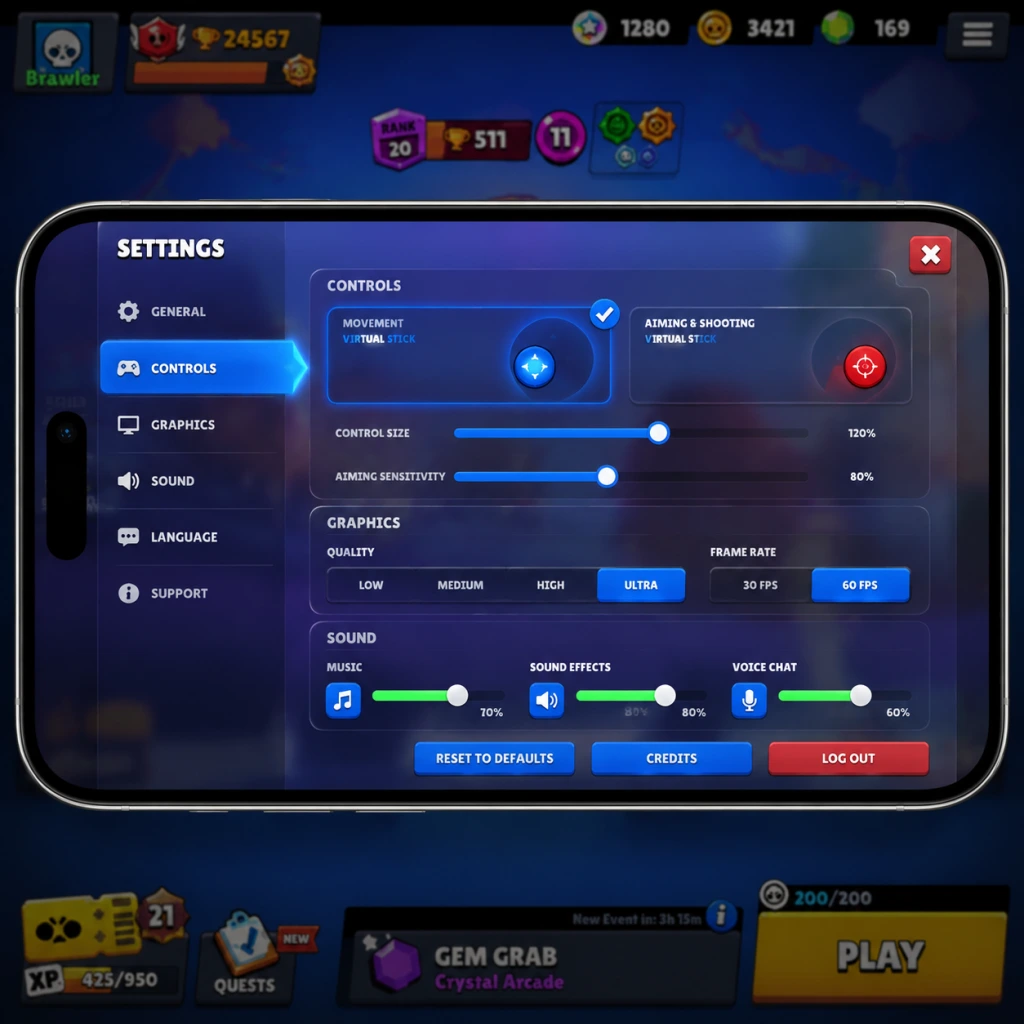
Game Settings
Game Settings Guide for Brawl Stars
Brawl Stars offers a moderate set of customization options to tailor your experience across graphics, audio, controls, accessibility, language, network, and gameplay. Since the game is primarily on mobile (iOS/Android), settings are optimized for touchscreens, but if you play on a PC via an emulator (e.g., BlueStacks, LDPlayer), additional considerations apply. This guide covers every setting, recommends optimal configurations for different hardware levels, and highlights pitfalls to avoid.
1. Graphics Settings
Graphics settings directly impact visual quality, battery life, and performance. Brawl Stars uses a colorful, low-poly art style that is generally lightweight, but high frame rates and resolution scaling can still tax older devices.
| Setting | Options | Description |
|---|---|---|
| Graphics Quality | Low, Medium, High | Controls texture resolution, shadow quality, and special effects. Low reduces detail but improves smoothness on weak GPUs. High adds ambient occlusion and better lighting. |
| Frame Rate | 30 FPS, 60 FPS | Determines maximum frames per second. 60 FPS is essential for competitive play (smoother movement, easier aiming). On low-end devices, 30 FPS may prevent overheating. Some devices default to 30 FPS; always check as it’s easy to misconfigure. |
| Resolution | Native, 0.5x, 0.75x | Rendering resolution scale. Native is sharpest; lowering reduces GPU load. On emulators, setting to 0.75x can improve performance without severe visual loss. Hidden in some device configs – you may need to toggle in the game’s ‘Settings’ → ‘Graphics’ tab. |
| V-Sync | On/Off | Syncs frame rate with display refresh to avoid screen tearing. Off reduces input lag slightly; on prevents tearing. Most mobile displays are 60 Hz; leaving it off is fine unless tearing bothers you. |
- High-end (iPhone 14/15, Snapdragon 8 Gen 2+, recent iPad Pro): Graphics Quality = High, Frame Rate = 60 FPS, Resolution = Native, V-Sync = Off. Battery will drain but performance is flawless.
- Mid-range (iPhone 11, Snapdragon 732G, iPad Air 4): Graphics Quality = Medium, Frame Rate = 60 FPS, Resolution = Native, V-Sync = Off. Cuts effects to maintain steady 60 FPS.
- Low-end (iPhone 8, Snapdragon 660, older tablets): Graphics Quality = Low, Frame Rate = 30 FPS, Resolution = 0.75x, V-Sync = Off. Reduces heat and stutter. If 30 FPS feels sluggish, try 60 FPS on Low but monitor thermals.
- Emulator (PC): Since emulators emulate GPU, set Graphics Quality to High if your PC has a dedicated GPU (GTX 1050 or better), otherwise Medium. Frame Rate = 60 FPS (or 120/144 if your monitor supports and emulator allows). Resolution = Native or 1080p. V-Sync = On to avoid tearing. Also, in emulator settings, allocate at least 4GB RAM and enable virtualization.
- Sound Effects (On/Off): Keep on to hear ability uses, attacks, and proximity cues. Turning off hinders situational awareness.
- Music (On/Off): The game’s soundtrack is fun but can be distracting in intense matches. Many competitive players turn it off to focus on sound effects.
- Voice Chat (On/Off): Brawl Stars has no in-game voice chat; this setting controls any potential future feature or club voice (partially implemented in some regions). Leave off unless you use it.
Special Attention: The Frame Rate setting is often overlooked because new players assume the game runs at 60 by default. Many mid-range devices default to 30 FPS to save battery, creating a significant disadvantage in aiming and reaction. Always check this first. Also, on emulators, if you experience stutter, lower Resolution to 0.75x before changing Graphics Quality.
2. Audio Settings
Audio in Brawl Stars provides crucial gameplay cues (footsteps, Super sounds, gem countdown). The settings are simple:
Optimal: Sound Effects = On, Music = Off for competitive play; both On for casual fun. Voice Chat = Off unless you want to talk in clubs (if available).
Misconfiguration Pitfall: Some players accidentally mute sound effects in favor of music, losing critical audio feedback. Always test with a quick match after changing.
3. Controls Settings
Controls are the heart of gameplay. Brawl Stars offers two main control modes plus several toggles.
| Control Mode | Description | Best For |
|---|---|---|
| Static (fixed joystick) | Movement joystick stays at its initial touch location. You can reposition by tapping elsewhere. Attack button is fixed at bottom-right. | Players who prefer consistent joystick position; common on tablets. |
| Dynamic (floating) | Joystick appears wherever you touch the left side. Attack button floats relative to your touch on the right. | Most mobile players; allows quicker starting direction changes. |
- Auto-Aim (On/Off): When off, you must manually aim all attacks. Important: Keep On for close-range brawlers (e.g., Bull, Shelly) to quickly secure kills; turn Off when playing throwers or snipers to avoid auto-aim hitting walls.
- Super Auto-Aim (On/Off): Same logic, but for Super abilities. On helps in hectic moments; off prevents wasting Supers.
- Quick Fire (On/Off): When on, tapping the attack button immediately fires (with or without aim indicator). Off requires you to hold and release. Most pros use Quick Fire On for faster reaction.
- Separate Super Button (On/Off): When on, you get a dedicated Super button above the main attack. When off, you tap the main attack button while Super is charged. Recommended: On – avoids accidental Supers when you mean to normal attack.
- Heal Button (On/Off): Toggles a dedicated button to use your Brawler’s gadget or star power heal. Keep On.
- Show Aiming Wheel (On/Off): Shows a subtle circle when aiming. Keep On for precision.
- Pin Attack Button (On/Off): Pins the attack button to a fixed screen location. Useful on large screens to prevent drifting. Experiment.
- Control Mode: Dynamic (or Static if on tablet)
- Auto-Aim: Off (manually aim for accuracy; toggle on only for close brawlers if needed)
- Super Auto-Aim: Off
- Quick Fire: On
- Separate Super Button: On
- Heal Button: On
- Show Aiming Wheel: On
- Pin Attack Button: Off (adjust if you have drifting issues)
- Text To Speech (TTS) (On/Off): Reads on-screen text aloud. Useful for visually impaired players. Not fully implemented for all menus.
- Color Blind Mode (Off, Protanopia, Deuteranopia, Tritanopia): Changes team/enemy colors to distinct hues. If you have color vision deficiency, enable the appropriate mode. Also helps visibility in certain maps (e.g., Gem Grab gems are easier to see).
- Reduce Motion (On/Off): Cuts animations and screen shake. Useful for motion sickness or for competitive clarity (less visual clutter).
- Language (dropdown): Choose your preferred language. The game will restart to apply. Note: Club descriptions and player names are not translated.
- Cellular Data Usage (On/Off): Toggle to allow/disallow cellular data. If you have a limited plan, set to Off and play only on Wi-Fi.
- Wi-Fi Only (On/Off): Enforce Wi-Fi connection to avoid lag spikes on cellular. Recommended for ranked play.
- Server Region (automatic, but can be changed in some versions): This is not a direct setting but tied to your app store account region. You cannot change it manually; using a VPN may cause bans.
- Show Brawler Names (On/Off): Displays names above enemies/teammates. On helps callouts; Off reduces visual clutter. Competitive players often turn it off for cleaner view.
- Show Objective HUD (On/Off): Shows the match timer and objective (e.g., gems count, bounty stars). Always keep On – critical information.
- Quick Chat (On/Off): Enables preset messages (e.g., “Good luck!”) at match start. Keep On for team morale.
- Chat Filter (On/Off): Filters profanity. On recommended for younger players; off if you want to see raw chat (but beware toxicity).
- Attack Button Size (Slider): Adjusts the size of the attack button. Larger buttons help with fat-finger misclicks; smaller gives more screen space for aiming. Default is medium; experiment during a practice match.
- Movement Joystick Size (Slider): Similar slider for the movement area. Larger helps on big screens; smaller allows quick micro-adjustments.
- Camera Follow (On/Off): When on, the camera centers on your brawler. Off allows peeking (but not extensively – Brawl Stars camera is fixed). Actually, this setting is not present; the camera is always fixed. (Ignore if not present in your version; it’s removed.)
- Tap to Super (On/Off): When Super is charged, tapping the screen triggers Super. Off means you must drag the Super button. Keep Off to avoid accidental use.
- Show Brawler Names: Off (less clutter)
- Show Objective HUD: On
- Quick Chat: On
- Chat Filter: Off (if you can handle it) or On for peace of mind
- Attack Button Size: 80-90% of max (test in training cave)
- Movement Joystick Size: 70-80%
- Tap to Super: Off
- Emulator Graphics Engine: OpenGL vs DirectX. Use OpenGL for smoother Brawl Stars performance; DirectX may cause graphical glitches.
- Key Mapping: Map movement to WASD, attack to left click, Super to right click or spacebar, gadget to Q, etc. Use emulator’s advanced editor to create a custom layout.
- Resolution: Set emulator to 1920x1080 or 2560x1440. Higher resolution gives sharper image but consumes more GPU.
- CPU Cores: Allocate at least 4 cores, preferably 6.
- RAM Allocation: 4GB minimum; 8GB recommended.
- VSync in emulator: Enable to avoid tearing; disable if you have G-Sync/FreeSync.
- Performance Mode: Enable “High FPS” option in emulator settings (e.g., BlueStacks’ “High FPS” toggle) to unlock 120 FPS if the emulator supports it. Then set in-game Frame Rate to 60 FPS (or 120 if supported).
Optimal Control Setup (Competitive)
Special Attention: The Separate Super Button is a common misconfiguration. Many players leave it off, causing accidental Supers when trying to basic attack. Always enable it. Also, new players often rely on Auto-Aim too much. It’s fine when learning, but turning it off early builds essential skill.
4. Accessibility Settings
Brawl Stars includes basic accessibility features:
Optimal: Set Color Blind Mode per your needs; others off unless required.
Pitfall: Color Blind Mode can also benefit non-colorblind players by providing stronger contrast. Try Deuteranopia if you struggle to differentiate teams in chaotic fights.
5. Language Settings
The game supports over 20 languages. Settings are straightforward:
Special Attention: Changing language resets any custom key bindings if you use a controller (rare on mobile). No other misconfiguration risk.
6. Network Settings
These are limited because Brawl Stars is always online. However:
Optimal: If you have stable Wi-Fi, enable Wi-Fi Only. Otherwise, keep Cellular Data On but monitor data usage (approx. 15-25 MB per hour).
Pitfall: Playing on cellular with poor signal causes rubberbanding. Always check your ping icon (displayed on the loading screen). If it shows red (>150 ms), disconnect and rejoin on a better network.
7. Gameplay Settings
These settings affect the in-match experience and user interface:
Optimal Gameplay Settings
Misconfiguration Danger: The Tap to Super setting is often enabled by default and causes accidental Supers when you tap to move or shoot. Disable it immediately.
8. Emulator-Specific Settings (PC Play)
If you play on a PC with an emulator, additional settings outside the game matter:
Special Attention: Many emulators default to 30 FPS. You must manually enable 60/120 FPS in both the emulator and game settings. Also, avoid running Brawl Stars on a PC with integrated graphics only – you will get lag in team fights.
Summary of Critical Settings Checklist
| Setting | Recommended Value | Why |
|---|---|---|
| Frame Rate | 60 FPS | Essential for smooth aiming and movement. |
| Separate Super Button | On | Prevents accidental Supers. |
| Tap to Super | Off | Avoids random Supers when tapping screen. |
| Auto-Aim | Off (manual aim) | Builds skill; turn on only for certain brawlers. |
| Color Blind Mode | As needed or try Deuteranopia | Improves contrast in chaotic fights. |
| Wi-Fi Only | On (if stable Wi-Fi) | Reduces lag spikes from cellular. |
| Attack Button Size | 80-90% | Balances precision and surface area. |
| Quick Fire | On | Faster reaction time. |