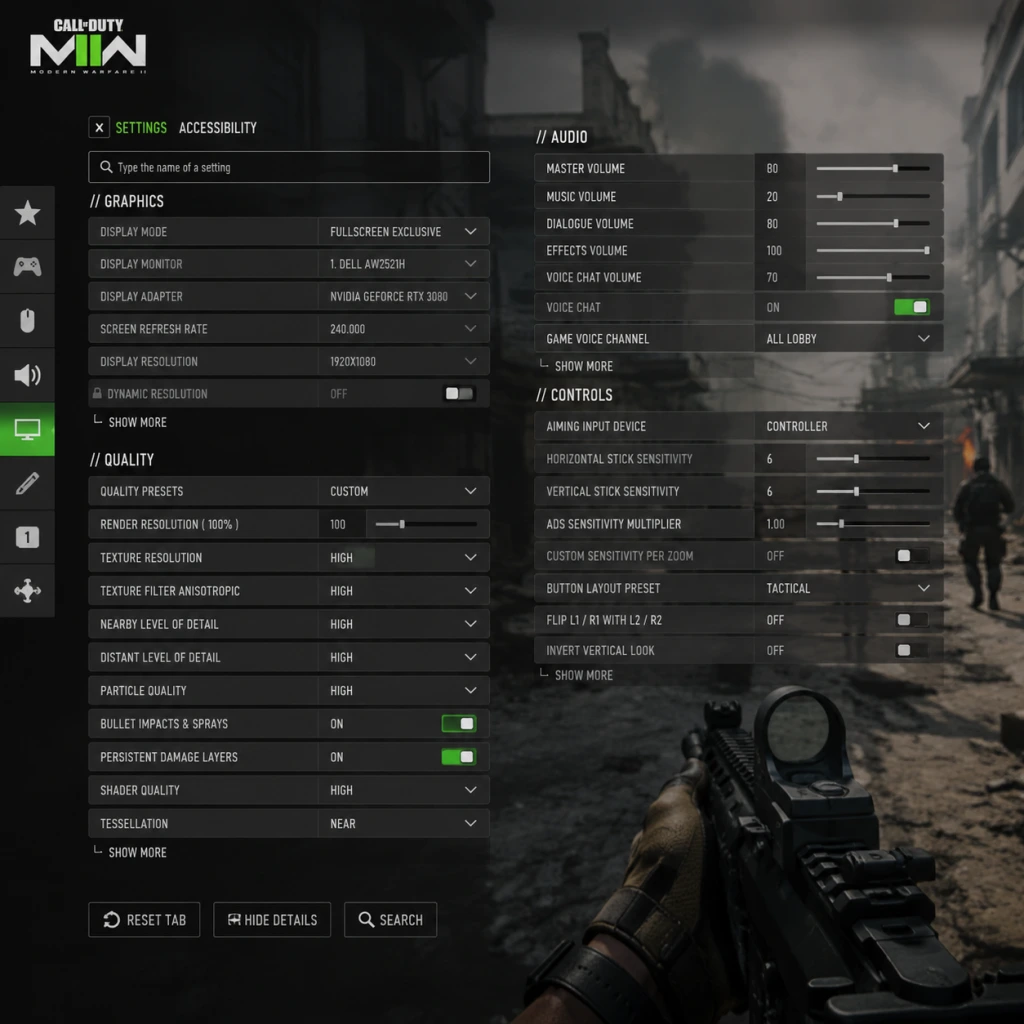
Game Settings
Call of Duty: Modern Warfare II (2022) - Game Settings Guide
This guide provides a comprehensive breakdown of every setting in Call of Duty: Modern Warfare II. Whether you are chasing maximum frames, pristine visuals, or just want a comfortable experience, you will find optimized recommendations for your hardware tier. Settings are organized by category, with special attention to common pitfalls that can hinder performance or competitive advantage.
---
1. Graphics Settings (PC)
Display
- Display Mode: Fullscreen (best performance) > Borderless Windowed (faster alt-tab) > Windowed.
- Display Adapter: Select your dedicated GPU (e.g., NVIDIA RTX 3080).
- Screen Refresh Rate: Match your monitor’s maximum (e.g., 144Hz, 240Hz).
- Display Resolution: Native resolution (e.g., 1920×1080). Lower for more FPS if needed.
- Aspect Ratio: Auto (usually 16:9).
- V-Sync: Off (reduces input lag). Enable only if you see screen tearing and can tolerate slight lag.
- Custom Frame Rate Limit: Set to your monitor’s refresh rate – 3 FPS (e.g., 141 for 144Hz) to reduce input lag.
- NVIDIA Reflex Low Latency: On + Boost (reduces CPU render queue lag). Disable if you see CPU-bound stuttering.
Quality
| Setting | Low-End (GTX 1060) | Mid-Range (RTX 2060) | High-End (RTX 3080) | Ultra (RTX 4090) |
|---|---|---|---|---|
| Render Resolution | 100 | 100 | 100 | 100 |
| Upscaling / Sharpening | FidelityFX CAS 80% | FidelityFX CAS 85% | DLSS Quality (if supported) | DLAA or Native |
| Anti-Aliasing | SMAA 1x | SMAA 2x | SMAA T2X | Filmic SMAA T2X |
| Texture Resolution | Normal | Normal | High | Ultra |
| Texture Filter Anisotropic | Low | High | High | Ultra |
| Shadow Map Resolution | Low | Normal | High | Extra |
| Shadow Map Cache | All (low-mid) | All | All | All |
| Particle Quality | Low | Low | High | High |
| Particle Quality Level | Low | Medium | High | High |
| Bullet Impacts | Disabled | Enabled | Enabled | Enabled |
| Tessellation | Disabled | Disabled | Enabled | Enabled |
| Terrain Memory | Low | Medium | Max | Max |
| Level of Detail Distance | Low | Medium | High | Ultra |
| Volumetric Quality | Low | Low | Medium | High |
| Deferred Physics Quality | Low | Medium | High | High |
| Water Quality | Low | Low | Medium | High |
| Shadow Quality | Low | Low | Medium | High |
| Screen Space Shadows | Disabled | Disabled | Low | High |
| Ambient Occlusion | Disabled | Off | Low (SSAO) | High (HBAO+) |
| Screen Space Reflections | Disabled | Low | High | Ultra |
| Static Reflection Quality | Low | Low | Medium | High |
| Weather Grid Quality | Low | Medium | High | Ultra |
| NVIDIA DLSS (if available) | Off | Off | Quality | Off / DLAA |
View
- Field of View (FOV): 90–110 (competitive). Higher FOV reduces peripheral zoom but can tank FPS on lower-end GPUs. Start at 100 and adjust.
- ADS Field of View: Affected (most common). Independent makes scopes feel less zoomed. Competitive players prefer Affected for faster target acquisition.
- Weapon Field of View: Default (shows more weapon). Wide hides more of the gun but reduces weapon motion blur. Choose Wide for extra screen space.
- 3rd Person Field of View: 90–100.
- Vehicle Field of View: 100.
- Camera Movement: Least (100%). Lower reduces head bob.
- Motion Blur: Off (hides detail, hurts aim).
- Weapon Motion Blur: Off.
- Film Grain: 0.00 (removes visual noise).
- Depth of Field: Off (blurs backgrounds in menus/multiplayer, not useful).
- World Motion Blur: Off.
- Lens Flares: Off (can obscure enemies).
- Clutter: Off (reduces particle spam).
- Fog: Off (increases visibility on maps like Farm 18).
- Home Theater – Best for surround sound setups.
- Headphones – Recommended for headset users; enhances footstep clarity and directional audio.
- Soundbar – Optimized for soundbars.
- Cinema – Wide dynamic range, but can drown out footsteps in loud firefights.
Effects
---
2. Audio Settings
Mix Preset
Volume Levels
| Setting | Recommended |
|---|---|
| Master Volume | 100 (keep high, lower speakers if needed) |
| Music Volume | 20–30 (distracting) |
| Dialogue Volume | 50 (enough for callouts) |
| Sound Effects Volume | 100 |
| Cinematic Music Volume | 20 |
| Cinematic Dialogue Volume | 50 |
| Hit Marker Sound Effects | On (full feedback) |
| Mute Game When Minimized | On |
Voice Chat
- Voice Chat: On (if you play with teammates). Disable for solo play.
- Voice Chat Device: Default system device.
- Voice Chat Volume: 100 (adjust via OS mixer).
- Voice Chat Activation Mode: Push to Talk (avoids broadcasting background noise) or Open Mic with a low threshold.
- Mute Yourself While Game is Minimized: On.
- Mouse Sensitivity: Start at 6–8 with 800 DPI. Adjust until you can do a 360° across your mouse pad.
- ADS Sensitivity Multiplier: 0.88–1.00 (lower for precision).
- Mouse Smoothing / Acceleration: Off (prevents inconsistent aim).
- Mouse Filtering: 0.00 (raw input).
- Invert Mouse: Off.
- Mouse Input Device: Raw Input (most accurate).
---
3. Controls Settings
Keyboard & Mouse (KBM)
#### Keybindings (Essential Changes)
| Action | Default | Alternative |
|---|---|---|
| Slide / Dive | C | Left Alt (easier to crouch/slide) |
| Mount | Middle Mouse | Side mouse button |
| Tactical Sprint | Shift | Mouse wheel down (hold) – advanced |
| Ping | ` | Q (quick mark) |
| Use / Reload | F | E (separate) |
Controller (Gamepad)
- Horizontal/Vertical Sensitivity: 5–7 (high for quick turns).
- ADS Sensitivity Multiplier: 0.70–0.85 (slower for aim-down-sights).
- Sensitivity Curve: Dynamic (standard) or Linear (after practice).
- Aim Assist Type: Default (strongest) – but Black Ops (weaker) and Precision/Focusing (niche).
- Aim Assist Strength: 100.
- Controller Vibration: Off (improves aim stability).
- Stick Layout: Tactical (melee on R3/crouch on R3) for slide-cancelling.
- Trigger Deadzone: 0–10 (adjust if you have stick drift).
- Subtitles: On (narrative campaign).
- Subtitle Size: Large (or based on preference).
- Subtitle Background: On for readability.
- Colorblind Filter: Deuteranopia, Protanopia, or Tritanopia. Off if not needed; filters may wash out colors.
- Enemy Color: Red (default). Changing to yellow or purple can improve contrast.
- Friendly Color: Blue (default).
- High Contrast Text: On (makes HUD easier to read).
- Weapon Blur Filter: Off.
- Reduce Camera Shake: On (prevents disorientation).
- Motion Sickness Mode: On (reduces head bob and weapon sway).
- Language: Set to your preference (e.g., English).
- Text Language: Same as above.
- Spoken Language: Same as above.
- Install Language Packs: Only keep the language you play in to save disk space.
- Texture Streaming: Off (on PC — prevents stuttering from high bandwidth usage). On console, set to Minimal.
- On-Demand Texture Streaming Cache: Small if enabled (or off).
- Daily Check for Updates: Off (if you manually update).
- Bandwidth Limit: 0 (unlimited).
- Safe Zone Adjuster: Leave default.
- Enable Point to Point: On (reduces latency for small party modes).
- Crossplay: On (larger matchmaking pool). Off only if you want console-only lobbies.
- Crossplay Communication: On.
- Packet Prioritization: No setting in-game, but ensure QoS is off on router.
- HUD Preset: Focus (hides redundant elements) or Menu (full).
- Minimap: Square (shows orientation) > Circle.
- Minimap Shape: Square (shows altitude indicators).
- Minimap Rotation: Rotate (follows player orientation). Static can be confusing.
- Minimap Size: 1.00 (increase if needed).
- Sprint Cancel Reload: On (allows faster weapon swap).
- Auto Sprint: Off (keep control of sprint). Auto Sprint can cause mis-timed slides.
- Slide Maintains Sprint: On (maintains momentum).
- Weapon Mount Movement Exit: On (press movement to un-mount).
- Aim Down Sight Behaviour: Hold (quicker to ads/re-peek). Toggle can cause slower reflexes.
- Change Weapon / Equipment Interaction: Hold (avoids accidental swaps).
- Vehicle Controls: Standard or Legacy.
- Crosshair Style: Default or Dynamic (spreads when firing).
- Crosshair Color: Green or Cyan (high visibility).
- Crosshair Dot: On (adds precision).
- Crosshair Opacity: 100.
- Crosshair Thickness: 1.
- Crosshair Outline: On (contrast).
---
4. Accessibility Settings
Subtitles
Colorblind Modes
Visual Aids
---
5. Language Settings
Text & Spoken
---
6. Network Settings
Telemetry & Data
Network Performance
---
7. Gameplay Settings
HUD
Crosshair
---
8. Recommended Settings by Hardware Tier (PC)
| Tier | Typical GPU | Resolution | Target FPS | Key Graphics Adjustments |
|---|---|---|---|---|
| Low | GTX 1060 / RX 580 | 1080p | 60–80 | Render Res 90-100, all Low/Off, FOV 80-90, Texture Streaming Off |
| Mid | RTX 2060 / RX 5600 XT | 1080p | 90–120 | Normal preset, FOV 100, CAS sharpening, Shadows Low, Reflections Off |
| High | RTX 3070 / RX 6800 | 1440p | 100–144 | High preset, DLSS Quality (if available), FOV 100, Shadows High, Reflections Medium |
| Ultra | RTX 4080 / RX 7900 XTX | 4K | 120+ | Ultra preset, DLSS Performance / DLAA, FOV 110, all effects high, Texture Streaming Minimal |
- Graphics Preset: 120 Hz mode (if your TV supports 120Hz) → lower FOV (90–100). Use FidelityFX CAS if present.
- Controller: Aim Assist on Default, sensitivity 6-7, ADS 0.75.
---
9. Special Attention Points & Common Misconfigurations
1. FOV too high on low-end PCs – FOV >100 dramatically increases GPU load. If you experience stuttering, lower FOV to 80–85.
2. Motion Blur & Depth of Field – Both are huge culprits for eye strain and missed shots. Always disable them.
3. Texture Streaming (On-Demand) – Leave it Off on PC. When enabled, it can cause micro-stutters as the game downloads textures in real time. On console, set to Minimal.
4. ADS Field of View – Many players leave it on Affected without realizing it makes red dots feel slower. Independent can help if you struggle to track close-range enemies.
5. Aim Assist Types – Default is strongest for rotational aim assist. Black Ops is weaker but allows more fine control. Experiment in the Firing Range.
6. Voice Chat Open Mic – If not using Push to Talk, lower the open mic threshold to avoid broadcasting keyboard/mouse clicks.
7. Minimap Shape – Using Circle loses cardinal direction indicators. Switch to Square for better spatial awareness.
8. Weapon Mount – Binding mount to a comfortable key (e.g., side mouse button) prevents accidental mounts that can get you killed.
9. Texture Filter Anisotropic – On low settings, distant ground may look blurry. Set to High if you have GPU headroom; it has minimal FPS cost.
10. NVIDIA Reflex – Disable if you see CPU-bound stuttering (rare). Otherwise keep On + Boost for lowest latency.
---
Always test settings in a private match or the Firing Range before jumping into multiplayer. Incremental changes help isolate performance impact. Revisit your settings after major game updates, as patches sometimes reset or change defaults.