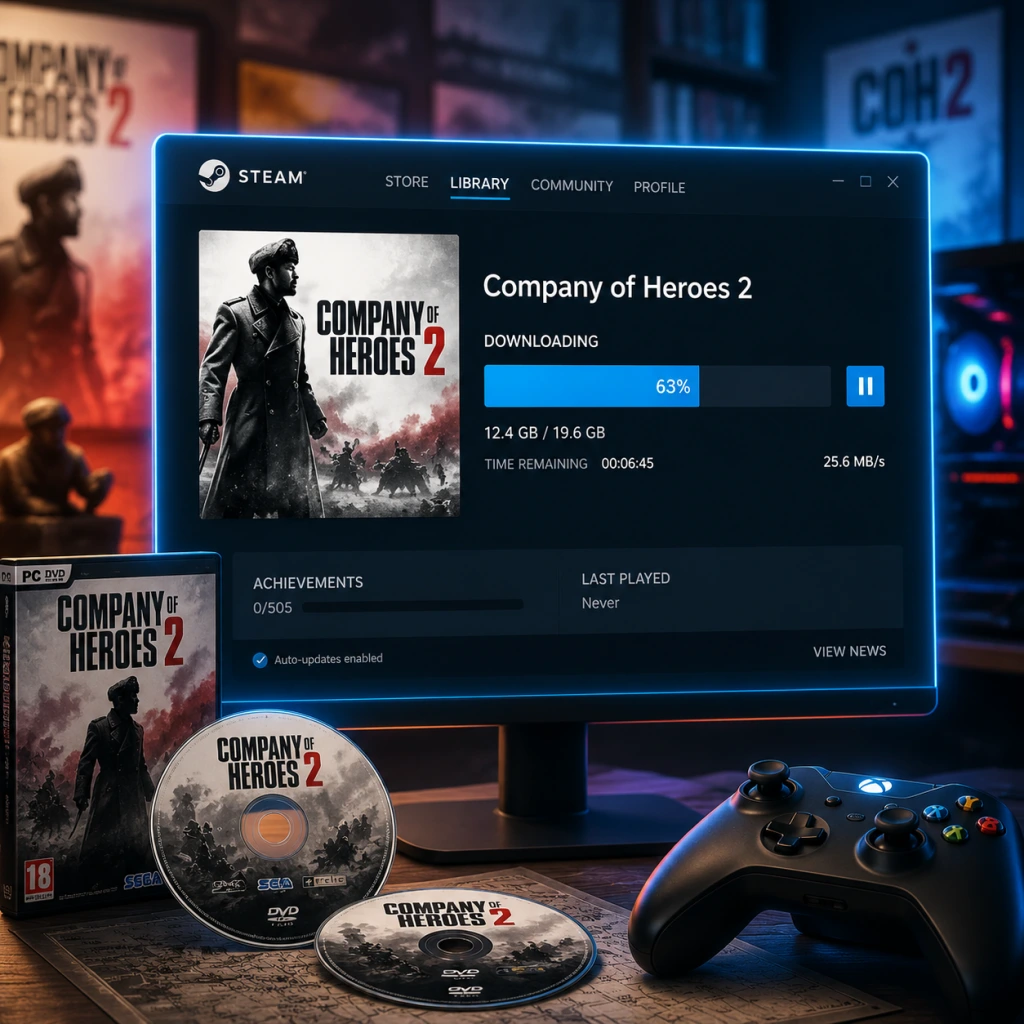
Download & Installation
Download & Installation Guide for Company of Heroes 2
Platform Availability
Company of Heroes 2 is primarily available on PC (Windows) and macOS. There are no releases for PlayStation, Xbox, Nintendo Switch, or mobile devices. The game is distributed digitally only, with no physical disc version still in widespread circulation.
| Platform | Official Sources | Additional Notes |
|---|---|---|
| Windows | Steam | The primary platform. All DLC and updates are delivered via Steam. |
| macOS | Steam, Mac App Store | The Mac version is published by Feral Interactive (originally Aspyr). It is fully separate from the Windows version – purchases do not cross-platform. |
System Requirements
#### Windows
- Minimum
- Recommended
- Minimum
- Recommended
- All versions require 30 GB of free disk space for the base game. With all DLC installed, this can exceed 35 GB. Ensure you have ample space before downloading.
- An SSD is highly recommended to reduce loading times, especially during multiplayer matches.
- Steam (Windows & macOS Steam version): A free Steam account is mandatory. Internet connection is required for download and initial activation.
- Mac App Store (macOS only): An Apple ID signed into the Mac App Store. No additional account is needed for single-player, but multiplayer requires a separate in-game account (see first launch below).
- On first launch (both platforms), you will be asked to configure:
- After account setup, the game will run a quick performance benchmark and suggest settings. Accept or adjust manually.
- Essential settings for smooth play:
- OS: Windows XP SP3 / Vista / 7 / 8 / 10 / 11
- CPU: 2.0 GHz Intel Core 2 Duo or equivalent
- RAM: 2 GB
- GPU: 512 MB DirectX 9.0c compatible (NVIDIA GeForce 8800 / ATI Radeon HD 2900 or better)
- DirectX: Version 9.0c
- Storage: 30 GB free space
- Sound: DirectX compatible
- OS: Windows 10 64-bit or newer
- CPU: 3.0 GHz Intel Core i5 or faster
- RAM: 4 GB
- GPU: 1 GB DirectX 11 compatible (NVIDIA GeForce GTX 560 / AMD Radeon HD 5850 or better)
- DirectX: Version 11
- Storage: 30 GB free space (SSD recommended for faster loading)
#### macOS
- OS: macOS 10.12 Sierra or later (Intel Mac only; not compatible with Apple Silicon natively, but can run via Rosetta 2 – performance may vary)
- CPU: 2.0 GHz Intel Core 2 Duo
- RAM: 4 GB
- GPU: 512 MB VRAM (NVIDIA GeForce 9400M / Intel HD 3000 or better)
- Storage: 30 GB free space
- OS: macOS 10.13 High Sierra or later
- CPU: 2.6 GHz Intel Core i5
- RAM: 8 GB
- GPU: 1 GB VRAM (NVIDIA GeForce GTX 700 series / AMD Radeon R7 or better)
- Storage: 30 GB free space (SSD strongly advised)
> Note: The macOS version does not support all DLC. The Windows version has more content. Check the store page for details.
Storage Space
Account Requirements
Step-by-Step Installation
#### 1. Purchase and Download on Steam (Windows & macOS)
1. Install the Steam client from [store.steampowered.com](https://store.steampowered.com) if you haven’t already.
2. Log in to your Steam account.
3. Navigate to the Store and search for “Company of Heroes 2”.
4. Purchase the game (or any bundle).
5. Go to your Library and find Company of Heroes 2 in the list.
6. Click Install.
- You will be prompted to choose the install location. Use an SSD if possible.
- The download size is ~28-30 GB. Ensure you have at least 50 GB free during installation to accommodate temporary files.
7. Wait for the download and installation to complete. Steam will automatically verify files and install necessary components (DirectX, Visual C++ redistributables).
#### 2. Purchase and Download on Mac App Store
1. Open the Mac App Store on your Mac.
2. Search for “Company of Heroes 2”.
3. Purchase the game using your Apple ID (requires Apple Pay or other linked payment method).
4. Click Get or the download button.
5. The app will download and install automatically. You can track progress in the Launchpad or Applications folder.
6. Once installed, launch the game from the Applications folder or Launchpad.
> Note: The Mac App Store version may require additional permissions (e.g., accessibility) to function correctly. Grant these when prompted.
First Launch Setup
- Graphics settings: Auto-detected based on your hardware, but you can adjust after the intro benchmark.
- Audio: Language and volume preferences.
- Account:
- Steam version: Your Steam account is used for multiplayer. You may need to sign into the in-game Relic/CoH2 online service (if prompted, create a free Relic ID).
- Mac App Store version: You will be prompted to create a Relic/SEGA Account or sign into an existing one. This is required for multiplayer and leaderboards. Provide a valid email and password.
- Disable VSync if you experience input lag.
- Enable triple buffering for smoother frame pacing.
- Lower shadow quality and tree foliage if performance is poor.
Common Installation Errors and Fixes
| Error | Likely Cause | Solution |
|---|---|---|
| Download stuck or slow | Steam server load or network issues | Pause and resume download, restart Steam, or change download region in Steam Settings > Downloads. |
| Missing MSVCR120.dll / XINPUT1_3.dll | Missing DirectX or Visual C++ redistributable | Install the necessary redistributables (Steam installs them automatically; manually run `_CommonRedist` folder in game directory). |
| "Failed to initialize the engine" | Corrupted installation or missing game files | Verify game files: In Steam Library, right-click Company of Heroes 2 > Properties > Local Files > Verify integrity of game files. |
| Game crashes on launch (macOS) | Old graphics drivers or incompatible macOS version | Update macOS to the latest version. Also try running the app in Low Resolution mode or Reduce Transparency under System Preferences > Accessibility > Display. |
| "Could not load library icons.dll" (Steam) | Antivirus blocking game files | Exclude the game’s installation folder (e.g., `C:\Program Files (x86)\Steam\steamapps\common\Company of Heroes 2`) from real-time scanning. |
| No sound (macOS) | Incorrect audio output or permissions | Ensure the game has permission to access microphone (if using voice chat) and that audio output is set correctly in System Settings > Sound. |
| Insufficient disk space error despite having space | Steam temporary cache needs clearing | Exit Steam, manually delete the `downloading` folder inside the Steam directory, then restart Steam and resume. |
| Stuck at "Preparing to launch" (Steam) | Steam client bug or missing prerequisites | Close Steam, go to `...\Steam\steamapps\common\Company of Heroes 2\_CommonRedist` and manually install all redistributables. Then relaunch Steam. |
- Run as Administrator (Windows) to avoid permission issues.
- Update graphics drivers to the latest version.
- Disable overlays (Steam, Discord, GeForce Experience) if the game fails to start.
- Reinstall if all else fails – uninstall through Steam/Mac App Store and re-download.
- Company of Heroes 2 is an older title but still receives occasional updates via Steam. Keep your game updated for best compatibility.
- For mods, use the Steam Workshop feature (integrated in the game). Subscribe to mods from the Workshop and enable them in the game’s Mods menu.
- If you experience persistent crashes, consider lowering the graphics preset and disabling Advanced Graphics effects like SSAO and High Quality Shadows.
Post‑Installation Verification
1. After installation completes, launch the game at least once to let it create necessary configuration files.
2. Play through the intro mission (Tutorial) to ensure no graphics or audio glitches.
3. Check that multiplayer can connect: Go to the main menu and select Multiplayer > Browse Servers. A list of active lobbies should appear.
4. Verify the installation size:
- Windows (Steam): Navigate to the install folder (usually `C:\Program Files (x86)\Steam\steamapps\common\Company of Heroes 2`). Right-click the folder > Properties – the size should be close to 30 GB.
- macOS (Steam): Go to `~/Library/Application Support/Steam/steamapps/common/Company of Heroes 2/` – size similar.
- macOS (Mac App Store): In Finder, right-click the application > Get Info – the download size is listed under “Installed”.
5. Optional: Run a file integrity check even if the game appears to work:
- Steam: Right-click game in Library > Properties > Local Files > Verify integrity of game files.
- Mac App Store: There is no built-in verification. If issues persist, delete and re-download the app.
Final Notes
Enjoy commanding the Eastern Front!