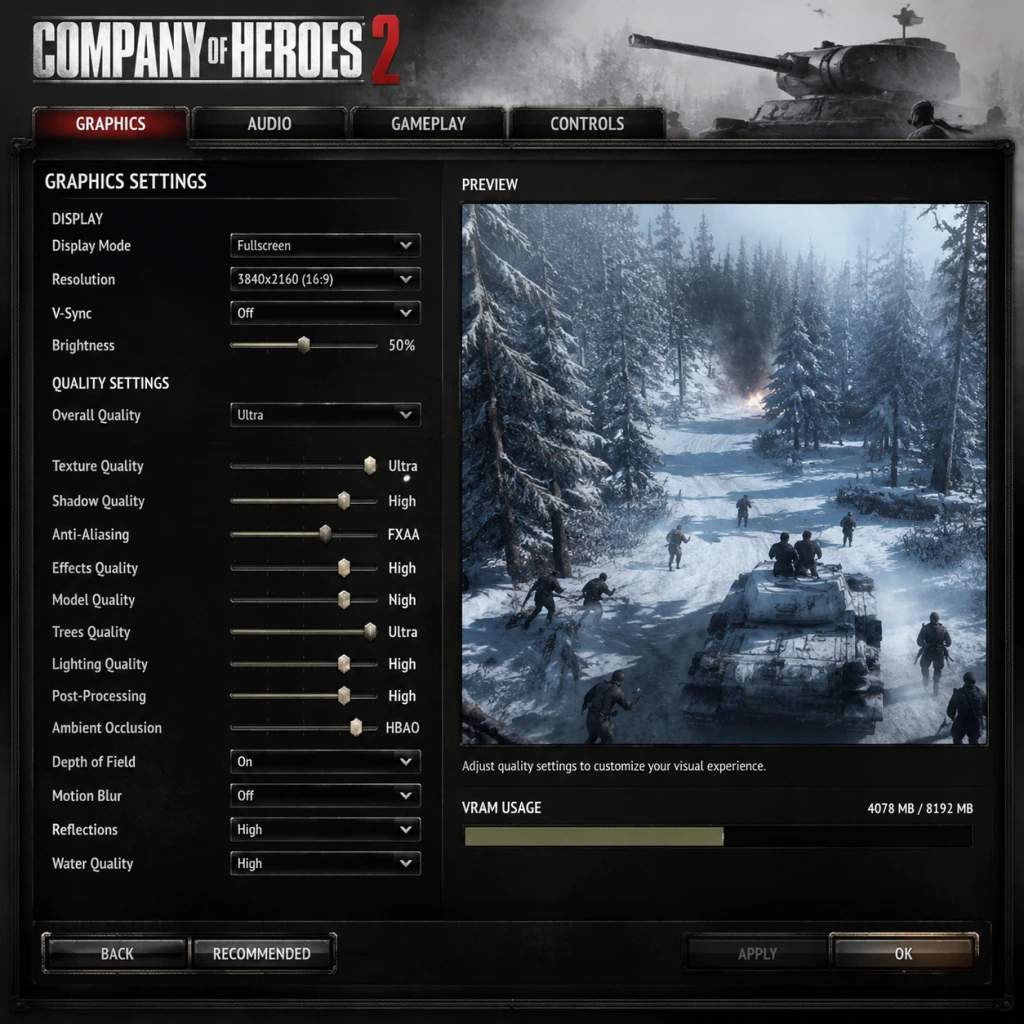
Game Settings
Game Settings Guide for Company of Heroes 2
This guide covers every major settings category in Company of Heroes 2: Graphics, Audio, Controls, Accessibility, Language, Network, and Gameplay. It includes recommended presets for low-end, mid-range, and high-end systems, highlights common misconfiguration pitfalls, and explains settings that require special attention during initial setup.
---
1. Graphics Settings
#### 1.1 Key Settings Breakdown
| Setting | Description | Performance Impact |
|---|---|---|
| Resolution | Native monitor resolution. Always set to your display's native res for best clarity. | High – lower resolution increases FPS. |
| Display Mode | Fullscreen, Windowed, Borderless Windowed. Borderless is good for alt-tabbing but may incur slight input lag. | Low – Fullscreen often gives best performance. |
| VSync | Synchronizes frame rate with monitor refresh rate. Off: screen tearing; On: capped FPS, can cause input delay. | Medium – disabling boosts FPS but may cause tearing. |
| Texture Quality | Controls resolution of in-game textures. | Medium – higher uses more VRAM. |
| Model Quality | LOD for units and structures. | Medium – higher reduces draw distance but looks better. |
| Shadow Quality | Resolution and softness of shadows. | High – major FPS hit. Low/Off helps low-end PCs. |
| Antialiasing | Smooths jagged edges. Options: Off, FXAA (low cost), MSAA 2x/4x/8x (expensive). | Very High – MSAA is very demanding. |
| Ambient Occlusion | Adds depth shading between objects. | Medium – can reduce FPS significantly |
| Terrain Detail | Foliage, debris, ground textures. | Medium – high settings reduce FPS in heavy forests. |
| Particle Quality | Explosions, smoke, muzzle flashes. | Medium – high can cause stutter in large battles. |
| Water Detail | Reflections, transparency. | Low – minimal visual benefit, high cost. |
| Lens Flare | Light streaks from sun/explosions. | Low – off gives minor FPS gain. |
| Effects Quality | Multi-effect LOD (bloom, motion blur, etc.). | Medium – high can blur clarity. |
| Saturation | Color intensity. | None – performance neutral. |
| Gamma | Brightness adjustment. | None – use a calibration image for best visibility. |
Low-End (e.g., Intel HD Graphics, 4 GB RAM, 1 GB VRAM)
- Resolution: 1280×720 / 1366×768
- Display Mode: Fullscreen
- VSync: Off
- Texture Quality: Low
- Model Quality: Low
- Shadow Quality: Off (or Low)
- Antialiasing: Off
- Ambient Occlusion: Off
- Terrain Detail: Low
- Particle Quality: Low
- Water Detail: Low
- Lens Flare: Off
- Effects Quality: Low
- Aim for 30 FPS steady.
- Resolution: 1920×1080
- Display Mode: Fullscreen
- VSync: Off (unless tearing bothers you)
- Texture Quality: High
- Model Quality: High
- Shadow Quality: Medium
- Antialiasing: FXAA (or Off)
- Ambient Occlusion: Off (or SSAO Low)
- Terrain Detail: High
- Particle Quality: High
- Water Detail: Medium
- Lens Flare: On (negligible cost)
- Effects Quality: High
- Target 60 FPS most of the time.
- Resolution: 2560×1440 or 4K
- Display Mode: Fullscreen
- VSync: Off (use G-Sync/FreeSync if available)
- Texture Quality: Ultra (if available)
- Model Quality: Ultra
- Shadow Quality: High / Ultra
- Antialiasing: MSAA 4x (or 2x for 4K)
- Ambient Occlusion: SSAO or HBAO+
- Terrain Detail: Ultra
- Particle Quality: Ultra
- Water Detail: High
- Lens Flare: On
- Effects Quality: Ultra
- Aim for 60 FPS minimum; 100+ FPS on 1080p.
- VSync: Many players leave it Off for lower latency, but if you experience screen tearing, enable it or cap FPS via your GPU driver. In CoH2, VSync also caps at 60 FPS even on 144 Hz monitors – this can feel sluggish. Use driver-level Frame Rate Limit instead.
- Antialiasing: MSAA often causes crashes on older drivers or AMD cards. Start with FXAA – it's light and prevents jaggies adequately in an RTS where you're zoomed out.
- Effects Quality: Setting this to Ultra adds heavy motion blur and bloom that can obscure enemy units at the edge of the screen. Many competitive players keep it Medium or Low for clarity.
- Terrain Detail: On snow maps, High terrain detail adds a lot of snow particles that hurt FPS. If performance dips on Eastern Front maps, lower this first.
Mid-Range (e.g., GTX 1060 / RX 580, 8 GB RAM, 4 GB VRAM)
High-End (e.g., RTX 3070 / RX 6800, 16 GB RAM, 8+ GB VRAM)
#### 1.3 Easy-to-Misconfigure Graphics Settings
---
2. Audio Settings
#### 2.1 Options Explained
| Setting | Description | Recommendation |
|---|---|---|
| Master Volume | Overall volume. | 70–80% to leave headroom. |
| Music Volume | Background music. | 30–50% – can be distracting during combat. |
| SFX Volume | Weapons, explosions, vehicles. | 100% for situational awareness. |
| Voice Volume | Unit callouts and narrator. | 100% – crucial for hearing “Squad wiped!” or abilities. |
| Cinematic Volume | Cutscenes only. | Same as Master. |
| Enable EAX | Environmental audio effects (if supported). | Off – EAX is obsolete and can cause distortion. |
- Voice Volume is vital: Enemy flamethrower sounds, tank engine roars, and ability activation voicelines give early warnings. Never lower it below 80%.
- Music Volume: In multiplayer, consider turning music off entirely to focus on ambient sounds like footsteps or artillery.
- Speaker Configuration: If you use headphones, enable Windows Sonic or Dolby Atmos for better positioning. CoH2 doesn't have native HRTF, so stereo headphones are fine.
- Camera Scroll: WASD or Edge Pan
- Group Select/Create: Ctrl + 1-9
- Attack Move: A + Left Click
- Reverse Move (Vehicles): R (press while vehicle selected)
- Hold Fire: H
- Stop: S
- Squad Abilities: Q, W, E, R (by default)
- Retreat: T (all squads) or Backspace (selected)
- Build menu: B (then click structure)
- Change Retreat to a more accessible key like `R` or `Mouse Button 4` (since T is far from WASD).
- Move Attack Move to `Shift + Right Click` (like Starcraft) if you prefer it.
- Remap Ability keys to `1-4` instead of QWER if you have small hands.
- Camera Scroll Speed: Adjust between 40–60% for precise control.
- Edge Panning: Enable. If disabled, you must use WASD – edge pan is faster for most players.
- Sensitivity: Keep mouse DPI 800-1600; in-game Pointer Sensitivity = 5-10.
- Reverse Move (R): By default it's a toggle – pressing R once makes the vehicle drive backward BUT it reverses direction of turret if the vehicle is facing away. Practice in skirmish before using in multiplayer.
- Retreat: The default `T` key retreats all squads – not just selected squads. Many new players accidentally retreat their entire army. Rebind to something else or use `Backspace` for selected units only.
- Hold Fire (H): Very useful for ambushes – but beginners often forget to re-enable fire. Use `H` to toggle; check the unit icon (crossed-out gun) to confirm.
- Colorblind Mode: None directly in settings. You must enable High Contrast via Windows Ease of Access (which affects UI colors). Alternatively, use Reshade filters to adjust color grading.
- Text Size: Cannot be changed. Use Windows Magnifier (Win + +) to zoom UI.
- Cursor Size: No setting. A third-party tool like Yolomouse can enlarge the cursor.
- Subtitle Size: No adjustment. The game has subtitles for campaign cutscenes but they are small.
- One-handed play: Use AutoHotkey script to map mouse buttons to keyboard keys (e.g., side buttons for Retreat/Select all).
- Slow down game speed: In custom skirmish, set game speed to 0.5x to give more reaction time.
- TTK (Time to Kill) cannot be adjusted. CoH2 is very squishy – one sticky grenade can wipe a squad. If you have slow reaction times, play 1v1 with longer game speed or play against AI on Easy.
- UI Opacity: Not adjustable. For players with low vision, try lowering resolution to enlarge HUD elements.
- Interface Language: Supports English, French, German, Italian, Spanish, Polish, Russian, Japanese, Simplified Chinese, Korean, and more. Can be changed in Steam properties (right-click CoH2 → Properties → Language). Does not affect gameplay.
- Audio Language: Only English voice acting is available. Some community mods add other languages, but they are not officially supported.
- Subtitle Language: Subtitles only appear in the language of the player's interface language. No separate subtitle toggle for story conversations.
---
3. Controls & Hotkeys
#### 3.1 Default Controls Overview
CoH2 uses typical RTS controls (WASD camera, mouse for selection). Important bindings:
#### 3.2 Hotkey Customization
Settings → Controls → Key Bindings. You can rebind every action. Recommendations:
#### 3.3 Mouse / Camera Settings
#### 3.4 Easy-to-Misconfigure Controls
---
4. Accessibility Settings
CoH2 has limited built-in accessibility features, but some can be improved via external tools.
#### 4.1 In-Game Options
#### 4.2 Controller / Re-mapping for Accessibility
#### 4.3 Special Attention
---
5. Language Settings
---
6. Network Settings
#### 6.1 Online Modes & Connection
CoH2 uses peer-to-peer (P2P) networking for multiplayer. No dedicated servers in standard matchmaking (except some community mods like Spearhead).
| Setting | Location | Recommendation |
|---|---|---|
| Port Forwarding | Router / Firewall. | Forward TCP/UDP 6112, 28910, 29900, 29901, 29910, 29920 for best stability. See official support. |
| UPnP | Router setting. | Enable – helps CoH2 open ports automatically. |
| NAT Type | In-game network test (Settings → Network → Test). | Must be Open (Precision: player-hosted then type 5). If Moderate or Strict, other players may fail to connect. |
- Latency Indicator: Always keep enabled (top-right of screen). Shows ping to host.
- Mod Sync: Turn off Auto-Download mods if you play only vanilla; turning off reduces loading time.
- Spectator Mode: Joining as spectator uses same connection. Ensure stable internet (5 Mbps up/down).
- Firewall/Antivirus often block CoH2's ports. Add exceptions for `RelicCoH2.exe` in Windows Defender and any third-party AV. Symptoms: cannot join games, dropouts.
- Mod compatibility: If you have mods installed and the host does not, the game will prompt to sync mods. If you decline, you may be kicked. If mods cause connection errors, verify game files in Steam.
- Voice Chat: CoH2 has no in-game voice chat. Use Discord or TeamSpeak. Ensure Push-to-Talk key does not conflict with control keys.
#### 6.3 Easy-to-Misconfigure Network Settings
---
7. Gameplay Settings
#### 7.1 Options That Affect Core Mechanics
| Setting | Description | Recommendation |
|---|---|---|
| Auto-Select Substitute Squads | When a squad is wiped, automatically selects another. | Off – better to manually select. |
| Camera Follow on Selection | Camera jumps to selected unit. | Off – use double-click unit icon or Space to locate. |
| Show Terrain Grid | Displays cover icons on ground. | On – essential for positioning squad behind green cover. |
| Show Health Bars | Always show HP above units. | On – critical for assessing retreats. |
| Show Capture Progress | Shows percentage of each point. | On – helps prioritize. |
| Auto-Retreat (Post-Victory) | Units automatically retreat after objective capture? | Off – you control timing. |
| Toggle Grenade Auto-Cancel | If you press a grenade ability, you can cancel by right-clicking (default). | Keep On – to avoid wasting munitions. |
| Minimap Mode | Circular or Square. | Square is easier to read. |
| Minimap Size | Small, Medium, Large. | Large – useful for spotting flank attacks. |
| V-Sync (Repeated from Graphics) | Also appears here. | Keep Off in gameplay for no input lag. |
- Show Terrain Grid: Without it, you cannot differentiate green (heavy cover) vs yellow (light cover) vs red (negative cover). Always on.
- Auto-Select Substitute Squads causes confusion when you lose a unit and suddenly control another squad far away. Turn Off.
- Camera Follow on Selection: Can disorient you when you click on a building and the camera teleports. Keep Off; use `Space` to recenter on selected units.
- Minimap: Enlarge it and set to transparent if it blocks view. Click on minimap to issue move orders – very fast.
- Mouse Smoothing: Add `gfx_smoothmouse = 0` under [Graphics] to remove acceleration.
- FPS Limit: Add `gfx_maxfps = 144` (or your monitor's refresh rate) if VSync is off to avoid unnecessary GPU load.
- `-novideo` – skips intro videos (saves a few seconds).
- `-dx11` – use DirectX 11 (default). Use `-dx9` for older GPUs.
- `-window` – force windowed mode.
- `-nosound` – disable sound entirely (use only for troubleshooting).
---
8. Additional Configuration Tips
#### 8.1 Configuration Files
CoH2 stores settings in `Documents/My Games/Company of Heroes 2/configuration.lua`. You can edit it manually for advanced tweaks (e.g., disable mouse acceleration).
#### 8.2 Launch Options (Steam)
Right-click CoH2 → Properties → General → Launch Options. Useful flags:
#### 8.3 Cloud Saves
CoH2 syncs settings and profile via Steam Cloud. If you change settings on one PC, they apply everywhere. To revert to default, delete `configuration.lua` and restart game.
---
9. Final Setup Checklist
1. First Launch: Run the game once to create default files, then exit.
2. Graphics: Apply the appropriate preset from the hardware table above. Disable VSync and set antialiasing to FXAA first.
3. Audio: SFX and Voice at 100%, Music at 30%.
4. Controls: Remap Retreat to a safe key (e.g., `R`), enable edge panning, adjust scroll speed.
5. Network: Forward ports if you host often; run the in-game network test to get Open NAT.
6. Gameplay: Enable Terrain Grid, Health Bars, Capture Progress; disable Auto-Select Substitute.
7. Test: Start a skirmish vs AI on a snow map (e.g., Kharkov) and adjust graphics if FPS drops below 30.
With these settings, you'll have an optimized and competitive experience in Company of Heroes 2. Adjust based on personal preference, but the defaults described above will avoid common pitfalls.