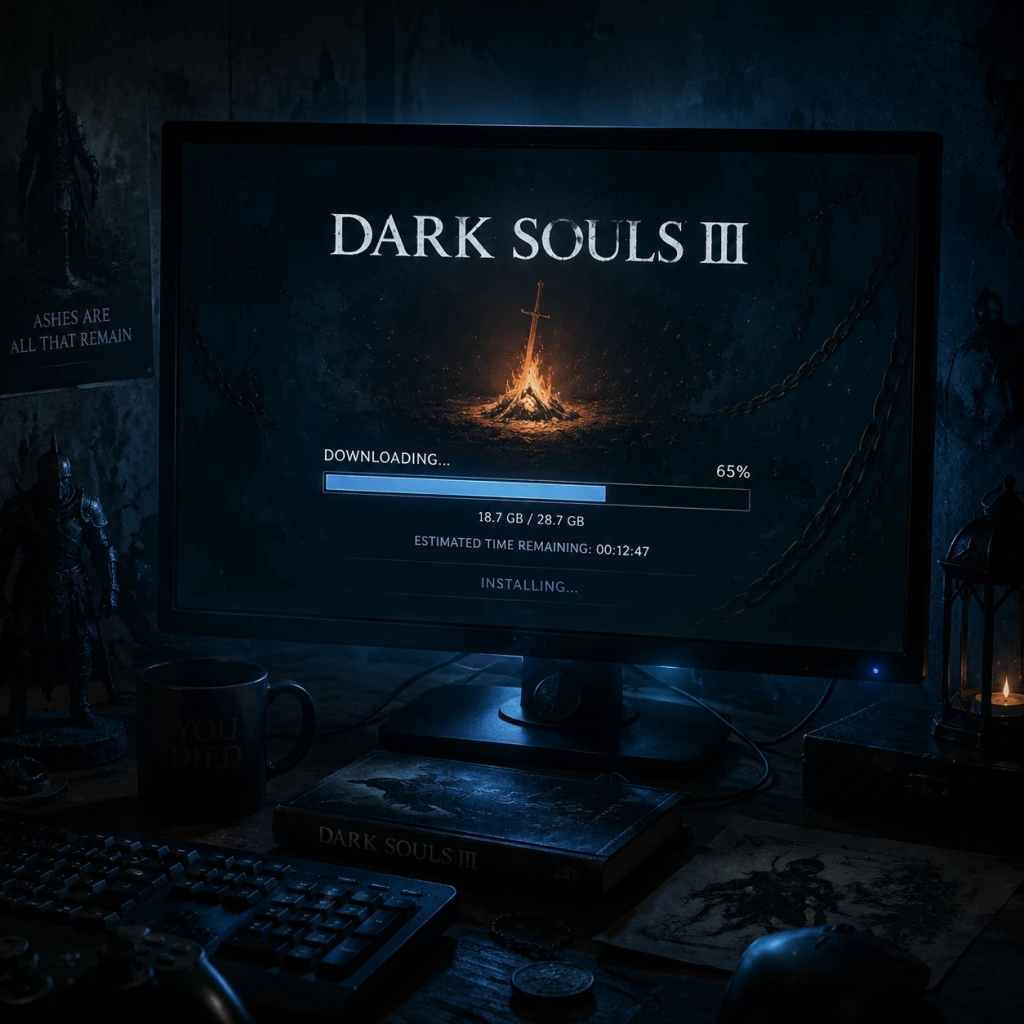
Download & Installation
Dark Souls III Download & Installation Guide
This guide covers official digital download and installation for Dark Souls III across all supported platforms: PC (Steam), PlayStation 4/5, and Xbox One/Series X|S. There is no native version for Nintendo Switch or mobile devices.
---
System Requirements (PC)
Minimum Requirements
| Component | Specification |
|---|---|
| OS | Windows 7 SP1 64-bit, Windows 8.1 64-bit, Windows 10 64-bit |
| CPU | Intel Core i3-2100 / AMD FX-6300 |
| RAM | 4 GB |
| GPU | NVIDIA GeForce GTX 750 Ti / AMD Radeon HD 7950 |
| DirectX | Version 11 |
| Storage | 25 GB available space |
| Sound Card | DirectX 11 compatible |
Recommended Requirements
| Component | Specification |
|---|---|
| OS | Windows 7 SP1 64-bit, Windows 8.1 64-bit, Windows 10 64-bit |
| CPU | Intel Core i7-3770 / AMD FX-8350 |
| RAM | 8 GB |
| GPU | NVIDIA GeForce GTX 970 / AMD Radeon R9 290 |
| DirectX | Version 11 |
| Storage | 25 GB available space (SSD recommended) |
| Sound Card | DirectX 11 compatible |
---
Platform-Specific Download Sources
- PC: Only available on [Steam](https://store.steampowered.com/app/374320/DARK_SOULS_III/) (purchase required). Not available on Epic Games Store or any other launcher.
- PlayStation 4/5: Available via PlayStation Store (digital download) or physical disc. For PS5, backward compatible with PS4 version (plays with enhanced performance).
- Xbox One / Xbox Series X|S: Available via Microsoft Store (digital download) or physical disc. Backward compatible on Series X|S with performance boost.
---
Step-by-Step Installation
PC (Steam)
1. Create a Steam account if you don’t have one: [https://store.steampowered.com/join/](https://store.steampowered.com/join/)
2. Install the Steam client from [https://store.steampowered.com/about/](https://store.steampowered.com/about/) and log in.
3. Purchase Dark Souls III on Steam (click “Add to Cart” then “Purchase for myself”).
4. Install via Steam Library:
- Go to Library → select DARK SOULS III.
- Click Install.
- Choose installation directory (default: `C:\Program Files (x86)\Steam\steamapps\common\DARK SOULS III`). Ensure at least 25 GB free.
- Click Next and wait for download. Optionally, you can pause/resume downloads.
5. Post-install: The game will be added to your library; click Play to launch.
Note: Steam will automatically download the latest patch. No separate update process needed.
PlayStation 4/5
1. Create a PSN account (if new) via console or [PlayStation website](https://account.sony.com/).
2. Access PlayStation Store:
- On PS4/PS5 home screen, scroll to PlayStation Store.
3. Search for “Dark Souls III” using the search bar.
4. Purchase: Select the game (Standard or Deluxe Edition) → click Add to Cart → complete purchase.
5. Download:
- After purchase, the download starts automatically. You can monitor progress from Notifications → Downloads.
- Ensure enough free storage (≥25 GB). On PS5, you can install PS4 games to internal SSD or extended storage.
6. Launch: Once download finishes, the game appears on the home screen. Select it and press X to start.
PS5 Backward Compatibility: The PS4 version runs on PS5 without additional cost. No separate upgrade needed.
Xbox One / Xbox Series X|S
1. Create an Xbox Live account (free or Game Pass required) via console or [Microsoft account](https://account.microsoft.com/).
2. Access Microsoft Store:
- On Xbox dashboard, scroll to Microsoft Store.
3. Search for “Dark Souls III”.
4. Purchase: Select edition → Buy → confirm payment method.
5. Install: After purchase, go to My games & apps → See all → Ready to install. Find Dark Souls III → press Install.
- Choose installation destination (internal or external storage). Ensure ≥25 GB free.
6. Launch: From My games & apps, select the game tile and press A.
Xbox Series X|S Enhancement: The game benefits from faster loading and Auto HDR. No separate version required.
---
Account Requirements
| Platform | Required Account | Cost (besides game) |
|---|---|---|
| PC (Steam) | Steam account | Free to create |
| PlayStation | PSN account | Free (PlayStation Plus not required for single-player, but needed for online play) |
| Xbox | Xbox Live account | Free tier available (Game Pass Core/Ultimate for online play) |
---
First Launch Setup
1. Graphics Configuration: Upon first launch, the game will auto-detect settings. You can adjust later in System → Graphics Configuration:
- Resolution: Match your monitor’s native resolution.
- Display Mode: Fullscreen recommended for best performance.
- Quality Presets: Low, Medium, High, Max. If unsure, start with High and tweak.
- Shading Quality, Lighting, Effects: Lower these for older GPUs.
2. Controls: Default keys/buttons are shown. Customize in System → Controls (PC) or via console system menus.
3. Online Settings: Decide whether to play online (recommended for messages and bloodstains). Set to Offline if you want no player interactions.
4. Calibrate HDR (if applicable on PS5/Xbox Series): Use console’s HDR settings; the game does not have an in-game HDR calibration.
5. Save Data: The game auto-saves constantly. Do not turn off the console/PC during save icons.
---
Common Installation Errors & Fixes
PC (Steam)
| Error | Cause & Fix |
|---|---|
| “Missing executable” or “DARK SOULS III.exe not found” | Antivirus quarantined file. Add Steam folder to antivirus exceptions. Verify game files (Steam Library → right-click game → Properties → Local Files → Verify integrity of game files). |
| “Fatal error” on launch | Outdated GPU drivers. Update NVIDIA/AMD drivers. Also try running as administrator. |
| Low FPS / Stuttering | Background programs using CPU/GPU. Close unnecessary apps. Lower graphics settings. Ensure power settings set to High Performance. |
| Download stuck at 0% | Corrupt Steam download cache. Go to Steam → Settings → Downloads → Clear Download Cache, then restart. |
| Insufficient permissions | Run Steam as administrator (right-click shortcut → Run as administrator). |
PlayStation 4/5
| Error | Cause & Fix |
|---|---|
| “Cannot install” (CE-30022-7) | Damaged data or HDD issue. Delete partial download and retry. If persists, rebuild database (Safe Mode). |
| Download queued but not starting | Check network connection. Pause/resume download. Restart console. |
| “App not available” on PS5 | Ensure you’re logged into the correct account that purchased the game. |
Xbox One / Series
| Error | Cause & Fix |
|---|---|
| “Installation stopped” | Insufficient space or network issue. Free up storage. Restart console. |
| Game won’t launch (0x803F8001) | License sync issue. Press and hold power button for 10 seconds to hard reset. |
| “You need to be online” but you are | Check Xbox Live status. Sign out and sign back in. Clear alternate MAC address (Settings → Network → Advanced settings → Alternate MAC address → Clear). |
Post-Installation Verification
After installation, verify that the game is fully functional:
1. Check file integrity (PC only): Steam Library → right-click game → Properties → Local Files → Verify integrity of game files. This can take several minutes. Fixes corrupted downloads.
2. Launch the game: It should show the title screen and a prompt to press any button.
3. Check version number (PC): On the main menu, look in bottom-left corner (e.g., App Ver. 1.15.1). Ensure it matches the latest patch.
4. Test online connectivity: If you plan to play online, create a new character and look for player messages (white shining markings on ground). If none appear, check your network and account subscription.
5. Audio/Visual test: Listen for music and sound effects. Move the camera to ensure no graphical glitches.
If everything works, you are ready to journey through Lothric. Enjoy!