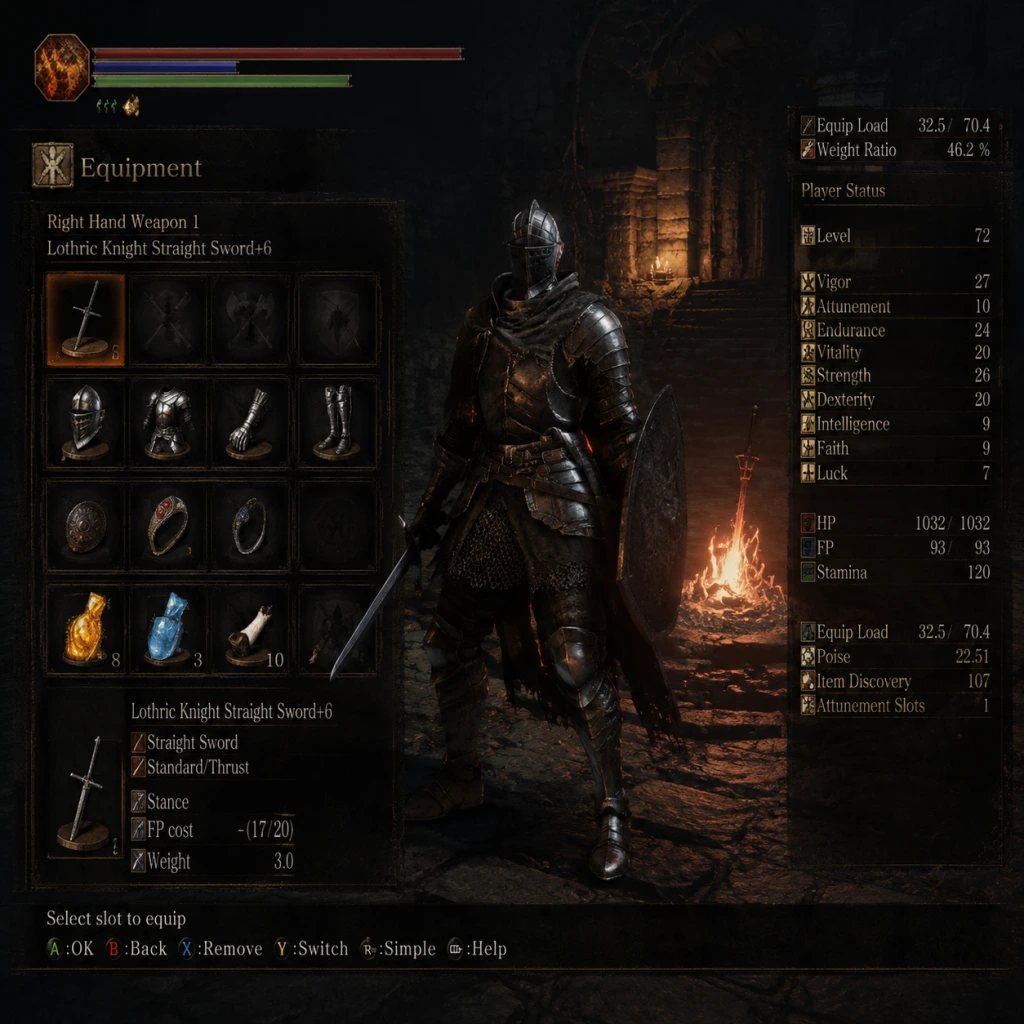
Game Settings
Dark Souls III Game Settings Guide
This guide covers every important setting in Dark Souls III. Proper configuration can significantly improve performance, clarity, and gameplay comfort. Settings are grouped into Graphics, Audio, Controls, Accessibility, Language, Network, and Gameplay sections. We also provide optimal recommendations for low, medium, and high-end PCs, plus tips for console players.
---
Graphics Settings
Graphics are the most impactful settings for performance and visual quality. Dark Souls III uses the FromSoftware engine, which scales well on PC but has some specific tweaks.
Key Settings & Recommendations
| Setting | Options | Low-End PC | Medium PC | High-End PC | Notes |
|---|---|---|---|---|---|
| Screen Mode | Fullscreen / Windowed / Borderless | Fullscreen | Fullscreen | Fullscreen | Always use Fullscreen for best performance and reduced input lag. Windowed mode adds overhead. |
| Resolution | Native monitor resolution or lower | 1280x720 or 1600x900 | 1920x1080 | 2560x1440 or 4K | Match your monitor’s native resolution for clarity. Lowering resolution can help low-end systems. |
| V-Sync | On / Off | Off (if screen tearing bothers you, enable in GPU control panel) | On or Off | On (use GPU control panel Fast Sync for less input lag) | V-Sync caps framerate and adds input lag. For competitive multiplayer, turn V-Sync off and use driver-level frame rate limiter. On consoles V-Sync is forced. |
| Anti-Aliasing | Off / FXAA / SMAA / MSAA x2 / x4 | FXAA | SMAA | SMAA or MSAA x2 | FXAA is blurrier but cheapest. SMAA offers better quality/performance balance. MSAA is heavy on GPU memory. If you need performance, use FXAA or turn off. |
| Texture Quality | Low / Medium / High | Low | Medium | High | VRAM dependent: Low (512MB), Medium (1GB), High (2GB+). Textures affect sharpness but not FPS heavily (unless VRAM is full). |
| Shadow Quality | Low / Medium / High | Low | Medium | High (or Medium) | Shadows are very GPU-intensive. Low reduces distance and resolution. Medium is a good trade-off. High can cost 5–10 FPS. |
| Lighting Quality | Low / Medium / High | Low | Medium | High | Affects dynamic lights, volumetric effects. High on low-end causes stutter. |
| Effects Quality | Low / Medium / High | Low | Medium | High | Controls particles (fire, magic, fog). Low may look very basic but helps FPS. |
| Depth of Field | On / Off | Off | Off | On (if you like cinematic blur) | DOF blurs distant objects. Disabling improves clarity and performance slightly. Many competitive players turn it off. |
| Motion Blur | On / Off | Off | Off | On (personal preference) | Blurs screen during movement. Off gives clearer image and marginally better performance. |
| Blood & Gore | On / Off | On | On | On | Has negligible performance impact. Only affects visual fidelity. |
Optimal PC Presets
- Low-End (e.g., Intel HD 530, GTX 750 Ti, 4GB RAM): 720p resolution, Fullscreen, V-Sync Off (use driver limiter to 30 FPS), textures Low, shadows Low, lighting Low, effects Low, anti-aliasing FXAA or Off, DOF/Motion Blur Off. Expect 30–40 FPS. Cap at 30 FPS for stable play.
- Medium (e.g., GTX 1060 6GB, RX 580, 8GB RAM): 1080p, Fullscreen, V-Sync On (or Off with driver limiter 60 FPS), textures High, shadows Medium, lighting Medium, effects Medium, anti-aliasing SMAA, DOF/Motion Blur Off. Consistent 60 FPS with occasional dips in heavy areas.
- High-End (e.g., RTX 2070 Super, 16GB RAM): 1440p or 4K, Fullscreen, V-Sync On (or Fast Sync/GSync), textures High, shadows High, lighting High, effects High, anti-aliasing SMAA or MSAA x2 (x4 only if GPU headroom), DOF/Motion Blur On if preferred. Maintains 60 FPS at 1440p, 4K may need some setting reduction to keep 60 FPS.
- PS4 / Xbox One: 1080p, 30 FPS capped. No options to adjust.
- PS4 Pro / Xbox One X: 1800p checkerboard on PS4 Pro, 2160p on Xbox One X, both 30 FPS. Some players prefer PS4 Pro’s “Favor Performance” mode? (Not present; both are locked. The Pro has slightly better frame pacing but still 30 FPS).
- PS5 / Xbox Series X|S: Backward compatible. Higher resolution (usually 2160p) and a much more stable 60 FPS (unlocked through backward compatibility, not a native patch). No official enhancement, but performance mode is smoother on PS5/XSX due to higher CPU/GPU.
Console Graphics
Special Attention: On PC, disable V-Sync and cap frame rate to 60 FPS via GPU control panel (e.g., NVIDIA Control Panel or Radeon Software) to avoid the game’s internal V-Sync input lag. Also, turn off “Depth of Field” if you want a sharper image – it can obscure distant enemies.
---
Audio Settings
| Setting | Options | Recommendation | Notes |
|---|---|---|---|
| Master Volume | 0–10 | 8 (adjust for your headset) | Controls overall volume. Never max out speakers. |
| Sound Effects Volume | 0–10 | 10 | Keep at max to hear enemy footsteps, attacks, and environmental cues. |
| Music Volume | 0–10 | 7–8 | Boss music is important, but not too loud to mask sounds. |
| Voice Volume | 0–10 | 10 | Essential for NPC dialogue and boss taunts. |
| Subtitle Display | On / Off | On (first playthrough) | Even if you understand English, subtitles help catch dialogue during tough fights. |
| Voice Language | English / Japanese | Personal preference | Can be changed here. Japanese voices offer a different feel; English voice acting is solid. |
---
Controls Settings
Dark Souls III supports keyboard & mouse and controllers. The game is designed for a controller, but KB&M can work with configuration.
Controller (Recommended)
| Setting | Recommendation | Notes |
|---|---|---|
| Control Icons | Xbox / PlayStation | Match your controller type for on-screen prompts. |
| Invert Y-Axis | Off (default) | Only invert if you prefer flight sim style. |
| Camera Speed | 3–5 (out of 10) | Higher speed for quick 180-degree turns. Start at 4. |
| Lock-On Auto-Reset | Off (preferred by many) | If On, camera will snap behind you when lock-on breaks. Many turn it Off for manual control. |
| Auto-Target Lock | On (default) | Automatically chooses nearest enemy when pressing lock-on. Leave On unless you want manual only. |
| Reset Camera | Tap R3 (right stick click) | Useful to center camera behind character quickly. |
Keyboard & Mouse
If you play KB&M, remap keys for comfort. Default layout is awkward. Essential rebinds:
- Light Attack: Left Mouse Button (default) – keep.
- Strong Attack: Right Mouse Button – keep or move to mouse thumb button.
- Block: Shift (default) – keep or move to left Alt.
- Parry: Right Mouse Button (default) – but using mouse thumb button can be easier.
- Use Item: E (default) – fine.
- Switch Weapon: Mouse wheel up/down or 1/2 keys.
- Lock-On: Middle Mouse Button or Q.
- Roll/Sprint: Spacebar (default) – keep.
- Interact: E (default) – fine.
- Menu: Esc (default).
Special Attention: The game has no “hold to crouch” – crouching is not a mechanic. Also, disable “Auto-Target Lock” if you find yourself locking onto the wrong enemy in groups. Many experienced players prefer to manually lock on with L3 (or Q on keyboard).
---
Accessibility Settings
Dark Souls III has very limited built-in accessibility options. Here’s what exists:
| Setting | Options | Notes |
|---|---|---|
| Subtitle Display | On / Off | Turn On for dialogue. No option for closed captions (sound effects). |
| Colorblind Options | None | No colorblind modes. Rely on item descriptions and player icons. |
| Difficulty | None | No difficulty settings. The game is fixed challenge. |
| Text Size | Not adjustable | Small text on menus. No scaling. |
| Controller Remapping | In-game (limited) | You can remap controller buttons within the game from the Controls menu. This is a form of accessibility. |
| Keyboard Remapping | Full customisation | PC version allows full keyboard remap in the Controls menu. |
| Button Hold vs Toggle | Toggle for running (single press dodge) | You can switch between “Hold” (keep button pressed to run) and “Toggle” (press once to run). Toggle can reduce finger strain. |
| Camera Auto-Adjust | On / Off | Turn Off if camera sway makes you motion sick. |
| Controller Vibration | On / Off | Off can help if vibration is distracting or causing discomfort. |
---
Language Settings
| Setting | Options | Recommendation |
|---|---|---|
| Text Language | Multiple (system-dependent) | Set to your preferred language. Changes all menus and item descriptions. Must be selected at first launch (cannot be changed in-game without editing ini files on PC – so choose carefully). |
| Voice Language | English, Japanese | Can be changed in Audio settings at any time. |
---
Network Settings
Network settings affect online matchmaking, summoning, and invasions.
| Setting | Options | Recommendation | Notes |
|---|---|---|---|
| Launch Setting | Play Online / Play Offline | Choose Online if you want multiplayer. Offline disables all online features (messages, invasions, co-op). | Special: You can set the game to offline to avoid invasions while still being able to summon NPC phantoms. |
| Matchmaking Region | Worldwide / Local | Worldwide for faster matchmaking, but may increase lag. Local gives lower latency but fewer players. Choose based on your region. | |
| Password Matching | On / Off (enter password) | Turn On to set a password for co-op with friends. Same password required for both players. Also works for PvP arena (no password needed for duels). | |
| Summon Sign Visibility | Unrestricted / Restricted | Unrestricted shows signs from all players. Restricted shows only signs from players in your level/weapon range. Leave Unrestricted unless you want to filter. | |
| Voice Chat | On / Off | Off recommended – voice chat is rarely used and can be annoying. | |
| Cross-Region Play | On / Off (PC only? Actually it’s part of matchmaking region) | If you want to play with players from other continents, enable. May cause lag. |
---
Gameplay Settings
These settings change core gameplay behavior.
| Setting | Options | Recommendation | Notes |
|---|---|---|---|
| Auto-Target Lock | On / Off | On for beginners; Off for advanced players (manual lock) | Automatic lock-on may switch to a closer enemy mid-fight. Turn Off to maintain target. |
| Lock-On Auto-Reset | On / Off | Off | When On, after a lock-on breaks (e.g., enemy died), camera snaps behind you. Off gives you control. |
| Show Weapon & Equipment at Bonfire | Enabled / Disabled | Disabled (to improve menu speed) | When enabled, the game shows your character model and weapons in the bonfire menu, causing slight delay. Disable for faster menu navigation. |
| Auto-Sort Item Box | On / Off | Off | On will auto-sort your storage box; Off lets you manually arrange. |
| Control Type | Normal / Special | Normal | Special is only used for specific controller patterns – leave Normal. |
| Button Input Display | On / Off | Off | Shows button prompts on screen – useful for tutorial, but off for immersion. |
| Hide Helm | On / Off | Personal preference | Hides your helmet during gameplay but still keeps its stats. Useful for fashion. |
| Camera Distance | Near / Far | Far (default) | Gives a wider field of view; helps awareness. |
| Camera Auto-Adjust | On / Off | Off (for manual control) | When On, camera may auto-adjust when running along walls or cliffs – can cause disorientation. |
---
Summary of Easy-to-Misconfigure Settings
1. Text Language – Cannot be changed easily after first boot. Double-check initial language selection.
2. V-Sync – Default On creates input lag; recommend turning Off and capping FPS externally.
3. Auto-Target Lock – Many players inadvertently lock onto the wrong enemy; consider turning Off.
4. Show Equipment at Bonfire – Slows down menu; disable for faster swapping.
5. Depth of Field – Blurs distance; disable for clarity.
6. Launch Setting (Online/Offline) – If you want to avoid invasions but still want messages, you cannot. Either play online and deal with invasions, or go offline completely.
7. Password Matching – Does not perfectly scale phantoms; use carefully for co-op.
---
Final Tips
- Test settings in the first area (Cemetery of Ash) to gauge performance before proceeding.
- For PC, use NVIDIA DLDSR or AMD VSR to render at higher resolution and downsample if you have headroom – improves anti-aliasing.
- Dark Souls III has a 60 FPS cap on PC; going above causes physics glitches (e.g., falling through floors). Use a frame limiter to cap at 60 FPS.
- Consoles: No settings. Accept 30 FPS or play on PS5/XSX for near-60 FPS via backward compatibility.
With these settings, you will have an optimized, comfortable, and visually pleasing experience in Dark Souls III.