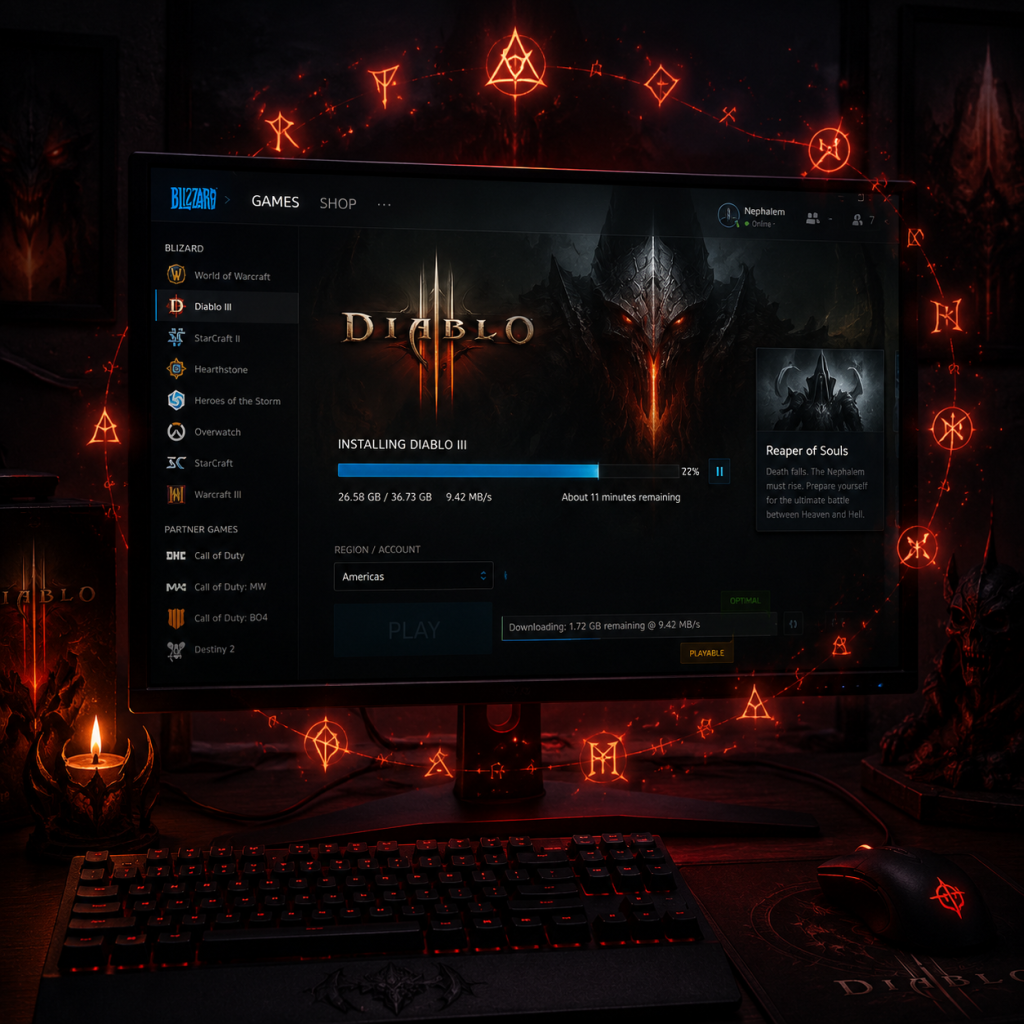
Download & Installation
Download & Installation Guide for Diablo III
Diablo III is available on PC (via Blizzard Battle.net), PlayStation 4/5, Xbox One/Series X|S, and Nintendo Switch. This guide covers legitimate sources, step-by-step installation, system requirements, account setup, common errors, and post-install verification.
Official Sources & Platforms
| Platform | Official Store | Notes |
|---|---|---|
| PC (Windows/Mac) | Blizzard Battle.net | Required client; not on Steam or Epic. |
| PlayStation 4/5 | PlayStation Store | PS4 disc works on PS5 via backward compatibility; PS5 version has improved loading. |
| Xbox One/Series X | S | Microsoft Store / Xbox Game Pass |
| Nintendo Switch | Nintendo eShop | Only base game + Reaper of Souls; no Rise of the Necromancer pack sold separately. |
---
System Requirements (PC)
#### Minimum (Windows)
- OS: Windows 7 / Windows 8 / Windows 10 (64-bit)
- CPU: Intel Core 2 Duo 2.4 GHz or AMD Athlon 64 X2 2.8 GHz
- RAM: 4 GB
- GPU: NVIDIA GeForce 8800GT / ATI Radeon HD 2900 XT or better (DirectX 11 compatible)
- Storage: 25 GB available space
- Network: Broadband internet connection
- Display: 1024x768 minimum resolution
- OS: Windows 10 (64-bit)
- CPU: Intel Core i5 or AMD Ryzen 5
- RAM: 8 GB
- GPU: NVIDIA GeForce GTX 760 / AMD Radeon R9 270 or better
- Storage: 25 GB SSD (for faster loading)
- Network: Broadband internet
- Display: 1920x1080 or higher
- OS: macOS 10.12 (Sierra) or newer
- CPU: Intel Core 2 Duo 2.4 GHz
- RAM: 4 GB
- GPU: NVIDIA GeForce 9600M GT / ATI Radeon HD 4670 or better (1 GB VRAM)
- Storage: 25 GB
- Note: As of 2023, Diablo III on Mac is 64-bit only; macOS Catalina or higher required.
- Battle.net Account: Required for PC. You need a free Battle.net account to download the game. The game license is tied to this account.
- PlayStation Network (PSN) / Xbox Live / Nintendo Account: Required for console versions. An internet connection is required for first-time installation and seasonal play. Subscription services (PS Plus, Xbox Game Pass Core/Ultimate, Nintendo Switch Online) may be needed for online multiplayer (check current policies; Diablo III on consoles requires a subscription for co-op with other players online, but local co-op does not).
- Game License: Purchase the appropriate edition (Standard, Eternal Collection, Prime Evil Collection). The Eternal Collection includes Reaper of Souls and Rise of the Necromancer. The Prime Evil Collection (for console) includes all content for Diablo III and Diablo II: Resurrected.
- Language Selection – On first run, pick your preferred language.
- Graphics Options (PC) – The game auto-detects hardware and sets a default quality level. You can change later from Options > Video.
- Sound and Accessibility – Adjust volume, subtitles, and other settings.
- Battle.net Account Linking (Optional) – On consoles, you can link your Battle.net account to enable cross-platform progression (Paragon levels, cosmetics, etc.). This is done from the main menu or in-game options.
- Game Mode Selection – Choose Campaign, Adventure Mode (if you have Reaper of Souls), or Seasonal Hero creation.
- User Agreement – Accept the EULA and privacy policy.
#### Recommended (Windows)
#### Mac (Minimum)
---
Account Requirements
---
Step-by-Step Installation
#### PC (Windows/Mac)
1. Create/Log In to Battle.net Account – Go to [battle.net](https://www.battle.net) and create a free account or log in.
2. Download Battle.net Desktop App – From the Battle.net website, click the "Download" button for the desktop app. Run the installer (Battle.net-Setup.exe on Windows, .dmg on Mac).
3. Install the App – Follow installer prompts. Accept license agreement.
4. Log In – Open the Battle.net app and log in with your account.
5. Purchase or Redeem Key – Click the Diablo III tile (if already purchased, it appears in your library). If not, click "Shop" and buy the game. You can also activate a product key via the account page.
6. Install Diablo III – From the Diablo III page in the app, click the blue "Install" button. Choose installation location (default: C:\Program Files (x86)\Diablo III on Windows).
7. Wait for Download – The app will download all necessary files (~25 GB). Download speed depends on your internet connection.
8. Launch – After installation, click "Play" to start the game. The first launch may require additional setup (e.g., graphics settings, resolution).
#### PlayStation 4/5
1. Sign In to PSN – Ensure you have a PlayStation Network account and are signed in on your console.
2. Go to PlayStation Store – From the home screen, select the PlayStation Store icon.
3. Search for Diablo III – Use the search bar to find "Diablo III: Eternal Collection" (or Prime Evil Collection).
4. Purchase and Download – Select the game, choose your edition, and confirm purchase. The download will start automatically. Alternatively, insert a disc; the console will copy data.
5. Installation – The game installs to your system storage. For PS4, ensure at least 30 GB free. For PS5, you can install to internal SSD or compatible external USB drive (but performance is best on internal).
6. Launch – After download completes (around 25 GB), select the game tile from your library or home screen to play.
#### Xbox One/Series X|S
1. Sign In to Xbox Live – You need an Xbox profile. If you have Game Pass, check if Diablo III is included (base game only).
2. Open Microsoft Store – From the Xbox dashboard, go to Store.
3. Search for Diablo III – Find "Diablo III: Eternal Collection" or the Prime Evil bundle.
4. Purchase and Install – Click "Buy" and confirm. The download starts automatically. If using Game Pass, select "Install" from the Game Pass app.
5. Installation Progress – Manage installs from "My games & apps." Smart Delivery ensures you get the optimized version for your console.
6. Launch – Once ready, click the game tile. The first launch may prompt you to link your Battle.net account for cross-progression (optional).
#### Nintendo Switch
1. Sign In to Nintendo Account – Ensure you have a Nintendo Account linked to your Switch profile.
2. Open Nintendo eShop – From the Home menu, select eShop.
3. Search for Diablo III – Look up "Diablo III: Eternal Collection".
4. Purchase and Download – Select the game, complete purchase via credit card or eShop funds. The download begins immediately. You can also insert a physical game card; the console will install any required updates (usually large patches).
5. Installation – Download size is about 23 GB (may require a microSD card if internal storage is insufficient).
6. Launch – After installation, the game appears on your Home screen. First launch may require an initial sync with Battle.net if you want to enable cloud saves (optional).
---
First Launch Setup
---
Common Installation Errors & Fixes
| Error | Platform | Cause | Solution |
|---|---|---|---|
| "Installation stuck at 0%" | PC | Battle.net app cache / permissions | Clear Battle.net cache: Close app, delete 'C:\ProgramData\Blizzard Entertainment\Battle.net\Cache', restart app. Run installer as admin. |
| "Network timeout during download" | PC | Firewall/antivirus blocking | Temporarily disable firewall/antivirus, add Battle.net and Diablo III.exe to allowed list. Check internet connection. |
| "Disk write error" | PC | Insufficient space / drive permissions | Free up space (need 25+ GB). Run as admin. If installing to external drive, use NTFS format. |
| "Error BLZBNTBGS80000011" | PC | Corrupted installation | Repair installation: Battle.net app > Diablo III > Options > Scan and Repair. |
| "Insufficient storage space" | Consoles | Not enough free space | Delete unused games/apps. For Switch, insert microSD card. On PS4, you can use external USB drive (format required). On Xbox, manage storage in Settings. |
| "Cannot connect to online services" | All | Server maintenance / account issue | Check Blizzard CS status ([status.blizzard.com](https://status.blizzard.com)). Ensure internet connection works. Verify account is active (not banned). On consoles, ensure subscription (PS Plus etc.) is active if needed. |
| "Game crashes on launch" | PC | Outdated GPU drivers / corrupted installation | Update GPU drivers. Run as admin. In Battle.net app, go to Diablo III > Options > Game Settings > Additional Arguments: add "-launch" to skip launcher (troubleshooting). Also disable overlays (Discord, Steam). |
| "Error CE-34878-0" (PS4) | PS4 | Corrupted game data | Rebuild database: boot PS4 in Safe Mode (hold power button for 7 seconds), select Option 5. Or delete and reinstall game. |
| "0x803F8001" (Xbox) | Xbox | Insufficient privileges | Make sure you own the game or have Game Pass. Try hard reset (hold Xbox button on console for 10 seconds). |
Post-Installation Verification
- Check Version Number – From main menu, look at bottom-left corner. Current patch (as of 2025) is 2.7.8 or later. If not, check for updates.
- Test Online Functionality – Create a Seasonal character and try to join a public game. If you get "No internet connection" errors, verify your network.
- Verify File Integrity (PC) – In Battle.net app, Diablo III > Options > Scan and Repair. This checks and redownloads any corrupted files.
- Check Storage Usage – Ensure the game is installed on a fast drive (SSD recommended). On PC, the folder size should be ~25 GB.
- Enable Cloud Saves (Console) – If you have Nintendo Switch Online or PlayStation Plus/Xbox Game Pass Core, verify cloud saves are enabled for Diablo III in system settings to protect progression.
- Test Controller (Console) – Ensure all buttons work in the main menu. If using a third-party controller, check compatibility.
- Preloading: You can preload the game on PC before purchase if you have a friend who owns it (via Battle.net gift feature) or when you pre-order. Console preloads are available a few days before release for digital pre-orders.
- Playing Offline: Diablo III on PC requires an internet connection for the first-time login; after that, you can play offline (except Seasonal characters, which need connection for leaderboards). On consoles, you can play offline without an internet connection, but seasonal content requires online verification.
- Cross-Platform Play: Not supported. PC, PlayStation, Xbox, and Switch players cannot play together. Cross-progression is available only between PC and consoles (limited to Paragon, cosmetics) through Battle.net linking.
- Antivirus Exceptions: If you have performance issues, add Diablo III folder and Battle.net app to your antivirus exclusion list.
---
Additional Tips
---
This guide is accurate as of early 2025. Always refer to official Blizzard support for the most up-to-date information.