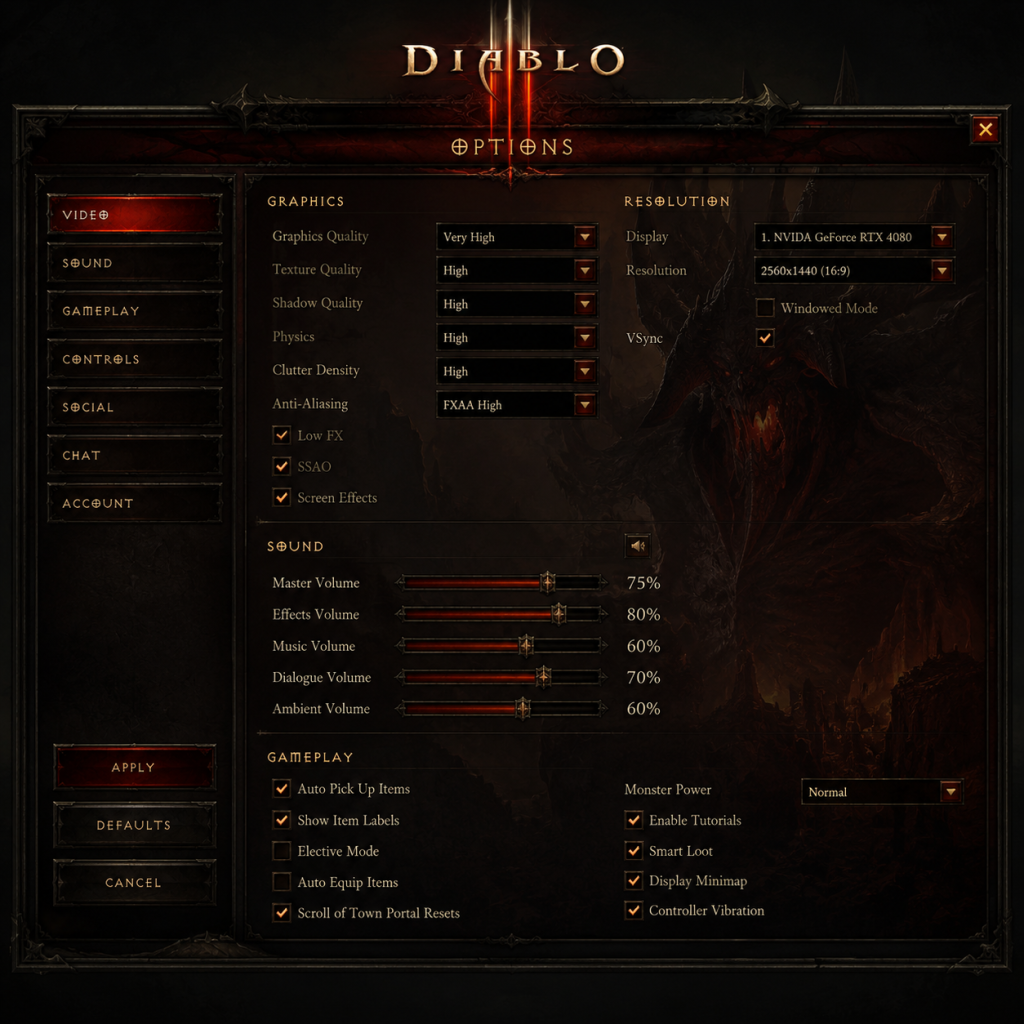
Game Settings
Game Settings Guide for Diablo III
Properly configuring your settings in Diablo III can dramatically improve performance, visual quality, and overall gameplay comfort. This guide will walk you through every major settings category—Graphics, Audio, Controls, Accessibility, Language, Network, and Gameplay—with recommendations for different hardware tiers and special attention to common pitfalls.
---
Graphics Settings
Graphics settings directly affect frame rate, clarity, and system load. Diablo III scales well across a wide range of hardware.
#### Display & Video
- Display Mode: Fullscreen (best performance), Windowed Fullscreen (easier alt-tabbing), Windowed. Recommended: Windowed Fullscreen for modern systems.
- Resolution: Match your monitor's native resolution. Lower resolutions can improve FPS on weak GPUs.
- Vertical Sync: Off unless you experience screen tearing. On vsync can introduce input lag.
- Anti-Aliasing: Options are Off, FXAA, SMAA. FXAA is lightweight but blurs; SMAA is sharper but heavier. Recommended: SMAA for mid/high-end, FXAA for low-end.
- Shadows: High (detailed), Medium (good balance), Low (performance), Off (max FPS). Shadows are one of the biggest performance hits.
- Physics Quality: Affects particle effects and destructibles. High (best looking), Medium, Low. Lower if you see frame drops during explosions.
- Clutter Density: Controls how many small objects (grass, rocks, etc.) appear. High = more immersion, but reduces FPS in crowded areas.
- Screen Shake: Disable for competitive play or motion sensitivity.
#### Optimal Settings by Hardware Level
| Setting | Low-End (e.g., Intel HD Graphics, 4GB RAM) | Medium (GTX 960, 8GB RAM) | High (GTX 1060, 16GB RAM) | Ultra (RTX 2070+, 16GB+) |
|---|---|---|---|---|
| Resolution | 1280x720 or 1366x768 | 1920x1080 | 1920x1080 or 2560x1440 | 2560x1440 or 4K |
| Anti-Aliasing | Off | FXAA | SMAA | SMAA |
| Shadows | Off or Low | Low | Medium | High |
| Physics | Low | Medium | High | High |
| Clutter Density | Low | Medium | High | High |
| Vertical Sync | Off | Off | Off | On if screen tearing |
- Low FPS despite good hardware: Check if you're running in Windowed mode (limits FPS). Always use Fullscreen or Windowed Fullscreen.
- Blurry text: Ensure your resolution is set to native and anti-aliasing is not excessive. SMAA is preferred over FXAA for clarity.
- Screen shake causing discomfort: Disable "Screen Shake" under Graphics if you experience headache or nausea.
- Master Volume: 100% as baseline.
- SFX Volume: Keep high for important sound cues (e.g., enemy attacks, legendary drops).
- Music Volume: Personal preference; lower if you prefer ambient gameplay.
- Voice Volume: Separate control for character dialog and NPC voices. Keep at least 50% to hear quest hints.
- Sound Channels: Low (best performance, might cut off sounds), High (full audio experience). Set to High unless you have a very old CPU.
- Enable Reverb: Adds echo in caves/halls; can be disabled for clarity.
- Speakers: Stereo for desktop; 5.1/7.1 for surround systems. Incorrect setting can cause muffled audio.
- Default Keybindings: Q/W/E/R for skills, 1-4 for potions and skills on action bar, left click for movement/attack, right click for secondary skill. Shift+left click for stand still (force stand).
- Recommended Changes:
- Mouse Sensitivity: Adjust in-game slider; lower for precise aiming, higher for fast camera movement.
- Aim Assist: On/Off. Turn off for precise targeting (e.g., Necromancer corpse skills). Leave on for melee characters.
- Button Layout: Standard layout works well. You can remap individual abilities in the Gameplay tab.
- Dead Zone: Adjust if you notice stick drift or unresponsive movement. Default is usually fine.
- Vibration: On for immersion, off for longer play sessions (reduces hand fatigue).
- "Elective Mode" – Not in Controls but in Gameplay. This must be ON to assign any skill to any slot. Many new players leave it off and cannot customize skill bars. Enable it immediately.
- Move vs Attack: With the default left click, you can accidentally attack a monster when you mean to move. Use Force Move binding to separate actions.
- Subtitle Size: Options: Small, Medium, Large. Increase if you have visual impairments.
- Colorblind Mode (to Come): Diablo III does not have a native colorblind mode as of patch 2.7.x. However, third-party overlays or OS-level filters can help. Monitor Blizzard updates.
- High Contrast UI: Not available natively. Adjust your monitor's contrast or use Windows High Contrast mode.
- Narration (Screen Reader): Not supported.
- Auto-Pickup Range: Set to Close or Far (under Gameplay). Far helps players with limited motor skills.
- Disable Screen Shake – Already mentioned under Graphics; critical for motion sensitivity.
- Enable “Always Show Item Labels” – In Gameplay; helps if you find it hard to read small text.
- In-Game Text: Choose your preferred language from the Battle.net launcher (PC) or console system language. Diablo III does not have a per-character language setting.
- Voice Language: Separate from text. On PC, you can select voice language in the launcher options (e.g., English text with Japanese voice). On console, voice follows system language.
- Audio Subtitles: Must be enabled manually under Audio to see dialog text in the chosen language.
- Connection Type:
- Region Selection: Choose the region closest to you for lowest latency (Americas, Europe, Asia). Cross-region play is not possible (character data locked per region).
- NAT Type: Must be Open or Moderate for smooth matchmaking. Strict NAT can prevent you from joining games. Troubleshoot through router port forwarding (ports 1119, 1120, 3724, 6112-6114).
- Bandwidth: Diablo III uses ~50 MB/hour in a party. Very low bandwidth usage; no issues on limited data plans.
- Ping/Latency Display: Enable under Gameplay settings (Show Network Information) to monitor your connection health.
- High latency in groups: One player with bad connection can cause rubber-banding for everyone. If you constantly lag, try hosting private games or leave groups with high ping.
- Proxy/VPN: Using a VPN may reduce ping if routed better, but can also disallow login. Battle.net usually works with most VPNs.
- Elective Mode (MANDATORY ON): Allows you to assign any skill to any of the six skill slots. Without this, skills are locked to categories (e.g., only Primary skills on left click). Turn this ON immediately.
- Action Combat Mode: On by default; prevents your character from moving when you click on a monster. You must turn this OFF if you want to quickly switch between moving and attacking. Many advanced players disable it.
- Display Enemy Health Bars: ON (always show) or Off (only when damaged). Recommended ON for awareness.
- Monster Health Bar Position: Top (default) or Bottom. Personal preference.
- Show Item Labels:
- Item Tooltips:
- Auto-Pickup Range:
- Pet Control: For Witch Doctor pets, you can choose Aggressive or Passive. Leave on Aggressive for solo play.
- Lock Target (Consoles): Lock on to a single enemy. Useful for single target builds, but can be disorienting. Toggle off for area effect skills.
- Elective Mode being off is by far the most common mistake. New players think they can't rearrange skills and quit in frustration. Always check this first.
- Action Combat Mode – If you're a seasoned player who wants full control over movement and stutter-stepping, turn this off. If you keep accidentally moving into enemies, turn it on.
---
Audio Settings
Special Attention: Diablo III uses audio cues for elite packs (e.g., “Jailer” sounds) and legendary drops (distinct chime). Never mute SFX if you want to play efficiently.
---
Controls Settings
Controls are highly customizable on PC and console. Familiarize yourself with the layout.
#### PC Controls (Keyboard + Mouse)
- Bind Force Move to a side mouse button (avoids accidental attacks).
- Bind Force Stand Still to Spacebar for easy kiting.
- Remap Potion (default Q) to a thumb button for quick healing.
- Set Teleport or movement skill to a comfortable key (e.g., E or mouse wheel).
#### Console / Controller (PS4/PS5, Xbox, Switch)
Easy to Misconfigure:
---
Accessibility Settings
Special Attention: If you rely on audio cues, enable center audio channel for dialog in 5.1 setups to avoid losing quest instructions.
---
Language Settings
Easy to Misconfigure: If you change language in the launcher mid-session, you may need to restart the game for full effect. Also, some regional versions (e.g., Chinese) have different censorship and loot rules; ensure you are using the correct region account.
---
Network Settings
- Broadband LAN: Wired Ethernet is strongly recommended over Wi-Fi for stable ping.
- Wi-Fi: Use 5 GHz if possible; 2.4 GHz can have interference.
Special Attention:
---
Gameplay Settings
These settings drastically affect your play experience and must be reviewed before diving in.
- Always Show: Best for seeing loot quickly.
- Toggle: Press Alt to show temporarily.
- Off: Minimal distraction.
- Simple: Shows only basic affixes (faster for new players).
- Advanced: Shows detailed data like damage range, attribute ranges, etc. Recommended for experienced players.
- Close: Pick up items only when nearly on top of them.
- Medium: Default.
- Far: Automatically pick up gold and health globes from screen away. Far is recommended to avoid stopping for loot.
Easy to Misconfigure:
---
Special Attention Points During Setup
1. First Launch: After installing, go directly to Settings > Gameplay and enable Elective Mode. Then configure graphics for your hardware.
2. Windowed Mode Confusion: If the game seems laggy even on low settings, check that you are not in Windowed mode. Fullscreen or Windowed Fullscreen yields best performance.
3. Controller Compatibility on PC: Diablo III fully supports Xbox and PlayStation controllers. Plug in before launching, and the game will auto-switch UI. You can freely mix mouse/keyboard and controller, but it may cause momentary input detection issues.
4. Audio Desync in Cutscenes: If dialogue doesn't match lip movement, go to Audio and lower Sound Channels from High to Medium. Or reduce voice volume and reapply.
5. Battle.net App Overlay: Disable the Blizzard overlay (in app settings) if you experience stuttering or FPS drops. This overlay can conflict with the game's rendering on some systems.
6. Cloud Saves: Diablo III saves all character data server-side. Your settings are stored locally. Back up the file `D3Prefs.txt` in `Documents\Diablo III` if you want to preserve settings across reinstalls.
---
By carefully adjusting these settings, you will enjoy Diablo III with smoother gameplay, clearer visuals, and better responsiveness. Always revisit settings if you change hardware or experience performance issues. Now venture forth and conquer the Burning Hells with your optimally configured Nephalem!