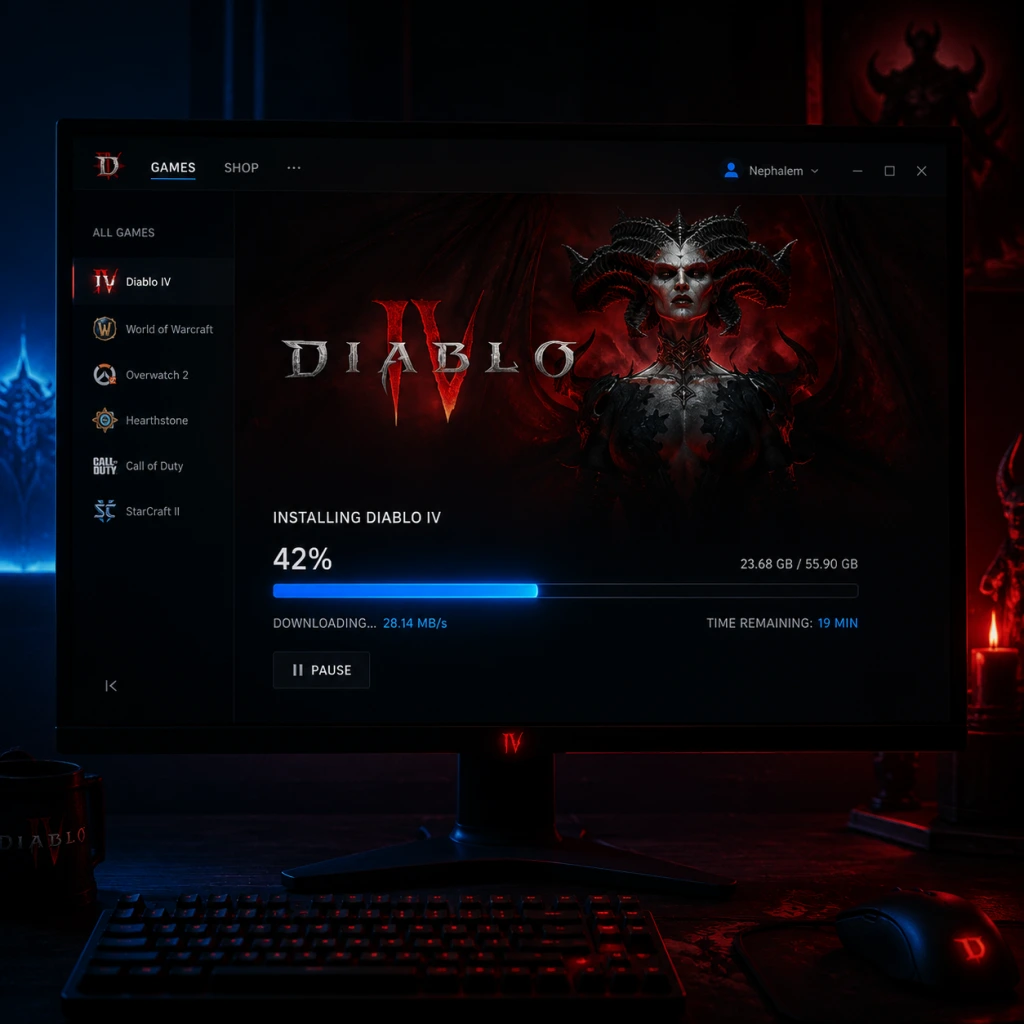
Download & Installation
Diablo IV – Complete Download & Installation Guide
This guide covers everything you need to download, install, and launch Diablo IV on all officially supported platforms: PC (Battle.net & Steam), PlayStation 4|5, Xbox One|Series X|S. Note: Diablo IV is not available on Nintendo Switch or mobile devices.
---
1. Official & Legitimate Download Sources
Only download Diablo IV from these authorized storefronts to avoid malware or account bans:
- PC (Battle.net): [Battle.net Desktop App](https://www.blizzard.com/download) → purchase/install via Blizzard account
- PC (Steam): [Steam Store](https://store.steampowered.com/app/2344520/Diablo_IV/) – requires Battle.net account linking
- PlayStation 4/5: PlayStation Store (PSN account required)
- Xbox One / Series X|S: Microsoft Store (Xbox Live account required)
---
2. System Requirements (PC)
Minimum Requirements (1080p, low settings, 30 FPS)
| Component | Specification |
|---|---|
| OS | Windows 10 64-bit (latest update) |
| CPU | Intel Core i5-2500K / AMD FX-8100 |
| GPU | NVIDIA GeForce GTX 660 / AMD Radeon R9 280 – 2GB VRAM |
| RAM | 8 GB |
| Storage | SSD with 90+ GB free space |
| Internet | Broadband connection |
Recommended Requirements (1080p, medium, 60 FPS)
| Component | Specification |
|---|---|
| OS | Windows 10/11 64-bit |
| CPU | Intel Core i5-4670K / AMD Ryzen 3 1300X |
| GPU | NVIDIA GeForce GTX 970 / AMD Radeon RX 470 – 4GB VRAM |
| RAM | 16 GB |
| Storage | SSD with 90+ GB free space |
High-End (4K, ultra, 60 FPS)
| Component | Specification |
|---|---|
| OS | Windows 10/11 64-bit |
| CPU | Intel Core i7-8700K / AMD Ryzen 7 2700X |
| GPU | NVIDIA GeForce RTX 3060 / AMD Radeon RX 6600 XT |
| RAM | 32 GB |
| Storage | NVMe SSD with 90+ GB free space |
---
3. Platform Installation Steps
3.1 PC – Battle.net
1. Download and install the [Battle.net desktop app](https://www.blizzard.com/download).
2. Log in with your Blizzard account (create one if necessary).
3. Click the All Games tab → find Diablo IV → click Install.
4. Choose installation location (ensure at least 90 GB free on an SSD).
5. Click Start Install. The app will download ~85–90 GB.
6. After download, click Play.
3.2 PC – Steam
1. Open Steam → log in.
2. Go to Store → search Diablo IV → click Add to Cart → purchase.
3. Go to Library → find Diablo IV → click Install.
4. Select drive (SSD recommended) → click Next → Install.
5. Steam will download the game. After completion, click Play.
6. On first launch, you must authenticate with your Battle.net account (a browser window will open).
3.3 PlayStation 4/5
1. Turn on console → navigate to PlayStation Store.
2. Search for Diablo IV → select the version (Standard, Deluxe, Ultimate).
3. Purchase or redeem a code → click Download.
4. The console will install the game automatically. Download size ~85 GB (PS4) / ~95 GB (PS5).
5. After installation, the game appears in your Library or Home screen.
3.4 Xbox One / Series X|S
1. Press Xbox button → go to Microsoft Store.
2. Search Diablo IV → select edition → Buy or Install (if owned).
3. Choose install location (internal or external storage).
4. The download will start. Size ~85 GB (Xbox One) / ~95 GB (Series X|S).
5. After install, launch from My Games & Apps.
---
4. Storage Space Requirements
| Platform | Approximate Download Size | Final Install Size (with patches) |
|---|---|---|
| PC (Battle.net) | 85–90 GB | 90+ GB |
| PC (Steam) | 85–90 GB | 90+ GB |
| PlayStation 4 | 85 GB | 95 GB (with updates) |
| PlayStation 5 | 95 GB | 100+ GB (with updates) |
| Xbox One | 85 GB | 95 GB |
| Xbox Series X | S | 95 GB |
---
5. Account Requirements
- Battle.net account is mandatory on all platforms. You must link your platform account (PSN, Xbox Live, Steam) to a Battle.net account.
- PlayStation: Requires a PlayStation Plus subscription for online multiplayer (not needed for solo play).
- Xbox: Requires Xbox Game Pass Core or Ultimate for online multiplayer.
- PC (Steam): No separate subscription needed for multiplayer; only internet connection and Battle.net account.
---
6. First Launch Setup
1. Language & Region: Select your language and time zone.
2. Graphics Settings: On PC, the game sets defaults based on your hardware. You can adjust in Options > Graphics.
3. Accessibility Options: Configure subtitles, colorblind modes, and controller layout (if applicable).
4. Network Connection: Ensure stable internet (the game is always online).
5. Character Creation: Create your first character (any class) after the opening cinematic.
6. Shader Compilation (PC): On first launch, the game compiles shaders. This may take 5–15 minutes and may appear frozen – do not close the app.
---
7. Common Installation Errors & Fixes
| Error / Issue | Cause | Solution |
|---|---|---|
| “Disk write error” (Battle.net) | Insufficient permissions or drive corruption | Run Battle.net as Administrator; check disk health (chkdsk); install to a different SSD/HDD. |
| “Not enough free space” | 90 GB requirement not met | Free up space, or move other games. Install on a drive with >100 GB free. |
| “Can’t install because of missing dependencies” (PC) | Missing Visual C++ Redistributables or outdated .NET | Install the latest Visual C++ Redistributable (from Microsoft); run Windows Update. |
| “Corrupted files” / “File mismatch” (Steam) | Partial download corruption | In Steam, right-click Diablo IV → Properties → Local Files → Verify integrity of game files. |
| “Server connection failed” (all platforms) | Internet issue or server maintenance | Check Blizzard [Server Status](https://blizzard.status.io/); restart router; disable VPN. |
| “Stuck at 99%” (Battle.net) | Patching issues | Pause/resume download; restart Battle.net app; clear cache (Battle.net settings → Downloads → Clear cache). |
| “You already own this product” but can’t install (Steam) | Battle.net linking not completed | Launch once, then sign in to Battle.net when prompted. If persisted, re-link accounts via Battle.net website. |
| “Update Required” loop (console) | Insufficient storage | Free up space or use an external drive. |
| “Disc read error” (Xbox/PS) | Damaged disc (if physical) or HDD issue | Clean disc; if digital, delete and reinstall. |
8. Post-Installation Verification
1. Launch the game to ensure it opens without crashes.
2. Check version number: In the main menu, look at the bottom-left corner. The latest version should match the current patch (e.g., 1.4.3).
3. Run the benchmarking tool (PC only): Options → Performance → Benchmark. Ensures stable FPS.
4. Test online connectivity: Enter the main world (Kyovashad) and see if other players appear.
5. Verify integrity (PC):
- Battle.net: In game settings in the app, click Scan and Repair.
- Steam: Right-click game → Properties → Local Files → Verify integrity… – this checks all files.
6. Console: If you experience graphical glitches, go to Settings → Console Storage → Clear Cache (PS: rebuild database; Xbox: power cycle).
---
9. Additional Tips
- Pre-load: Always pre-order digital versions to download days before release.
- Cross-play & Cross-progression: Account is shared across platforms (requires linking).
- External storage on console: Games run fine from Xbox external USB 3.0 or PS4 external drive, but loading times are longer. For PS5, recommended to install on internal SSD to utilize fast loading.
- High-resolution texture pack (PC): Download separately in Battle.net under Options → Modify Installation (adds ~30 GB). Only for high-end GPUs.
- Official Blizzard Support: [https://us.battle.net/support](https://us.battle.net/support)
- Diablo IV Forums: [https://us.forums.blizzard.com/en/d4](https://us.forums.blizzard.com/en/d4)
- Reddit: r/diablo4
---
10. Need Help?
---
Last updated: October 2023. Always check official sources for the latest patch notes and requirements.