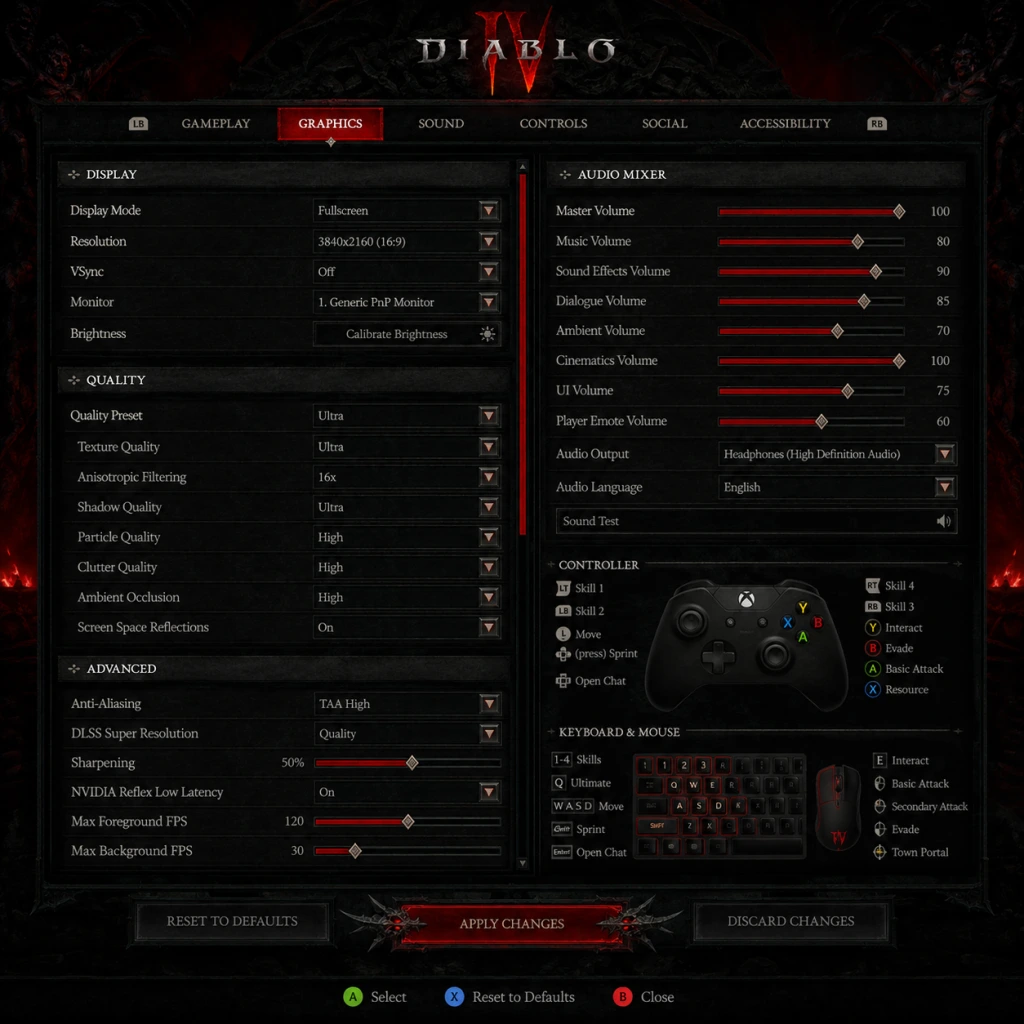
Game Settings
Diablo IV – Game Settings Guide
This guide details every settings category in Diablo IV, with platform-specific notes (PC, PlayStation 4|5, Xbox One|Series X|S) and hardware-level recommendations. Pay special attention to the misconfiguration traps highlighted throughout.
---
1. Graphics Settings
#### 1.1 Display & Resolution
- Display Mode: Fullscreen (dedicated GPU control, lowest input lag), Windowed Fullscreen (alt-tab convenience), Windowed (not recommended due to desktop compositing overhead).
- Resolution: Native monitor resolution is best. On 4K screens, DLSS/FSR can upscale from lower internal resolutions.
- HDR: If your monitor supports HDR, enable and calibrate brightness/black level in HDR settings. Misconfiguring HDR can wash out colors; use the calibration tool.
- Vertical Sync (V-Sync): Off for highest FPS (use Reflex Low Latency instead), On to eliminate screen tearing (slight input lag).
- Framerate Cap: Set to your monitor’s refresh rate (e.g., 144 Hz → 144 FPS) or unlimited for benchmark. Consider capping 10% below refresh rate for smoother input.
- NVIDIA Reflex Low Latency: Enable + Boost (reduces render queue, recommended for competitive play).
#### 1.2 Quality Presets & Individual Toggles
| Setting | Low (60 FPS) | Medium (60 FPS) | High (60 FPS) | Ultra (60+ FPS) | Ray Tracing (High End) |
|---|---|---|---|---|---|
| Texture Quality | Low | Medium | High | Ultra | Ultra |
| Shadow Quality | Low | Medium | High | Ultra | High |
| Dynamic Shadows | Off | On | On | On | On |
| Soft Shadows | Off | Off | On | On | On |
| Shader Quality | Low | Medium | High | Ultra | Ultra |
| Lighting Quality | Low | Medium | High | Ultra | High |
| Reflection Quality | Low | Low | Medium | High | High (with Ray Traced Reflections) |
| Terrain Geometry | Low | Medium | High | Ultra | Ultra |
| Water Quality | Low | Low | Medium | High | High |
| Volumetric Fog | Off | Low | Medium | High | High |
| Particle Density | Low | Medium | High | Ultra | Ultra |
| Ambient Occlusion | Off | SSAO | SSAO/HBAO+ | HBAO+ | HBAO+ |
| Distortion | Off | Off | On | On | On |
| Anti-Aliasing | TAA Low | TAA Medium | TAA High | TAA High | TAA High + FXAA (optional) |
| DLSS / FSR / XeSS | Off (or Performance) | Off (or Balanced) | Off (or Quality) | Off | Off (native) or Quality |
| Ray Tracing | Off | Off | Off | Off | On (set to Medium/High) |
| Reshade / HBAO+ | N/A | N/A | N/A | N/A | N/A |
- Budget PC (GTX 1650/1060, 16 GB RAM): Use "Low" preset, turn off Ray Tracing, enable FSR 2.0 in Performance mode.
- Mid-Range PC (RTX 3060/3070, 16-32 GB RAM): Use "High" preset with DLSS Quality (if 4K) or Off at 1440p. Shadows=Medium, Volumetric Fog=Low.
- High-End PC (RTX 4080/4090, 32+ GB RAM): Use "Ultra" preset; enable Ray Tracing at Medium (High for RTX 4090). Reflex On.
- PlayStation 5 / Xbox Series X: Use default Quality Mode (30 fps) with Ray Tracing or Performance Mode (60 fps, lower shadows/reflections). No individual graphics toggles on console.*
- PlayStation 4 / Xbox One: Only Performance Mode available (30-60 fps). No Ray Tracing.
- Cursor Contrast: Under Accessibility, there is a setting to enlarge and change the cursor color. If you keep default small cursor, it can be hard to spot in crowded fights. Enable "Large Cursor" and choose a high-contrast color (e.g., neon green).
- Screen Shake: Under Gameplay (not Graphics), can cause disorientation. Set to 0-20% for sustained play.
- Frame Generation (DLSS 3): Only available on RTX 40 series; introduces input lag penalty. Use only if your GPU can’t maintain 60 fps otherwise.
- FOV (Field of View): Not adjustable on console; PC has a slider. Higher FOV reduces target visibility but increases peripheral awareness. Default 80 is safe.
- Weapon Trail & Impact Particles: Can cause visual clutter. Lower in Graphics > Particle Density if needed.
#### 1.3 Special Attention Points (Easy to Misconfigure)
---
2. Audio Settings
#### 2.1 Volume Mix
| Setting | Recommended Level | Notes |
|---|---|---|
| Master Volume | 70-100% | Use as main control. |
| Sound Effects (SFX) | 80% | Skill sounds, footsteps, monster noises. |
| Music | 40-60% | Ambiance; low enough to hear cues. |
| Dialogue | 80% | Important for quest/character lore. |
| Environment | 60% | Wind, ambient noises; optional. |
| Voice Chat | 100% (if used) | Adjust in-game or in OS. |
| Cinematic Music | 80% | No gameplay impact. |
- Speaker Configuration: Stereo for headphones/speakers, 5.1/7.1 for surround setups. Dolby Atmos supported on Xbox/PC with Atmos license.
- Spatial Audio: Windows Sonic (Xbox/PC) or Dolby Atmos for Headphones. Provides directional enemy sounds; strongly recommended.
- Dynamic Range: Choose "Night" for low volume environments (compresses loudest sounds), "Full" for typical setups.
- Subtitle Mode: Always enable (Accessibility). Allows reading when sound is off.
- Master Volume vs. SFX: New players often mute Master but keep SFX low, missing crucial dodge cues. Use balanced mix above.
- Key Bindings: Default 1-4 for spells, Q for Potion, E for Evade, F for Interact, R for Ultimate. Rebind to comfortable keys (e.g., mouse side buttons for Evade/Potion).
- Move/Attack: Left click moves, right click attack. You can rebind "Force Move" to Space to avoid accidental attacks.
- Skill Rebind: Each skill slot is customizable. Create keys for different builds (e.g., Shift for channeling, Mouse Wheel Up for potion).
- Controller on PC: Plug in Xbox/PS5 controller; game auto-detects. May prefer for relaxed play.
- Button Layout: Face buttons (A/B/X/Y) assigned to skills; triggers for basic attack/potion. Customize via Options > Controls > Controller Layout.
- Stick Sensitivity: Aim Smoothness (0-10). Lower = more responsive. Default 5. Increase for twitch aiming.
- Auto-Aim: On by default; helps with mobs. Turn off if you want precision targeting (e.g., boss weakpoints).
- Vibration: Can be turned off for battery life or focus.
- Cursor Contrast (KBM): Already mentioned; also affects target highlighting.
- Quick Cast vs. Normal Cast: In Options > Gameplay, you can choose to cast skills on button press (Quick Cast) or on release (Normal). Quick Cast is faster for experienced players; Normal gives you a targeting reticle. Misconfiguring can lead to missed skills.
- Avoid Misclicking with Left Click: Rogue players may want to bind "Move Only" to a separate key to prevent attacking empty air while repositioning.
- Subtitle Size: Small, Medium, Large. Choose Large for easier reading.
- Subtitle Background: Black box or transparent. Black box improves readability on bright backgrounds.
- Screen Reader: Available on Xbox/PC (Narrator integration). Reads menus, items, and chat. Turn on in System > Accessibility.
- Colorblind Modes: Options for Deuteranopia, Protanopia, Tritanopia. Affects health bars and skill colors. Test in Sanctuary to confirm.
- High Contrast Mode: Makes HP/Potions easier to see. Consider enabling.
- Text Chat Size: Adjustable in Social > Chat.
- Visual Cues for Sounds: "Audio Visualization" setting (PC/Xbox) shows directional arrows for enemy sounds (footsteps, projectiles). Enable if hard of hearing.
- Damage Sound Indicator: Turn on "Damage Numbers" and "Critical Hit Effects" to see instead of hear.
- Toggle Sprint: None in Diablo IV (always running); but you can toggle "Auto-Run" in Gameplay.
- Aim Assist: On gamepad, aim assist strength 0-4. 3 works well for most.
- Button Remapping: Full remap for both KBM and controller.
- Screen Shake (Gameplay): Default 100% can cause nausea. Set to 0%.
- Camera Shake (same setting): Also in Graphics > Camera Shake (identical). Default on.
- Game Speed: Not present in Diablo IV (fixed speed).
- Set in: Options > Language > Text Language.
- Effect: All menus, tooltips, quest text. Does not affect voiceover.
- Available: English (US/UK), French, German, Italian, Spanish (EU/LA), Japanese, Korean, Chinese (Simplified/Traditional), Russian, Portuguese (Brazil), Polish.
- Set in: Options > Language > Voice Language.
- Download Required: On first change, game downloads voice pack (~2-5 GB). Must be done before playing.
- Note: Some languages (e.g., Japanese) have exclusive voice actors; English cast is primary.
- In Battle.net/Console: Choose America, Europe, Asia. Affects server, friends list, and store.
- Cross-Platform Play: Works across all regions, but latency may be high if far from server.
- Language Mismatch: If you change text but not voice, dialogues will be mismatched (e.g., English subtitles with Japanese audio). Set both to same language unless specifically wanting dub/sub combo.
- Connection Type: Wired Ethernet recommended over Wi-Fi for stable latency.
- Show Ping: Enable in Options > Network > Show Network Latency. Helps diagnose lag.
- Bandwidth Limit: Options > Network > Download/Upload Speed. Set to 0 (unlimited) or cap if other devices use internet.
- Packet Loss: Display in same menu. Green=good, red=bad.
- Required Ports: TCP 1119, 1120, 3724, 6112-6119, 6881-6999 (for P2P chat/voice). UDP 1119, 1120, 3724, 5060, 5062, 6250, 12000-64000.
- UPnP: Enable in router settings; auto-opens ports.
- Cross-Platform Play: Off by default. Turn on if you want to play with friends on other platforms. Disabling can reduce matchmaking pool for World Bosses.
- Appear Offline: In Social > Online Status. If you don't want random invites, set to Offline.
- World Tier Selection: You choose before entering the world (Tier 1 Adventurer – T4 Torment). Cannot be changed mid-game without returning to town and resetting dungeon.
- Hardcore Mode: Character death = permanent deletion. Separate checkbox in Character Creation. Not reversible.
- Show Damage Numbers: On. Critical hits show larger numbers.
- Auto-Pickup Radius: Options > Gameplay > Loot > Pickup Radius. Increase to grab nearby gold/items faster; default 3 (out of 1-5). Setting to 5 may grab items behind walls.
- Auto-Potion: Default on at 35% HP. Change in Options > Gameplay > Potions > Auto-Potion Threshold (20%-50%). Misconfigure low threshold = deaths.
- Skill Toggle/Charged: For skills like Flurry or Whirlwind, you can set to "Toggle" (press once to keep channeling) or "Hold". Default Hold; Toggle reduces finger fatigue.
- Lock On Target: On console, press R3 to lock onto a single enemy. Useful for boss fights but can be disorienting in mobs. Turn off if you prefer free aim.
- Movement Mode: "Click to Move" (mouse) or "Move to Cursor" (auto-adjust). Stick to default.
- Chat Bubbles: Show above characters. Can be disabled for cleaner screen.
- Trade Chat: Filter in Options > Social > Chat Channels. Disable to avoid spam.
- Friend Requests: Set to "Everyone" or "Friends Only". Misconfigure to Everyone can lead to unwanted groups.
- Auto-Potion Threshold: Many players die because they keep it at the default 35% and are bursted. Set to 50-60% for early levels, 30% for skilled players.
- Enable PVP (Dueling): Options > Social > Enable Dueling. Default Off. Turn On if you want to duel in Fields of Hatred.
- Appear Offline: As above, can prevent clan invites.
#### 2.3 Easy-to-Miss Audio Setting
---
3. Controls
#### 3.1 Keyboard & Mouse (KBM)
#### 3.2 Gamepad (Console & PC)
#### 3.3 Special Attention Points
---
4. Accessibility
#### 4.1 Visual Accessibility
#### 4.2 Auditory Accessibility
#### 4.3 Motor Accessibility
#### 4.4 Easy-to-Misconfigure Accessibility Settings
---
5. Language & Region
#### 5.1 Text Language
#### 5.2 Voice Language
#### 5.3 Region Selection
#### 5.4 Special Attention
---
6. Network Settings
#### 6.1 Connection & Ping
#### 6.2 Port Forwarding (PC Only)
#### 6.3 Easy-to-Misconfigure Network Setting
---
7. Gameplay Settings
#### 7.1 Difficulty & World Tier
#### 7.2 Combat & UI
#### 7.3 Social & Chat
#### 7.4 Special Attention Points
---
8. Summary of Most Overlooked Settings
| Settings Category | Specific Setting | Why Overlooked | Recommendation |
|---|---|---|---|
| Graphics | Cursor Contrast | Default cursor small | Enable Large + Bright Color |
| Graphics | Screen Shake | Causes nausea | Set to 0% |
| Audio | Dynamic Range | Not adjusted for headset | Use "Full" |
| Controls | Quick Cast vs Normal | Not obvious in menus | Choose Quick Cast for speed |
| Accessibility | Audio Visualization | Hidden in menus | Enable for directional cues |
| Network | Cross-Platform Play | Off by default | Turn on for larger pool |
| Gameplay | Auto-Potion Threshold | Default 35% is death | Increase to 50% |
| Gameplay | Loot Pickup Radius | Low default | Increase to 3-4 |
9. Final Setup Checklist
Before diving into Sanctuary, verify these settings:
- [ ] Graphics preset matches your hardware (Low, High, Ultra, or custom)
- [ ] Cursor contrast enabled and color changed
- [ ] Screen shake set to 0%
- [ ] Audio mix balanced per recommendations
- [ ] Subtitle mode On with large size
- [ ] Control bindings comfortable (especially Evade and Potion)
- [ ] Network latency displayed
- [ ] Auto-Potion threshold raised to 50% (or lower after level 80)
- [ ] World Tier correctly selected (T1 for casual, T2 for challenge, T3 for endgame)
- [ ] Cross-Platform Play enabled (if needed)
If you experience stuttering, lower Shadow Quality to Low or Medium (largest performance impact). If audio lags, reduce Dynamic Range to Night mode and disable Spatial Audio temporarily.
Adjust settings in a safe zone (Kyovashad) before entering combat to avoid dying during tweaks.