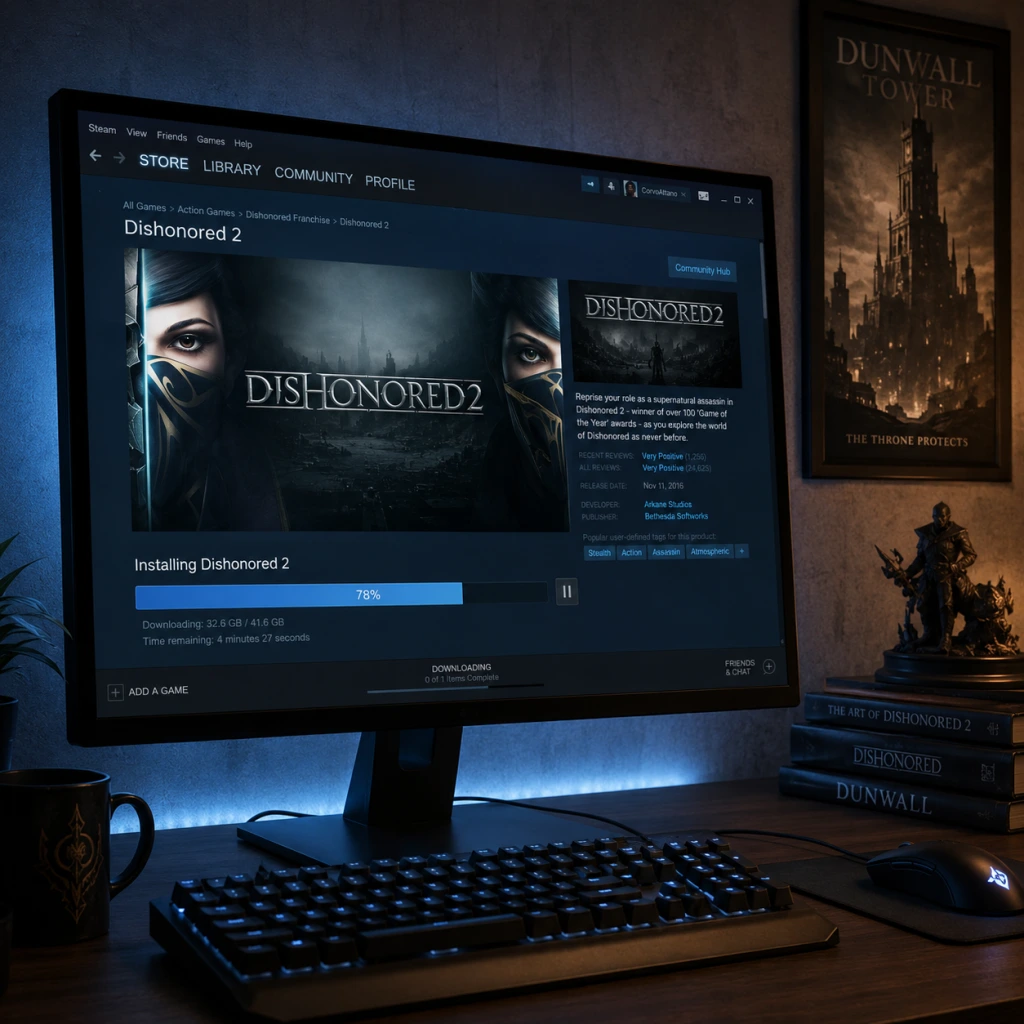
Download & Installation
Overview
This guide covers how to legally download and install Dishonored 2 (Arkane Studios, 2016) on all supported platforms. The game is available on PC (Steam, Epic Games Store, Microsoft Store), PlayStation 4 (backward compatible on PS5), Xbox One (backward compatible on Xbox Series X|S), and via cloud streaming on Nintendo Switch (subscription required, not a native download). Mobile versions do not exist officially.
---
System Requirements (PC)
Minimum
- OS: Windows 7/8/10 (64-bit)
- CPU: Intel Core i5-2400 / AMD FX-8320
- RAM: 8 GB
- GPU: NVIDIA GTX 660 2GB / AMD Radeon HD 7970 3GB
- DirectX: Version 11
- Storage: 60 GB available space
- Sound: DirectX compatible
- OS: Windows 10 (64-bit)
- CPU: Intel Core i7-4770 / AMD FX-9590
- RAM: 16 GB
- GPU: NVIDIA GTX 1060 6GB / AMD Radeon RX 480 8GB
- DirectX: Version 11
- Storage: 60 GB SSD
- Sound: DirectX compatible
- Steam: Steam account.
- Epic Games: Epic Games account.
- Microsoft Store/Xbox/Game Pass: Microsoft account.
- PlayStation: PlayStation Network account.
- Nintendo Switch (cloud): Nintendo account + subscription to streaming service.
Recommended
Note: The game benefits greatly from an SSD for faster loading times. Laptop equivalent hardware may perform worse.
---
Platform-Specific Download & Installation
PC – Steam
1. Create/Login to your Steam account: [store.steampowered.com](https://store.steampowered.com)
2. Search for "Dishonored 2" in the store.
3. Purchase the game or use an existing license.
4. Install:
- Click "Install" on the game's store page or go to your Library > Right-click "Dishonored 2" > Manage > Install.
- Choose installation directory (ensure at least 60GB free).
- Wait for download and automatic installation.
5. Launch from Library after completion.
PC – Epic Games Store
1. Install the Epic Games Launcher from [epicgames.com](https://store.epicgames.com).
2. Login and go to the Store tab.
3. Search for "Dishonored 2" and purchase if not owned.
4. Install:
- Click Get (if free) or Install.
- Select drive, confirm.
- The launcher downloads and installs automatically.
5. Launch from Library.
Note: Epic versions may require the Bethesda.net launcher for initial authentication, but as of updates, it runs via Epic without additional accounts.
PC – Microsoft Store / Xbox App
1. Open Microsoft Store (or Xbox app) on Windows 10/11.
2. Search for "Dishonored 2".
3. Buy and Install:
- Click Install to download.
- Choose drive (can be changed in Windows Settings > Storage).
4. Launch from Start menu or Xbox app.
Requirement: Microsoft account. Game is part of Game Pass for PC subscription as of 2025 (check current catalog).
PlayStation 4 & 5
1. Ensure you have a PlayStation Network account.
2. On PS4/PS5:
- Go to PlayStation Store.
- Search "Dishonored 2".
- Purchase or Download (if already owned or via PS Plus Extra/Premium).
3. Install:
- The download starts immediately after purchase.
- On PS5, you may choose PS4 or PS5 version (only PS4 version exists, but runs via backward compatibility).
4. Launch from the home screen.
Storage: Requires ~55GB (PS4) or ~60GB (PS5 due to additional BC data).
Xbox One & Series X|S
1. Sign in to your Xbox Live / Microsoft account.
2. On console:
- Open Microsoft Store.
- Search "Dishonored 2".
- Buy or Install if you own it or have Game Pass.
3. Install:
- The console downloads the game automatically.
- You can choose to install on internal or external drive.
4. Launch from My Games & Apps.
Backward Compatibility: Runs natively on Xbox Series X|S with FPS Boost (60fps) and Auto HDR.
Nintendo Switch (Cloud Version Only)
Dishonored 2 is not available as a native download on Nintendo Switch. It can be played via cloud streaming (e.g., via Ubisoft Connect+ or similar services, but check availability; as of 2025, it is not officially on Switch eShop). If you have a subscription to a cloud gaming service that supports Switch (like GeForce NOW), you can stream the PC version. No installation required – just a stable internet connection.
---
Account Requirements
No Bethesda.net account is necessary for standalone PC purchases anymore (previously required, now optional for some features).
---
First Launch Setup
1. Language selection (can be changed later in options).
2. Calibration: Brightness, contrast, HDR (if supported).
3. Graphics Preset (PC): Options range from Low to Very High. Auto-detect is available.
4. Key bindings (PC): Customize controls or load defaults.
5. Audio: Adjust master volume, music, SFX, and subtitle options.
6. Display: Resolution, fullscreen/windowed, V-Sync, FPS limit.
7. Account linkage (optional): Bethesda.net for cloud saves between PC platforms (if you wish).
8. Play: Start a new game or load a save.
---
Common Installation Errors and Fixes
| Error | Platform | Cause | Fix |
|---|---|---|---|
| Disk write error | PC (Steam/Epic) | Corrupt download cache or insufficient permissions | Run launcher as Administrator; clear download cache (Steam: Settings > Downloads > Clear Cache). |
| Missing DLL files (e.g., MSVCR120.dll) | PC | Missing Visual C++ redistributables | Install DirectX and Visual C++ packages from the game’s _CommonRedist folder in install directory. |
| “Application failed to start” | PC | Outdated graphics drivers | Update GPU drivers (NVIDIA/AMD). |
| Insufficient storage space | All | Game requires exactly 60GB free; temporary download files may need more | Free up space (at least 80GB recommended). On consoles, delete unused games. |
| Stuck at “Preparing” on Steam | PC | Corrupted update files | Verify integrity of game files (Steam: Right-click > Properties > Local Files > Verify). |
| Fatal error on launch | PC | Antivirus blocking | Add the game folder to antivirus exceptions; disable real-time scanning temporarily. |
| PS4/PS5 download stuck | PlayStation | Network issues or corrupt cache | Reboot console; go to Settings > Network > Test Internet Connection; rebuild database (safe mode). |
| Xbox installation stops | Xbox | Background app conflict | Press the Xbox button, go to My Games & Apps, highlight Dishonored 2, press Menu > Manage > Clear reserved space. |
| Cloud streaming lags | Switch | Slow internet | Use wired connection; close other apps; ensure subscription is active. |
Post-Installation Verification
PC
1. Verify game files (Steam: Properties > Local Files > Verify; Epic: Settings > Manage Games > Verify).
2. Check for updates: Launcher should auto-check.
3. Test launch: If crash occurs, update drivers and check integrity again.
4. Benchmark: Use in-game options to test performance; adjust settings if needed.
PlayStation & Xbox
1. Check for updates: Highlight game icon, press Options/Start > Check for Update.
2. Launch game: Should reach main menu without error.
3. Test save functionality: Create a new save and load it.
4. Check storage usage: Settings > Storage to confirm size (~55-60GB).
Switch (Cloud Streaming)
- Ensure stable internet (25 Mbps minimum).
- Launch the cloud app and verify input latency is acceptable.
- No local verification possible.
- Mods: PC version supports mods via manual installation (e.g., from Nexus Mods). Back up original files.
- Save Data: Cloud saves are supported on Steam, Epic, Xbox, and PS+. Manually back up local saves (PC: `%USERPROFILE%\Saved Games\Arkane Studios\Dishonored2`).
- Performance PC: If you encounter stutter, disable V-Sync and cap FPS to 60 via GPU control panel. The game has a known issue with memory management; using a pagefile on an SSD helps.
- Console Performance: PS4 Pro and Xbox One X run at 30fps. Xbox Series X|S get 60fps via FPS Boost (enable in compatibility settings). PS5 runs PS4 code at 30fps unless using Boost Mode (still 30fps but more stable).
---
Additional Tips
---
Conclusion
Following this guide ensures a smooth download and installation of Dishonored 2 on your preferred platform. Always obtain the game from official sources to guarantee support and security. If you encounter issues, refer to the error table or contact platform support.