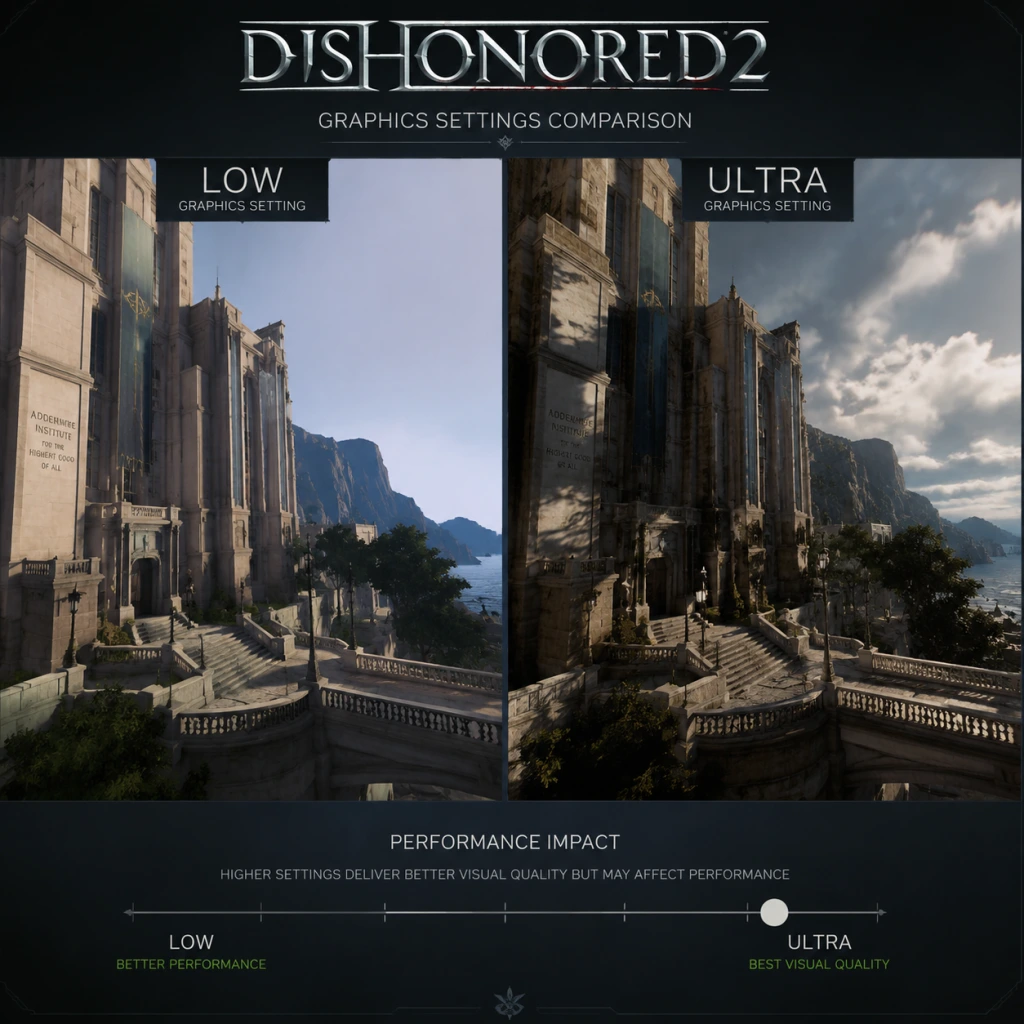
Game Settings
Game Settings Guide for Dishonored 2
Properly configuring your settings in Dishonored 2 can significantly impact performance, visual fidelity, and gameplay responsiveness. This guide covers every settings category and provides optimal recommendations for different hardware tiers on PC as well as console-specific tips.
---
Graphics Settings (PC)
Dishonored 2 uses Arkane's custom Void Engine (id Tech 5 derivative), which is heavily CPU-bound, especially in complex areas like the Clockwork Mansion. The game also runs at a mandatory 60 FPS cap on consoles, but PC players can unlock it (requires tweaking a config file).
#### Recommended Graphics Presets by Hardware Tier
| Hardware Tier | Preset | Key Adjustments |
|---|---|---|
| Low-End (GTX 960 / RX 460 / 4GB RAM) | Low | 720p resolution, disable V‑Sync, set Texture Quality to Low, Shadow Quality to Low, turn off Depth of Field, Tessellation off. |
| Mid-Range (GTX 1060 / RX 580 / 8GB RAM) | Medium | 1080p, Texture Quality Medium, Shadow Quality Medium, V‑Sync off (use Fast Sync if tearing appears), enable TAA, keep Tessellation on Low. |
| High-End (RTX 2060 / RX 5700 / 16GB RAM) | High | 1440p, Texture Quality High, Shadow Quality High, enable HBAO+ (ambient occlusion), Depth of Field on Medium, TAA on, Tessellation on Medium. |
| Ultra (RTX 3080 / RX 6800 XT / 16GB+ RAM) | Very High | 4K, Texture Quality Very High, Shadow Quality Very High, HBAO+ Ultra, Depth of Field on Cine, TAA (High Quality), Tessellation on High. |
- V‑Sync: Enabling in-game V‑Sync adds significant input lag. Disable it in the menu and force Fast Sync (NVIDIA) or Enhanced Sync (AMD) through your GPU driver. Alternatively, enable V‑Sync only if you can't stand tearing and are willing to accept latency.
- Texture Quality: Adjusts VRAM usage. High textures require ~4GB VRAM at 1080p; Very High can exceed 5GB. Monitor your GPU memory usage; if you get stuttering, reduce this setting first.
- Shadow Quality: Extremely CPU-intensive. On mid-range CPUs, drop this to Medium even if GPU can handle higher. The Clockwork Mansion and the Dust District are notorious for CPU spikes.
- Adaptive Resolution: On consoles this dynamically drops resolution to maintain 60 FPS. On PC it's off by default; leave it off unless you have a very weak GPU.
- TAA (Temporal Anti-Aliasing): The only AA option that handles the game's fine details well. It may cause slight blur, but turning it off results in shimmering edges. Consider using Reshade SMAA if you dislike TAA.
- Depth of Field: Disable for competitive play or clarity; it blurs distant objects. On low-end PCs, turn it off entirely.
- Tessellation: Provides extra geometry detail on surfaces like stone floors. Very GPU demanding; low/medium offers 90% of the visual benefit.
- PS4 / PS4 Pro: The game runs at 1080p (PS4) or 1800p checkerboard (Pro) at 30 FPS. On PS5 via backward compatibility, it stays at 30 FPS with no performance patch. Set Motion Blur to Low to reduce the perception of choppiness.
- Xbox One / Xbox One S: 1080p 30 FPS. Xbox One X offers 1440p 30 FPS. No 60 FPS mode exists on any console.
- Field of View (FOV): Can be adjusted on all platforms (80–120). A higher FOV (90–100) helps situational awareness but lowers performance slightly. Console players should stay at default 80 to maintain stable frame rate.
- Master Volume: Default 100%, adjust as needed.
- Music Volume: Keep at 70–80% to not overpower ambient sounds that reveal enemy positions.
- SFX Volume: Set to 100% – all crucial gameplay sounds (footsteps, gear clanking, clockwork sounds) are here.
- Dialogue Volume: 100% to catch story dialogue and enemy conversations.
- Voice Language: English, French, German, Italian, Spanish, Japanese, etc. Can be changed independently of text language. If you want original voices, keep as is.
- Subtitles: Enable for all dialogue (including NPC ambient lines). Very helpful in noisy environments.
- 3D Audio / Headphone Mode: On PC with a stereo headset, enable Headphone Mode (if available – check config files). On consoles, system-level 3D audio (Tempest 3D on PS5, Windows Sonic on Xbox) works well. Set to Wide or Cinematic for better spatial awareness.
- Mouse Sensitivity: Default 5.0 – too slow for most players. Recommended: 8–10 for normal gameplay, 4–6 for stealth. Adjust DPI accordingly.
- Mouse Smoothing: CRITICAL TO DISABLE. This setting is ON by default and adds significant input lag. Go to Settings → Controls → Mouse Smoothing and set it to 0. The game will feel much more responsive.
- Invert Mouse Y: Optional, disabled by default.
- Key Bindings: Predefined bindings are functional but not optimal. Consider remapping:
- Controller Vibration: Disable for better aim accuracy (especially when using crossbow).
- Look Sensitivity: Default 50% is too low. Increase to 70–80% for faster turning.
- Aim Down Sights Sensitivity: Set to 50% (slower when aiming) for precise shots.
- Controller Deadzone: Default is fine, but some players prefer lowering to 5% for finer control.
- Vibration: Keep on for immersive feedback (footsteps, powers), but off for competitive stealth.
- Button Layout: The default layout is standard. If you play other Arkane games (Prey, Deathloop), consider customizing to be consistent. For example, map Blink to LB (L1) instead of A for faster teleporting.
- Subtitles: As mentioned, enable All Dialogue subtitles. The game also has a Subtitle Background option – enable for readability in bright areas.
- Colorblind Mode: Not natively supported. No in-game colorblind filters. On PC, you can use third-party overlays like Reshade to apply colorblind-friendly LUTs. On consoles, use system-level color filters (Windows Color Filters on Xbox, iOS-style on PS?). Neither is ideal.
- Difficulty Settings: Four levels – Easy, Normal, Hard, Very Hard. Affects enemy damage, detection speed, and resource availability. Easy or Normal recommended for first playthrough to avoid frustration.
- Audio Cues: The game relies heavily on audio (enemy footsteps, clockwork ticks, etc.). If you have hearing difficulties, consider using special headphones or increasing SFX volume.
- Screen Shake: Can be reduced via a hidden config file edit (search for PostProcessing= in Dishonored2Config.ini and set bCameraShakeEnabled=False). Not accessible in menus.
- Text Language: Can be changed independently from voice language. Available in: English, French, German, Italian, Spanish, Japanese, Polish, Russian, Chinese (Simplified), and more.
- Voice Language: Separate selection – you can have English text with Japanese voices, for example. Change this in Settings → Audio → Voice Language.
- Console Language: For consoles, language is tied to system language unless you change it in the game's settings. Some platform versions may lack certain language options (e.g., Japanese audio is only on the Japanese release disk).
- PC Steam Language: The Steam client language determines the default, but you can override via game launch options. For example, to force English: `-language english` in launch options.
- Bethesda.net Login: On PC and consoles, the game may prompt you to log in to Bethesda.net for cloud saves and sharing screenshots. This is optional. If you encounter crashing, skip login.
- In-Game Store: Unavailable; all DLC (e.g., Dishonored 2: Death of the Outsider) is separate and not accessed via in-game menus.
- No Leaderboards or Online Features: Therefore, no network settings to adjust. Leave everything at default.
- Difficulty: As noted earlier, choose from Easy to Very Hard. The game's Chaos system is unaffected by difficulty, so play at a level that allows you to enjoy the story.
- Auto-Aim: On all platforms, a slight aim assist is present for controllers. Turn it off for more rewarding manual aiming; leave on for casual play.
- Crosshair: Choose between Dynamic (changes size when aiming at enemies) or Static. Dynamic offers more feedback for stealth (e.g., crosshair turns red when enemy is targetable).
- Interaction Prompt Size: Small/Medium/Large. Increase if you have trouble seeing prompts on screens.
- Quick Save / Quick Load: Active on all platforms. On PC, F5 and F9 work instantly. On consoles, you can only access via menu (save/load). Use frequently, as the game has no checkpoint spacing.
- Bonuses / HUD: Customize which HUD elements appear: objective markers, enemy awareness indicator, mana/bloodthirst display, etc. You can hide everything for an immersive experience. Recommended: keep Enemy Awareness and Objective Marker on for direction.
- Automatic Weapons Sheath: On by default – your weapon goes away if you don't use it for a while. Disable if you want to stay ready.
- Hold vs Toggle Actions: Crouch, Sprint, Lean. Toggle for Crouch and Sprint are less fatiguing for long sessions. Lean is typically hold only.
#### Console-Specific Graphics Notes
---
Audio Settings
---
Controls Settings
#### Keyboard & Mouse (PC)
- Blink / Far Reach to Mouse Button 4 (thumb button) for quick use.
- Quick Save to F5 (default), Quick Load to F9 – extremely useful.
- Weapon Wheel to Q (hold) – allows instant power selection.
- Crouch to Ctrl (toggle) – toggle is more ergonomic than hold.
#### Controller (PC & Console)
---
Accessibility Settings
Dishonored 2 has limited built-in accessibility options, but the following are available:
---
Language Settings
---
Network Settings
Dishonored 2 is a single-player only game. There is no multiplayer, co-op, or online component that affects gameplay. However:
---
Gameplay Settings
---
Special Attention Points & Easy-to-Misconfigure Settings
1. Mouse Smoothing (PC): Always turn this to 0. Many players don't notice it at first but later wonder why aiming feels sluggish. Check it before playing.
2. V‑Sync: Disable in-game to reduce input lag. If you must cap FPS, use an external limiter (RTSS, NVIDIA Control Panel).
3. Texture Quality on Low VRAM GPUs: Setting to Very High on a 4GB card can cause stuttering as textures are swapped out. Monitor VRAM usage with tools like MSI Afterburner.
4. Shadow Quality on CPUs: The default “High” is punishing for quad-core CPUs. Lower to Medium if you experience massive frame drops in the Clockwork Mansion.
5. FOV for Performance: Increasing FOV reduces performance by ~5% per 10 degrees. Keep at 90 if you want a balance between awareness and frames.
6. Auto-Save Frequency: The game autosaves only at checkpoints. Use Quick Save manually every few minutes – especially after completing a difficult stealth sequence.
7. Controller Aim Assist: On PC, if you use a controller, aim assist is quite strong. Turn it off to develop better aim for higher difficulties.
8. Language Mismatch on Steam: If you see the wrong language, go to game properties → Language tab and select your preferred language, then verify integrity of game files.
9. Fullscreen vs Borderless: Use Exclusive Fullscreen for best performance. Borderless Windowed adds input lag and can reduce FPS by 3–5%. Console players have no choice.
10. Hide HUD Elements: The game allows toggling HUD off entirely via a keybind (default F12 on PC). This can be accidentally pressed during tense moments and hide critical info. Rebind it if you play with minimal HUD.
---
Conclusion
Tweak these settings before you dive into the streets of Karnaca. Remember: Dishonored 2 rewards patience and experimentation. A smooth 60 FPS with responsive controls will make your stealth or combat efforts far more satisfying. If you hit performance walls, lower Shadow Quality and Texture Quality first – they have the biggest impact on both CPU and GPU. Enjoy the game!