Game Settings
Game Settings
Overview
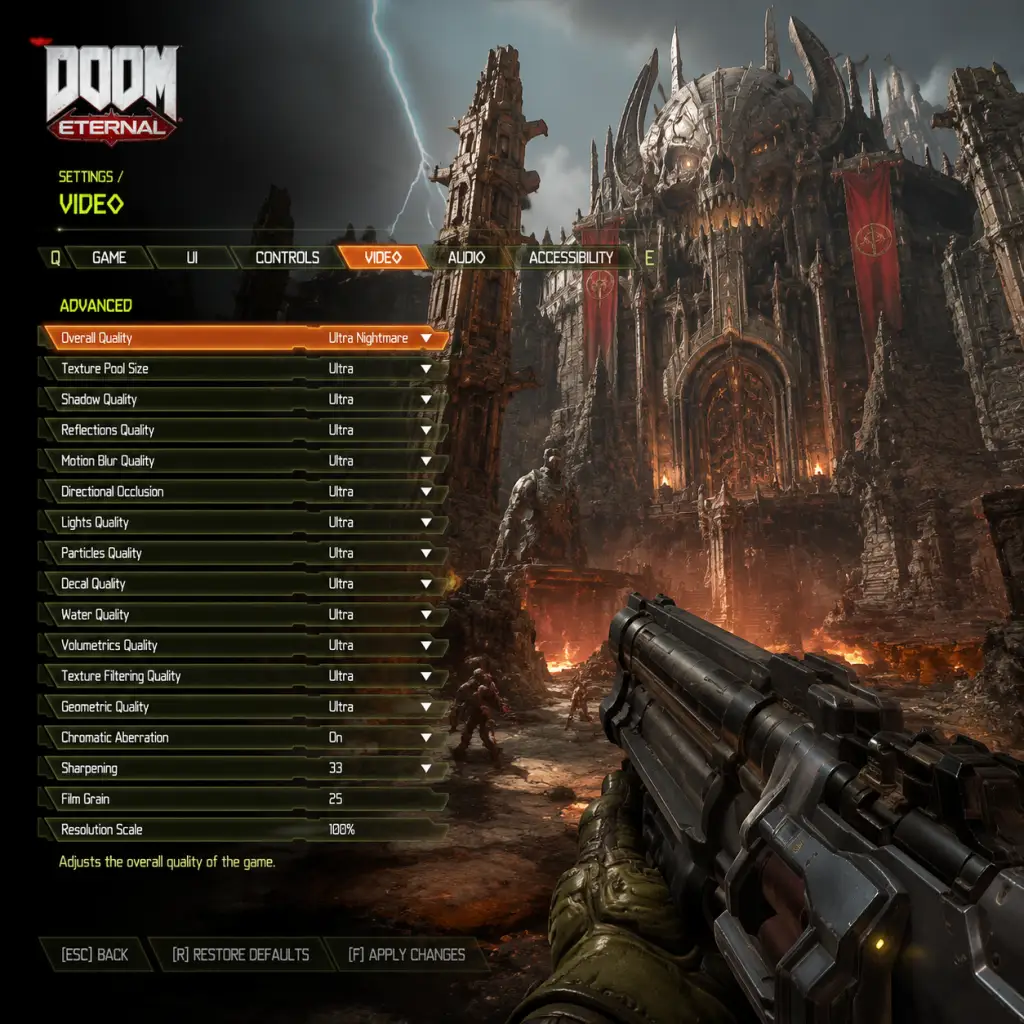
Doom Eternal is a highly optimized game that runs well on a wide range of hardware. However, to achieve the best balance between performance and visual fidelity, you should customize settings based on your system. This guide covers all major settings categories, with recommendations for different hardware tiers. Pay special attention to settings that are easy to misconfigure—such as Chromatic Aberration, Motion Blur, and Texture Quality—as they can significantly impact either visual clarity or performance.
Graphics Settings
#### Display Mode
- Fullscreen (recommended): Grants exclusive access to the GPU, reducing input lag and improving stability.
- Borderless Windowed: Useful for quick alt-tabbing but can introduce slight input lag.
- Windowed: Not recommended for gameplay.
- Resolution: Set to your monitor's native resolution.
- Resolution Scaling: Use only if you need performance headroom. Values below 100% reduce quality; above 100% (e.g., 150%) can improve clarity on high-res displays but requires more GPU power. For 4K displays, 100% is fine; for 1080p, you may use 125% for sharper visuals if performance allows.
#### Resolution and Scaling
#### Graphics Presets
Doom Eternal offers presets: Low, Medium, High, Ultra Nightmare. Below are recommended custom tweaks for three hardware tiers.
| Setting | Low-End (GTX 1050 Ti / RX 570) | Mid-Range (RTX 2060 / RX 5600 XT) | High-End (RTX 3080 / RX 6800 XT) |
|---|---|---|---|
| Texture Quality | Medium | High | Ultra Nightmare |
| Shadow Quality | Low | Medium | Ultra Nightmare |
| Lighting Quality | Medium | High | Ultra Nightmare |
| Decal Quality | Low | Medium | High |
| Particle Quality | Medium | High | Ultra Nightmare |
| Water Quality | Low | Medium | High |
| Volumetric Quality | Low | Medium | Ultra Nightmare |
| Reflection Quality | Low | Medium | Ultra Nightmare |
| Ambient Occlusion | Off (or SSAO) | SSAO | HBAO+ |
| Motion Blur | Off | Off | Off (or 1-2) |
| Chromatic Aberration | Off | Off | Off (recommended) |
| Film Grain | Off | Off | Off |
| Depth of Field | Off | Low | Off (or Low) |
| Lens Flare | On | On | On |
| Anti-Aliasing | TAA (low) | TAA (medium) | TAA (high) or FXAA if TAA causes blur |
| Anisotropic Filtering | 4x | 8x | 16x |
- Chromatic Aberration and Film Grain add a retro film look but reduce clarity. Many competitive players disable them.
- Motion Blur: Blurs movement; disable for sharper visuals in fast-paced combat.
- Texture Quality: On low-end systems, setting to Ultra Nightmare can cause stuttering due to VRAM limits. Use High or Medium instead.
- Ambient Occlusion: HBAO+ looks great but is costly; SSAO is a good middle ground.
- FidelityFX Super Resolution (FSR): Only available on PC. Use if you need a performance boost. Quality mode preserves image quality well; Ultra Performance is blocky. Not recommended on mid/high-end unless you target very high frame rates.
- NVIDIA DLSS: Supported on RTX cards. DLSS Quality mode provides a near-native image with a significant performance gain. Use DLSS Balanced or Performance for higher FPS.
- Ray Tracing: Only available with RTX cards. Reflection quality and lighting improve noticeably but cut performance roughly 30–50%. Recommend turning off for competitive play; turn on for single-player immersion on powerful cards.
- Default: Set to your primary output (headset or speakers).
- Mono: Enable only if you have hearing impairment in one ear or a single speaker setup.
- Master Volume: 100% (adjust system volume separately).
- Music Volume: 70–100% (the soundtrack enhances the action).
- SFX Volume: 100% (essential for hearing enemy cues).
- Dialogue Volume: 80–100% (story elements).
- Voice Chat Volume: Adjust as needed.
- Dynamic Range: Choose High for home theater setups (wide range). Medium or Low for headsets to avoid losing quiet sounds.
- Speaker Configuration: Set to Stereo for headphones, 5.1 or 7.1 for surround sound systems. If using virtual surround (e.g., Dolby Atmos), select Stereo and let software handle it.
- Audio Mix: War Tapes mode boosts quiet sounds (footsteps, health pickup) and compresses loud ones; useful for headsets. Studio Reference is flat. Use War Tapes for competitive advantage.
- Dynamic Range: If set too low, explosions may be deafening while whispers disappear. On headsets, Medium is recommended.
- Audio Mix: War Tapes is often preferred for multiplayer because it makes enemy movements more audible.
- PC: The default keyboard and mouse layout is functional but can be improved.
- Console: Default controller bindings are good, but consider customizing jump and dash to comfortable triggers.
- Weapon Switch: Use number keys (1-6) rather than mouse wheel for speed. Consider binds like Q for Super Shotgun, E for Ballista.
- Jump: Space (default). Some players prefer mouse thumb button for easier movement.
- Dash: Shift (default). Rebinding to a side mouse button can free your left hand.
- Flame Belch: F (default). Good.
- Ice Bomb: Q or G.
- Chainsaw: C (default). Keep accessible.
- Melee: V (default).
- Punch: Left mouse click when no weapon is out? Use dedicated key: Mouse thumb button.
- Crouch/Slide: Ctrl or C. Binding slide to a toggle is easier for rapid movement.
- Weapon Wheel: Tab (default). Use only for quick selection; otherwise use direct binds.
- Stick Sensitivity: Start at ~20–30 for horizontal and vertical; adjust up for faster turning, down for precision.
- Dead Zone: Default is fine. Lower to 0.1 if you feel drift.
- Look Smoothing: Set to 0 for direct input.
- Aim Assist: Enable for console, disable for PC controller? Keep enabled for easier tracking.
- Button Layout: Consider using "Bumper Jumper" to jump with L1/LB and aim with R1/RB. Dash on R3 (click right stick) may be awkward; try L3 (click left stick) if comfortable.
- Trigger Dead Zones: No adjustment in game, but you can set in console accessories app.
- Mouse Sensitivity: Start at 4–6 in-game with 800 DPI. Adjust to achieve a 360-degree turn across ~30 cm of mouse movement.
- Mouse Acceleration: Disable in Windows and in-game (set to 0).
- Invert Y: Off unless you prefer inverted flight.
- Toggle Crouch: Enable to easily slide without holding.
- Toggle Sprint: Not present (auto-sprint is default). Keep enabled.
- Weapon Wheel can be a crutch; practicing direct weapon keys improves reaction time.
- Toggle vs Hold Dash: The game allows both. Toggle is less fatigue but can cause accidental dodge. Most competitive players use Hold.
- Color Blind Modes: Options for Deuteranopia, Protanopia, Tritanopia. Affects enemy health bars and UI elements.
- HUD Scale: Increase for readability on small screens or distance from TV.
- Subtitles: Enable with speaker name and background for clarity.
- High Contrast Mode: Not explicitly present, but color blind settings help.
- Text Size: Can't be changed beyond HUD scale.
- Monaural Audio: Combine left and right channels into mono; helps with single-ear setups.
- Damage Direction Indicator: On-screen arrows show damage direction—enable if audio cues are hard to hear.
- Auto-Switch Weapon: Off (default) – disable to have full control.
- Auto-Equip Weapons: On – picks up new weapons automatically; turn off if you prefer manual.
- Tap Weapon Switch: On – allows tap to switch between two weapons. Useful for quick swapping.
- Hold to Crouch: Toggle is easier for some.
- Flight Stick: Not supported.
- Game Speed: Not adjustable.
- Aim Assist Strength: Adjustable on controller; increase for easier tracking.
- Damage Number Display: On by default; can be distracting, turn off if overwhelmed.
- Auto-Switch Weapon can cause you to waste ammo on weaker demons; turn it off for strategic control.
- Tap Weapon Switch is very useful for the Super Shotgun + Ballista combo (quick-swapping). Enable it.
- Text Language: Select from available options (e.g., English, French, German, etc.). Game must be restarted to apply.
- Audio Language: Same options; affects character voices.
- Subtitles Language: Overrides text language for subtitles.
- These settings are in the main menu under "Language". Changing mid-game is safe, but new lines may not update until reloading the level.
- Doom Eternal does not support language packs on all platforms equally. On console, language is often tied to system language. On PC, you can switch freely in the launcher or in-game menu.
- Region: Choose the closest for lowest ping. Auto is fine.
- Connection Type: Wired > Wi-Fi. If Wi-Fi, ensure 5 GHz band and low interference.
- Matchmaking: Can filter by mode (Solo vs Team).
- Crossplay: Enable to play with console friends; disable to restrict to PC only.
- Network Status: Shows your ping and packet loss during matches. Keep an eye on it.
- Bandwidth Limit: Not applicable; game streams assets dynamically.
- NAT Type: Ensure Open (Type 1/2). Closed NAT will limit matchmaking. Port forwarding recommended (ports: 3074 UDP, 88 UDP, 53 UDP, 443 TCP, 80 TCP).
- Voice Chat: Push-to-talk (PC) or open mic (console). Adjust volume.
- Crossplay can cause slight imbalance (PC players have mouse advantage). If you play competitively on console, consider disabling crossplay.
- Network Status overlay can be toggled in settings; use it to diagnose lag.
- Damage Number Size: Small – medium – large. Keep medium for awareness.
- Crosshair: Color (cyan, pink, etc.) and shape (dot, cross, etc.). Choose high-contrast color for visibility.
- Weapon Bob: Set to low or off to reduce motion sickness.
- FOV (Field of View): Default 80 (console) or 90 (PC). Increase to 100–110 for better peripheral vision. Higher FOV reduces perceived speed but helps spotting enemies. Console users can set up to 110? On PS4/Xbox One, cap is 90; on PC up to 120.
- Gore: Level – None, Low, High. High adds dismemberment and pools of blood. No performance impact.
- Show Enemy Health: On – shows health bars above enemies.
- Show Compass: On – helps with orientation.
- Show Weapon Pickups: On.
- Screen Shake: Set to off or minimal to reduce disorientation.
- Vignette: Off – removes dark corners, improves visibility.
- I'm Too Young to Die: Easy – for story.
- Hurt Me Plenty: Normal.
- Ultra-Violence: Hard – recommended for experienced FPS players.
- Nightmare: Very hard – permadeath on death? Actually, you can continue from last checkpoint but enemies are relentless.
- Extra Life Mode: Single-life run with extra lives scattered – for challenge.
- FOV is one of the most impactful settings: too low leads to tunnel vision, too high can distort distant targets. Start at 100, adjust up to 110 if comfortable.
- Screen Shake and Vignette are often disabled by competitive players to reduce visual clutter.
- Damage Numbers can be turned off for a cleaner HUD, but keep on to learn weapon effectiveness.
- Your settings are saved automatically to the local config file. On PC, the config file is located at `%USERPROFILE%\Saved Games\id Software\DOOMEternal\base\config.ini`. You can backup this file to preserve your settings.
- Cloud saves sync settings across devices if enabled (Bethesda account required).
- For controller settings, they are stored in a separate `.ini` or console profile.
#### Advanced Graphics
Audio Settings
#### Sound Devices
#### Volume Levels
#### Advanced Audio
Special Attention:
Controls Settings
#### Platform-Specific Basics
#### PC Recommended Keybinds
#### Controller Settings
#### Advanced Control Options
Special Attention:
Accessibility Settings
#### Visual Accessibility
#### Audio Accessibility
#### Motor Accessibility
#### Cognitive Accessibility
Special Attention:
Language Settings
Special Attention:
Network Settings
#### Multiplayer (Battlemode)
#### Advanced Network
Special Attention:
Gameplay Settings
#### HUD & Gameplay Options
#### Difficulty Settings
Special Attention:
Saving & Managing Settings
Conclusion
Properly configuring your settings in Doom Eternal can drastically improve your performance and enjoyment. Experiment with the recommendations above, especially the graphics and control settings tailored to your hardware. Remember to revisit settings after game updates, as patches sometimes reset or add new options. Stay mobile, and happy slaying!