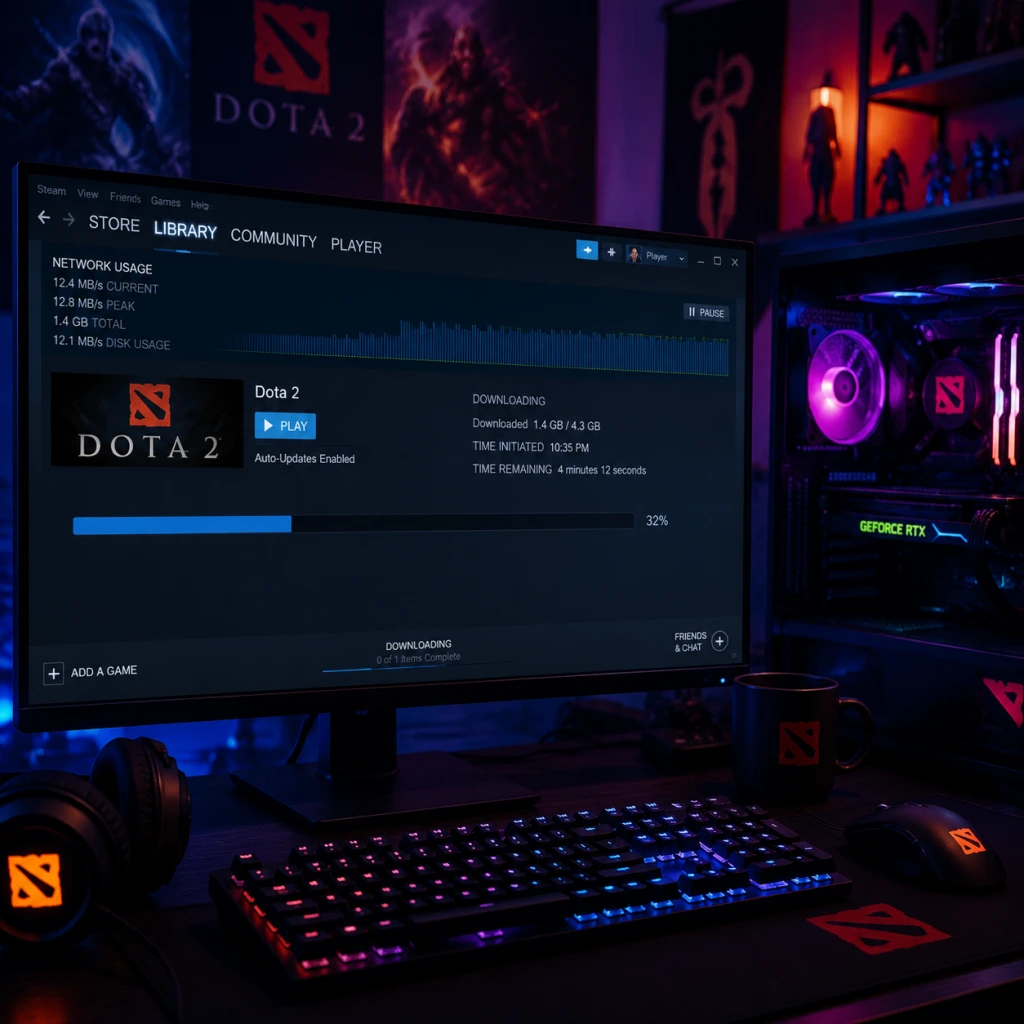
Download & Installation
Dota 2 Download & Installation Guide
Dota 2 is a free-to-play multiplayer online battle arena (MOBA) game developed and published by Valve Corporation. It is available exclusively on PC via the Steam platform. There are no official releases for PlayStation, Xbox, Nintendo Switch, or mobile devices. This guide covers everything from system requirements to post-installation verification.
---
1. Platform Availability
| Platform | Official Support | Availability |
|---|---|---|
| PC (Windows / macOS / Linux) | Yes - via Steam | Free to play |
| PlayStation 4 / 5 | No | Not available |
| Xbox One / Series X\ | S | No |
| Nintendo Switch | No | Not available |
| iOS / Android | No | Not available |
---
2. System Requirements
Dota 2 is relatively lightweight for a modern game. Requirements may change slightly with major updates.
#### Minimum Requirements (playable at low settings)
- OS: Windows 7 / macOS 10.9 / Ubuntu 14.04 (64-bit)
- Processor: Dual-core from Intel or AMD at 2.8 GHz
- Memory: 4 GB RAM
- Graphics: NVIDIA GeForce 8600/9600GT, ATI/AMD Radeon HD 2600/3600, or Intel HD Graphics 4400 (DirectX 9.0c compatible)
- DirectX: Version 9.0c
- Storage: 15 GB available space
- Network: Broadband internet connection
- OS: Windows 10 / macOS 10.15 / Ubuntu 18.04 (64-bit)
- Processor: Intel Core i5-4460 or AMD Ryzen 3 1200
- Memory: 8 GB RAM
- Graphics: NVIDIA GeForce GTX 960 or AMD Radeon R9 280 (DirectX 11)
- DirectX: Version 11
- Storage: 15 GB SSD
- Network: Broadband internet connection with low latency
- Base game: ~7–10 GB
- With updates / workshops / replays: 15–20 GB recommended
- SSD strongly recommended for faster map loading and reduced stutter.
- Steam Account (free): Create at [steampowered.com](https://steampowered.com)
- No additional subscriptions required; Dota 2 is fully free-to-play.
- Phone number may be required for ranked matchmaking (Steam Guard Mobile Authenticator).
#### Recommended Requirements (smooth 60fps at medium-high)
> Note: macOS support has been reduced; Valve recommends playing on Windows or Linux for best performance. On Linux, the native client uses Vulkan.
---
3. Required Storage Space
---
4. Account Requirements
---
5. Step-by-Step Installation on PC (Steam)
#### 5.1 Install Steam Client
1. Go to [store.steampowered.com](https://store.steampowered.com).
2. Click "Install Steam" in the top right.
3. Download the installer (`SteamSetup.exe`).
4. Run the installer and follow on-screen prompts:
- Choose language
- Accept license agreement
- Select installation folder (default: `C:\Program Files (x86)\Steam`)
5. Once installed, launch Steam and log in (or create a new account).
#### 5.2 Download Dota 2
1. In Steam, click the Store tab.
2. Search for "Dota 2" in the top-right search bar.
3. On the store page, click "Play Game" (or "Add to Library").
4. The game is now added to your library.
5. Switch to the Library tab.
6. Find Dota 2 in your games list and click "Install".
7. Choose installation directory:
- Default: `C:\Program Files (x86)\Steam\steamapps\common\dota 2 beta`
- You can change it to any folder on any drive.
8. Click "Next" and Steam will start downloading the game files (~8 GB initially).
9. Wait for download and installation to complete. You can play while downloading continues (only the core files are needed to start).
> Alternative method: You can install directly from a friend’s Steam library share or use a physical disc, but digital download is standard.
---
6. First Launch Setup
1. After installation, click "Play" in Steam Library.
2. The game will compile shaders (may take a few minutes on first launch).
3. You will be prompted to sign in with your Steam account (automatic if already logged in).
4. Accept the End User License Agreement (EULA) and Privacy Policy.
5. The game downloads additional content (heroes, maps, sounds). A progress bar appears.
6. Once loaded, you may see a tutorial offer. It is highly recommended for new players.
7. Configure initial settings:
- Graphics: Auto-detect or manual. Set resolution, quality, window mode.
- Audio: Adjust volume, language (voice chat).
- Controls: Customize hotkeys, camera speed, etc.
8. Complete the tutorial (optional) or go straight to the main menu.
> Note: Dota 2 requires an internet connection at all times. Offline LAN play is not officially supported.
---
7. Common Installation Errors & Fixes
| Error | Cause | Solution |
|---|
| Download stuck at 0% | Network issue / Steam server load | Restart Steam; check internet; try changing download region in Steam Settings > Downloads.
| "Disk write error" | Insufficient permissions or disk space | Run Steam as Administrator; free up disk space; check if antivirus is blocking writes.
| Shaders compilation fails | Outdated GPU drivers | Update graphics drivers (NVIDIA, AMD, Intel). For Linux, ensure Vulkan drivers are installed.
| Game crashes on startup | Corrupted config files | Delete `cfg` folder in `...\dota 2 beta\game\dota\cfg` (Steam will regenerate). Disable conflicting overlays (Discord, MSI Afterburner).
| Low FPS after install | Wrong graphics settings / outdated drivers | Set graphics to default; disable vsync; update DirectX and GPU drivers. On macOS, try lower resolution.
| "Unable to load library steam_api.dll" | Antivirus quarantine | Add Steam folder to antivirus exclusions. Reinstall Steam if necessary.
| Game won't open after update | Partial update bug | Restart Steam; wait for patch; verify files again.
#### General Troubleshooting Steps
- Run Steam as administrator (right-click shortcut > Run as administrator).
- Disable IPv6 in network adapter settings if download speeds are slow.
- Close background applications that may interfere (especially overlays).
- Reinstall Dota 2 only as last resort (backup config files first).
- High-priority installation: In Steam Settings > Downloads, enable "Allow downloads during gameplay" for background updates.
- Multiple installs: Dota 2 supports multiple installations on different drives (right-click > Properties > Local Files > Move Install Folder).
- Steam Cloud Saves: Settings are automatically synced. No manual save needed.
- Alternative clients: Dota 2 also offers a Vulkan renderer (on Windows and Linux) for better performance on compatible hardware. Enable in launch options: `-vulkan`.
---
8. Post-Installation Verification
After installation, confirm that everything is working correctly:
1. Check file integrity: In Steam Library > Dota 2 > Properties > Local Files > Verify integrity of game files. If any missing/corrupted files are found, Steam will redownload them.
2. Launch the game and observe:
- Main menu loads fully.
- You can access the Heroes tab.
- Navigate to Learn > Tutorial (should start without errors).
- Test a local practice match against bots (Play > Bot Match).
3. Check graphics performance: Press F12 to take a screenshot, or use console (`~` key) to check FPS (`net_graph 1`).
4. Audio check: Play a hero voice line or test microphone in Settings > Audio > Microphone Test.
5. Update schedule: Dota 2 receives frequent balance patches (every 2–4 weeks) and major events. Ensure auto-updates are enabled in Steam.
> Note: Your in-game progress, cosmetics, and MMR are stored on Valve servers via your Steam account. No backup is needed.
---
9. Additional Tips
---
Closing
Dota 2 is a deep, endlessly replayable game with a large community. By following this guide, you should have a smooth installation and be ready to jump into the Battle of the Ancients. For further help, visit the official [Dota 2 Help site](https://help.dota2.com) or the [/r/Dota2 subreddit](https://reddit.com/r/Dota2).