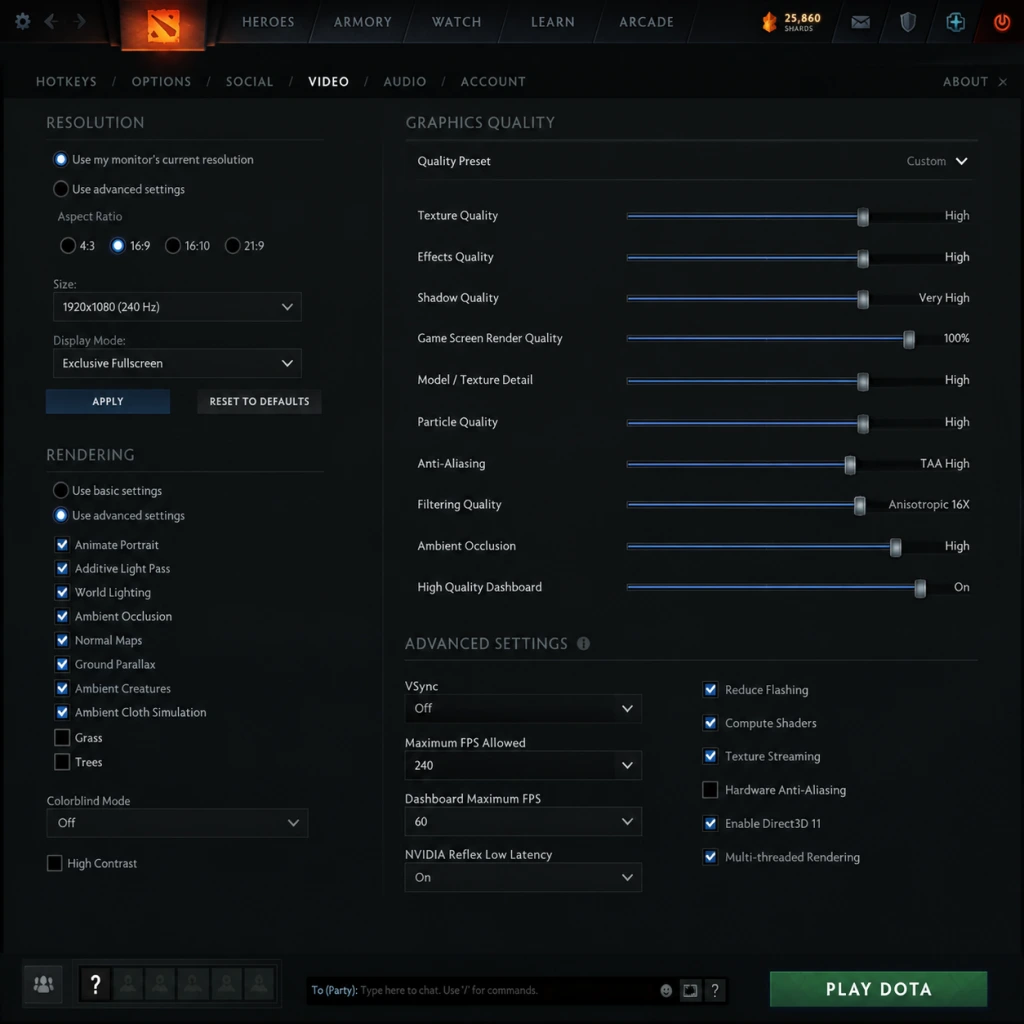
Game Settings
Game Settings Guide for Dota 2
This guide covers all major settings categories in Dota 2: Graphics, Audio, Controls, Accessibility, Language, Network, and Gameplay. It includes optimal settings for different hardware tiers and highlights common misconfigurations.
---
Graphics Settings
Graphics settings dramatically affect performance and visual clarity. Dota 2 uses the Source 2 engine; adjust these settings based on your hardware.
Recommended Presets by Hardware Level
| Component | Low-End (e.g., i3-6100, GTX 1050) | Mid-Range (e.g., i5-11400, RTX 3060) | High-End (e.g., i7-12700, RTX 4080) | Ultra (e.g., i9-13900K, RTX 4090) |
|---|---|---|---|---|
| Render Direct3D | Direct3D 11 (default) | Direct3D 11 | Direct3D 12 / Vulkan | Direct3D 12 / Vulkan |
| Resolution | 1280x720 (or native if smooth) | 1920x1080 | 2560x1440 or 4K | 4K or ultrawide |
| Display Mode | Fullscreen | Fullscreen | Fullscreen | Fullscreen |
| Texture Quality | Low | Medium | High | Ultra |
| Shadow Quality | Off | Low | High | Ultra |
| Dynamic Shadows | Off | On | On | On |
| Effects Quality | Low | Medium | High | Ultra |
| Ambient Occlusion | Off | Off | On (SSAO) | High (HBAO+) |
| Anti-Aliasing | Off or FXAA | MSAA 2x | MSAA 4x | MSAA 8x or TAA |
| Anisotropic Filtering | 2x | 4x | 8x | 16x |
| Vsync | Off (use frame limiter) | Off (use frame limiter) | Off | Off (GSync/Freesync) |
| Motion Blur | Off | Off | Off | Off (personal preference) |
| World Lighting | Low | Medium | High | Ultra |
| Tree Quality | Low | Medium | High | Ultra |
| Units Quality | Low | Medium | High | Ultra |
| Foliage Quality | Off | Low | Medium | High |
| Water Quality | Low | Medium | High | Ultra |
| Animation Quality | Low | Medium | High | Ultra |
| Particle Quality | Low | Medium | High | Ultra |
| Specular Bloom | Off | Off (or Low) | Low | Medium |
| Fog Quality | Off | Low | Medium | High |
| Depth of Field | Off | Off | Off | Off (competitive) |
Special Attention Points (Graphics)
- Render Direct3D: Direct3D 12 / Vulkan provides better CPU multi-threading and may increase FPS on modern hardware. If instability occurs, revert to Direct3D 11.
- Texture Quality: VRAM-constrained systems (e.g., 2GB) must use Low/Medium to avoid stutter.
- Vsync: Turn off to reduce input lag; use Advanced Settings > Framerate Cap (e.g., 144 FPS for 144 Hz monitor).
- Motion Blur & Depth of Field: Disable for competitive clarity; they hinder fast target identification.
- Units Quality: Controls hero/cree model detail; too low may make some abilities hard to see.
---
Audio Settings
Audio settings affect immersion and gameplay cues (spells, footsteps, ultimates).
| Setting | Recommended Value | Notes |
|---|---|---|
| Master Volume | 70–100% | Adjust per preference, avoid clipping |
| Music Volume | 30–50% | Keep lower to hear effects |
| Sound Volume | 100% | Includes spells, attacks, voice lines |
| Ambient Volume | 50–70% | Map ambient sounds (water, creeps) |
| Unit Speech Volume | 100% | Hero and announcer lines |
| Voice Chat Volume | 100% | Communication with teammates |
| Enable Voice Chat | On | Must be on to talk and hear others |
| Mute Enemy Chat | Personal preference | Often muted to avoid tilt |
| Audio Language | Select language for voice lines (e.g., English, Chinese, Russian) |
Special Attention Points (Audio)
- Voice Chat Volume: Too high can cause echo; test with friends.
- Music Volume: Lower or mute during ranked to hear crucial sounds like "Black Hole" or "Echo Slam".
- Enable Voice Chat: If off, you cannot communicate via mic. Turn on and adjust Push-to-Talk in Controls.
---
Controls Settings
Controls are highly customizable. Dota 2 supports keyboard, mouse, gamepad (limited), and hotkeys for every action.
Key Bindings
| Action | Default Key | Alternative (e.g., Legacy/Quick Cast) | Notes |
|---|---|---|---|
| Select Hero | F1 | Space | Often rebound to space for easy access |
| Select All Units | F2 | ~ | Common bind for micro (e.g., with Meepo) |
| Select All Other Units | F3 | 2 | |
| Ability 1 | Q | - | |
| Ability 2 | W | - | |
| Ability 3 | E | - | |
| Ability 4 | R | - | |
| Ultimate | R | - | Same as Ability 4 default |
| Item Slots | 1–6 | Alt+Q/W/E/A/S/D | Many use mouse buttons |
| Attack | A | - | Can set to Quick Cast |
| Move | No default (right-click only) | - | Use Attack Move for kiting |
| Stop | S | - | Crucial for canceling actions |
| Hold Position | H | - | |
| Courier Deliver | F4 | 4 | Often bound to a convenient key |
| Shop | B | - | Or use hotkey for quick buy |
| Learn Ability | Ctrl+Q/W/E/R | - | |
| Level Up Stats | Auto (default) or manual | ||
| Push-to-Talk | V | Mouse thumb button | Essential for voice chat |
| Scoreboard | Tab | - | |
| Chat Wheel | Y | - | Customize in 'Chat Wheel' tab |
| Glyph of Fortification | F5 (default) | G | Important for saving towers |
| Scan | F6 (default) | X | |
| Quick Attack | A (with Quick Attack enabled) | - | Targets nearest enemy in attack range |
Special Attention Points (Controls)
- Quick Cast: Enable per ability or item to cast upon pressing the key (no click target). Great for instant stuns (e.g., Sven's Storm Hammer) but misclick-prone for skillshots (e.g., Pudge's Hook). Toggle in Advanced Hotkeys.
- Auto Attack: Set to "Never" in Gameplay settings to avoid missing last hits due to accidental attacks.
- Edge Pan vs. Edge Scroll: Many prefer Edge Pan (mouse cursor hits screen edge) but it can be laggy. Use Keyboard Move (WASD) or Mouse Move (hold mouse button) if needed.
- Camera Grip: Hold middle mouse button to drag camera smoothly.
- Smart Attack Move: In 'Options > Game > Attack Move' – set to 'Attack Move On Center' to hit nearest enemy to your cursor, not to your hero. Essential for efficient kiting.
---
Accessibility Settings
Dota 2 includes several features to accommodate different needs.
| Setting | Location | Recommendation |
|---|---|---|
| Colorblind Mode | Options > Video > Accessibility | Turn On if you have difficulty distinguishing red/green health bars (Radiant vs Dire). Adds shapes (e.g., shield for tower HP). |
| High Contrast | Options > Video > Accessibility | On for better readability of HP bars and minimap. |
| Large Health Bars | Options > Video > Accessibility | Enable to see HP more clearly. |
| Show Hero Abilities on Minimap | Options > Game > Minimap | Turn On to see ability status (e.g., enemy ult cooldown). |
| Minimap Hero Size | Options > Game > Minimap | Adjust to Large for better visibility. |
| Chat Font Size | Options > Game > Chat | Increase if needed. |
| Buildings Health Bars | Options > Game > Interface | Always On recommended. |
| Subtitles | Options > Audio | Enable for in-game voice lines text. |
| Screen Flash on Damage | Options > Game > Interface | Leave On to react to damage. |
| Show Last-Wait Duration for Deny | Options > Game > Deny | On to see deny timings. |
| Smart Attack Move | Options > Game > Attack Move | On, set to 'Attack Move On Center' for precise last-hitting. |
Special Attention Points (Accessibility)
- Colorblind Mode also changes health bar colors to yellow/pink, making it easier for most players. It does not hinder non-colorblind users.
- High Contrast may make icons look different; test in a bot match.
- Smart Attack Move is a game-changer – enables you to attack the nearest enemy to your cursor, not your hero, which is critical for ranged heroes when kiting melee opponents.
---
Language Settings
Dota 2 is available in many languages. These settings affect UI, voice lines, and matchmaking.
| Setting | Description | Recommendation |
|---|---|---|
| System Language | Sets UI text and menus. | Choose your preferred language (e.g., English). |
| Audio Language | Voice lines for heroes, announcers, and creeps. | English or your native language; note that some jokes/idioms may be lost in translation. |
| Subtitles Language | Text for voiced lines during gameplay. | Same as UI or disable if distracting. |
| Matchmaking Language Preference | In the 'Find Match' tab, you can select preferred languages. | Set to your native language to communicate with teammates. If no preference, select multiple (e.g., English, Chinese) but expect communication barriers. |
Special Attention Points (Language)
- Matchmaking Language Preference does not guarantee teammates will speak that language; it only increases chances. Set to "None" if you don't care, but expect language chaos.
- Audio Language cannot be changed mid-match; changing it in settings takes effect next match.
---
Network Settings
Network settings affect lag, packet loss, and connection stability.
| Setting | Path | Recommendation |
|---|---|---|
| Network Quality | Options > Network | Set to High for most players. High = lower buffer, less delay but more sensitive to spikes. Medium/Low if you experience constant spikes. |
| Bandwidth Limit | Launch Options (Steam) | e.g., `+net_maxroutable 1200` for 10–15 Mbps. Default (0) auto-detects. |
| Maximum Allowed Bandwidth | Not in UI; use console command `sv_max_allowed_bandwidth` | Usually 0 (unlimited). |
| Interpolation | Options > Network | Default (0.033s) is fine. Lower values reduce visual lag but may cause jitter with high ping. |
| Incoming Rate | Console: `rate` | 80000–100000 default; increase if you have good internet (e.g., 150000). |
| Update Rate | Console: `cl_updaterate` | 30–60 (default 30); 60 if 60+ FPS. |
| Command Rate | Console: `cl_cmdrate` | 30–60 (match updaterate). |
| Network Connection | Options > Network | Choose Manual and set port forwarding (optional). Most use Auto. |
Special Attention Points (Network)
- Network Quality: High is recommended for competitive play because it minimizes buffering delay. If you see rubberbanding or teleporting, try Medium.
- Interpolation: Increase if you have high ping (>100ms) to smooth movement; decrease for lower feels.
- Bandwidth Limit: If your internet is unreliable, add a launch option `+net_maxroutable 600` (for 5 Mbps) to avoid spikes.
- Console commands: Access via `~` key. Essential for fine-tuning. Sample optimal for low ping (<=30ms): `rate 150000; cl_updaterate 60; cl_cmdrate 60; cl_interp 0; cl_interp_ratio 1` – this minimizes latency.
- Test your network: Use Dota 2's built-in network test in Settings > Network > Test Connection.
---
Gameplay Settings
These settings control behavior and UI elements, not performance.
| Setting | Location | Recommendation | Notes |
|---|---|---|---|
| Auto Attack | Options > Game > Auto Attack | Never | Prevents attack orders from being issued accidentally when giving move commands. Crucial for last-hitting. |
| Auto Attack After Spell | Options > Game > Auto Attack | Disabled | Ensures you don't attack automatically after casting a spell (e.g., after a stun, you can move first). |
| Double Tap Ability to Self-Cast | Options > Game > Double Tap Ability | On | Essential for self-targeting spells like Dazzle's Shallow Grave on yourself. |
| Enable Right-Click to Deny | Options > Game > Deny | On | Hold Alt + Right-click on friendly creeps to deny. |
| Deny Attack Key | Options > Game > Deny | A (default) | Quick deny key; many change to a mouse button. |
| Quick Buy | Options > Game > Shop | Enable to see quick-buy panel. | Use Ctrl+Shift+Click on item to quick-buy. |
| Unified Orders for All Units | Options > Game > Unit Behavior | On (for micro heroes like Meepo/Chen) | Allows you to issue commands to all controlled units at once. |
| Minimap Right-Click | Options > Game > Minimap | On | Pings the minimap when right-clicking. |
| Camera Zoom | Options > Game > Camera | Max Zoom Out (or personal preference) | Out gives more map view; in gives better view of fights. Pro players often zoom out. |
| Camera Speed | Options > Game > Camera | ~50–60% | Adjust for smooth scrolling. |
| Show Hero Health Bar Above Unit | Options > Game > Interface | Always On | Especially for enemy heroes; turn on. |
| Show Minimap Hero Icons | Options > Game > Minimap | On (with icons) | Helps locate allies. |
| Show Neutral Minimap Camps | Options > Game > Minimap | On | Shows stacking timers. |
| Hover on Ability to Show Range | Options > Game > Interface | On | See ability range indicator. |
| Teleport to Fountain with Right-Click | Options > Game > Interface | On | Allows right-clicking the minimap town portal. |
Special Attention Points (Gameplay)
- Auto Attack = Never – this is the single most important setting for improving last-hitting. Many new players leave it on "Always" or "Standard" and wonder why they miss denies.
- Double Tap Ability to Self-Cast – crucial for supports (e.g., Omniknight's Repel). If off, you must click your portrait.
- Camera Zoom: Most competitive players zoom out fully (scroll wheel out). Experiment with zoom level in a bot match to balance awareness and personal comfort.
- Quick Buy: Bind a hotkey for Quick Buy (default is F5? Actually nothing by default). Set it to a mouse side button for fast purchases after dying.
- Unified Orders: Enable if you play micro heroes; disable otherwise to avoid accidental army movements.
- Graphics: Match to your hardware; disable unnecessary effects.
- Controls: Customize hotkeys for your muscle memory.
- Gameplay: Set Auto Attack to Never and enable Smart Attack Move.
- Network: Use High Quality and test with console commands for minimal latency.
- Accessibility: Enable Colorblind Mode if needed, and adjust UI size for readability.
---
Conclusion
Properly configuring Dota 2 settings can significantly improve your performance and comfort. Test each setting in a bot match before jumping into ranked. Remember to:
Regularly review your settings, especially after major updates (e.g., new hero additions may change recommended keybinds). Happy gaming!