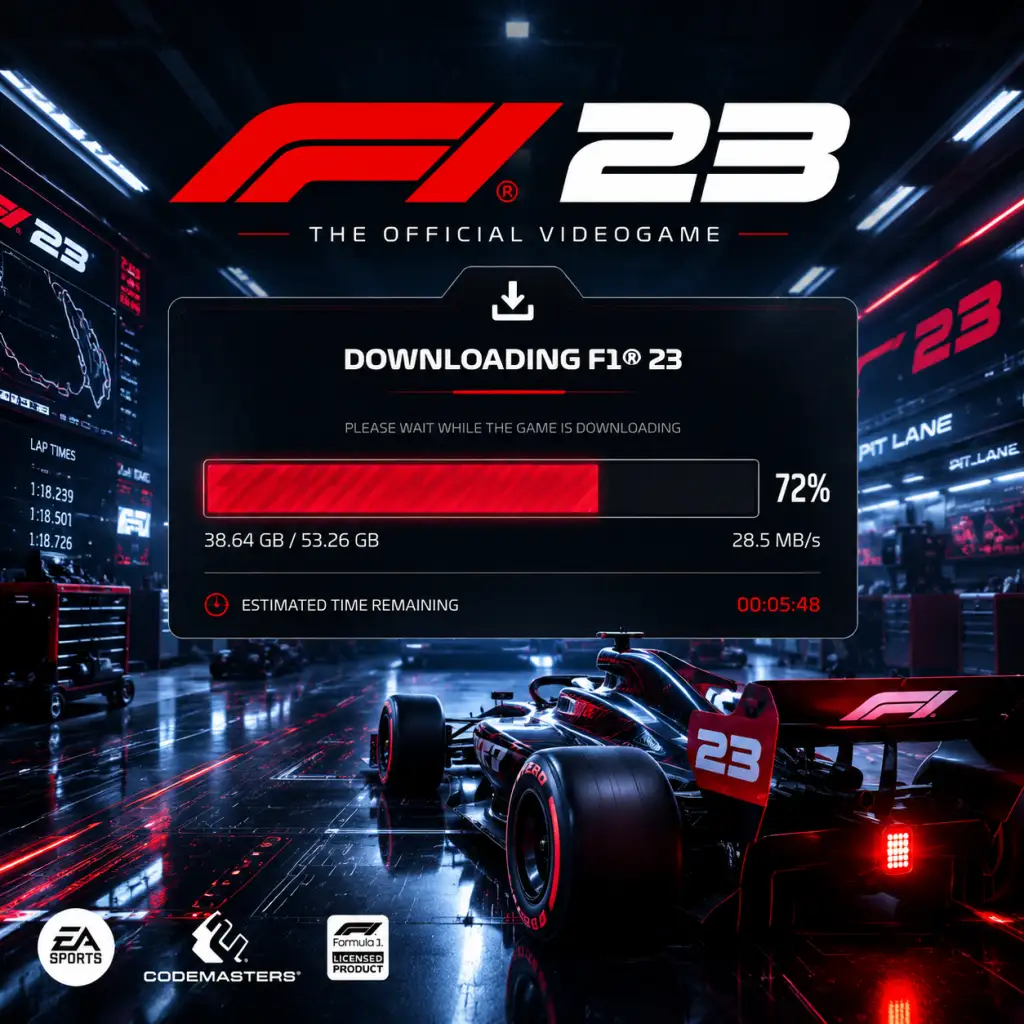
Download & Installation
Overview
This guide covers everything you need to download and install F1 23 on PC (Steam, Epic Games Store), PlayStation 4 & 5, and Xbox One & Series X|S. No official version exists for Nintendo Switch or mobile devices. Follow the platform-specific steps below to get racing.
---
System Requirements (PC)
Minimum Requirements (1080p, Low Settings, 30 FPS)
- OS: Windows 10 64-bit (21H1 or newer)
- CPU: Intel Core i3-2130 or AMD FX-4300
- RAM: 8 GB
- GPU: NVIDIA GTX 1050 Ti (4GB) / AMD RX 470 (4GB)
- DirectX: Version 12
- Storage: 80 GB available space (SSD recommended)
- Internet: Broadband connection required for online features
- OS: Windows 10/11 64-bit
- CPU: Intel Core i5-8600K / AMD Ryzen 5 2600X
- RAM: 16 GB
- GPU: NVIDIA RTX 2060 (6GB) / AMD RX 5600 XT (6GB)
- DirectX: Version 12
- Storage: 80 GB SSD
- Internet: Broadband connection
- CPU: Intel Core i7-10700K / AMD Ryzen 7 3700X
- GPU: NVIDIA RTX 3080 (10GB) / AMD RX 6800 XT (16GB)
- RAM: 16 GB
- Storage: 80 GB NVMe SSD
- Download the Steam client from [store.steampowered.com](https://store.steampowered.com/about/).
- Install and launch Steam, then create a free account or sign in.
- Open the Steam store and search for F1 23.
- Click Add to Cart and complete purchase (or redeem a key from a retailer).
- After purchase, click Install on the game's store page or go to your Library → F1 23 → Install.
- Choose an installation directory (avoid paths with special characters).
- Wait for download. Steam will handle the installation automatically.
- Once installed, click Play in your Library.
- First launch will sync with EA servers (see Account Requirements below).
- Download from [www.epicgames.com/store](https://www.epicgames.com/store/).
- Install and create / sign in to your Epic account.
- Search for F1 23 in the Epic Store.
- Purchase or redeem a key.
- Click Install → choose installation folder.
- Download will begin; Epic will install automatically.
- Click Launch from the Library.
- The game will prompt you to link your EA account on first startup.
- On your console, go to PlayStation Store.
- Search for F1 23.
- Choose edition (Standard, Champions Edition) and purchase.
- After purchase, the game will automatically start downloading.
- You can monitor progress from Downloads in the home screen.
- For disc versions: Insert the disc → installation starts automatically.
- Ensure you have at least 80 GB free (PS4) or 90 GB (PS5 for higher-resolution textures).
- Once installed, the game icon appears on your home screen.
- Select to launch. You’ll be prompted to sign in to your EA account.
- Go to Microsoft Store on your console or via Xbox app.
- Search for F1 23.
- Purchase or redeem digital code.
- After purchase, the download starts automatically.
- For disc: Insert disc → follow on-screen prompts.
- Required free space: 80 GB (Xbox One), 90 GB (Series X|S due to optimizations).
- You can queue the download and play while it installs partially (game supports “play while downloading” for early content).
- From Home or My Games & Apps, select F1 23.
- On first run, sign in to your EA account (or create one).
- PC (Steam/Epic): 80 GB (SSD highly recommended; HDD may cause longer load times)
- PS4: 80 GB
- PS5: 85–90 GB (includes mandatory 4K texture pack)
- Xbox One: 80 GB
- Xbox Series X|S: 85–90 GB (Smart Delivery optimizes download)
- EA Account: Required on all platforms to access online features, save progression via cloud saves, and link community events.
- Platform Accounts: Steam, Epic, PlayStation Network, Xbox Live.
- EA Play / Game Pass: If you subscribe to EA Play (PC, Xbox) or Game Pass Ultimate (Xbox, PC), F1 23 is included – but you still need an EA account.
- Online Multiplayer: Requires an active subscription (PlayStation Plus, Xbox Game Pass Core/Ultimate, or PC online is free).
- Solution: Free up space by uninstalling unused games or moving files. You usually need double the advertised space during installation (temporary files). Clear your Downloads folder and Recycle Bin.
- Cause: Outdated GPU drivers or missing Visual C++ redistributables.
- Fix: Update your graphics drivers (NVIDIA GeForce Experience / AMD Adrenalin). Install the latest DirectX runtime from Microsoft’s website.
- Cause: Network firewall or server outage.
- Fix: Check [EA Help Twitter](https://twitter.com/EAHelp) for server status. Temporarily disable antivirus/firewall (or add F1 23.exe as an exception). Restart router.
- Fix: Pause and resume download. Clear Steam download cache (Steam → Settings → Downloads → Clear Download Cache). Restart Steam.
- Fix: Install Microsoft Visual C++ 2015-2022 Redistributable (x64) from Microsoft.
- Fix: Delete the partially installed game. Go to Settings → Storage → find F1 23 and delete. Re-download from your library. Ensure console firmware is updated.
- Fix: Ensure your Game Pass subscription is active. Sign out of your Microsoft account on the console, restart, sign back in.
- Cause: Antivirus blocking executables or corrupted game files.
- Fix: Verify game files:
- Add exceptions for the game folder in your antivirus.
- Run the game as Administrator (right-click F1_23.exe → Properties → Compatibility → Run as Administrator).
- Fix: Launch in Windowed mode (add `-windowed` to launch options in Steam/Epic). Update drivers. Disable overlays (Discord, Steam, NVIDIA GeForce Experience).
- Pre-Loading: On PC, pre-load the game a day before release if you pre-ordered. On consoles, digital pre-orders also allow pre-load (check 48 hours before launch).
- Game Pass Users: F1 23 is included with EA Play (PC) and Xbox Game Pass Ultimate. Install via Xbox App on PC or console.
- Disc vs Digital: Disc versions still require a full installation to the hard drive. The disc is just a license key – you cannot play directly from the disc.
- Modding: F1 23 does not officially support mods. Unsanctioned mods may cause bans online. For offline only, use at your own risk.
- Cross-Platform: No cross-play between PC and consoles, but you can transfer progression via EA account across same platform family (PS4↔PS5, Xbox One↔Series X|S).
- Official EA Help: [help.ea.com](https://help.ea.com/)
- Steam Community Hub: [F1 23 Steam Discussions](https://steamcommunity.com/app/2108330/discussions/)
- Reddit: r/F1Game
Recommended Requirements (1080p, High Settings, 60 FPS)
For 4K / Ultra Settings (60 FPS+)
> Note: Actual storage may vary slightly depending on post-launch updates (expect ~90 GB after patches).
---
Platform-Specific Installation
1. PC – Steam
#### Step 1: Create or Sign In to Steam
#### Step 2: Purchase & Download
#### Step 3: Launch
2. PC – Epic Games Store
#### Step 1: Install Epic Games Launcher
#### Step 2: Purchase & Install
#### Step 3: Launch
3. PlayStation (PS4 / PS5)
#### Step 1: Purchase
#### Step 2: Install
#### Step 3: Launch
4. Xbox (One / Series X|S)
#### Step 1: Purchase
#### Step 2: Install
#### Step 3: Launch
---
Storage & Account Requirements
Storage Space (Per Platform)
> After day-one patches and updates, expect total usage of 90–100 GB.
Account Requirements
---
First Launch Setup
1. Language Selection: Choose your preferred language for menus, commentary, and subtitles.
2. Display Calibration: Adjust brightness, HDR (if supported), and V-Sync options.
3. Controller Setup: Configure button layout, vibration, and dead zones. Supports wheels (e.g., Logitech, Thrustmaster, Fanatec) on PC and consoles.
4. Difficulty / Assist Settings: You can set Braking Assist, Traction Control, Gearbox (Manual/Auto), and AI difficulty. These can be changed later.
5. EA Account Login: Enter your EA credentials (create one if needed). This syncs your F1 World progress and unlocks via Codemasters’ servers.
6. Optional: Telemetry Setup: For racing sim setups, you can enable UDP telemetry output (PC only).
7. Download Updates: The game may prompt to download a patch. Do not skip – it fixes crashes and enables online play.
---
Common Installation Errors & Fixes
Error: “Insufficient Disk Space”
Error: “DirectX 12 Error” (PC)
Error: “EA Servers Unreachable”
Error: “Stuck at 0% Download” (Steam)
Error: “MSVCP140.dll missing” (PC)
Error: “Installation Corrupted” (Console)
Error: “License Expired” (Game Pass)
Error: “Game Won’t Launch After Installation” (PC)
- Steam: Right-click F1 23 → Properties → Local Files → Verify integrity of game files.
- Epic: Click the three dots on F1 23 → Manage → Verify Files.
Error: “Black Screen on Launch”
---
Post-Installation Verification
1. Check Game Version: On the main menu, look at the bottom right corner for version number (e.g., v1.08). Compare with latest patch notes on EA’s website.
2. Test Online Connectivity: Enter F1 World or Multiplayer. If you see the calendar and events, the connection is working.
3. Benchmark Performance (PC): Run the built-in benchmark (Options → Display & Graphics → Benchmark). Ensure you meet your target framerate.
4. Input Devices: Test all buttons and pedals. Go to Settings → Control Setup → View Bindings.
5. Audio Check: Verify engine sounds, radio, and music levels. If no audio, check your Windows sound settings or console audio output (e.g., Dolby Atmos).
6. Cloud Save Sync: After playing a few minutes, exit the game. Relaunch – it should prompt “Loading save” confirming cloud sync.
---
Additional Tips
---
Need More Help?
Enjoy the race!