Game Settings
Game Settings for F1 23
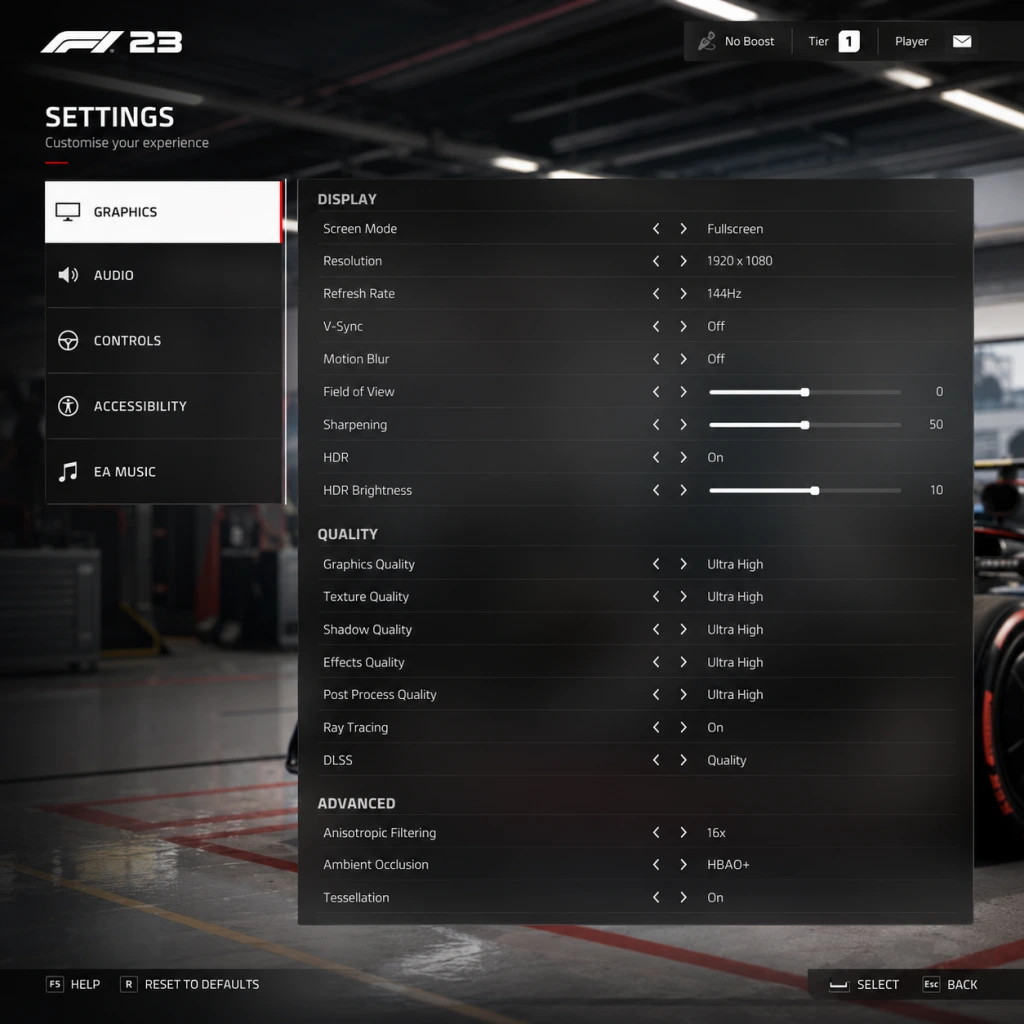
This guide covers all settings in F1 23 across Graphics, Audio, Controls, Accessibility, Language, Network, and Gameplay categories. Optimised settings for different hardware levels (Low, Medium, High, Ultra) are recommended. Special attention is given to settings that are commonly misconfigured, which can hinder performance or immersion.
---
Graphics Settings
Display Settings
- Resolution: Match your monitor's native resolution. For 1080p, 1440p, or 4K.
- Refresh Rate: Set to your monitor's max (e.g., 144Hz if supported).
- V-Sync: Off for best input lag (use with G-Sync/FreeSync). On if you experience screen tearing.
- Frame Rate Limit: Either unlimited or cap slightly below monitor refresh rate (e.g., 141fps for 144Hz) to reduce input lag.
- Field of View (FOV): Affects how much you see. Recommended: 10-20 (cockpit) or -5 to +5 (TV Pod). Incorrect FOV can distort depth perception and braking points.
- Camera Shake and Camera Movement: Turn down or off for consistency, especially in cockpit view.
Quality Settings
| Setting | Low (60fps 1080p) | Medium (60fps 1440p) | High (120fps 1440p) | Ultra (120fps 4K) |
|---|---|---|---|---|
| Overall Preset | Low | Medium | High | Ultra |
| Texture Quality | Low | Medium | High | Ultra |
| Shadow Quality | Low | Medium | High | Ultra |
| Post-Processing | Low | Medium | High | Ultra |
| Reflections | Low | Low | Medium | High |
| Particles | Low | Medium | High | Ultra |
| Crowd | Off | Low | Medium | High |
| Weather Effects | Low | Medium | High | Ultra |
| Track Detail | Low | Medium | High | Ultra |
| Mirror Quality | Off | Low | Medium | High |
Advanced Graphics
- Ray Tracing: Turn OFF for performance (large FPS hit). On only for high-end GPUs (RTX 3070+ / RX 6800 XT+).
- DLSS / FSR / XeSS: Use Quality or Balanced for 1440p, Performance for 4K. DLSS 3 Frame Generation (if available) can double FPS on RTX 40 series.
- Anti-Aliasing: TAA (Temporal) recommended. SMAA is lighter but can shimmer.
- Dynamic Resolution: Off. When on, it automatically reduces resolution to maintain FPS; can introduce blur.
- Motion Blur: Off (it hides detail and can cause disorientation).
- Depth of Field: Off (blur in peripheral vision).
- Ray Tracing is extremely heavy and should only be enabled if you have headroom after hitting 60fps+.
- Dynamic Resolution often blurs the image more than simply lowering other settings.
- Master Volume: Adjust to comfortable level.
- Effects Volume: Car engine, tyre squeal, collisions. Keep at 100% for immersion.
- Voice Volume: Radio messages from race engineer. Keep around 80% to hear over engine.
- Music Volume: Lower or off to focus on racing sounds.
- Tyre Audio: Important for feeling grip; set high.
- Radar/Lap Info: Optional audio cues for flags, DRS, etc.
- Engine Volume often sounds weak at default. Increase above 80% to hear gear shifts properly.
- Crew Chief voice can be lost under engine noise; balance with Effects volume.
- Steering Deadzone: Default 5. Increase to 10 if you experience stick drift.
- Steering Linearity: Keep at 0 (linear) for most precise input.
- Throttle Deadzone: 0-5.
- Brake Deadzone: 0-5.
- Vibration: On for force feedback feel; off if distracting.
- Trigger Effects (RT/LT resistance): On for PS5/ Xbox controllers. Simulates pedal feel.
- Wheel Rotation: Set to 360° for Formula 1 (or match in-game steering ratio).
- Steering Deadzone: 0.
- Steering Linearity: 0 (linear).
- Force Feedback (FFB):
- Pedal Calibration: Must be done! Set brake pressure to comfortable (e.g., 50-70%).
- Wheel Calibration: Adjust steering angle so wheel matches in-game steering.
- Incorrect steering angle is the most common error. Match wheel to in-game value (360° recommended).
- Pedal deadzones: Many players don't calibrate, leading to inconsistent braking.
- Force Feedback clipping: If FFB feels heavy or rattles, lower overall FFB strength until peaks are clean.
- Colorblind Modes: Protanopia, Deuteranopia, Tritanopia, and Custom. Apply to HUD or gameplay elements.
- Subtitles: On/Off for dialogue and radio.
- Text Size: Increase for readability.
- Audio Cues: Gear shift, flag warnings, DRS activation. Off if distracting.
- Controller Layout: Several presets (e.g., Classic, Alternative). Customize per button.
- Vibration Intensity: Reduce if sensitive.
- Flashbacks: Unlimited or limited. Helps beginners recover from mistakes.
- UI Language: Choose from available languages (e.g., English, French, German, etc.). Game must restart to apply.
- Audio Language: Commentary and race engineer voice. English default, many regional options.
- Subtitles Language: Separate from UI language.
- Cross-Play: Enabled to play with other platforms (PC, PlayStation, Xbox). Can be disabled for platform-only lobbies.
- Voice Chat: On/Off (requires headset).
- Region: Select closest for lower latency.
- Online / Offline: Offline for single-player only; online for Leaderboards and F1 World.
- Data Sharing: Allow telemetry and analytics (optional).
- Cross-Play is on by default; if you experience connection issues in leagues, disable it to reduce matchmaking variables.
- Voice Chat automatically activates; turn off in public lobbies to avoid toxic chat.
Special Attention:
---
Audio Settings
Special Attention:
---
Controls Settings
Controller Setup (Gamepad)
Wheel Setup
- On Track Effects: 50 (vibration from kerbs, bumps).
- Off Track Effects: 30 (rumble off track).
- Wheel Damper: 30 (smooths oscillations).
- Understeer: 80 (feel loss of front grip).
- Tyre Wear: 30 (optional).
Special Attention:
---
Accessibility Settings
---
Language Settings
---
Network Settings
Special Attention:
---
Gameplay Settings
Assists
| Assist | Beginner | Intermediate | Expert |
|---|---|---|---|
| Braking Assist | Full | Low | Off |
| Steering Assist | Full | Medium | Off |
| Traction Control | Full | Medium | Off |
| Anti-Lock Brakes (ABS) | On | On | Off |
| Gearbox | Automatic | Automatic or Manual | Manual |
| DRS Assist | On | On | Off |
| ERS Assist | On | On | Off |
| Pit Assist | On | On | Off |
- Damage: Reduced (for beginners) or Simulation (for realism).
- Race Length: 25% (short), 50% (medium), 100% (full).
- Formation Lap and Safety Car: On for realism, off for quick races.
- Flashbacks: Unlimited (can rewind) – good for learning, but consider limiting to 5 for discipline.
- Camera Type: TV Pod (TV behind car preferred), T-Cam (above driver), Cockpit (most immersive). Each has different FOV and height.
- FOV: Adjust per camera – too wide makes apexes look far; too narrow loses side visibility.
- Camera Height: Low for cockpit, medium for TV Pod.
- Mirrors: Virtual (always on) or visible in cockpit view.
- HUD Presets: Minimal, Full, Custom. Remove elements you don't need (e.g., lap time delta).
- Racing Line: On for beginners (shows braking points). Off to learn tracks.
- Tyre Temperature Display: Show numeric values for optimal performance.
- Delta Time: Use time delta (green/red) relative to target lap.
- Braking Assist should be turned off as soon as possible – it slows you down significantly.
- Traction Control on Full reduces exit speed. Move to Medium after 10 hours.
- Racing Line creates dependency; disable it for career mode after learning tracks to improve pace.
- Damage Simulation: Many players leave damage on 'Reduced' for ranked races but forget to switch back for league events – be aware.
Camera Settings
HUD & Display
Special Attention:
---
Conclusion
For the best experience, start with Medium graphics preset (or match hardware from table), disable Ray Tracing, use DLSS Quality, and calibrate controls thoroughly. Beginners should enable Full assists and Racing Line, then gradually disable them as they improve. Always double-check steering angle, pedal deadzones, and FOV – these are the settings most frequently misconfigured and have the biggest impact on lap times and immersion. Adjust audio balance so tyre and engine sounds are prominent for feedback.