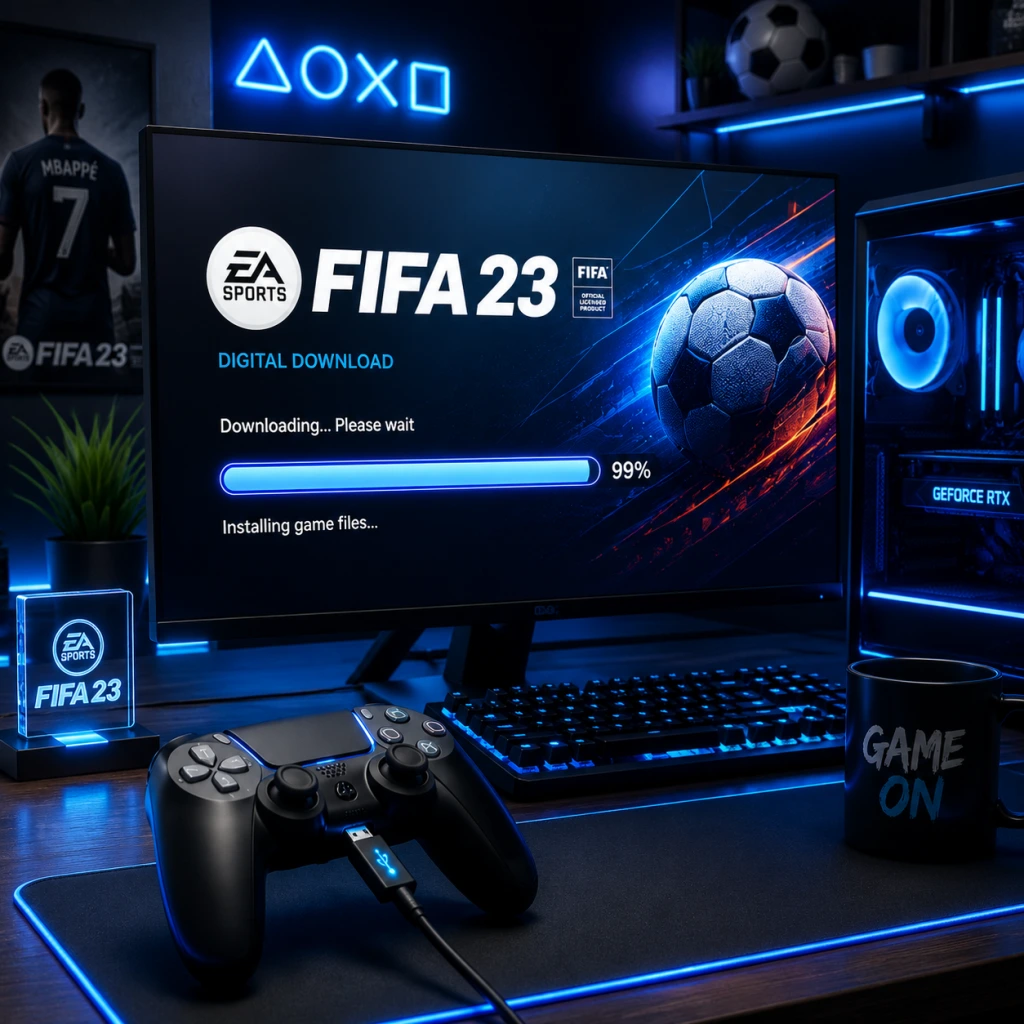
Download & Installation
FIFA 23 Download & Installation Guide
This guide covers legitimate download and installation methods for FIFA 23 on PC (Steam, Epic Games Store, EA app), PlayStation 4, PlayStation 5, Xbox One, Xbox Series X|S, and Nintendo Switch. The game is no longer available for purchase on Stadia as the service was discontinued.
---
Platform-Specific Download Sources
| Platform | Official Store | Notes |
|---|---|---|
| PC | EA app (originally Origin), Steam, Epic Games Store | Purchase from any, but all require the EA app to launch. Steam/Epic versions still need EA account and app. |
| PlayStation 4/5 | PlayStation Store | Digital purchase and download. Disc version requires disc insertion. |
| **Xbox One / Series X | S** | Microsoft Store |
| Nintendo Switch | Nintendo eShop | Only Legacy Edition (no HyperMotion, reduced features). |
---
System Requirements (PC)
Minimum Requirements
- OS: Windows 10 64-bit
- CPU: Intel Core i3-6100 or AMD Athlon X4 880K
- RAM: 8 GB
- GPU: NVIDIA GeForce GTX 660 2GB or AMD Radeon HD 7850 2GB
- DirectX: Version 12
- Storage: 100 GB available space
- Internet: Broadband connection (for online features and installation)
- OS: Windows 10 64-bit
- CPU: Intel Core i5-10400F or AMD Ryzen 5 2600
- GPU: NVIDIA GeForce GTX 1660 or AMD Radeon RX 5600 XT
- RAM: 12 GB
- Storage: 100 GB SSD (significantly improves loading times)
- DirectX: Version 12
- Internet: Broadband connection
- PC/PlayStation/Xbox: An EA account is required to play online and access Ultimate Team, Volta, and other connected modes. You can create one for free at [signup.ea.com](https://signup.ea.com).
- Nintendo Switch: An EA account is not required for offline modes, but online features (if available due to Legacy limitations) require an EA account and a Nintendo Switch Online subscription.
- All platforms: Online multiplayer on consoles requires a subscription to the respective service (PlayStation Plus, Xbox Game Pass Core/Ultimate, Nintendo Switch Online).
Recommended Requirements
> Note: Laptop GPUs may perform differently. Ensure your system meets at least the minimum requirements before purchasing.
---
Step-by-Step Installation
PC (Steam / Epic Games Store / EA app)
1. Create an EA Account (if you don’t have one) at [help.ea.com](https://help.ea.com).
2. Purchase the game from your chosen store (Steam, Epic, or EA app).
3. Install the required client:
- If purchased on Steam: Steam will install automatically. But when you launch the game, it will prompt you to install the EA app (if not already installed). Follow the on-screen instructions to download and install the EA app.
- If purchased on Epic Games Store: Epic will download the game files, but the EA app is still required to run the game. The EA app will be installed automatically during the first launch.
- If purchased on EA app: Simply download and install the EA app, sign in, and download FIFA 23.
4. Download the game:
- In Steam/Epic/EA app, go to your Library, locate FIFA 23, and click Install. The total download size is approximately 100 GB.
- Choose your installation directory (ensure at least 100 GB free). An SSD is highly recommended.
5. Launch the game:
- After download completes, click Play in the client. The EA app will open or authenticate. You may need to sign in with your EA account.
- The game will perform a one-time setup (may take a few minutes).
6. Post-install updates: FIFA 23 receives title updates (patches). Ensure your client is set to automatically update games.
PlayStation 4 & PlayStation 5
1. Purchase the game from PlayStation Store (digital) or insert the disc.
2. For digital version:
- Go to the PlayStation Store on your console.
- Search for "FIFA 23" and select it.
- Choose Download. The game will begin downloading to your console.
- Storage: PS4 requires ~50 GB, PS5 requires ~100 GB (due to higher quality assets). Ensure enough free space.
3. For disc version:
- Insert the disc. The console will recognize it and prompt you to install.
- Follow on-screen instructions. The installation may require downloading a large day-one patch (if not already applied).
4. First launch: The game will install any necessary updates and then start. You may need to sign in to your EA account (or create one) for online features.
Xbox One & Xbox Series X|S
1. Purchase via Microsoft Store (digital) or insert the disc.
2. Digital:
- Press the Xbox button to open the guide, go to Store.
- Search for "FIFA 23", select, and choose Install.
- The console will download and install the game. Smart Delivery ensures you get the best version for your console (Xbox Series X|S gets enhanced version).
- Storage requirement: ~100 GB.
3. Disc:
- Insert the disc. The console will automatically install the game from the disc and then download any required updates.
4. First launch: The game will check for updates. You may need to sign in with an EA account.
Nintendo Switch
1. Purchase from Nintendo eShop (digital) or insert the game card.
2. Digital:
- On the Switch Home menu, select the eShop icon.
- Search for "FIFA 23" (Legacy Edition).
- Download size is approximately 13 GB. Ensure you have a microSD card with enough free space if internal storage is limited.
3. Game card:
- Insert the game card into the Switch. The icon will appear on the Home menu.
- A small update may be required (typically less than 1 GB).
4. First launch: The game will start without an obligatory EA account, but online modes require a Nintendo Switch Online subscription and an EA account.
---
Account Requirements
---
First Launch Setup
1. Language and Region: Select your preferred language and region. This can be changed later in settings.
2. EA Account Sign-In: When prompted, sign in with your EA account or create one. This step is necessary for online features and cloud saves (if supported).
3. Settings Configuration:
- Adjust display settings (resolution, refresh rate, HDR if supported).
- Audio settings (commentary language, volume).
- Controller settings (if playing with keyboard/mouse on PC, adjust controls).
4. Tutorial: The game may offer a brief tutorial. You can skip this.
5. Online Setup:
- For Ultimate Team, you’ll need to create a club and squad.
- For Volta, select your character appearance.
6. Download Updates: If a new title update is available, the game will prompt you to download it. It’s recommended to do so.
---
Common Installation Errors & Fixes
| Error | Possible Cause | Fix |
|---|---|---|
| "DirectX Error" on PC | Missing or outdated DirectX redistributable. | Install the latest DirectX from Microsoft’s website. Also update your GPU drivers. |
| "EA app not responding" | EA app crash or corruption. | Restart the EA app. If persist, reinstall the EA app from [ea.com/ea-app](https://www.ea.com/ea-app). |
| "Cannot connect to server" on console | Network issue, EA server down. | Check [ea.com/service-updates](https://ea.com/service-updates). Test network connection on console, restart router. |
| "Insufficient storage space" | Not enough free space on drive. | Free up space by deleting unused games or moving data to an external drive. PC: check drive capacity. |
| "Installation stuck at XX%" on Steam | Corrupted download cache. | In Steam Settings > Downloads > Clear Download Cache. Then restart download. |
| "Disc read error" on Xbox/PlayStation | Dirty or scratched disc (disc version). | Clean the disc with a soft cloth. If still failing, consider digital download. |
| "Failed to install update" | Internet interruption or server problem. | Try again later or restart the console/PC. Ensure stable internet connection. |
Post-Installation Verification
After installation, do the following to ensure the game is working correctly:
1. Launch the game without errors.
2. Check main menu: All modes (Kick-Off, Career Mode, Ultimate Team, Volta, etc.) should be accessible.
3. Test a match: Start an offline exhibition match. Verify controls, graphics, and audio.
4. Connect online: Enter Ultimate Team or another online mode to confirm connectivity with EA servers.
5. Verify file integrity (PC only):
- Steam: Right-click FIFA 23 in Library > Properties > Local Files > Verify Integrity of Game Files.
- Epic: Click the three dots next to the game > Manage > Verify.
- EA app: Click the game tile > Manage > Repair.
6. Check for updates: Ensure the latest title update is installed. On console, go to game tile > Options > Check for Updates.
7. Performance check: If you experience stuttering or low FPS on PC, tweak graphics settings (lower resolution, turn off ray tracing, etc.).
---
Final Notes
- Uninstalling: Use the respective platform’s uninstall method (Control Panel on PC, console storage management).
- Storage management: FIFA 23 is large. On PC, you can delete the installation files after uninstalling. On consoles, ensure you have enough free space for future updates.
- EA Play / Game Pass: If you have EA Play (PC) or EA Play with Game Pass (Xbox), you can install and play FIFA 23 as part of the subscription (if still available in the catalog).
For further help, visit [EA Help](https://help.ea.com) or your platform’s support page.